

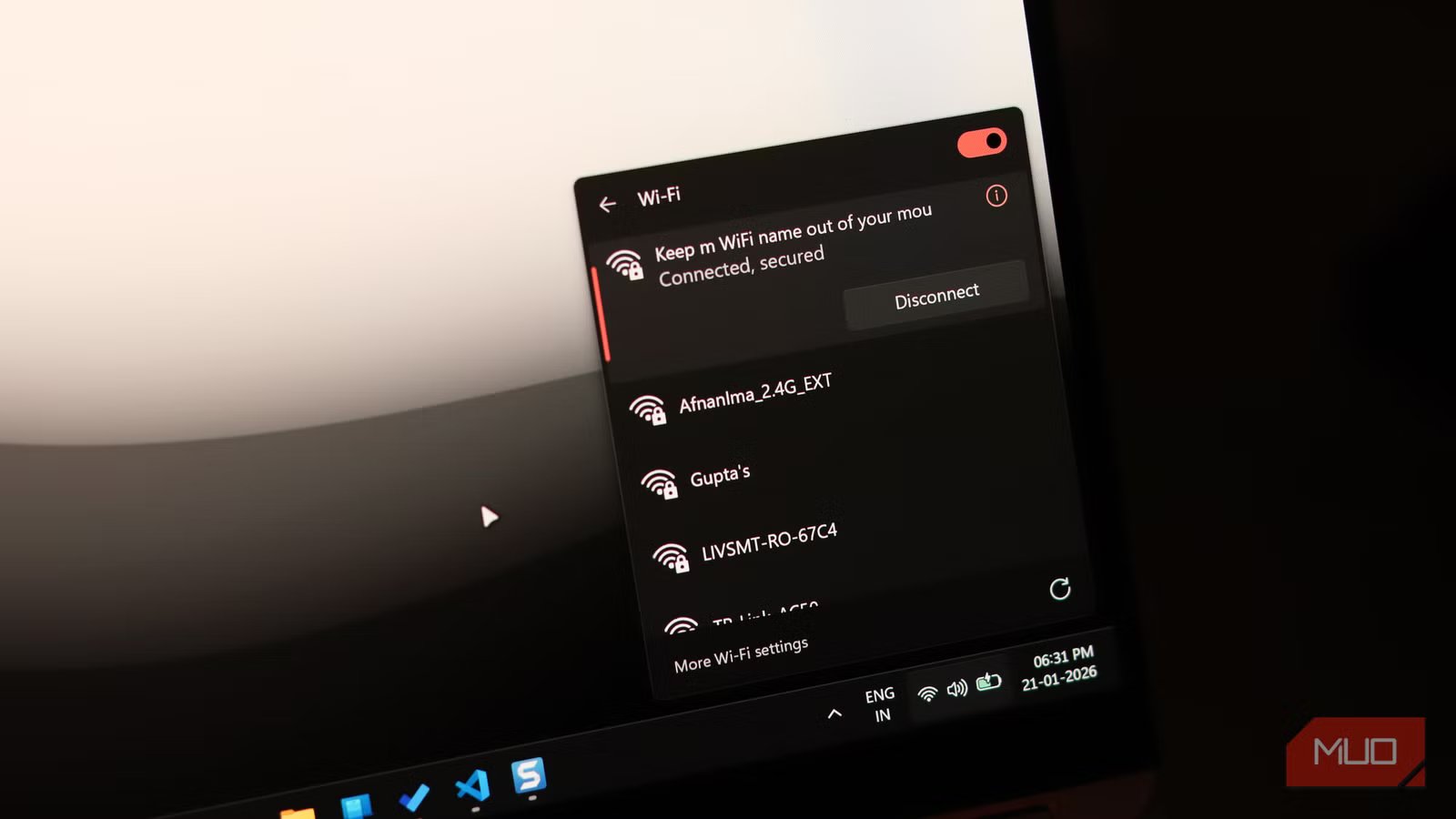
There’s a special kind of irritation that comes with painfully slow Wi-Fi. When pages take forever to load and videos buffer at the worst possible moment, patience runs thin very quickly. I ran into the same problem at home not long ago, and it didn’t take long before everyone felt equally fed up and unsure where to begin fixing it.
Instead of giving up, I experimented with a few adjustments to see what might improve things. Eventually, one of those tweaks actually worked for me. That said, home networks vary, and what solved my issue may not deliver identical results in another setup. With that in mind, I’m laying out everything I tried so you can test these options yourself and see which one actually makes a difference in your situation.
Related
My Wi-Fi Drops Every Hour: Here’s What Finally Fixed It
Random Wi-Fi outages absolutely suck—so take some steps to resolve the problem.
Start with a quick Wi-Fi speed test
A tiny test before the big blame game begins
Credit: Shimul Sood / MakeUseOf
Running a Wi-Fi speed test is one of the quickest ways to figure out what’s going on with your internet connection. It’s a practical first step before blaming your router, your laptop or the universe. A speed test gives you a clear snapshot of how your network is performing by measuring download speed (how fast content reaches you), upload speed (how quickly you send data out), and latency (the delay in communication).
Together, these numbers tell you whether your connection is actually delivering the performance you’re paying for or is underperforming in the background. Personally, I tend to rely on fast.com. It’s pretty easy to use, loads instantly, and usually provides a dependable read at real-world speeds.
Rebooting a router can clear minor hiccups
The classic “turn it off and on again” magic
Amir Bohlooli / MUO
We’re all used to reviving sluggish gadgets by turning them off, waiting a few seconds, and powering them back on. The same logic applies to your router. Network slowdowns and random dropouts often stem from minor glitches, such as memory buildup, temporary connection conflicts, or background processes getting stuck. Restarting the router refreshes its internal processes and establishes a clean connection to your internet service.
If things start acting up, switch the router off completely and leave it powered down for about 30 seconds. This short pause helps ensure it resets properly instead of slipping into standby. Turn it back on and give it a moment to reconnect. In many cases, your internet should stabilize without further troubleshooting. It’s definitely worth trying before going on to complicated fixes.
Check that your Wi-Fi isn’t overcrowded
Time to evict the silent freeloaders
Screenshot by Yasir Mahmood
It’s easy to overlook how many devices stay connected to your home network. Between phones, tablets, laptops, smart TVs, and the occasional gadget left idling with Wi-Fi switched on, bandwidth can get divided faster than you realize. Even when you’re not actively using them, these connections can still consume resources in the background. A simple habit that helps is turning off Wi-Fi on devices you aren’t using, or disconnecting them altogether to free up capacity for the ones that matter.
That said, congestion isn’t always limited to your own devices. If your network security isn’t tight, others nearby could be piggybacking on your connection, which further eats into your available speed. This free tool can give you a quick overview of all devices currently linked to your Wi-Fi, making it easier to spot the suspect. Updating your password and securing access should be your next step to keep the internet connection to yourself.
Change your Wi-Fi frequency band
Finding the sweet spot in the airwaves
Tashreef Shareef / MakeUseOfCredit: Tashreef Shareef / MakeUseOf
Adjusting the Wi-Fi band your device connects to can sometimes make a difference in signal quality. Most modern routers broadcast on two common frequency bands, each suited to different situations. The 5GHz band prioritizes speed and lower interference, but its coverage area is relatively limited, and walls tend to weaken the signal more quickly. The 2.4GHz band, on the other hand, travels farther and penetrates obstacles better, though it generally delivers slower peak speeds.
Choosing between them depends on where you are in relation to the router. If you’re nearby and want faster performance, connecting to the higher-frequency band usually works best. When you move farther away or encounter thick walls, shifting to the lower frequency option can provide a steadier link. Being mindful can help maintain a more reliable connection.
It may be time to move to a mesh Wi-Fi system
Let your Wi-Fi roam freely
Credit: Jowi Morales/MUO
A mesh Wi-Fi setup takes a different approach from traditional routers by spreading connectivity across multiple units placed around your space. Instead of relying on a single access point, these units communicate with each other to blanket the entire area with a consistent signal. The result is more stable coverage, better speeds in distant rooms, and far fewer weak spots. Everything runs under one network name and password, so your devices automatically connect to whichever unit offers the strongest signal as you move around.
To give you a fair idea about this, here’s how you can get started. Systems such as Google Nest Wi-Fi typically involve connecting the primary unit to your modem, then positioning additional nodes in different areas to extend coverage. Once powered and configured, they collectively form a unified network designed to handle larger layouts. This approach is particularly useful for multi-room homes, bigger apartments, or office environments where a single router struggles to reach every corner. Upgrading to a mesh network can significantly reduce, and often eliminate, those frustrating dead zones that hamper your connection.
Related
This Is How I Fixed My Spotty Wi-Fi Without Buying New Gear
You don’t need to shell out for a new Wi-Fi router straight away.
Life’s too short for spinning wheels
Dealing with sluggish Wi-Fi can test anyone’s patience, and it’s a situation most of us have run into more than once. These are the same steps I’ve relied on when my connection starts dragging, and they’ve consistently helped bring things back under control. Working through them doesn’t require much effort, but it can definitely improve stability and performance. In many cases, a connection that feels unreliable or painfully slow can become far more responsive once these basics are addressed.
