

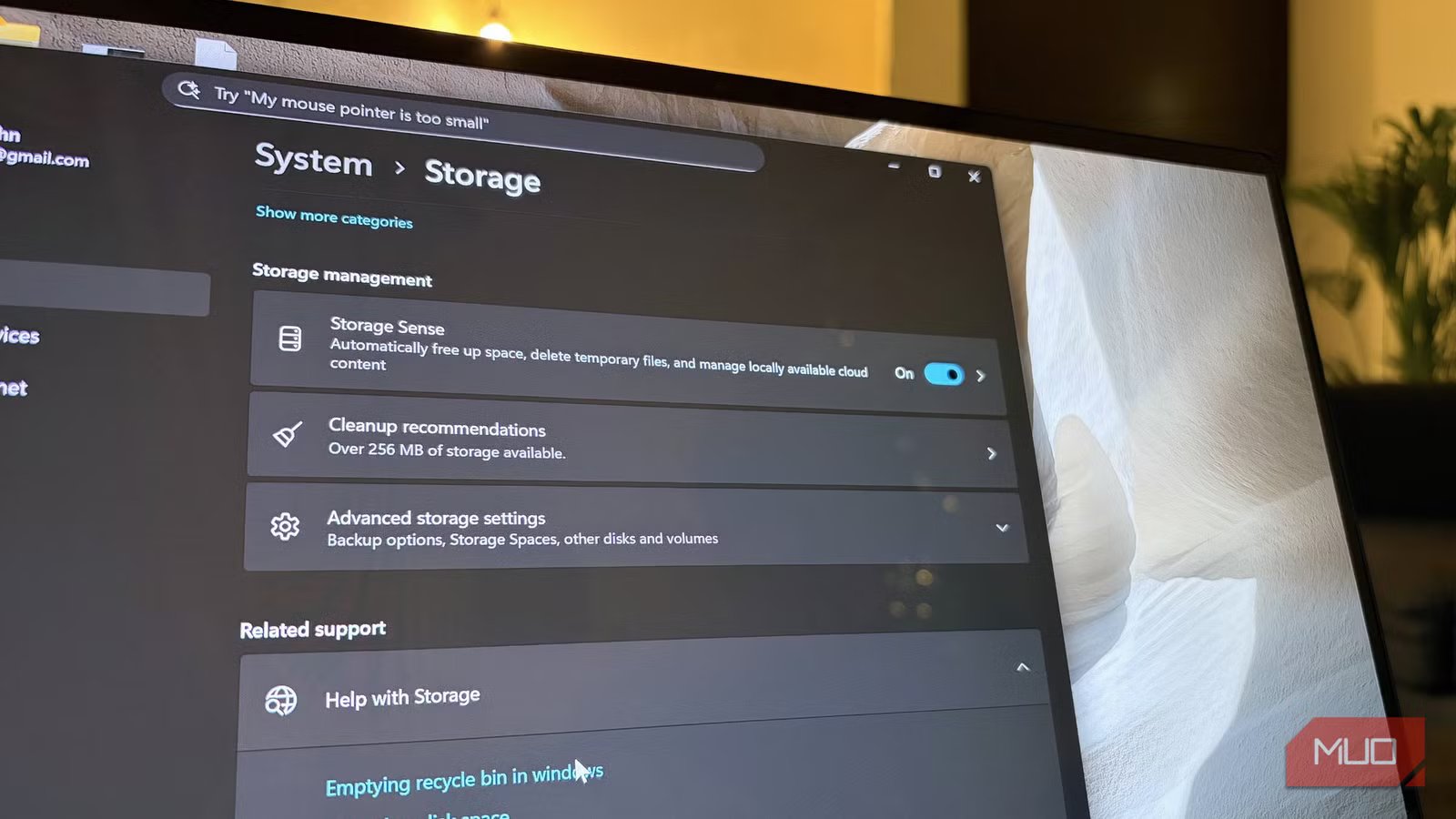
My Windows 11 machine used to constantly bug me with storage issues, and no matter what I tried, I always felt like I was running out of space. After going through many settings, I discovered some hidden cleanup tools that made a lot of difference for me. Now, those frustrating “storage is full” warnings are gone, and the laptop runs smoothly without slowing down like it actually was. All in all, my laptop feels faster, lighter, and way more responsive.
Related
I ran one Disk Cleanup command and recovered 20GB of Windows Update files I didn’t know were there
Quickest 20GB I’ve recovered on my PC.
A quick disk clean can solve a lot of issues
Clear it out and speed things up
Credit: Shimul Sood / MakeUseOf
Cleaning up your disk on Windows 11 is one of the simplest ways to free up storage and get rid of unnecessary files that are hogging space. Beyond reclaiming storage, it can also make your system feel snappier and more responsive. In my case, my laptop wasn’t just running low on space; it had become sluggish, almost as if it was carrying too much weight. Running a disk cleanup helped ease that load and gave the system some breathing room. Here’s how you can do it:
- Type Disk Cleanup in the search bar on your taskbar.
- Press Enter to open the app.
- Look for the Cleanup system files button and click it.
- Windows will automatically select files that can be safely deleted, but take a moment to review the list before hitting Delete.
- For extra cleanup, go to the More Options tab. You’ll find additional files that can be removed to free up even more space. Review and remove what you feel comfortable deleting.
Credit: Shimul Sood / MakeUseOf
Every Windows laptop and PC handles storage differently, so the amount of space you free up may vary. For me, it wasn’t huge, but for you, it could be a significant chunk. Even a small cleanup is better than letting unnecessary files pile up, so it’s always worth doing.
You can save time by enabling this option
Storage Sense will do the dirty work for you
Credit: Shimul Sood / MakeUseOf
If you’d rather not deal with manual cleanup, Storage Sense in Windows 11 can handle it automatically. This handy feature removes temporary files, empties the Recycle Bin, and clears your download folder according to a schedule you set. Enabling it gives you consistent system performance without having to intervene every time, plus helpful recommendations for removing large or unused files.
What’s really convenient is that you control when Storage Sense runs. You can choose to have it cleaned up daily, weekly, or monthly, depending on your needs. It also lets you decide whether your Recycle Bin or Downloads folder is automatically deleted. You can fine-tune everything exactly how you want, giving you a fully automated cleanup routine. Here’s how to set it up:
- Open the Settings app on your Windows PC.
- Go to System.
- Scroll down and select Storage.
- Under Storage Management, turn on Storage Sense.
- Click on Storage Sense to customize your cleanup schedule and preferences.
Once configured, Storage Sense works in the background, keeping your system tidy, responsive, and free of unnecessary clutter.
See what’s eating up your storage
Hunt down the space hogs and reclaim your storage
Credit: Shimul Sood / MakeUseOf
While adjusting settings can help, it’s equally important to see exactly what’s taking up space on your computer. Open the Storage tab in the Settings app and check Storage Usage. Here, Windows breaks down how your storage is used, showing categories like Installed apps, System & reserved, Desktop, and other items, along with the space each consumes.
This overview helps you pinpoint the real issues. For me, it meant uninstalling apps I rarely use and tidying up my desktop. It’s also a good opportunity to go through your Downloads folder and remove large, forgotten files. Take a careful look at everything and delete what you no longer need. It’s a very simple way to free up a surprising amount of space and keep your system running smoothly.
These cleanup recommendations will save the day
Sweep out the old files
Credit: Shimul Sood / MakeUseOf
The cleanup recommendations section on your Windows 11 PC is a handy guide for identifying files that aren’t in use and can be safely removed. It breaks down exactly what can be cleaned up and explains why deleting each item helps free up space. This includes items like your Downloads folder, large or unused files, cloud-synced files, and apps you haven’t used in a while.
To use it, open the Storage tab in your Settings app and navigate to Cleanup Recommendations. Take a careful look at what Windows suggests, decide which items you no longer need, and remove them. Going through this process regularly can free up a surprising amount of storage and keep your system running smoothly.
Related
My Windows 11 Hasn’t Slowed Down Once Because I Follow These 7 Proven Steps
A little care goes a long way in keeping your PC smooth.
A breath of fresh storage
These built-in cleanup tools really improved my Windows 11 experience. So, if your PC is starting to feel sluggish or storage space is mysteriously vanishing like mine, these tools will do what is required for you without you having to download any third-party apps. The tools help you understand what’s hogging space from forgotten downloaded files to rarely used apps, so you can clear it out after going through it once.
I highly recommend making this a regular habit. By tidying up your storage on a schedule, you’ll stay in the loop about what’s taking up room and nip potential storage headaches in the bud, keeping your PC running smoothly and happily.
