

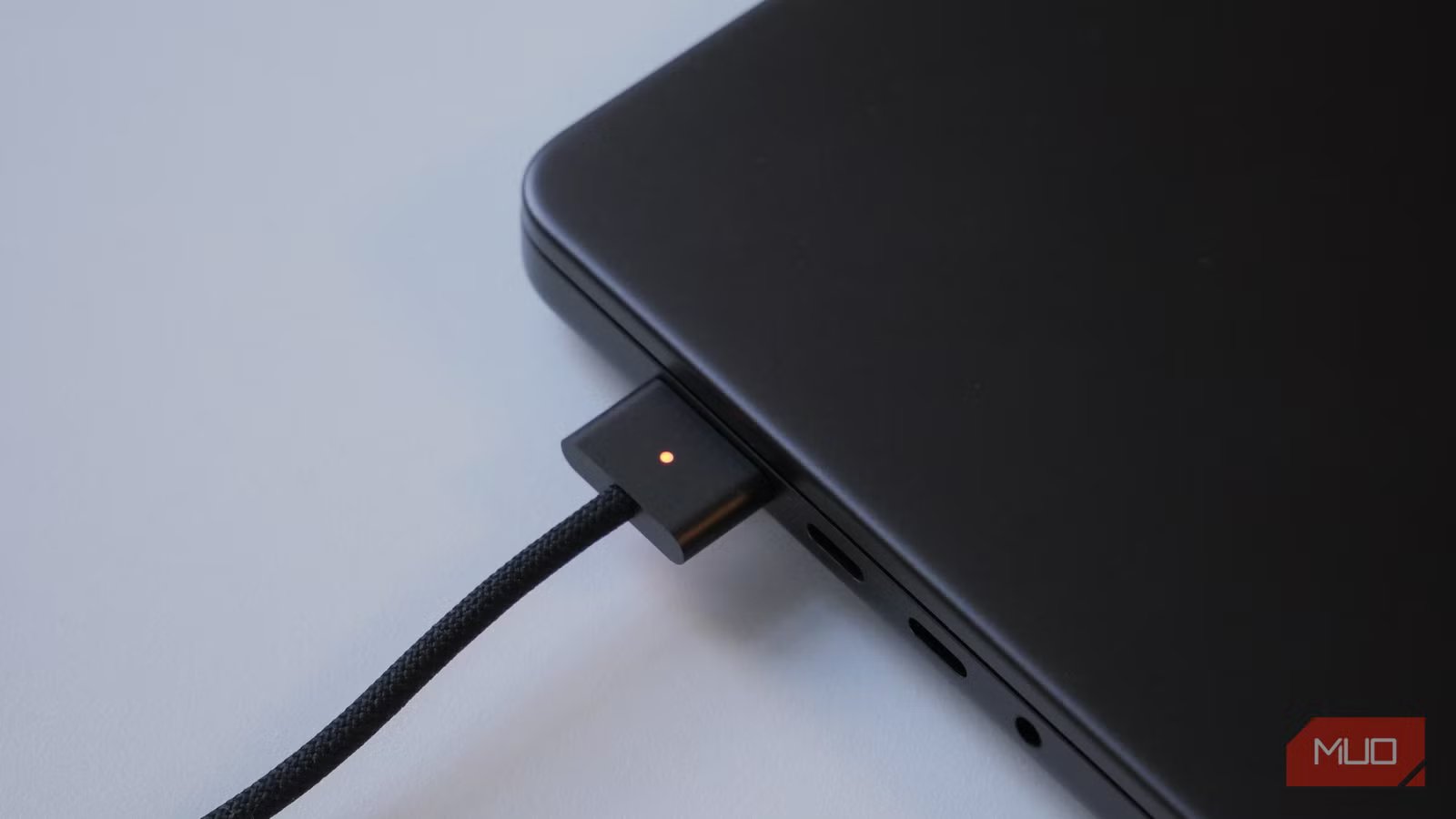
There’s a little thrill in seeing 100% glowing in the corner of your laptop screen. It feels like topping off the tank before a long drive or walking into the week with a perfectly clean desk. Older nickel-cadmium batteries led us to believe that reaching full charge was not just good but necessary. That idea stuck. The problem is that, with lithium-ion batteries, a pristine 100% charge actually puts the system under the most strain. This is one of the many reasons people wonder if it is bad to keep your laptop plugged in all the time.
It helps to stop thinking of your battery as a passive container and start seeing it as a living chemical process. It inhales and exhales energy. And just like a runner can’t sprint at full tilt forever without breaking down, your laptop battery lasts longest when it’s kept at around 80% at maximum.
You should really keep your charge level in the sweet spot
Yes, it reduces the microscopic stress that wears down your battery over time
To really understand why that last push to 100% is a bit of a danger zone for battery health, you have to zoom in and look at what’s happening inside the cells themselves. Lithium-ion batteries work by shuttling lithium ions back and forth between two electrodes, the anode and the cathode. When you charge all the way to 100%, you’re basically cramming almost every one of those ions onto one side of the battery. That imbalance creates high voltage and internal crowding, placing sustained stress on its chemical structure.
A simple way to picture this is with a balloon. Fill it halfway, and the rubber stays thick and elastic, able to stretch and relax thousands of times without complaint. Inflate it until it is taut and translucent, and the material starts to lose its resilience. Over time, it weakens and can no longer hold the same volume. Batteries behave in much the same way. Prolonged exposure to the maximum voltage is one of the bad habits that is destroying your laptop’s battery, as it accelerates electrolyte breakdown and promotes the formation of microscopic deposits on the electrodes, which gradually impede the smooth flow of energy.
This used to matter less because devices rarely lasted long enough for battery wear to dictate an upgrade. Today, a high-end laptop is often a five- to seven-year commitment. Research consistently shows that while a battery may survive only 300 to 500 full charge cycles, it can endure well over 1,000 to 2,000 partial cycles when kept between roughly 40 and 80 percent. By avoiding the final full charge, you are actively preserving the battery’s physical health for the long haul.
Most laptops already have settings to cap charging at around 80%
You don’t need any voodoo tricks
The good news is that you don’t have to sit by your outlet with a stopwatch, waiting to pull the plug at exactly 80%. Fortunately, laptop manufacturers have recognized this issue and now include settings designed to preserve battery health. You can often limit your laptop’s battery charge to a specific threshold using proprietary software such as Lenovo Vantage, MyASUS, or Dell Power Manager. Here’s how to enable this feature across the major laptop brands.
Brand
Software/Location
How to Enable the 80% Cap
Apple (Mac)
System Settings -> Battery
Enable Optimized Battery Charging. On newer Silicon Macs, it will learn to hold at 80% if you stay plugged in.
Dell
Dell Power Manager
Go to Battery Information -> Settings and choose Primarily AC Use or Custom (set stop at 80%).
Lenovo
Lenovo Vantage
Navigate to Device -> Power and turn on Conservation Mode. This stops the charge at exactly 80%.
HP
BIOS / HP Power Manager
Restart, hit F10 for BIOS. Under Advanced -> Power Management Options, set Battery Health Manager to Maximize My Battery Health.
ASUS
MyASUS App
Go to Device Settings (or Customization in some versions) > Power & Performance. Toggle on Battery Care Mode (or Balanced Mode in other versions).
Microsoft Surface
Surface App
Open the app, expand Smart Charging, and ensure it is toggled On to cap at 80%.
Acer
AcerSense / Care Center
Open AcerSense -> Personal Settings -> Battery & USB Charging and toggle Optimized Battery Charging to On.
MSI
Dragon Center app
Go to System Diagnosis -> Battery Master and select Balanced (stops at 80%).
If your laptop does not offer built-in battery charge limits, which is common on older consumer models, your options narrow considerably. There are third-party apps that promise battery management, but results can be hit or miss, and they’re worth approaching with a bit of skepticism. After all, you’re giving software permission to poke around at some fairly low-level hardware behavior.
Once you do have a limit in place, though, the day-to-day part is straightforward. Just use your laptop like you normally would. And when you know you’ll need every last drop of battery — say, for travel or a long stretch away from an outlet — you can flip charging back to 100% from the same settings menu. It’s one of the simplest charging habits that will prolong your laptop’s battery life without requiring you to change how you work.
Related
How to Care for Your Non-Removable Laptop Battery
Follow these top tips to ensure that the non-removable battery in your laptop lasts as long as possible.
A long-lived laptop is the ultimate flex
If that missing 20% keeps nagging at you, it helps to zoom out and think long-term. Is squeezing out an extra hour of battery life today really worth losing two hours of total capacity a couple of years down the line? For me, who spends my days within arm’s reach of an outlet, the answer is pretty clearly no.
Setting a charge limit is really just choosing the version of your laptop that ages more gracefully. It’s a small mindset shift. Stop treating 100% as the finish line and start thinking of 80% as “full” for everyday use. That last 20% becomes your emergency fund—saved for long flights, marathon workdays, or those times when the power situation is truly out of your control.
