

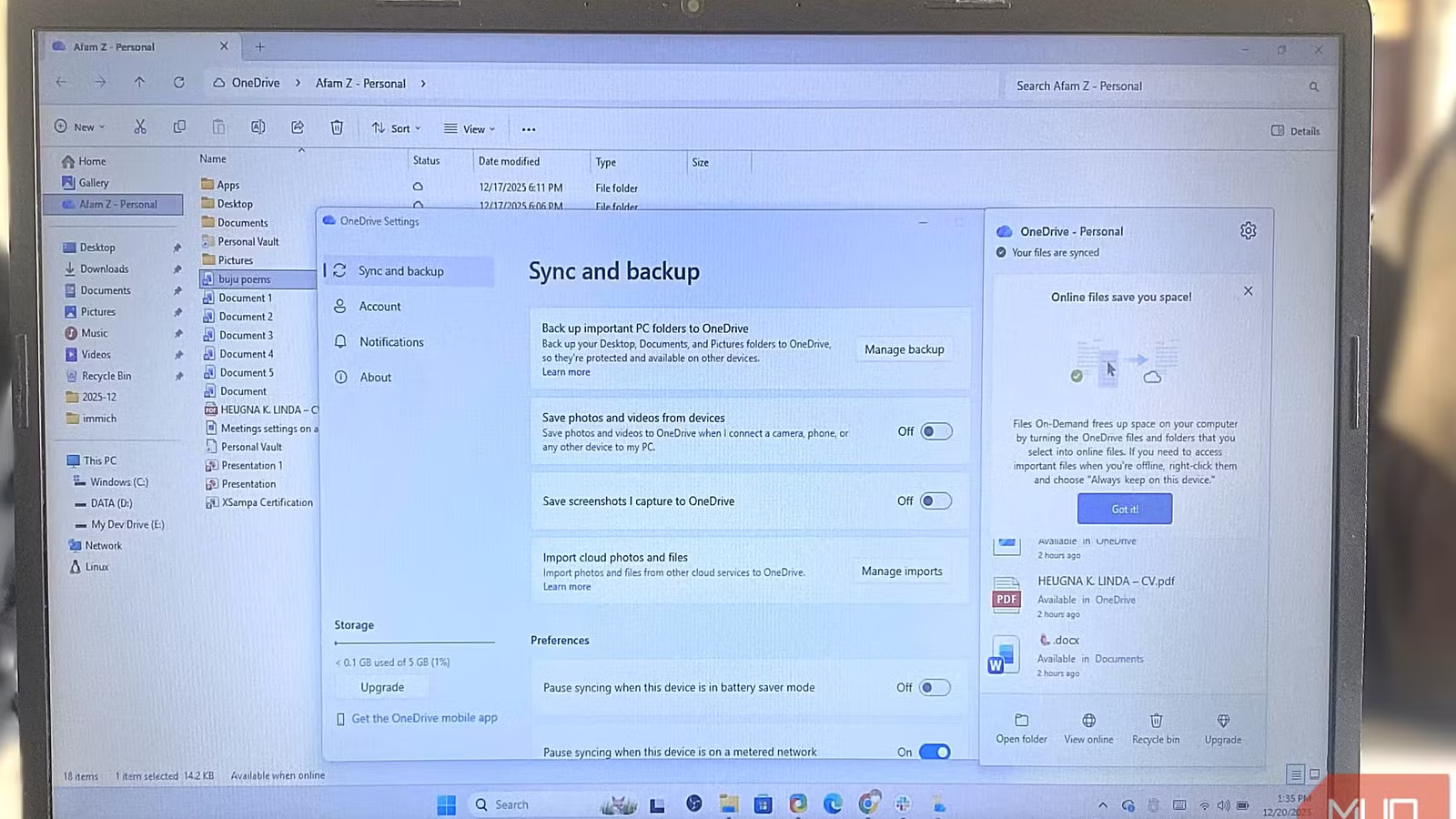
It’s well documented how much I avoid using OneDrive. Syncing my entire desktop with OneDrive led to accidental deletions across devices, and it was the first time I wished I hadn’t used the service. But there are several other annoyances, and if you don’t set up everything properly, it’s only a matter of time before you run into one of them.
I took the time to study all possible configuration options, and I realized the problem wasn’t actually OneDrive itself, but the default options that Microsoft had established. I learned to set it up so that it’s predictable, lightweight, and genuinely useful.
Stop OneDrive from taking over your Desktop and Documents
The first change I make after every Windows install
You may have no plans to upload certain screenshots, downloads, and random files. But if you notice that, out of the blue, your Desktop is syncing them, the first suspect is OneDrive’s PC Folder Backup. Because Windows redirects Desktop, Documents, and Pictures into OneDrive, they may get automatically synced to the cloud. This was one of the reasons why I initially switched to a OneDrive alternative.
This is the configuration that fixes it for me:
- Click OneDrive’s taskbar cloud icon, then click the settings gear and select Settings.
- Under Sync and backup, click Manage backup.
- Toggle off backup for the folders that must not be synced.
After disabling sync, already synced files will remain in OneDrive. If Windows displays a “Where are my files?” shortcut that points to the cloud copy, you can drag the synced files back to save them locally. Delete the cloud copy to avoid duplicates.
To avoid accidental uploads, the moment I set up OneDrive, I toggle off backup for all folders that I want to remain local. It saves me the stress of cleaning up syncs after it’s already happened.
Fix the confusing “where is my file actually stored” problem
Understand the three OneDrive file states
Afam Onymadu / MUO
The way OneDrive manages storage may be a bit confusing. But if you hope to avoid accidental loss and unnecessary frustration, you must understand it. This is even more important on a small SSD, where you must avoid downloading unwanted files while ensuring needed files are available offline. There are small icons in File Explorer representing the file state.
Icon
State
What it means
Uses disk space
Works offline
Blue cloud outline
Cloud-only
Placeholder only—no local copy exists
No
No
Green circle, white checkmark
Locally available
Downloaded but not pinned—Windows can remove it
Yes
Yes, until removed
Solid green circle, white checkmark
Always available
Pinned locally, never auto-removed
Yes
Always
One of the most important setup decisions is which folders you need offline access to. For those folders, right-click and select Always keep on this device. The rest will remain in the cloud without costing you any disk space. You can right-click and select Free up space for folders already downloaded that you no longer need locally.
If Storage Sense is enabled on Windows, the computer may purge your locally downloaded files if they haven’t been used in a while. This makes them cloud-only, but files you’ve pinned will not be affected.
Stop OneDrive from consuming your internet bandwidth
Adjust sync limits so uploads don’t hijack your internet
Afam Onyimadu / MUO
My internet connection slowed to a crawl during a video call. When I investigated, I realized that Microsoft OneDrive was uploading in the background. It caused other internet-dependent tasks to lag. This is the setup that fixes it:
- Click OneDrive’s taskbar cloud icon, then click the settings gear and select Settings.
- Under Sync and backup, expand Advanced settings.
- Toggle on Limit download rate and Limit upload rate.
You can also expand these options and manually set a rate for uploads and downloads, but in my experience, toggling it on and allowing Windows to handle the rate automatically has worked more efficiently.
On slow networks, the smarter option may be to click Pause syncing from the tray icon and select 2, 8, or 24 hours.
Prevent the duplicate files that make OneDrive feel unreliable
Avoid the dreaded “conflicted copy” problem
Afam Onyimadu / MUO
OneDrive tries to prevent accidental overwrites. This is why, when you open a folder, you may find a file with a name similar to “filename-PCNAME-conflicted copy,” “filename (1).docx,” or “filename-Device Name.docx.” It’s a situation that is triggered if the files have been edited on several machines or when offline edits are synced again.
To minimize these conflicts, here’s what you must do:
- Let OneDrive finish syncing before shutting down
- Avoid editing the same file on two devices simultaneously
The double versions of files are how OneDrive tries to protect your work. You may reduce the surface area for conflicts by syncing fewer folders.
The OneDrive setup I actually use now
Once you tame OneDrive’s erratic behavior, it becomes clear that a major mistake people make while using OneDrive is trying to sync everything. The structure below helps keep OneDrive organized and predictable:
OneDrive
├ Active Projects (pinned offline)
├ Cross-device files (lightly synced)
├ Shared (for collaboration)
└ Archive (cloud-only)
You can find the structure in File Explorer under the OneDrive section. But I also avoid including the following elements in OneDrive:
Avoid syncing
Why
.git folders
Thousands of rapid changes, unnecessary syncs
Build folders
Frequent rewrites trigger uploads
App data folders
Can corrupt applications
Large video assets
Slow uploads, frequent retries
Despite my setup, there are still some OneDrive limitations: OneDrive enforces a 300,000-file sync limit per library and still doesn’t handle large binary files as well as Dropbox. But what I get is a controlled workspace for everyday use. So maybe before you ditch OneDrive for a different tool, you should try these tips.
Related
Differences Between Syncing and Backing Up Data You Must Know
Only one is a true safety net.
