

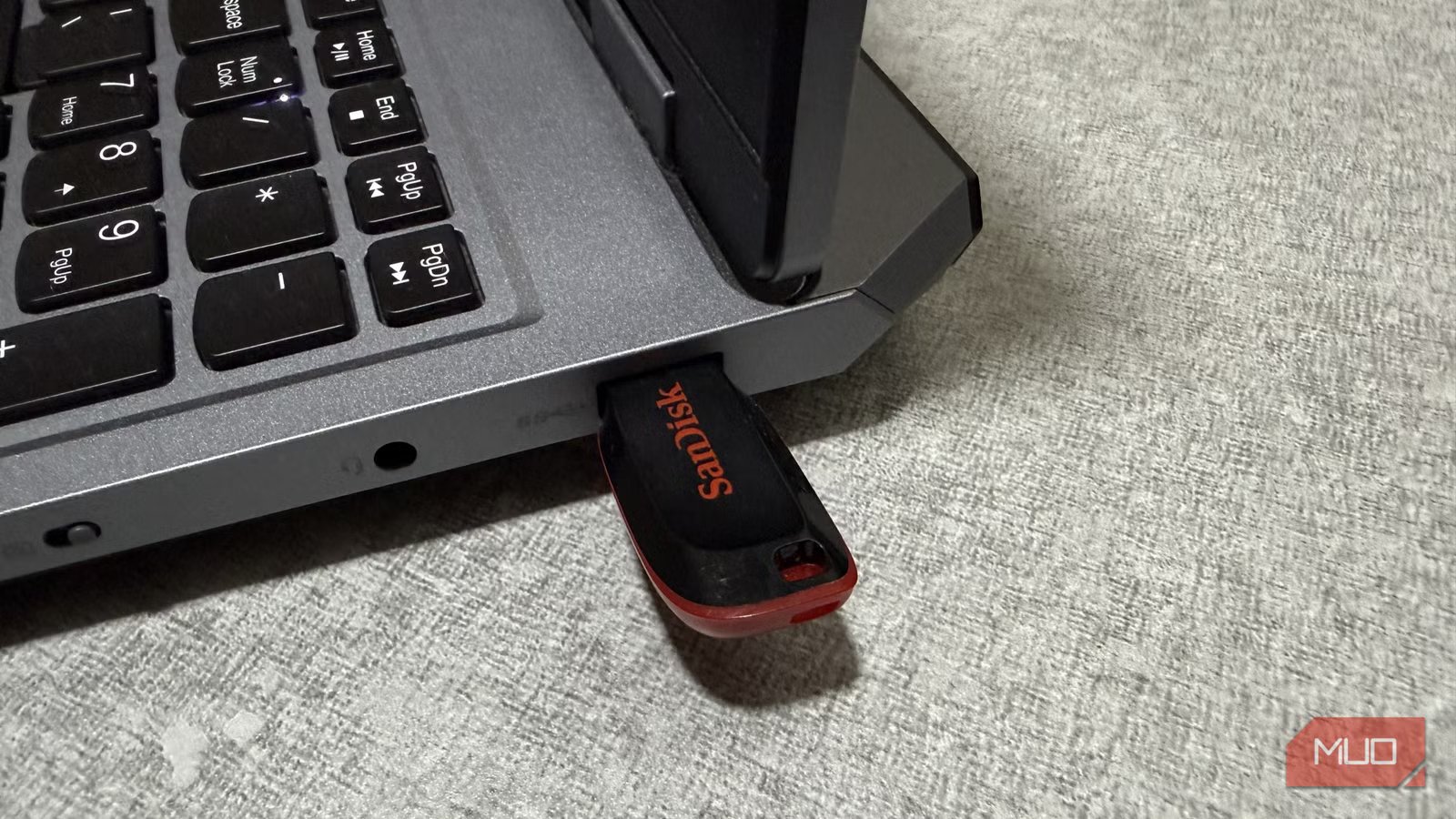
USB drives are great for storage, and you can use them on pretty much every device you have, including your phone, gaming console, TV, and even a digital camera. But storage is just a small part of what they’re capable of. On Windows, a USB drive can play a much bigger role in how you use your PC.
It can help lock and unlock your system, run apps without installing them, back up important files in the background, store encrypted passwords offline, or even boot an entirely different operating system. And the best thing is that all of these things are quite easy to do.
Lock or unlock PC with a USB drive
Login like a pro
Securing your Windows PC with a complex password sounds like a great idea, until you have to type it in manually over and over throughout the day. If you want something that’s faster and even more secure, you can turn a spare USB drive into a physical key for your PC.
The way it works is simple. When you plug in the USB drive, your PC stays unlocked. Pull it out, and Windows automatically locks itself. It’s basically like a car key, but for your PC.
You can use a tool like the USB Raptor to do this, and the process doesn’t take long. You just need to pair the USB drive with your user account and store a secure key on it. Of course, you can still use your normal password as a backup in case you lose the USB drive.
Carry portable apps wherever you go
Your favorite apps, without any setup
You don’t have to keep every app you might ever need installed on your PC. Most popular apps also offer a portable version that you can run from a USB drive without installing anything. This can be handy if you have multiple PCs or only use certain tools occasionally.
Setting it up is easy. You copy your favorite portable apps onto a USB drive, plug it into any PC, and launch them easily. I keep a handful of portable apps on my USB drive, like GIMP for quick image edits, HWiNFO64 for system checks, Revo Uninstaller for cleanup tasks, and TeamViewer for remote access.
You can even carry a portable browser with you. Both Chrome and Firefox offer a portable version. This way, you can carry your browser profile, complete with bookmarks, browsing history, passwords, and settings, wherever you go.
Run a portable OS
There are so many good ones worth trying
If you enjoy trying different operating systems beyond Windows, a USB drive is a perfect way to store them. Instead of installing a new OS on your main PC and risking conflicts, you can run it directly from a USB drive.
This works by creating a bootable USB drive that contains a full, self-contained OS. To do this, you need a tool like Rufus, which can turn an ISO file into a bootable USB in minutes. Once done, you can plug it into your PC any time and load it from the boot manager.
The biggest advantage here is freedom. You can try new platforms like Linux distributions, ChromeOS, and more, without buying new hardware. You can even use this bootable USB on PCs other than your own.
Besides, a portable OS is also great for troubleshooting. If your PC ever refuses to boot, starting from a USB-based OS can help you back up files, scan for issues, or fix problems from the outside.
Related
7 Surprising Devices That Work With Your Monitor’s USB Port
Did you know that your monitor and its USB port could be this useful?
Use a USB drive for automatic File History backups
Keep older versions with a few clicks
Windows includes a feature called File History that can automatically back up your documents, photos, desktop files, and other personal folders at regular intervals.
For this, you need to keep a USB drive plugged in, so Windows can keep older copies of files. This way, if you accidentally delete something, overwrite a file, or realize you need an older version, you can restore it easily. Since this feature keeps multiple versions of files, you can roll back changes made days or even weeks ago.
To do this, plug in your USB drive, and select it as the backup location in File History. As long as the drive is plugged in, Windows will automatically back up files inside the folders you specify, like Pictures, Videos, Documents, and more.
Carry an offline password manager securely
Store logins securely
Password managers are great, but if you want something that’s completely free, you can turn your USB drive into an offline password manager. KeePassXC is a free, open-source tool that can save all your logins in a single encrypted database file. Only your master password unlocks everything, and the file itself is useless to anyone without it.
You can keep both your password database and KeePassXC’s portable version on a USB drive. Since everything stays offline, you don’t have to worry about your passwords being leaked in an online breach.
This setup is especially handy if you prefer not to save your passwords in browsers and regularly switch between different computers.
That old USB drive sitting in your drawer probably deserves a second chance. On Windows, it can do much more with the right tools. These are just a few examples. A USB drive can also double as a Windows recovery drive, security toolkit, or a bootable tool for scanning and removing malware.
