

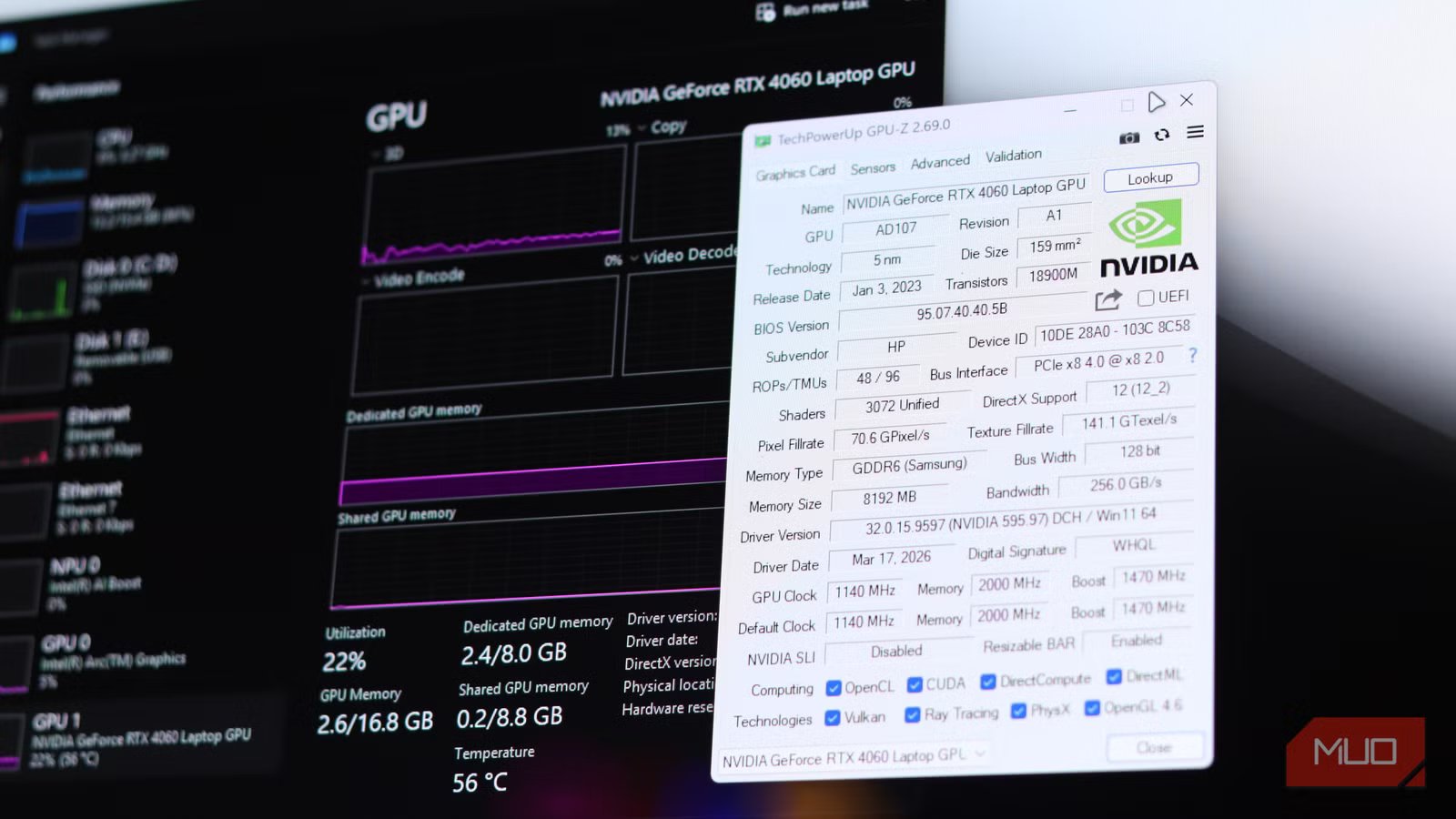
If you’ve ever watched your games or rendering processes struggle to run out of nowhere, despite Task Manager telling you your GPU is well below max capacity, you’ve been lied to. Windows Task Manager may be the go-to tool for a quick hardware usage check, but it rarely tells you the full picture, or even the correct picture for that matter.
And no, I’m not talking about you reading Task Manager’s memory page wrong. When it comes to VRAM, what Task Manager shows you and what’s actually going on can be significantly different. Thankfully, there’s a free tool that gets it right.
Related
I stopped using Task Manager once I found what Windows hides from it
I stopped relying on Task Manager after discovering the hidden Windows activity it ignores.
Task Manager isn’t telling the whole story
What those GPU memory numbers actually represent
Screenshot by Yadullah Abidi | No Attribution Required.
To be fair, Task Manager’s GPU figures aren’t a total lie, but they are quite limited be design as to not intimate casual users by throwing a bunch of random metrics their way. The Dedicated GPU memory figure you see under the Performance tab is pulled straight from VidMm, Windows’ built-in video memory manager. It shows the amount of physical VRAM currently in use by the OS, which is deliberately smaller than the actual consumption.
What you end up seeing is a cleaned-up calculation of what’s going on with your GPU memory, not the raw data your GPU driver is working with. With some Windows settings leaving GPU performance on the table, working with the wrong data can degrade performance further.
What it doesn’t show is how much VRAM has already been allocated. In other words, any VRAM reserved and held by programs even when they aren’t actually using it is excluded from the Task Manager’s reporting. Games and creative programs might routinely request more VRAM than they actually appear to be using in a specific moment. The engine ends up claiming the memory, holding it, and only using parts of it as needed. Task Manager only sees how much memory the OS’s engine is using. GPU-Z, on the other hand, sees everything.
Why GPU-Z reveals what Windows leaves out
GPU-Z is a portable, zero-install system utility that’s been around for well over two decades now and is the golden standard of lightweight but powerful GPU diagnostic tools. You download it, run the executable, and it immediately shows detailed hardware specs alongside a live sensor feed that updates in real time. There’s no dumbing down or filtering here, just raw data from your GPU.
You get a Sensors tab that shows you everything you need for VRAM monitoring. Memory consumption is broken down so you get a Memory Used metric that accounts for the total GPU memory in use across every active process, including any foreground or background programs and even the desktop compositor. When you compare this figure to Task Manager’s readings, you’ll get the full picture of whether you’re approaching your card’s VRAM limit or not.
OS
Windows
Developer
TechPowerUp
Pricing model
Free
Useage
GPU Testing
GPU-Z is a lightweight utility that provides detailed, real-time information about your GPU’s hardware, sensors, and memory usage.
Allocated doesn’t mean used
The key difference that confuses almost everyone
Yadullah Abidi / MakeUseOf
One nuance you’d want to understand when looking at raw GPU metrics is the difference between VRAM allocation and VRAM usage. VRAM allocation is what a program asks for upfront, while VRAM usage is what’s actively being fed into the rendering pipeline at a given moment.
So a game running at 1440p might allocate 10 GB of VRAM while actually only consuming 6 or 7 GB at the moment. Task Manager shows you the usage figures as reported by VidMm, while GPU-Z (or other tools like MSI Afterburner) report the actual allocation.
It might not seem important at first, but when you consider that performance degrades when allocated VRAM approaches the physical limit of what your GPU can do, you’ll see that knowing the actual allocation can help optimize performance. If you have a 12 GB GPU and a game you’re running is already allocating 11 GB, you’re very close to hitting the physical VRAM limit. Task Manager, however, might only report the 7 or 8 GB in use, giving you a metric that’s actually useless when diagnosing random stutters when you’re actually one texture pack away from a total crash.
Memory isn’t all that GPU-Z reports
Sensors and metrics that go beyond memory stats
Yadullah Abidi / MakeUseOf
VRAM data might be GPU-Z’s headline feature, but it packs a lot of useful data apart from that as well, especially data you won’t see in Task Manager at all. You get real-time core clocks, whether your card is boosting above its rated boost clock, board power draw, GPU voltage, memory clock frequency, memory bandwidth, and more — all genuinely useful metrics when you’re trying to see whether you’re pushing your card to its limit or leaving performance on the table.
Task Manager does show GPU load percentage, but it has an accuracy problem for compute workloads. It measures load as a proportion of memory bus activity relative to peak bandwidth. As a result, you see a high usage percentage even when the GPU might actually be running in a low performance state. GPU-Z, on the other hand, measures load differently and more comprehensively, reporting actual figures in the process.
Understanding your GPU changes everything
Accurate data leads to better troubleshooting
With Local AI tools quickly becoming popular, and modern open-world, AAA tiles requiring more power than ever, understanding your actual VRAM headroom can help decide whether you need to upgrade your GPU or optimize the current one. It’s an important metric, and getting it right will save you a lot of frustration and possibly money.
Related
This one BIOS setting is why your new GPU feels slower than it should
When games demand split-second reactions, this could be a game-changer.
A 12 GB card sounds plenty until you realize Windows takes away a quarter of your video memory before you even reach your game’s main menu. To make it worse, Task Manager won’t give you the numbers you need to optimize performance correctly. GPU-Z makes that consumption visible. It’s a small tool with a simple job, but if you need to know what your GPU is up to, it’s one of the best options you have that doesn’t cost a cent.
