

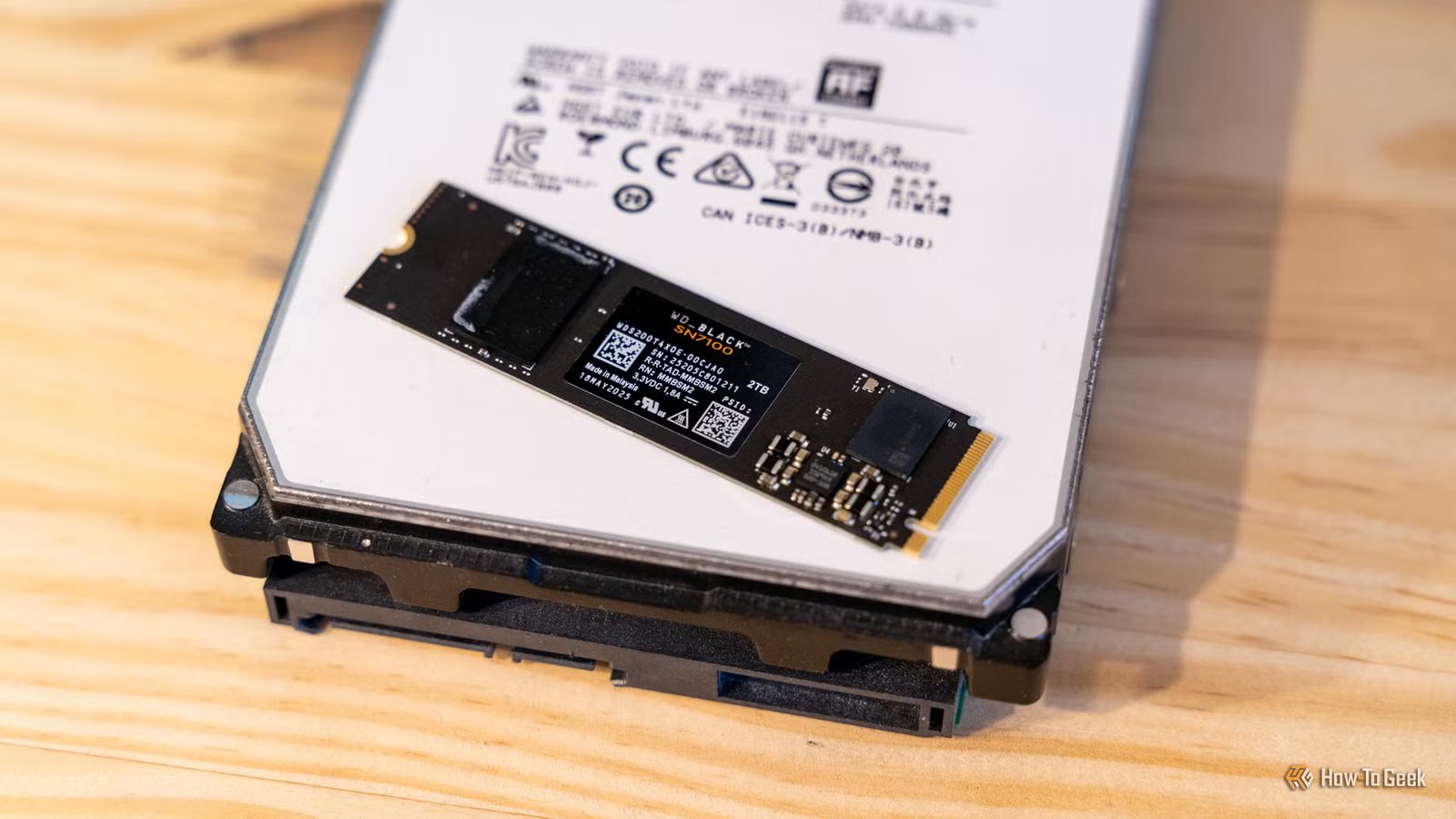
Just a few months ago, I deemed SATA SSDs all but obsolete. HDDs had their uses, but mostly outside of a PC instead of inside it.
And now? Now, everything we thought we knew about building and using computers is slowly being turned on its head.
Where an all-SSD PC made a lot of sense just a year or two ago, we’re now living in a time when it makes no sense to rely entirely on SSDs in your computer. Here’s why.
SSDs are irreplaceable, but you shouldn’t treat them as the answer to every problem
2026 is a weird time to deal with storage devices
SSDs are still the best storage device you can put inside your PC. I’m absolutely not arguing against that. But they’re not the best for every use case, which is why it’s important to shake the idea that your PC needs to have SSDs and nothing but SSDs.
That was true before, when a 1TB SSD could be bought for as little as $50. But now, with the prices rising every single day, we have to go back to the strategy that worked for years: mixing it up. 1TB SSDs range from $160 to well over $300 on Amazon, and that exposes a number of reasons why you don’t need an all-SSD setup. It’s not just about the price.
Quiz
8 Questions · Test Your Knowledge
SSDs, NAND memory, and interfaces
Trivia challenge
From flash cells to PCIe lanes — see how much you really know about modern solid-state storage.
NANDInterfacesHardwarePerformanceStandards
Begin
Which type of NAND flash stores exactly one bit of data per cell?
AMLCBTLCCSLCDQLC
Correct! SLC stands for Single-Level Cell, meaning each cell holds just one bit — either a 0 or a 1. This makes SLC the fastest and most durable NAND type, but also the most expensive per gigabyte, so it’s mainly found in enterprise and industrial storage.
Not quite — the answer is SLC, which stands for Single-Level Cell. MLC stores 2 bits, TLC stores 3, and QLC stores 4 bits per cell. The more bits per cell, the cheaper but slower and less durable the NAND becomes.
Continue
What does NVMe stand for in the context of SSDs?
ANon-Volatile Memory ExpressBNetwork Virtual Memory ExtensionCNext-gen Volatile Memory EngineDNon-Volatile Module Extender
Correct! NVMe stands for Non-Volatile Memory Express, a communication protocol designed specifically for flash-based storage. Unlike AHCI, which was built for spinning hard drives, NVMe takes full advantage of PCIe’s parallel lanes to deliver dramatically lower latency and higher throughput.
Not quite — NVMe stands for Non-Volatile Memory Express. It’s a host controller interface protocol designed to replace the older AHCI standard, which was originally built with spinning hard disk drives in mind rather than fast flash storage.
Continue
Which physical form factor is most commonly used for NVMe SSDs in modern laptops and desktops?
A2.5-inch SATABmSATACM.2DU.2
Correct! The M.2 form factor has become the dominant standard for NVMe SSDs in consumer devices. It’s a compact, card-style connector that fits directly onto the motherboard, eliminating the need for data and power cables and saving space inside the chassis.
The correct answer is M.2. While 2.5-inch SATA and mSATA were common in older systems, M.2 has taken over as the go-to slot for NVMe drives. U.2 is also used for NVMe but is mostly found in enterprise servers rather than consumer hardware.
Continue
Approximately how fast can a high-end PCIe 4.0 NVMe SSD read data sequentially?
A550 MB/sB1,200 MB/sC7,000 MB/sD20,000 MB/s
Correct! Top-tier PCIe 4.0 NVMe SSDs can achieve sequential read speeds of around 7,000 MB/s. This is a massive leap over SATA SSDs, which are capped near 550 MB/s due to interface bandwidth limitations, and even outpaces many PCIe 3.0 drives significantly.
Not quite — the answer is approximately 7,000 MB/s. Around 550 MB/s is the ceiling for SATA-based SSDs, while 1,200 MB/s is typical for older PCIe 3.0 drives. 20,000 MB/s exceeds even PCIe 5.0 NVMe drives available at time of writing.
Continue
What does 3D NAND refer to in modern SSD manufacturing?
ANAND chips shaped into a three-dimensional cube for faster accessBStacking memory cells vertically in multiple layersCUsing three separate dies wired together on one chipDA three-bit-per-cell design that improves endurance
Correct! 3D NAND, sometimes called V-NAND by Samsung, stacks memory cells vertically in dozens or even hundreds of layers rather than spreading them flat across a wafer. This dramatically increases storage density without shrinking individual cell sizes, which also helps preserve endurance and reliability.
The correct answer is that 3D NAND stacks memory cells vertically in multiple layers. Planar (2D) NAND arranges cells flat on a single layer, but manufacturers hit physical scaling limits, so the industry moved to vertical stacking to keep increasing capacity without sacrificing cell quality.
Continue
Which interface protocol were most SATA SSDs designed to use before NVMe became mainstream?
ANVMeBAHCICSCSIDIDE
Correct! AHCI (Advanced Host Controller Interface) is the protocol that SATA SSDs communicate over. It was originally designed for mechanical hard drives and supports a single command queue of 32 commands — a major bottleneck compared to NVMe, which supports 65,535 queues each holding 65,535 commands.
The answer is AHCI, which stands for Advanced Host Controller Interface. SCSI and IDE are much older standards largely retired from consumer use, while NVMe is the newer protocol used by PCIe-based drives. AHCI’s single command queue made it a poor fit for the parallelism flash storage can deliver.
Continue
Which NAND type offers the highest storage density per chip but typically has the lowest endurance?
ASLCBMLCCTLCDQLC
Correct! QLC, or Quad-Level Cell NAND, packs four bits into every cell, giving it the highest density of common consumer NAND types. The trade-off is significantly reduced endurance — QLC cells wear out faster because of the precision needed to distinguish between 16 different voltage states per cell.
The answer is QLC (Quad-Level Cell). It stores 4 bits per cell, making it the densest and most affordable NAND type, but it also has the lowest P/E (program/erase) cycle endurance. SLC sits at the opposite end — fewest bits per cell but the longest lifespan.
Continue
Which PCIe generation, first adopted widely in consumer SSDs around 2020, doubled the bandwidth of its predecessor?
APCIe 2.0BPCIe 3.0CPCIe 4.0DPCIe 6.0
Correct! PCIe 4.0 arrived in consumer platforms around 2020, starting with AMD’s Ryzen 3000 series and X570 motherboards. It doubles the per-lane bandwidth compared to PCIe 3.0, pushing NVMe SSD sequential speeds from roughly 3,500 MB/s up to around 7,000 MB/s.
The correct answer is PCIe 4.0, which first appeared broadly in consumer hardware around 2020 with AMD’s Zen 2 platform. PCIe 3.0 was the previous mainstream standard, while PCIe 6.0 is a more recent enterprise-focused generation not yet common in everyday consumer motherboards.
See My Score
Challenge Complete
Your Score
/ 8
Thanks for playing!
Try Again
Not every terabyte in your PC deserves flash storage, especially when a lot of that data is just sitting there, waiting to be opened once in a blue moon. That’s precisely why I set up an “abuse drive” where those less important files can end up.
At a time when SSD prices keep climbing, and industry experts warn that it’ll only get worse for at least a year or two, it’s time to get creative.
5 reasons an SSD-only PC is a bad idea in 2026
It used to be the way to go, but it’s not anymore
Credit: Corbin Davenport / How-To Geek
We used to happily stuff our PCs full of SSDs, but that wasn’t always the best strategy, and it definitely isn’t now. Here are some of the reasons why you’re better off mixing it up.
1. Bulk storage is still dramatically cheaper on HDDs
This is the biggest reason to give up on the idea of an all-SSD build in 2026. NAND prices have gone from annoying to downright ridiculous, and TrendForce data shows that NAND capacity is increasingly being allocated to SSDs. As a result, NAND flash contract prices have gone up 70-75% quarter over quarter.
Paying that premium for bulk storage purposes just doesn’t make sense. You can get a 2TB HDD for $80-$100, but a 2TB SSD will cost you $300 and up. Some drives from expensive brands cost over $500 for 2TB. Considering that 2TB feels limiting these days, what with many game installs taking up 100GB+, all the signs are pointing away from SSDs and toward other options.
2. Most of your data doesn’t need SSD speeds
Your operating system, active games, current creative projects, and anything latency-sensitive absolutely belong on solid-state storage, but a lot of the data people keep on their PCs is effectively cold. Once a file is opened once every few weeks or months, it does not need bleeding-edge storage speeds to earn its keep.
I personally keep a bunch of HDDs, each with different jobs. I have one for important photos and personal files, a couple for straight-up backups, and a couple of media drives. None of that stuff needs to be on an SSD.
3. High-capacity SSDs are outrageous
Many people can get by with, let’s say, 1TB or 2TB of storage. If that covers all of your needs and then some (remember that filling an SSD up to 100% can be dangerous), then sure, a couple of SSDs will be enough.
Once you start building out a more robust backup strategy or simply have a lot of files to store, going with only SSDs will quickly start feeling like an endless drain on your wallet. A quick look at Amazon tells me that 8TB SSDs range from $1,400 to $2,400. Meanwhile, an 8TB HDD can be bought for as little as $230.
And the problem isn’t just the price. Once storage gets that expensive, every terabyte feels extra precious, which means a lot more micromanaging, and that defeats the whole point of set-it-and-forget-it backups.
4. Backups get painfully expensive
Those who worry about data loss should rely on the 3-2-1 backup rule as a minimum. This means that every important file needs to be stored three times on two different storage devices. If your only drive is one big SSD, well, that’s just not going to happen.
That’s why the best backup strategy is one that mixes things up. You can use an SSD as your boot and load drive, a SATA SSD (even a tiny one) can be used for semi-fast storage and extra space inside the PC, and HDDs can store your backups.
5. Hard drives can be easier to use for cold storage
Cold storage is where hard drives still shine, and will likely continue to shine for many years to come. Fill them up with any files you need and let them just exist without any extra input from you beyond an occasional check.
HDDs also generally just handle being left alone for a while better than an SSD might; some SSDs can be a ticking time bomb when left unpowered. With that said, please do check on your backups every so often, regardless of the device.
The smarter setup is one that doesn’t rely on just one type of drive
2026 is the year to mix it up
Credit: Patrick Campanale / How-To Geek
If your PC already has an SSD or two, you’re all good. I understand the urge to add more storage and keep it at the fastest level possible, but honestly, it just doesn’t make sense. That money is always better spent elsewhere.
Flash for speed, disks for scale
Don’t be afraid to separate your files in a way that makes sense. Keep those SSDs for everything that needs to load fast; it’s up to you what that is, exactly, but a boot drive filled with games or apps that you use for work makes sense. Everything else can be sent off to live elsewhere, somewhere cheaper … at least for the next couple of years.
