

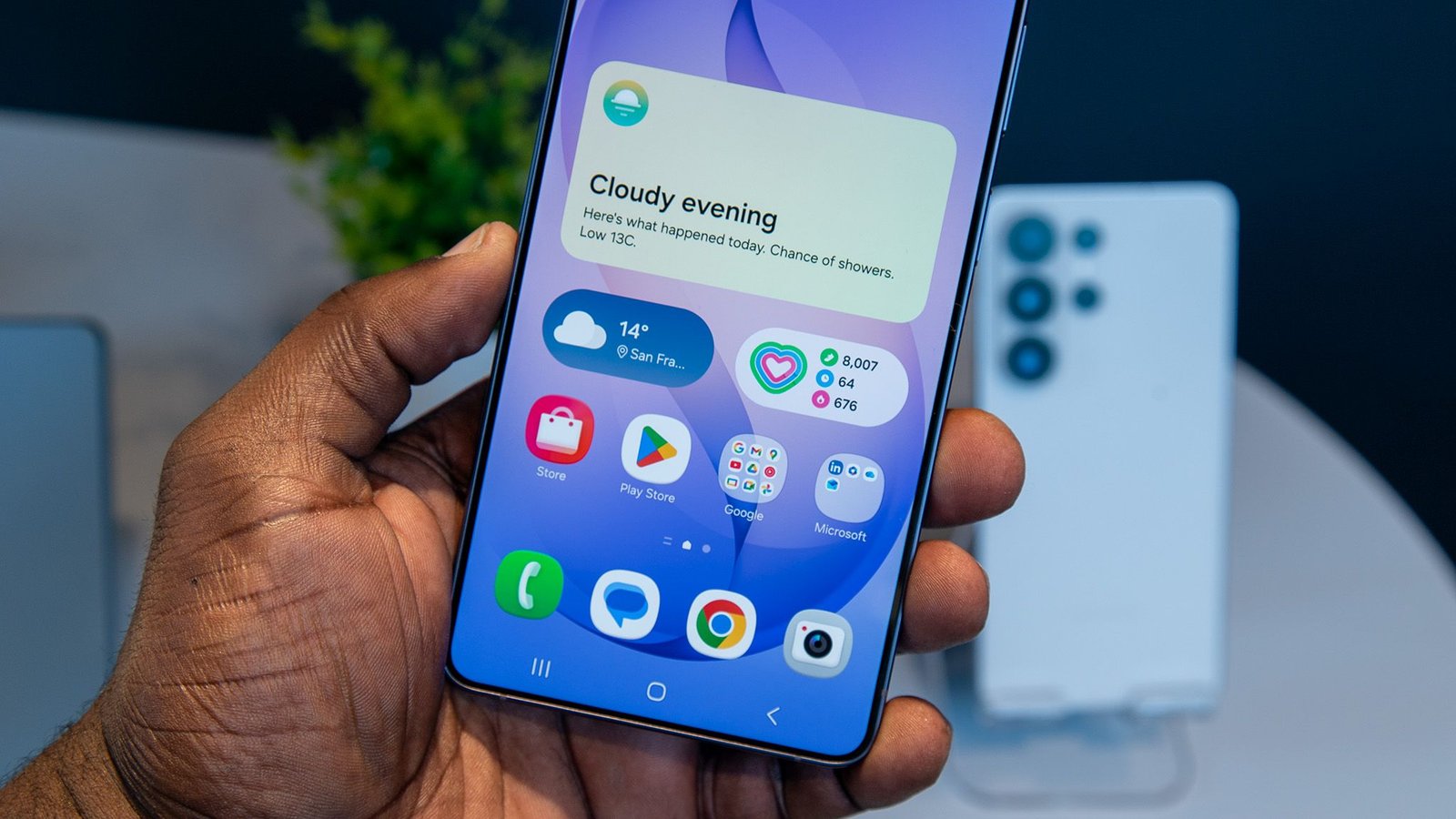
The Samsung Galaxy S26 series is finally out in the wild, and while it brings a number of notable upgrades, including the Privacy Display that everyone is talking about, there are also several improvements bundled with One UI 8.5, which debuts alongside the new devices.
One UI 8.5 introduces features like Audio Magic Eraser, which removes unwanted background noise while watching content, as well as Gemini screen automation that lets you hand off tasks like ordering coffee or calling a cab. And then there’s the improved Samsung DeX experience as well.
Article continues below
You may like
Best deals on Samsung Galaxy S26 series right now
Notification categories are one of Android’s most useful features
(Image credit: Sanuj Bhatia / Android Central)
Ask anyone why they prefer Android over an iPhone, and one of the most common answers, myself included, is notifications. Managing notifications on Android is simply better. The level of control you get on the Galaxy S26, or any Android phone for that matter, is excellent.
You can customize what type of notifications an app can send and how they appear. Whether you want a full pop-up alert that takes over part of the screen or a silent notification that sits quietly in the tray, the control is extensive. Since it is based on Android 16 as well, One UI 8.5 on the Galaxy S26 offers this same level of flexibility.
The only issue is that one of Android’s best notification features, notification channels, which is called notification categories on Samsung phones like the Galaxy S26, is turned off by default. With this feature, you can control exactly what type of notifications each app is allowed to send.
(Image credit: Sanuj Bhatia / Android Central)
For example, on my Galaxy S26, I’ve set my food delivery app (known as Swiggy in my area) to send only order updates. I only want to know when my order is confirmed or on the way, so I’ve disabled promotional alerts. You can apply similar controls to other apps as well. On YouTube, for instance, you can choose to receive only your subscription notifications while turning off alerts for livestreams and YouTube recommendations.
Most Android smartphones out there, including the Google Pixel 10 Pro and other Android brands, ship with this feature enabled by default on your phones, but not the Galaxy S26. Thankfully, though, it’s pretty easy to enable.
How to enable notification categories on the Galaxy S26
1. Open the Settings app on your phone.
2. Tap Notifications, then go into Advanced settings.
What to read next
3. Scroll to the bottom of the page and enable Manage notification categories for each app.
Once enabled, you can control exactly what type of notifications each app can send on your Galaxy S26.
(Image credit: Sanuj Bhatia / Android Central)
4. Open the Settings app on your phone.
5. Tap Notifications and then select App notifications.
6. Here you’ll see the list of apps installed on your phone that are allowed/disallowed from sending notifications.
7. Select the app you want to manage.
(Image credit: Sanuj Bhatia / Android Central)
Here I’m going to show you an example using the YouTube app on my Galaxy S26. In the app notification settings, scroll down to the notification settings and tap Notification categories.
Here, you can see all the different types of alerts the app can send, such as subscriptions, live streams, comments and replies, recommendations, downloads, and general notifications.
You can then choose exactly which categories you want. Disable the ones you don’t need, and you will stop receiving those alerts. The only hard part here is that you’ll now have to repeat these steps for other apps one by one to fully customize the notifications you receive on your Galaxy S26.
Wonder why Samsung keeps this disabled by default
(Image credit: Sanuj Bhatia / Android Central)
Samsung continues to push AI integration across its software, yet the company decides to keep this basic (and genuinely useful) feature disabled by default.
In my opinion, notification categories are essential for most users. This trend started with One UI 6.1 on the Galaxy S24 Ultra, and Samsung hasn’t changed it with One UI 8.5 on the Galaxy S26 Ultra either.
Notification categories have been incredibly useful for me, especially as someone who gets easily distracted by constant alerts and uses social media apps during work hours. This feature has made a big difference for me, allowing me to receive only the notifications that actually matter.
There are still some rough edges, since not all apps fully support notification categories or offer granular control, but Google has implemented it well overall. That said, it’s one of those features, in my opinion, that every Galaxy S26 user should set up as soon as they turn on their device.
