

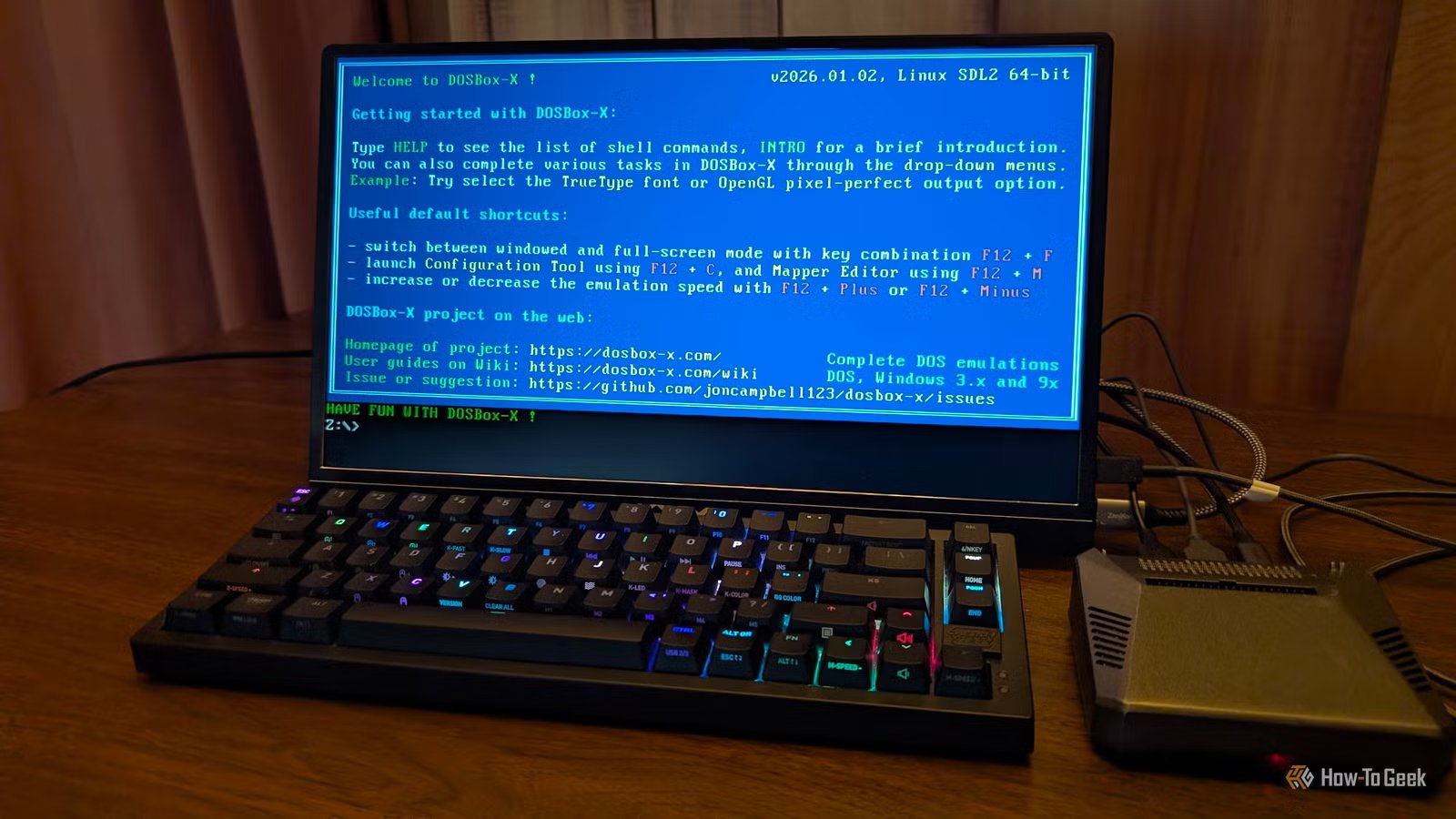
Raspberry Pis are fantastic if you need a low-power, versatile device for any range of DIY projects, including robotics and simple self-hosted services. With a little bit of work, they can also become a fantastic DOS gaming station.
Why run DOS for gaming?
When people say DOS, everyone is reminded of clunky command-line interfaces and a never-ending stream of hardware compatibility issues. However, DOS also had a large—for the time—catalog of games that just won’t run on modern versions of Windows.
If you want to revisit those classics, you’ll need to run DOS.
Use a Raspberry Pi for DOS emulation
Even though Raspberry Pis are built using Arm, and DOS was designed around the x86 architecture, they’re an excellent option if you want to build yourself a small, dedicated DOS gaming setup.
One of the main advantages is their size and power use: even when you run Raspberry Pi at maximum power, they’re going to consume less power than a full desktop.
Additionally, their compact size means you can easily conceal one if you’re building a dedicated emulator station.
Credit: Sydney Louw Butler/How-To Geek
The only downside is the Arm architecture—it means that there is no chance of running anything DOS-related natively. You have to use emulation. Fortunately, even the Raspberry Pi 3 is powerful enough to handle emulating DOS, and the Pi 4 and 5 are even better.
You just need to make sure you have enough RAM. I’d recommend the 4GB variants, at a minimum.
Choose an operating system
When you’re building your Raspberry Pi DOS emulator station, one of the most important things is a lightweight operating system.
In building my setup, I tried four different operating systems: DietPi, Raspberry Pi OS Lite, Raspberry Pi OS, and Ubuntu Server, which is my go-to operating system for self-hosting.
Related
This Is My Favorite Way to Play DOS Games on Windows 11
Old doesn’t mean bad.
The problem with the headless versions came down to the lack of a user interface. Ultimately, I opted to just use Raspberry Pi OS instead, since it simplified things dramatically.
If I were running my setup on a Raspberry Pi 3 instead of a 4, I’d probably opt for DietPi instead, since it is very light on resources.
Picking and installing a DOS emulator
There are a handful of DOS emulators out there, but I narrowed my choices down to DOSBox-X and DOSBox Staging.
Related
What’s the Most Accurate Way to Emulate DOS for Gaming?
Uncover the secrets to perfectly preserving classic DOS games on modern PCs.
They’re both frequently updated, reliable, and are popular with the community. I opted to use DOSBox-X only because that is the version I’ve used in the past when I played DOS games on my Windows PC.
You would be just fine with either.
To install DOXBox-X, make sure you install Flatpak on your distro, if it isn’t already. Normally, you can just run the following two commands:
sudo apt install flatpak
flatpak remote-add –if-not-exists flathub https://dl.flathub.org/repo/flathub.flatpakrepo
Once that is done, you can install DOSBox-X by running:
flatpak install flathub com.dosbox_x.DOSBox-X
Then you’re done.
Getting DOS games
Unfortunately, setting up a DOS emulator on the Pi is actually easier than getting DOS games to play.
Most DOS games are considered abandonware, which means that no one actively sells or maintains them. That makes them buy.
However unfair it may seem, that doesn’t mean you can just download abandoned DOS games wherever you find them on the internet either—technically, that is piracy. They won’t enter the public domain until the end of the 21st century.
Luckily, some of them have been released and can be acquired from legitimate sources.
Galaxy of Gamers (GOG), has an initiative to make older games, including some DOS titles, available for download. If you’re looking to get legitimate copies of DOS games DRM-free, that is your best bet.
Related
GOG’s Preservation Program Can Save Your Favorite Games (But You’ll Need to Vote)
That belongs in a museum!
I had a few ancient floppy disks hanging around a number of years ago that I’m using for mine.
Once you have your DOS games, you just need to transfer them into the appropriate folder on your Raspberry Pi DOS machine. I put mine in my home folder, though you’re not limited to that. DOSBox has built-in documentation that makes the entire process extremely easy.
The Raspberry Pi is a great little computer if you want to do low-power emulation. If you want to do more than just DOS emulation, you may want to check out RetroPie.
Brand
Raspberry Pi
Storage
8GB
CPU
Cortex A7
Memory
8GB
Operating System
Raspbian
Ports
4 USB-A
