

The Windows 11 taskbar has always felt like a missed opportunity. Microsoft gave it a fresh coat of paint with centered icons and rounded corners, but stripped away features like drag-and-drop, uncombined labels, and most customization options that power users relied on for years. There are some excellent Windows customization tools that can make the whole OS feel different, but I’ve been more focused on the taskbar itself lately, because it’s the one thing I stare at all day.
After trying a bunch of utilities, I’ve settled on three tiny apps that have made my taskbar genuinely more useful. They’re all free, lightweight, and do one thing well. None of them try to reinvent the taskbar — they just fill in the gaps Microsoft left behind.
TranslucentTB
Making the taskbar actually look good
image credit – self captured (Tashreef Shareef) – No Attribution Required
Windows 11 gives you exactly one transparency toggle for the taskbar, buried in Settings > Personalization > Colors. Turn it on, and you get a slight see-through effect. That’s it. No control over how transparent it is, no blur options, no way to make it look different when a window is maximized versus when you’re staring at your wallpaper.
TranslucentTB fixes all of that. It’s an open-source utility that lets you make the taskbar fully transparent, translucent, blurred, or acrylic — and you can set different styles depending on what you’re doing. For instance, I keep my taskbar completely clear when I’m on the desktop so my wallpaper shows through, but it switches to a dark opaque bar when I maximize a window. This way, the taskbar blends into the background when I don’t need it and becomes visible when I do.
The app runs in the system tray and uses almost no resources. You configure it once through the tray icon’s right-click menu, pick your colors and transparency levels with a live preview, and forget about it. It even has separate profiles for when the Start menu, Search, or Task View is open, which is a level of control I didn’t expect from something so small.
One thing worth noting: the Blur mode only works on Windows 10 and one specific Windows 11 build (22000). On newer Windows 11 versions, Acrylic is your best bet for a similar blurred glass effect. It’s a minor limitation, but the acrylic option looks great on its own.
TrafficMonitor
Live network and system stats on the taskbar
Tashreef Shareef / MakeUseOfCredit: Tashreef Shareef / MakeUseOf
I used to open Task Manager every time my internet felt slow or a download seemed stuck. It’s not a huge effort, but it adds up when you’re troubleshooting a flaky connection or trying to figure out why a cloud sync is crawling. TrafficMonitor solved that problem by putting live network speed and system stats directly on my taskbar.
It’s an open-source Windows utility that shows real-time upload and download speeds, CPU usage, and memory usage in a compact display embedded right into the taskbar. No floating window needed, though that’s an option too if you prefer it. The information just sits there, always visible, always updating — like a dashboard for your PC that doesn’t get in the way.
What makes TrafficMonitor practical is how many everyday problems it helps with. I can instantly tell if a download has stalled, whether Windows Update is eating my bandwidth in the background, or if a browser tab is hogging CPU. On a laptop, it’s even more useful — I can see when something’s consuming resources and draining my battery before it becomes a problem.
The app comes in two versions: Standard and Lite. The Standard version includes hardware monitoring for temperatures and GPU usage, but it requires admin rights and can occasionally cause stability issues. For most people, the Lite version is the better choice. It covers network speed, CPU, and memory without needing admin privileges, and runs with a tiny footprint. You can also customize the fonts, colors, and which stats to display, so it blends into your taskbar theme cleanly.
Battery Mode
A better battery indicator for laptops
The default Windows battery icon in the system tray is bare bones. You get a tiny icon, a percentage if you hover over it, and access to two power plans at most. If you want to switch between all your configured power plans, you’ll need to dig through Control Panel or Settings. For a laptop user who frequently switches between battery-saving and performance modes, that’s a lot of unnecessary clicking.
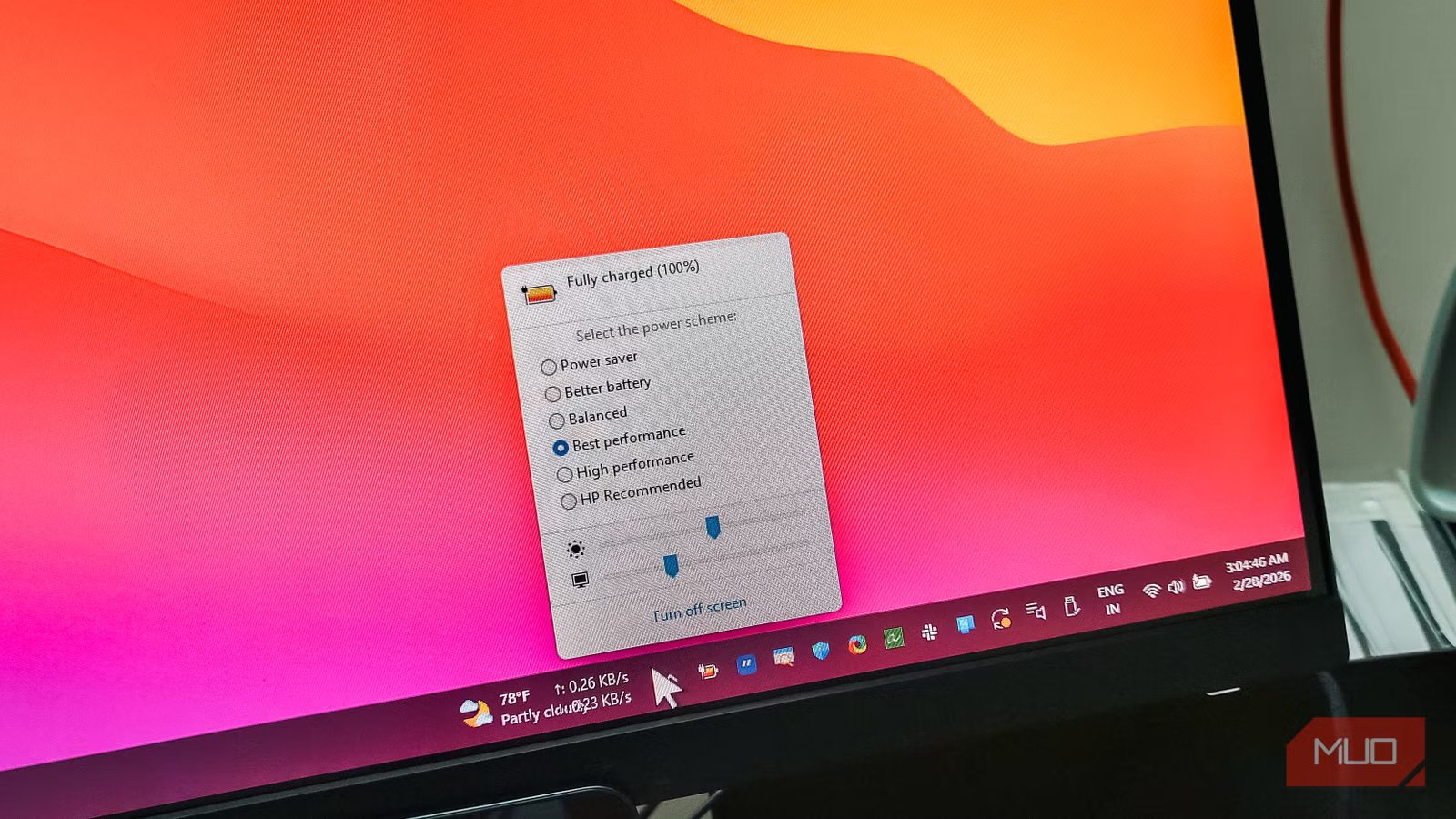
Battery Mode replaces the stock battery indicator with something far more useful. It shows a clearer battery percentage right in the tray, gives you a full list of every power plan you’ve configured in one click, and lets you control display brightness for both your laptop screen and external monitors from the same pop-up.
The brightness control alone makes it worth installing. Instead of hunting for a brightness slider in Windows settings or pressing function keys that only work for the built-in display, I can scroll over the tray icon to adjust brightness instantly. It works for external monitors too, which is something Windows still doesn’t handle well natively.
Battery Mode also includes a rule-based scheduler, so you can set it to automatically switch power plans based on conditions — like switching to a high-performance plan when you plug in and a battery-saver plan when you unplug. There’s even hotkey support for switching plans without touching the mouse. One caveat: the last release was in 2022, so development has slowed down. It still works fine on current Windows builds, but keep that in mind if you’re worried about long-term updates.
Making the most out of the Windows taskbar
None of these apps are flashy or complicated. TranslucentTB makes the taskbar look the way it should have from the start, TrafficMonitor turns it into a useful system dashboard, and Battery Mode gives laptop users the power management controls Windows should’ve included. Together, they’ve turned my taskbar from something I barely thought about into something that actually helps me get things done.
While some people prefer to get rid of the taskbar altogether to reclaim screen space, I’ve gone the other direction. With the right utilities, the taskbar becomes more useful than Microsoft ever intended. And if you’re looking for more tray apps, I recently added a tiny internet radio app called Trdo to my taskbar that’s been a great addition to this setup.
