

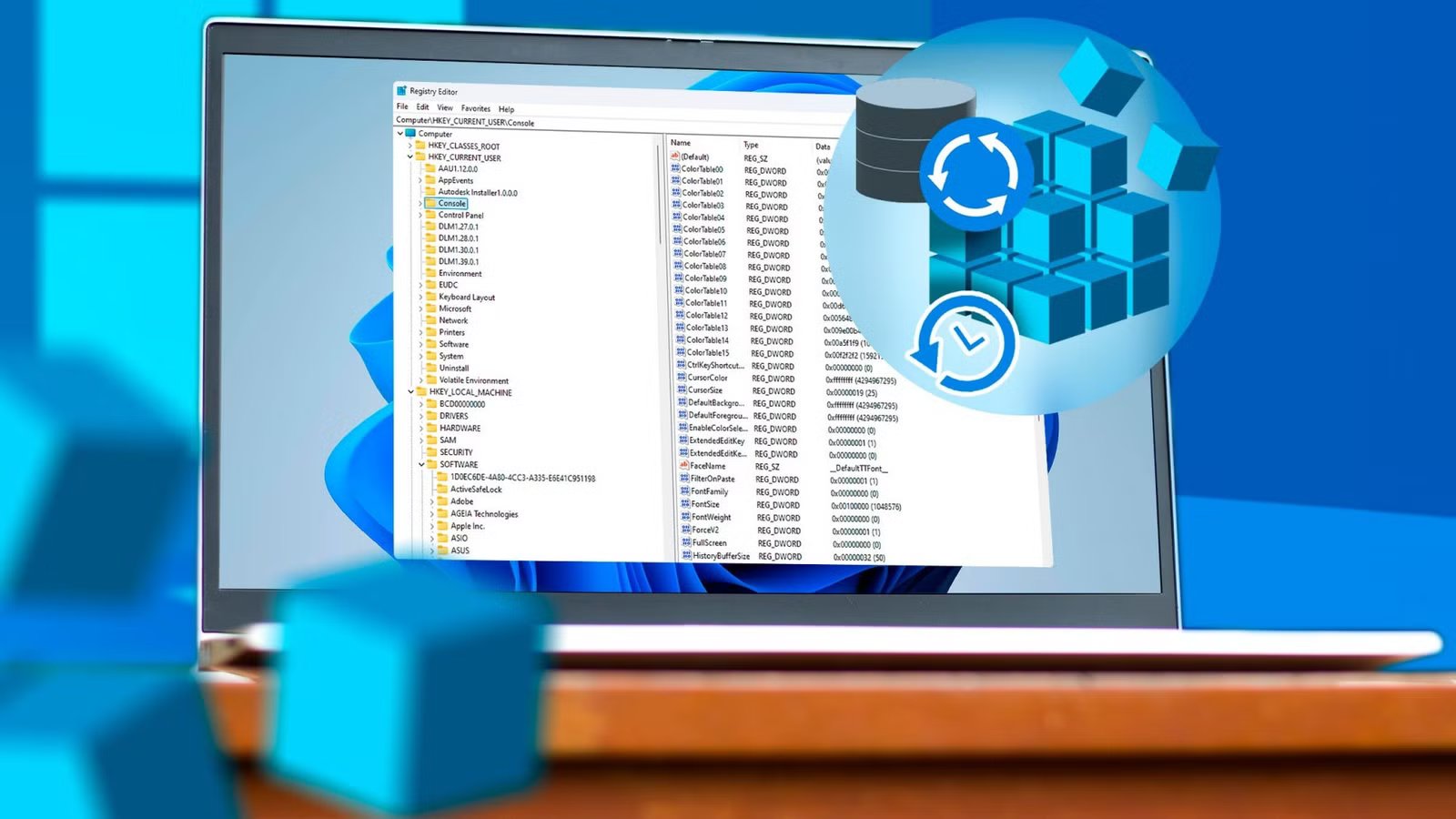
The Windows Registry is an effective way to make changes to Windows 11, especially in situations where Microsoft hasn’t provided an official way to change a setting. Unfortunately, it also comes with some potential drawbacks.
Disabling the DNS cache is a problem waiting to happen
You’ll break your internet
Most registry tweaks are designed to improve how well a PC runs, save space, or tweak behavior.
I’ve occasionally encountered the advice to “disable your DNS cache” using the registry to save space.
The first major problem is practicality. While it is true that your DNS cache uses up space on your PC, it is important to remember that your DNS cache is basically a text file. Even if you went out of your way to drive up the size of your DNS cache to its maximum size, you might be talking about a few megabytes.
Most computers have storage volumes measured in hundreds of gigabytes or even terabytes; that is a truly insignificant amount of space. You’d be better off clearing your browsing history or deleting a few pictures instead.
Secondly, disabling the DNSCache service will force your PC to look up every single address it connects to. Depending on your PC’s configuration, it may prevent you from accessing the internet at all.
Disabling your DNS Cache might sound good in theory, but in practice the tiny amount of space you recover isn’t going to be worth the potential problems you introduced. You should just clear your DNS cache instead.
Lowering or disabling WaitToKillServiceTimeout
It might make things faster, but you could lose data
Credit: Hannah Stryker / How-To Geek
The WaitToKillServide timeout is what tells Windows how long to wait before it’ll wait for anything running to finish before it forcibly ends them after you hit the restart or shutdown button.
If you’ve ever been annoyed that your PC is taking too long to shut down, you may be tempted to try and set that number to zero so it shuts down instantly when you click the button.
Related
Stop holding the power button: How ‘unsafe shutdowns’ silently corrupt your SSD’s mapping tables
Your SSD is logging every hard reset (and risking silent data corruption)
In general, I’d recommend against it. That pause gives running services the opportunity to save whatever it is they’re doing before the process ends. If you stop them in the middle, you could wind up with corrupted files or an incomplete update. Sometimes those issues show up immediately; other times it takes a while for issues to crop up.
If you set it to zero, you may save a few seconds on your restart time, but you’re likely to pay for it later when something gets corrupted.
Disabling the page file entirely
Windows actually needs virtual memory
When Windows starts to run out of physical ram, it automatically starts writing data into the page file (which is a type of virtual memory) on your storage drive. It is an important part of how modern operating systems work.
Depending on how your system is configured, the page file could use up several gigabytes of space on your drive. You can easily set the total Page File size to 0 to force everything to exclusively use RAM and free up space, but it opens you up to a whole range of issues.
In a best-case scenario, if you max out your RAM, programs are going to be prone to crashing or freezing. Windows is also designed to make use of page file space proactively to ensure that you have RAM available.
Disabling System Restore to save space
You’re removing your safety net
Disabling System Restore to free up disk space is a common quick-fix suggestion, especially on small drives where it uses up an appreciable amount of space.
Unfortunately, System Restore isn’t just another feature, it is an essential safety feature. It lets you roll back system changes, bad drivers, broken updates, and registry mistakes without reinstalling everything.
If you turn it off, you’re trading a modest amount of storage for a far larger risk: no simple recovery option if something goes wrong.
Considering modern computers have storage measured in hundreds of gigabytes—or even terabytes—those few gigabytes you reclaim are relatively insignificant. In general, I’d recommend against disabling it. The potential problems far outweigh the tiny space savings.
Easy to break, hard to fix
The Windows right-click context menu can get messy quickly. After a year or two, my full right-click menu is a pretty unwieldy mess, and I’m often tempted to try and cut down on the clutter.
There are a few ways you can approach that, but one of the common recommendations is to change it directly in the registry. Unfortunately, under the hood, the context menu is a mix of registry entries, shell extensions, and application hooks. If you delete or modify the wrong key, you can end up with missing options, duplicate entries, or even a completely broken menu.
To make matters worse, undoing those mistakes is harder than it looks. Unlike a simple setting toggle, a bad registry edit doesn’t come with an undo button unless you’ve made a backup first.
If you really want to tidy your context menu, it’s usually safer to use dedicated tools instead. I’d recommend starting with Nirsoft’s tools. They work pretty well.
Carelessly tweaking the registry is inviting problems
The Windows Registry isn’t just a place that stores values that allow you to customize your PC, it is an integral part of the operating system. You should always be careful.
Before making any big changes, you should create a backup of the registry keys you’re going to be changing first.
