

When we use our phones every day, battery life is always on our minds. Will it last through the day? Will the battery life still hold up months from now? It’s easy to keep changing settings, hoping to preserve battery health for the long run. But here’s something most people don’t notice. Android’s sync settings work in the background all the time. Apps keep refreshing data, checking for updates, and syncing information even when you’re not using them. This constant activity not only consumes mobile data but also puts a steady drain on your battery. Over time, this adds up. Your phone uses more power than it needs to, which can shorten battery life on a single charge. Managing these sync settings can make a real difference, helping you conserve battery life without constantly worrying about it.
Related
12 Samsung Galaxy Phone Settings You Should Always Change
Setting up your new Samsung Galaxy device? Here are the settings you should change to get your phone working better.
Cutting down on sync activity can improve battery life
Your phone won’t stop checking in, and your battery is paying for it
Yadullah Abidi / MakeUseOfCredit: Yadullah Abidi / MakeUseOf
Sync settings on Android determine how your phone keeps important data up to date in the background. This includes things like emails, contacts, photos, and app data. When sync is turned on, your device automatically updates this information and backs it up to your Google account, so everything is ready to switch to a new phone. It also keeps your devices in sync. For instance, if you add a contact or update your calendar on one device, the same changes show up on other devices signed in to the same account. It’s convenient and saves you the hassle of doing things manually.
However, this convenience comes at a cost. Auto-sync runs in the background, regularly checking for updates and sending data back and forth. This uses battery and mobile data both, even when you’re not actively using those apps. Some of the most common services that sync in the background include Google Calendar, Contacts, Drive, Gmail, and Chrome Data. Managing what actually needs to sync can help reduce unnecessary battery drain while still keeping the important stuff updated.
I’m not dismissing it entirely
Keep the important stuff, ditch the rest
Pankil Shah / MakeUseOfCredit: Pankil Shah / MakeUseOf
Completely turning off auto-sync isn’t always the best move. It does save battery, but it also keeps away some of the convenience you’re used to. For example, you won’t receive notifications for your emails anymore, and it won’t update automatically either. You’ll have to manually open the Gmail app and refresh it. There’s also a risk factor. If your phone is lost or stolen, any data that hasn’t been synced recently might not be backed up, which means you could lose your data, too.
That’s why a more balanced approach works better. Instead of switching to auto-sync entirely, you can choose which items actually need to stay updated. Keep syncing for essentials like contacts or important emails and turn it off for things you don’t rely on as often. This way, you still get the benefits of syncing where it matters, while cutting down on unnecessary battery and data usage. It’s a simple middle ground that keeps your phone efficient without sacrificing convenience.
How to manage and disable this
Pick what stays updated and what takes a nap
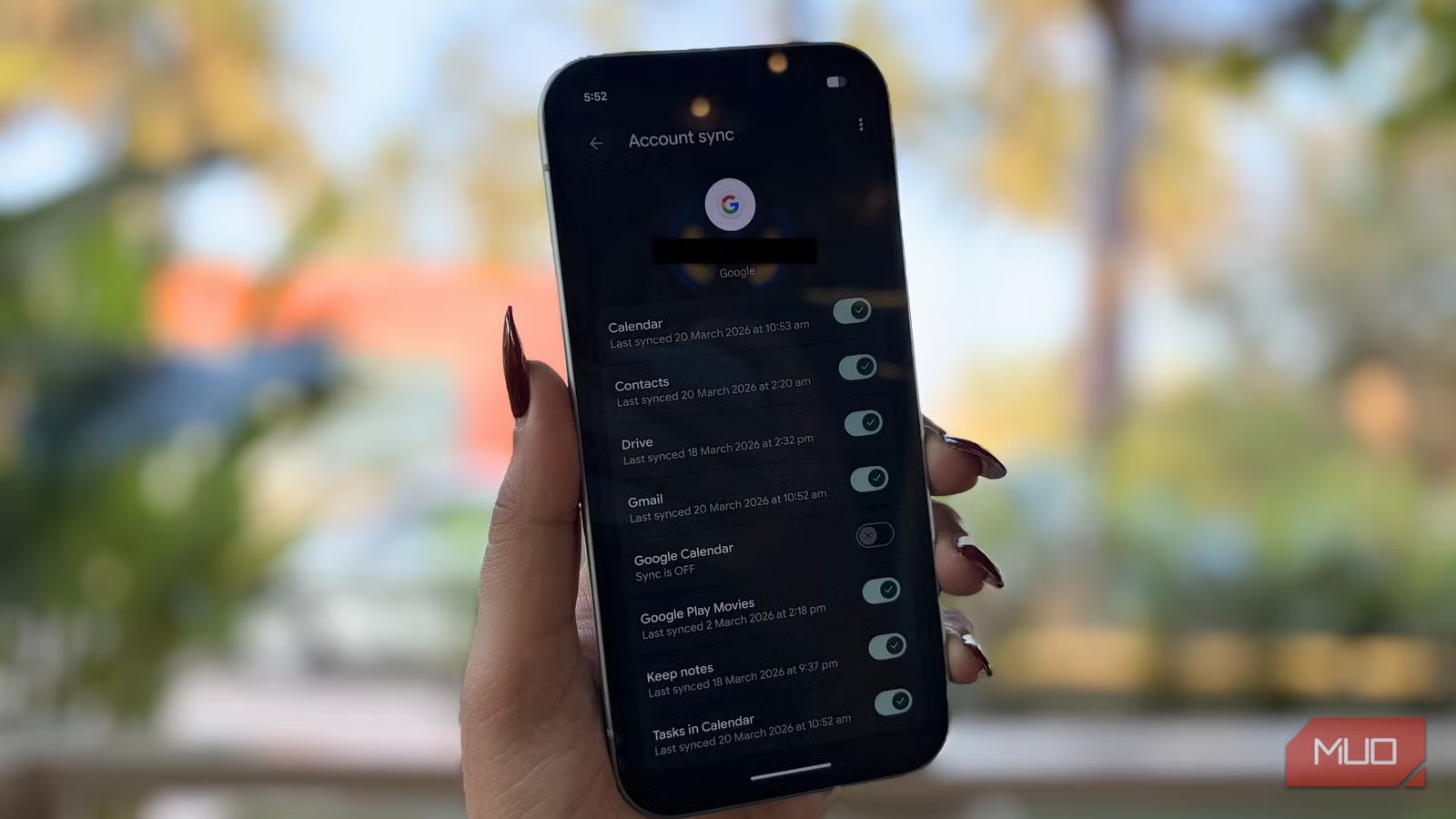
Turning off auto-sync on your Android phone is simple and only takes a minute. Here’s how you can do it:
- Open the Settings app.
- Scroll down and tap on Passwords, passkeys, and accounts.
- Select the account (email ID) you want to manage.
- Look for the auto-sync section.
- Turn off the toggles for services you don’t need syncing in the background.
For example, you might choose to turn off sync for Calendar, Google Play Movies, or Keep Notes if you don’t rely on them daily. You can customize this based on what actually matters to you.
Before you start turning things off, take a moment to review each option carefully. If you disable sync for something important, you won’t receive automatic updates or notifications for it, and you’ll have to refresh it manually. A quick double-check now can save you from missing something later.
These steps are based on a Pixel 10a, so the exact menu names or layout may look different on other Android phones. That said, the overall process remains largely the same.
The impact of turning this off
You’ve got a relaxed phone
Credit: Shimul Sood / MakeUseOf
Once you turn off syncing for services you don’t really use, a few noticeable changes start to kick in. Your battery lasts longer because your phone isn’t constantly running in the background, refreshing data. Over time, this does add up. You’ll also need less mobile data. Automatic updates and backups can quietly eat into your data without you realizing it. Cutting down on unnecessary sync helps keep that in check.
Another subtle benefit is fewer interruptions. With less syncing, you’ll see fewer notifications throughout the day. That means fewer distractions and a slightly calmer phone experience, which can actually help you stay more focused.
Related
Your Android Phone’s Default Settings Are a Privacy Nightmare—Here’s What to Change Right Now
Your Android’s out-of-the-box settings aren’t doing you any favors when it comes to privacy.
Your phone’s battery will thank you for this
Completely turning off auto-sync on your phone might sound like a good idea, but it often creates more problems than it solves. You lose out on timely updates, important notifications, and automatic backups, which can be really inconvenient in everyday use. A better approach is to be selective. This way, you still get the benefits where it matters, while cutting down on unnecessary battery drain and data usage. In the end, your phone runs efficiently and delivers longer battery life without sacrificing the features you rely on.
