

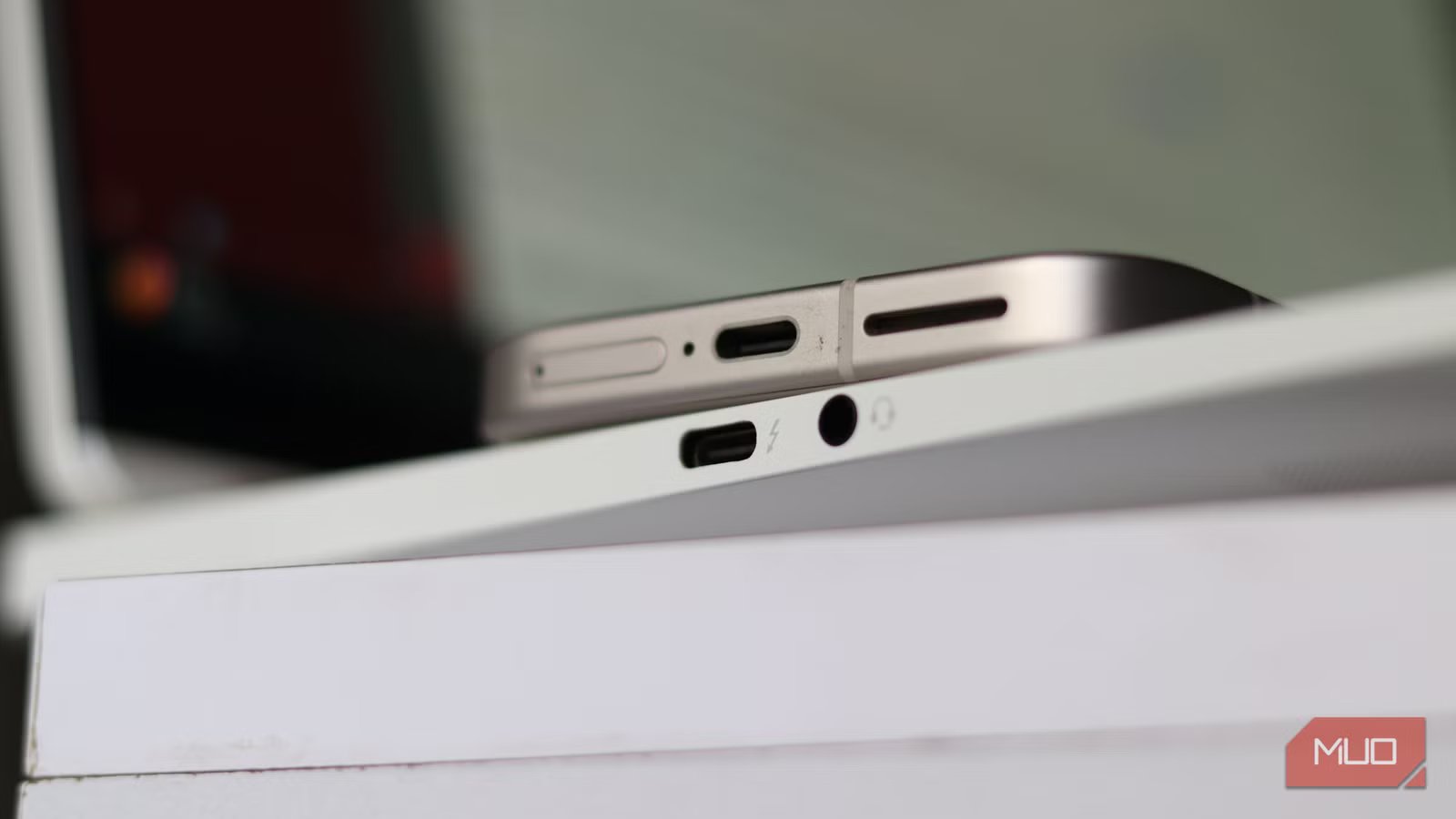
If you’ve bought a new laptop, phone, or charging cable in the last few years, you’ve probably stared at the USB-C port and wondered what the different symbols mean. Well, you’re not alone. The USB-C ecosystem has become a confusing maze of logos, icons, and markings that distinguish different kinds of USB-C ports.
A port might look like USB-C, but a symbol can change everything. These symbols actually do matter, and they’re trying to tell you something important about what your device can handle. Not every manufacturer uses them consistently, but they’re important to decode either way.
The Trident logo that started it all
It’s the one logo you’ll see everywhere
Yadullah Abidi / MakeUseOfCredit: Yadullah Abidi / MakeUseOf
The Trident logo has been around since the beginning of the USB standard. The three prongs at the end represent a circle, triangle, and square, supposedly signifying the many different devices you can connect with USB. On modern ports and cables, you’ll see this trident, but it’s often accompanied by additional markings that tell you what flavor of USB you’re dealing with.
A plain USB-A or USB-C port with just the trident means it supports basic USB connectivity, but it tells you almost nothing else. That’s where the dozens of other USB-C symbols you see modern ports littered with come in.
USB-C Speed symbols
Not all ports can get you those blazing-fast transfer speeds
Yadullah Abidi / MakeUseOfCredit: Yadullah Abidi / MakeUseOf
The speed of your data transfer is measured in gigabits per second (Gbps) and is critical if you’re transferring large files over a USB-C port. Generally speaking, you’ll see the following two symbols:
- SS (SuperSpeed): Indicates that a USB port is USB 3.0 or USB 3.1 Gen 1, delivering speeds of up to 5 Gbps. You’ll see the SS marking alongside the number 5 on such ports.
- SS+ (SuperSpeed+): Indicates USB 3.2 Gen 2 doubles the data transfer rate to 10 Gbps. You’ll spot this as SS+ with a 10 next to it.
You’ll also often see these markings next to regular USB-A ports that indicate data transfer speeds. Although the SS+ mark is usually reserved for USB-C ports.
The Thunderbolt logo you should actually look for
What the lightning bolt guarantees on a USB-C port
Credit: Gavin Phillips / MakeUseOf
Thunderbolt 3 and 4 are Intel’s proprietary standards that live in the USB-C ecosystem. They’re identified by a lightning bolt symbol with an arrowhead at the bottom. Both support 40 Gbps data transfer, but Thunderbolt 4 is more rigorous about enforcing actual performance standards. So if your device has a USB-C port with a lightning logo, you’ve got something serious.
Thunderbolt markings are also often confused with USB4 markings. These ports usually have a clear label or specific markings, but not all manufacturers bother labeling them, which makes identifying ports a little confusing. It’s best to consult your laptop or motherboard’s manual for the exact specs of your ports.
Why some USB-C ports charge fast, and others barely try
What power delivery icons really tell you
Yadullah Abidi / MakeUseOfCredit: Yadullah Abidi / MakeUseOf
Data transfer over USB-C is only one aspect of what the port can do. But USB-C also moves power, and considering tons of modern laptops and other devices charge over USB-C, knowing what power delivery standard your USB-C port supports is important. It’s one of the most common USB-C mistakes that ruin your charging speed.
Modern USB-C cables are labeled with either 60W or 240W logos. These symbols appear on the cable itself (often embossed or printed on the connector) and on the packaging. A 60W cable can charge most phones, tablets, and smaller laptops. A 240W cable will provide the maximum power USB-C currently offers.
But just because your cable supports 240W doesn’t mean your charger delivers it, and it doesn’t mean your device will accept it. The actual power delivered is negotiated between your devices and the power adapter using a protocol called USB Power Delivery (USB PD). Your device will only draw the maximum power it can use.
Jowi Morales / MakeUseOfCredit: Jowi Morales / MakeUseOf
The power logos can sometimes include data transfer speeds. So you might see a label that says 20Gpbs/60W or 40Gbps/240W. Once again, manufacturers tend to be inconsistent with these markings, so check your manuals. For example, my laptop has two USB-C ports, and both support USB PD. However, only one of them charges my laptop at the full 140 watts it needs.
Display over USB-C
Your USB-C port can do more than just data transfer and charging
One of the coolest things USB-C can do is that it can carry video signals. This is called DisplayPort Alt Mode (DP Alt Mode), identified by a D with a P inside or a DisplayPort label next to the port.
If you see this symbol, your USB-C port can output video to a monitor directly, no adapter needed. Thunderbolt ports automatically support DP Alt Mode, although you likely won’t see a DP Alt Mode symbol there. There’s a chance your phone’s USB-C port also supports display output, which means you’re probably underusing your phone’s USB-C port.
Read the symbols, not the port shape
Stop guessing what your USB-C ports can actually do
USB-C symbols represent the industry’s attempt to bring order to chaos. They’re not consistently applied, but they’re your best guide when shopping for cables or evaluating what your device can do. It’s one of the reasons why cable standards are a mess, but you shouldn’t blame USB-C.
Related
I’ve ignored these symbols on my USB ports for so long and now I regret it
Those tiny USB symbols reveal more than you think.
All USB-C ports look the same, so just because you’ve got a port on your device, doesn’t mean it’ll do everything flagship laptops or phones can do. Check the symbols on the device before buying one, or better yet, go through the manual. Remember: just because it looks like USB-C, doesn’t mean you can plug in a 10-in-1 dock and call it a day. These symbols actually matter, and knowing what they mean will save you a lot of time and money.
