

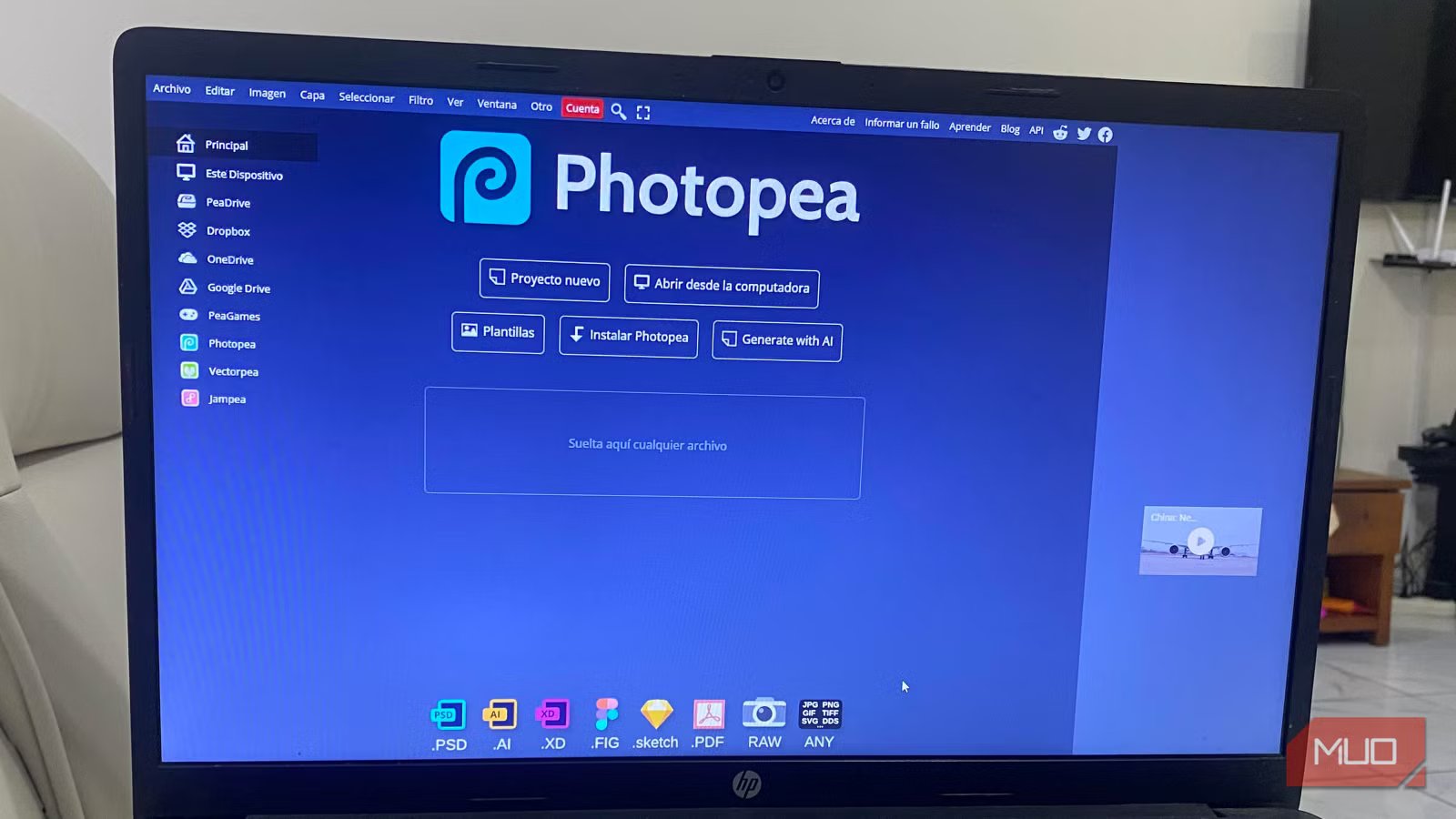
If you are like me, you probably pay for Photoshop but only use between 40 and 50 percent of its features. It’s a powerful tool, but if it’s not the center of your professional life, the price tag may not justify how much you are actually getting out of it. So, I went on the hunt for a Photoshop alternative that would not cost me a dime.
What I finally stumbled upon wasn’t GIMP, Krita, Canva, or any of the common replacements I typically saw in recommendation articles. It was a browser app called Photopea, and it would do exactly what most people use Photoshop for.
Photopea feels familiar in a way most alternatives never manage
Opening it for the first time doesn’t require relearning anything
Afam Onyimadu / MUO
Familiarity is one of Photopea’s biggest selling points. You get tools on the left, layers on the right, with properties and adjustments intuitively placed where you would expect them. This layout easily resonates with you after using Photoshop. You simply open the web app and start working without the need to translate concepts or chase down features in hidden menus.
Even though most Photoshop alternatives technically support similar features — layers, masks, and selections — the way they organize them slows you down until you get used to them. You can work at the same pace you’re used to when you switch to Photopea because its menu structure follows the same logic.
It carries over actions like duplicating layers, transforming objects, and switching tools, and keyboard shortcuts work as you’d expect. You’re continuing your workflow, rather than learning a new app.
It handles the edits most people actually open Photoshop for
The everyday tools that quietly do most of the work
Afam Onyimadu / MUO
Most people’s Photoshop sessions are similar. They typically consist of opening an image, working with a few layers, removing or isolating something, adjusting colors, adding text, and then exporting. Using Photopea, you can replicate this entire workflow without cutting any corners.
I tried layer-based editing, and there were no surprises. I don’t feel boxed in when I have to stack layers, apply masks, use blend modes, and add adjustment layers. It gives a flexible selection of options that are good enough for real work. So when I need to cut out a subject or clean an image, it works seamlessly. I’ve always found background removal to require some effort in Photoshop without heavy AI help, and it’s the same experience when using Photopea.
Photopea also allows for practical retouching and color adjustments. I get predictable behavior when using healing, cloning, curves, levels, and hue adjustments. These are not all the advanced options you see in Photoshop, but they are common go-tos for most people’s everyday needs. That is the point of Photopea. It’s not giving you all Photoshop tools, but making sure you get a good set of what you need most for daily personal work.
File compatibility is where Photopea stops feeling like a toy
Opening real files and sending them back without breaking anything
Afam Onyimadu / MUO
When image editors mishandle real files, they quickly lose credibility. This is a problem that Photopea avoids almost entirely. When I use it to open layered PSD files, I can make whatever changes I want and save them back, all without starting over or flattening everything.
This is the one feature that makes it more useful than most desktop alternatives. It easily handles and edits any Photoshop files someone sends me. I’m not stuck rebuilding someone else’s work because layer styles, text layers, masks, and effects all translate well.
It also has practical export options that allow me to save images in formats that I actually need: PNG, JPEG, WebP, and PDF. Even when I work with vector elements, I can save in SVG. Photopea offers enough flexibility that it easily feels like part of my real workflow. Rather than forcing its own system, it works with any existing files.
The browser-based workflow removes more friction than it creates
How not installing anything changes how often you edit images
I was skeptical because it is a browser-based tool; it wasn’t like the typical open-source alternatives I had tried. However, this skepticism faded once I actually used the tool. It opens instantly, requires no installation or updates, and I’m not concerned about system requirements. It even works fine on some of my older devices. I postpone edits less and make quick changes in situations I previously considered not worth opening Photoshop for.
However, the most notable advantage is how it eliminates dependence on specific devices. For someone who works across ecosystems, Photopea removes barriers to using Linux, Windows, or macOS. This consistency is a real advantage if you have to switch machines and work on an edit unexpectedly.
Related
The Best Free Photo Editing Software to Try Today
Who needs an expensive image editor? These free tools can help you achieve similar results at a much lower price.
The tradeoffs you’re making are real — and mostly irrelevant
Photopea does what Photoshop does for most people, but it doesn’t replace Photoshop for everyone; it’s not a Photoshop clone. You would be missing the point if you pretended otherwise. It’s wiser to stick with Photoshop if you heavily depend on advanced automation, deep AI features, large batch workflows, or an extensive plugin ecosystem. This is indeed where Photoshop earns its reputation.
However, in my experience, this isn’t most people. If all you do is occasional photo editing, basic compositing, creating social graphics, or producing blog images, then you’d be better off sticking with Photopea.
OS
Web app
Price model
Free
Photopea is a web-based image editor that functions directly in a browser. It serves as a powerful alternative to Adobe Photoshop.
