

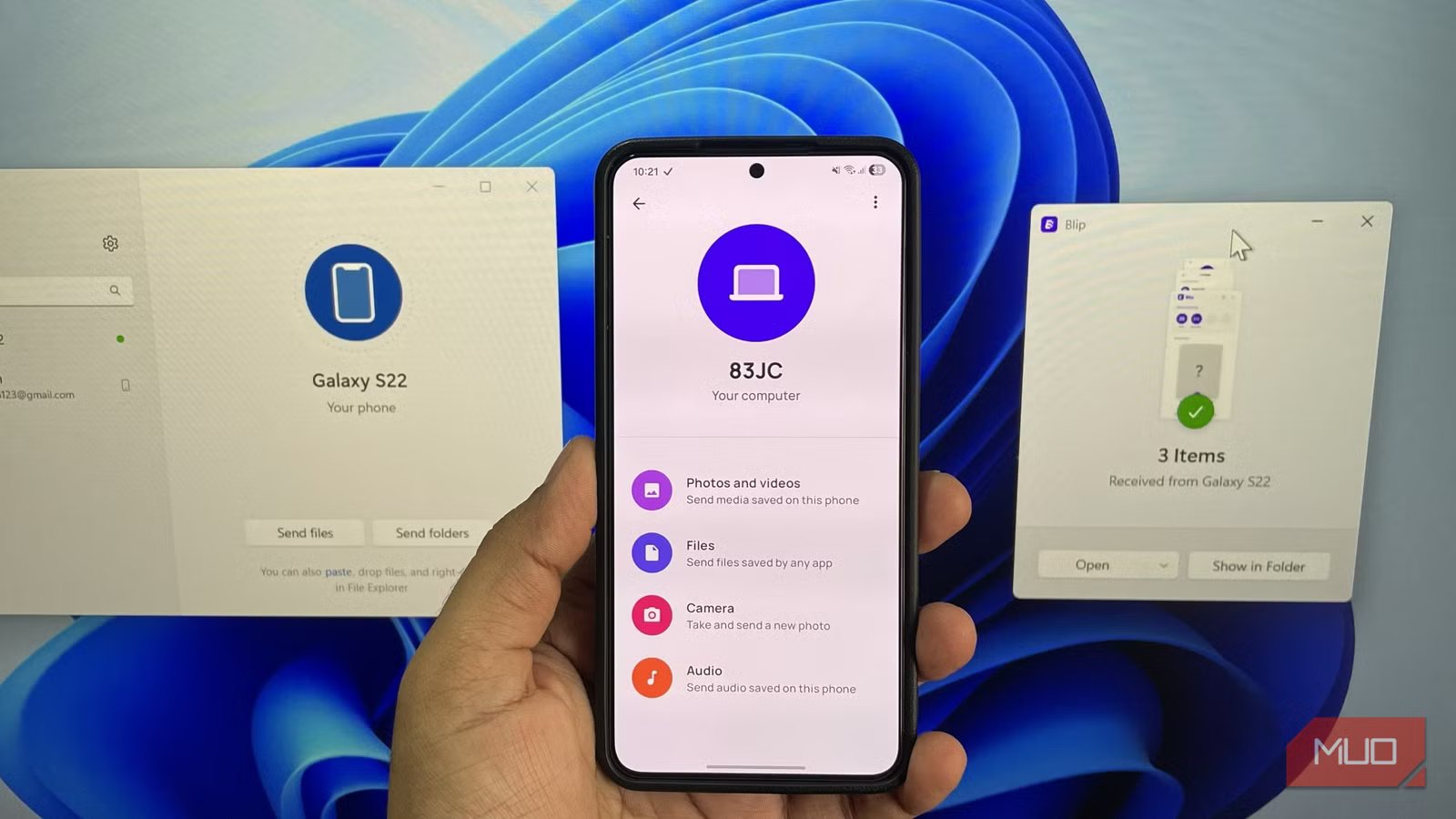
Sharing files between a phone and a Windows PC sounds like a basic task. And honestly, there’s no shortage of ways to do it, from using the good old cables to relying on third-party tools like LocalSend. They all get the job done, but if sharing files is something you need to do often, you’d probably want a solution that’s convenient in every way. And Blip feels like that.
It lets you share files even when both devices are not on the same network. You also don’t need to accept every file transfer when sharing files between your own devices. And to top it all off, it’s fast, simple to use, and completely free.
OS
Android, iOS, Windows, Mac & Linux
Price model
Free (Business plan available)
Most phone-to-PC file transfer methods have catch
None of them are perfect
I’ve tried almost every possible method for sharing files between phone and PC. And while all of them are quick, each one has at least one limitation that keeps it from becoming my go-to solution.
For instance, using a cloud storage service like OneDrive is great, but it’s not ideal for quick transfers because you have to upload the files first and then download them on another device. And if those files are large, the internet speed plays a huge role.
Phone Link does make sharing files easy, but it only works with an Android phone. Also, if you are someone who doesn’t use Phone Link at all, linking your phone to Windows just to send a few files occasionally feels like overkill.
LocalSend is another tool I’ve used quite a bit, and it’s honestly the most convenient way to share files. But it still has one key requirement. Both your PC and phone need to be on the same Wi-Fi network. This can be a problem if both devices are not nearby or if you’re at a place without Wi-Fi.
So yes, while all these methods technically solve the problem, none of them feel universally convenient.
Blip stands out for its ease of use
It’s unlike anything you’ve tried
After trying half a dozen file transfer solutions, I finally settled on Blip. And it’s by far the cleanest method to share files between a Windows PC and a phone.
The setup is incredibly simple. All you need to do is download Blip on both devices and enter your email address. That’s about it. Once both devices are set up, you can start sharing files between them seamlessly. The file transfer happens whether both devices are on the same network or not.
The most convenient thing about it is that you don’t even have to wake the other device or accept the file transfer. If both devices are using the same email address, the transfer happens automatically. And if you’re sharing files with someone else, Blip makes that easy too. You can simply search for their device by entering their name or email in the search box. It almost feels like you’re using an instant messaging service.
Another small but incredibly useful detail is Blip lets you send entire folders with their structure intact. This is something that’s not possible with apps like LocalSend.
Blip is fast, secure, and completely free
What more do you need?
Pankil Shah / MakeUseOfCredit: Pankil Shah / MakeUseOf
Ease of use is a big part of why Blip stands out, but it’s not the only reason for using it. Blip is also incredibly fast. File transfers happen quickly, and if both devices are on the same network, the speeds are even better. In most cases, it’s better than alternatives like LocalSend and Quick Share. Also, Blip doesn’t put any limits on how large your files can be, which is great if you want to send 4K videos or uncompressed files.
While Blip does require you to enter your email address, it takes security and privacy seriously. It doesn’t upload anything to a third-party server, and while sharing, it encrypts files using the TLS 1.3 protocol.
The best part is, Blip is completely free to use for personal use. You don’t have to deal with any subscriptions, hidden limits, or ads. Put all of this together, and Blip feels like a complete package.
There are better options for quick one-off file transfers
As convenient as Blip is, it’s not the best option when you just want to send a quick file to someone else. In that case, you probably don’t want to ask the other person to download an app and set up an account just to send or receive a single file.
This is where a web-based tool like PairDrop can be a great alternative. It’s almost like LocalSend, except you don’t need to install anything. PairDrop works entirely through the browser, so you can send and receive files on a local network seamlessly. There’s even an option to share files over the internet, which means you can share files even when the PC and the phone are not next to each other.
