

The Galaxy XR has become my go-to device for multitasking. While the headset seems to be marketed more toward entertainment like watching immersive MLB or NBA games, the Olympics, and more, I’ve found that I keep coming back to it to run my favorite Android apps and experiences in a larger, more comfortable way than my phone or tablets can provide.
But what if you want to go bigger than this? Streaming a desktop PC to the Galaxy XR can be done in a number of ways, but the two “official” ways of doing it are quite restrictive. Samsung’s official app requires a GalaxyBook laptop — I don’t know anyone who owns one of those — and the official Android XR PC Connect app is a surprisingly slow, laggy experience.
You may like
How is Steam Frame streaming different?
(Image credit: Nicholas Sutrich / Android Central)
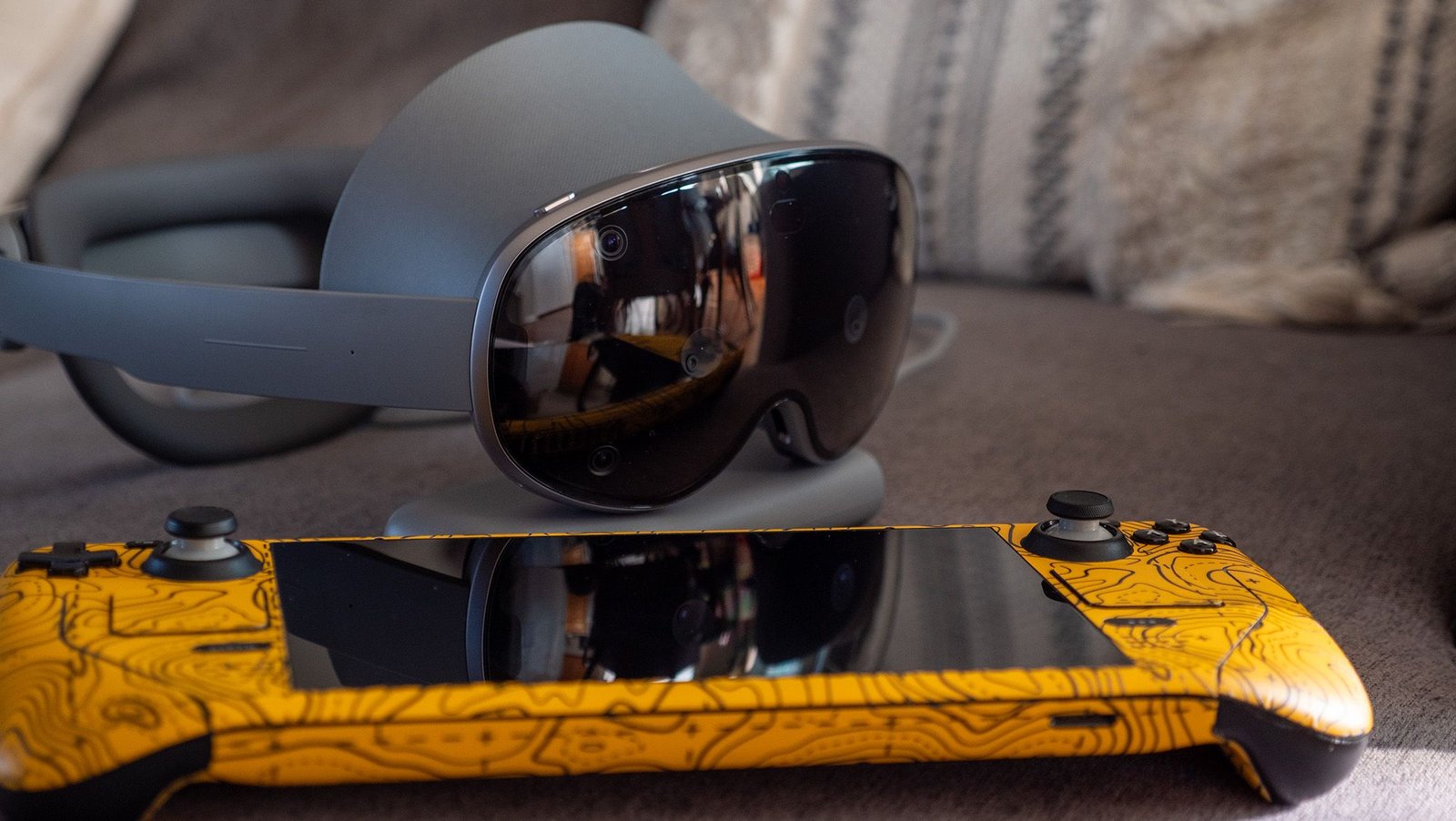
Valve’s Steam Frame is basically a Steam Deck that you can wear. And while that’s certainly a cool enough proposition by itself, Valve is still uniquely prioritizing PC VR games. Instead of piggybacking off your home’s wireless network, Valve includes a USB stick that creates a specialized wireless network just for the headset. That not only helps avoid traffic jams that cause streaming quality degradation, but it also enables foveated streaming.
If you’re like most people, you’ve likely never heard of that last term, but it’s one you’ll quickly want to become familiar with because of what it can do. Foveated streaming works in tandem with the eye-tracking capabilities of the Steam Frame and keeps the highest-quality streaming right in the center of your vision, while everything else remains lower quality (since your peripheral vision can’t see it clearly, anyway) to save bandwidth.
While we thought Valve might be the first company to launch a headset with this capability, it turns out that Guy Godin, the legendary developer behind Virtual Desktop, just launched a huge update for his app that upgrades your existing headset with Steam Frame-like streaming.
Turning the Galaxy XR into a Steam Frame
If you own a Samsung Galaxy XR, Meta Quest Pro, or another headset with eye tracking capabilities, Virtual Desktop is about to become the best utility you can buy for your headset. I got to try a beta release of the new feature on my Galaxy XR this week and was blown away by the clarity it offers. The update is now available to all Virtual Desktop users as of version 1.34.16.
Surprisingly, it’s not just the quality of the visuals that gets improved with foveated streaming. Even though the center of vision is streaming in higher quality than you’ve likely ever seen from your headset, the entire stream is using less overall bandwidth than the standard streaming quality. That means your PC VR games being streamed from Steam or another platform will run more smoothly, look sharper, and will even be less taxing for your home network.
(Image credit: Android Central)
To activate it, start a Virtual Desktop session with your PC, then click the menu button on the left controller, or perform a pinch gesture with your left hand to open the Virtual Desktop menu. Click the Streaming menu on the left, then select the checkbox next to Foveated Streaming.
Everything from here on is handled automatically, though you can tweak the bitrate and graphical quality in the app if you want to control settings more granularly. This will work on any headset with eye tracking across all platforms Virtual Desktop is available on, which is excellent news for everyone’s VR headset of choice.
Now for better wireless streaming
(Image credit: Nicholas Sutrich / Android Central)
If you live in a community building, like an apartment complex or a condo, or if you just have a million devices hogging bandwidth on your home network, you might find that wireless streaming quality leaves a lot to be desired. This is where a specialized wireless router can come in handy to create a low-latency network between your PC and VR headset.
You could buy a Steam Frame when it eventually comes out and use the wireless adapter, but I’ve got a better solution that you can get right now, and it’s less than 1/10th the assumed price of the Steam Frame: the PrismXR Puppis S1.
The company sells two versions. An entry-level model, the Puppis S1 Lite, provides an AX1500 Wi-Fi 6 connection for $50, and an upgraded model that provides an AX3000 Wi-Fi 6 connection for $80. The cheaper model requires a wired Ethernet connection to your PC, while the more expensive model offers a USB connection and additional wireless capability.
I used the original model a few years back and generally wasn’t impressed with the package, which I thought required too much tinkering for my liking, but the company’s upgraded software and newer hardware models are a completely different experience.
The Puppis S1 and S1 Lite both work with any VR headset you might own, so it’s just as great for Meta Quest 3 owners as it is for folks owning a Galaxy XR.
Image 1 of 3
(Image credit: Nicholas Sutrich / Android Central)(Image credit: Nicholas Sutrich / Android Central)(Image credit: Nicholas Sutrich / Android Central)
The S1 Lite is the simplest experience and the one I’ll focus on today. You plug the included power adapter into it, connect one ethernet cable from it to your router, then plug the other ethernet cable into your PC. Any configuration you need to run is done via the PrismXR PC app, and it lets you set a wireless network name, password, tweak several other options, and scan for the best wireless signal available.
That last part is paramount to ensuring the unit performs at its best, especially if you live in a community building with a ton of different Wi-Fi networks. A one-tap scan utility will take about 60 seconds to check dozens of different performance parameters and make suggestions to improve any problems you may have. My initial scan found about a half dozen issues, all of which were one-click fixes. It’s extraordinarily low effort to set up, something I’m not accustomed to with PC VR gaming.
(Image credit: Nicholas Sutrich / Android Central)
From here, you’ll connect your headset to the hotspot the Puppis S1 makes, then launch Virtual Desktop (or your other favorite streaming app) to connect to your PC. I noticed an immediate improvement in wireless latency and performance compared to my home router, and this is the exact same experience I expect to see from the Steam Frame’s included wireless dongle.
Undoubtedly, Valve’s Steam Frame will be the easiest way to get all this done for someone who may not have a VR headset with eye tracking, but the rest of us who are already loving our headsets can get a quick upgrade without having to wait for the RAM crisis to end so Valve can finally release the Frame.
Tired of laggy, low quality wireless streaming from your PC to your VR headset? You need the PrismXR Puppis S1 Lite, a new kind of router that creates a specialized wireless network just for your VR headset. Now you can play wirelessly with the same visual quality as a cable!
