

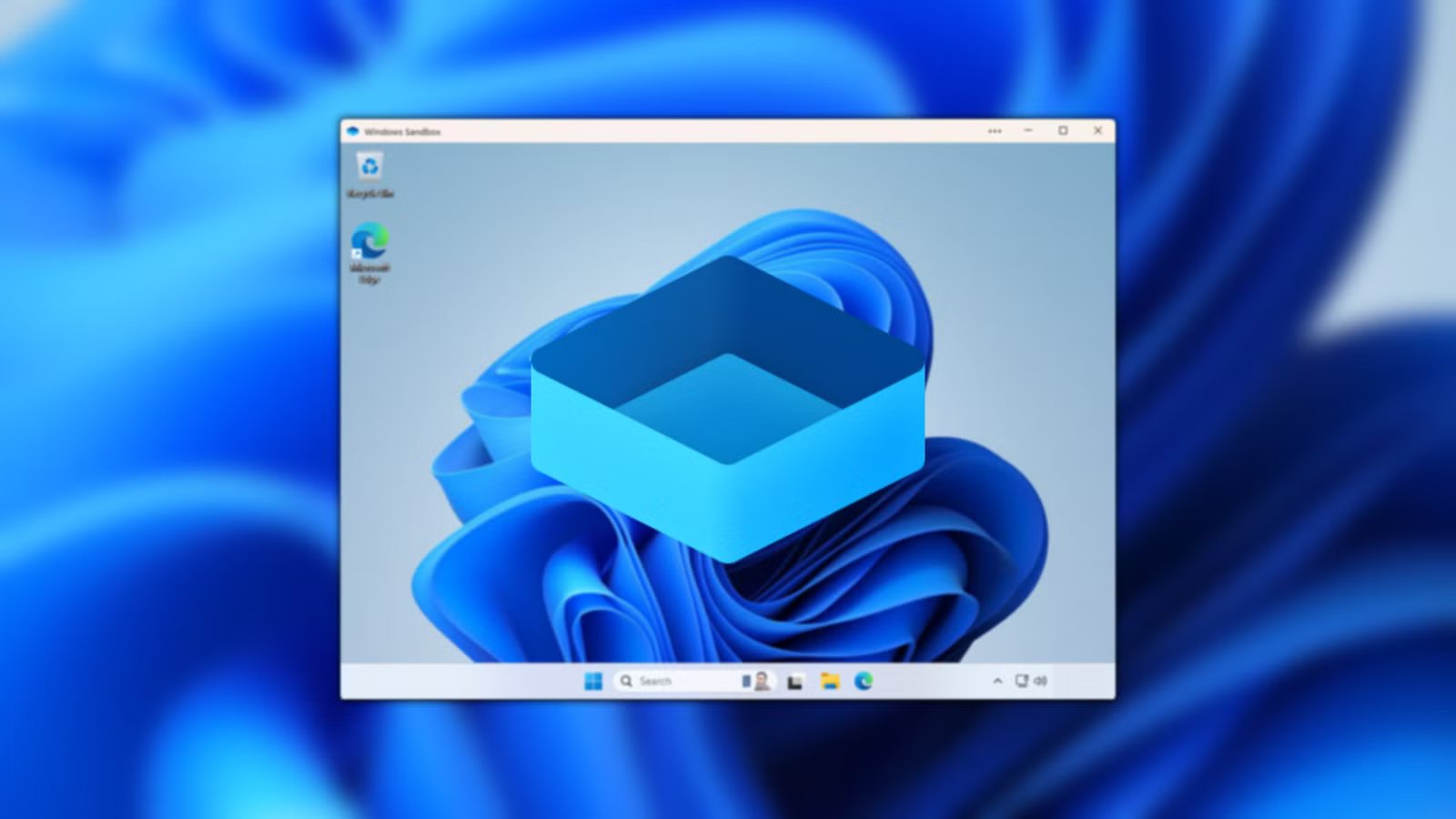
Most of us have downloaded something that made us hesitate before double-clicking on the file. Maybe it was a utility from GitHub, a driver mirror you do not fully trust, or an installer that Windows Defender flagged as “unknown.” In those moments, the usual options are not great. You can either roll the dice, run it on your main PC, and hope for the best, or you can skip it entirely. Windows gives you a third option, and it is one most Windows users overlook.
Windows Sandbox lets you run untrusted software inside a disposable Windows desktop that disappears the moment you close it. There is no cleanup, no lingering files, and no direct risk to your real system if something goes wrong. Before getting into how to use it, it helps to understand what Sandbox actually is and why it works the way it does.
Windows Sandbox: A place to test untrusted software without risking your PC
Windows Sandbox is a built-in feature that allows you to spin up a clean, isolated copy of Windows inside a window. It looks and behaves like a normal desktop, but it’s completely separated from your actual system. Anything you install, download, or change inside Sandbox stays there and nowhere else. When you close the window, the entire environment is wiped and the next launch starts fresh. Think of it as a temporary Windows PC that exists only long enough to answer the question, “Is this safe to use?”
This makes Sandbox ideal for short, disposable tasks like testing unknown installers, opening files you are unsure about, or poking around software before deciding whether it belongs on your real machine. It is not meant for long-term testing or daily use, and it doesn’t save anything between sessions. It’s also worth noting that Sandbox isn’t available on every edition of Windows. You need Windows 10 or Windows 11 Pro, Enterprise, or Education to use it. If you are on a Home edition, the feature simply is not there, which makes Sandbox feel hidden even though it is built right into Windows.
Why Windows Sandbox isn’t just for IT pros
Windows Sandbox is best used as part of your safety process, not simply as a last resort. If you’re downloading software from a source that you don’t fully trust, testing a small tool you found on GitHub, or opening a file that feels even slightly questionable, Sandbox is the right place to start. You do not need proof that something is malicious to justify using it. The whole point is removing the risk before it ever reaches your main system.
This is especially useful for power users, IT pros, and anyone who regularly experiments with new tools, but it is just as valuable for everyday Windows users who want an extra layer of confidence. Sandbox is not about paranoia. It is about making safe testing easy enough that you actually do it yourself. If running something inside Sandbox feels just as fast as running it normally, there is no real reason not to use it.
How to enable Windows Sandbox in Windows 11
Turning on Windows Sandbox in Windows 10 and Windows 11 is simple, and you only have to do it once. Open the Start menu and search for Turn Windows features on or off, then scroll down and check Windows Sandbox. Click OK and restart when prompted.
There’s nothing else to install, and no setup wizard to walk through. Once it’s enabled, Sandbox lives on your system like any other built-in Windows tool.
Using it is just as simple. Open the Start menu, search for Windows Sandbox, and launch it. A clean Windows desktop opens in a window within seconds. From there, copy the installer or file you want to test into the Sandbox window and run it like you normally would.
When you’re finished, close Sandbox and confirm the prompt. Everything inside is erased instantly, including installed apps, files, and system changes. The next time you open it, you start fresh again, which is exactly the point.
Disable internet access inside Windows Sandbox for extra security
Locking down Windows Sandbox is optional, but it’s worth doing when you are dealing with software you truly don’t trust. By default, Sandbox has internet access and behaves like a normal Windows install, which is fine for most testing. If you want to be more cautious, Sandbox supports simple configuration files that let you restrict what the environment can do before it even launches. These are plain text files with a .wsb extension, and double-clicking one opens Sandbox using those rules automatically.
You can disable networking entirely, which prevents anything inside Sandbox from reaching the internet or your local network. This approach keeps the workflow fast while tightening the blast radius. You do not need to overthink it. A minimal .wsb file gives you more control without turning Sandbox into a full virtual machine, which is exactly what makes it so effective.
To create a .wsb file, right-click anywhere on the desktop or in a folder, then choose New > Text Document. Now rename the file, ensuring it ends with a .wsb extension. Once the text document is created, type the following configuration code.
Disable
Next save the text document. Now when you double-click the file you’ll open a Sandbox window with no access to the internet. There are more custom sandbox parameters that can be set, like mapped folders, clipboard redirection, and more.
Windows Sandbox doesn’t try to impress you, and that is exactly why it works so well. When a download makes you pause, you do not need to overthink it or start hunting for tools. You open Sandbox, run the file, see what happens, and close the window. Nothing sticks, nothing lingers, and your real system stays untouched. Once you get used to that workflow, running unknown software anywhere else starts to feel like risky behavior.
