

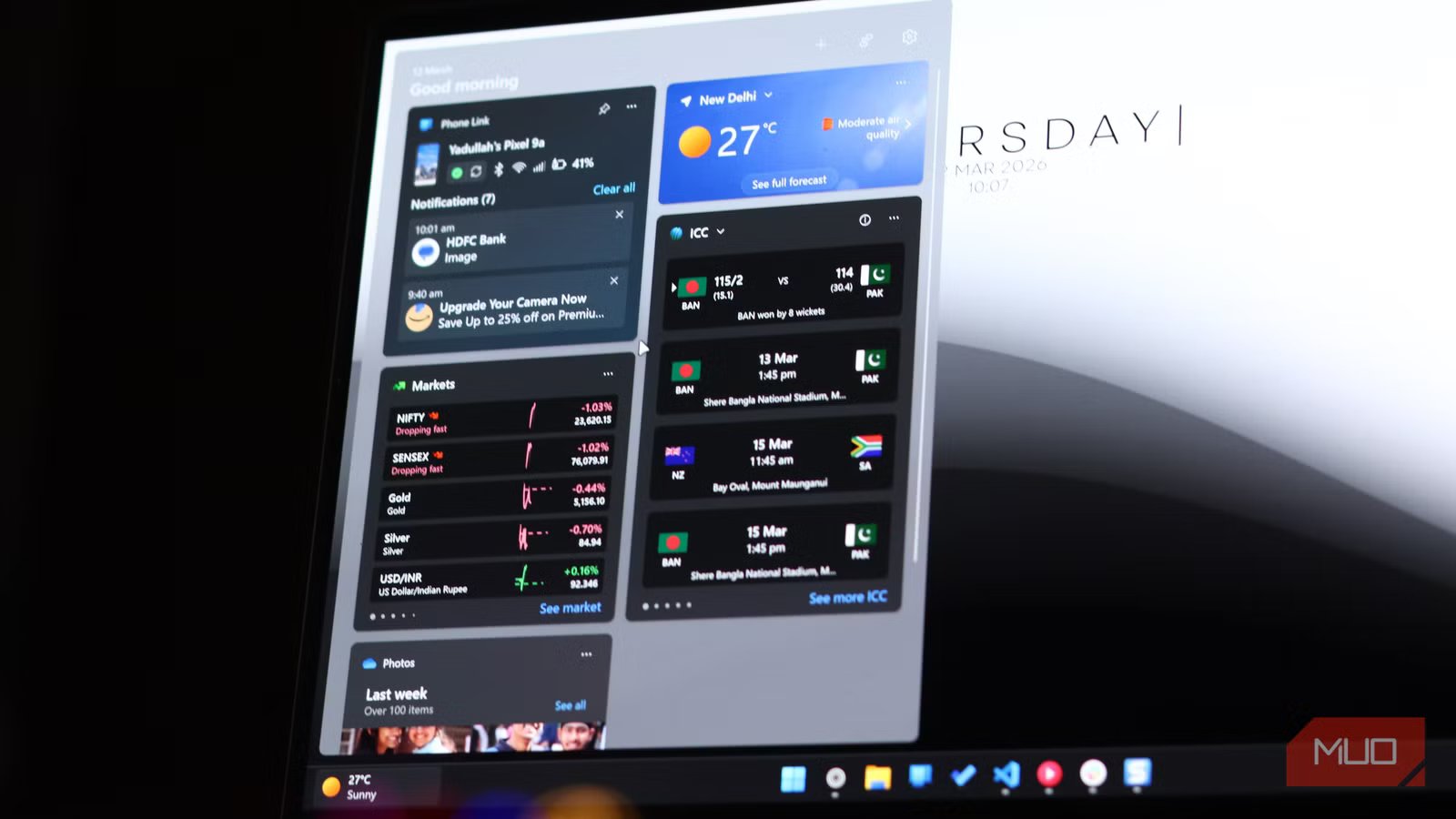
Windows 11’s widgets panel has been around for a while now, but most people either ignore it or actively resent it. That’s not because the idea is bad—having a glanceable dashboard for weather, calendar events, and stocks can be genuinely useful. The problem is that Microsoft ships it with defaults that make the whole experience feel like a clickbait news aggregator.
But if you’ve been ignoring the Windows 11 widget feature, you’re making a mistake. With a few tweaks here and there, it can actually turn into a pretty handy feature, especially considering all the meaningful changes Microsoft has made to it.
Your widget feed will look better without it
The single biggest improvement you can make to the widgets feed is disabling the Microsoft news feed. By default, the widgets panel is dominated by a news feed powered by Microsoft Start, serving up a relentless stream of sensationalized headlines and celebrity gossip news that has no business being on your desktop.
For a long time, this feature couldn’t be disabled, and since it consumes pretty much the entirety of the widgets panel, it made the whole feature useless. Thankfully, the ability to turn this off has finally arrived, and you should exercise that option immediately. Just follow these steps:
- Open the widgets panel with Windows key + W and click the settings icon in the top right.
- Select the Show or hide feeds option.
- Disable the Feed slider.
And that’s it. Without the feed hogging screen real estate, the panel feels focused, purposeful, and you can finally start placing widgets that actually matter.
No one likes accidental widgets
Accidentally triggering the widgets panel, however rare, can be rather annoying. By default, Windows 11 opens the widgets panel the moment your mouse hovers over its icon. This might sound useful, but this means anytime you’re doing something in the lower left corner of your screen, you can easily trigger the panel by mistake.
To disable this, follow these steps:
- Open the widgets panel with Windows key + W and click the settings icon in the top right.
- Disable the Open Widgets board on hover toggle.
Once off, the panel will only open when you deliberately click the icon or press the Windows key + W shortcut. You stay in control of when you interact with your widgets instead of accidentally having them cover more than half your screen.
Your taskbar is busy enough without it
Even with the widgets panel closed, Windows loves to remind you it exists by showing rotating announcements through the widgets panel taskbar icon. This includes anything from sports scores, finance updates, and breaking news headlines in a ticker-style rotation. Given how your taskbar gets progressively busier through the day, this behavior often adds visual noise that pulls attention from whatever you’re actually doing.
You can disable this by following these steps:
- Open the widgets panel with Windows key + W and click the settings icon in the top right.
- Click Notifications.
- Disable the Show announcements on the taskbar option.
While you’re in there, you can also disable notification badges if you don’t want your widgets to show little red counters every time something updates. Once both are off, the taskbar icon only shows the weather—exactly the kind of calm, glanceable information a taskbar widget should provide.
Microsoft’s defaults are rarely useful
Yadullah Abidi / MakeUseOf
In case you didn’t know, most widgets in the widgets panel can be individually customized. By default, most of these are set incorrectly, so customizing them to work the way you want is pretty much the only way to get them working right. The weather widget might be showing conditions for the wrong city. The stocks widget might be tracking stocks you don’t care about. The traffic widget could be pointed to a route you never drive. None of that is helpful, and it makes the whole panel feel generic and impersonal.
Customizing widgets is a simple matter of clicking the three-dot menu on any widget and selecting the Customize widget option. Spending a few minutes customizing your widgets will get them to start delivering information that actually matters to you instead of random filler.
Creating a cleaner widget dashboard
Yadullah Abidi / MakeUseOf
The default widget arrangement can be a bit of a mess, especially after you get rid of the annoying feed Microsoft decided to slam in your face by default. Windows scatters widgets across the panel without much thought about hierarchy, and they’re all roughly the same size regardless of how much information they display. A weather widget showing a five-day forecast needs more space than a calendar card, but the default layout doesn’t respect that logic. If you get the arrangement right, there are widgets you can put on your second screen to stay productive.
You can drag widgets by their headers to reposition them within the panel. Put your most-used widgets at the top where they’re immediately visible. After that, click the three-dot menu on each widget to customize its size. Much like Windows tiles, they’re available in small, medium, or large sizes. You can have priority widgets like weather, calendar, and stocks in large sizes, while others can fill up the space with medium and small sizes.
As soon as your widgets bar is laid out in an intentional layout, the panel goes from a random collection of cards into a dashboard that respects your attention. Widgets can also turn your boring Windows lock screen into something useful, which is otherwise just wasted space.
Windows widgets are better than their reputation
You might feel that Windows widgets are entirely useless, but with a few careful tweaks, they can actually provide a lot of useful information in an easy-to-understand layout. Whether you quickly want to look up the weather or peek at your calendar appointments, there are widgets for just about every use case.
Microsoft’s defaults severely cripple Windows widgets, so if you’ve bounced off the feature before, it’s probably not because of the feature itself. Trim the noise, tune the content, and use widgets that help you get through the day. The widgets panel will stop feeling like a gimmick and more like a useful, glanceable dashboard you’ll actually use.
