

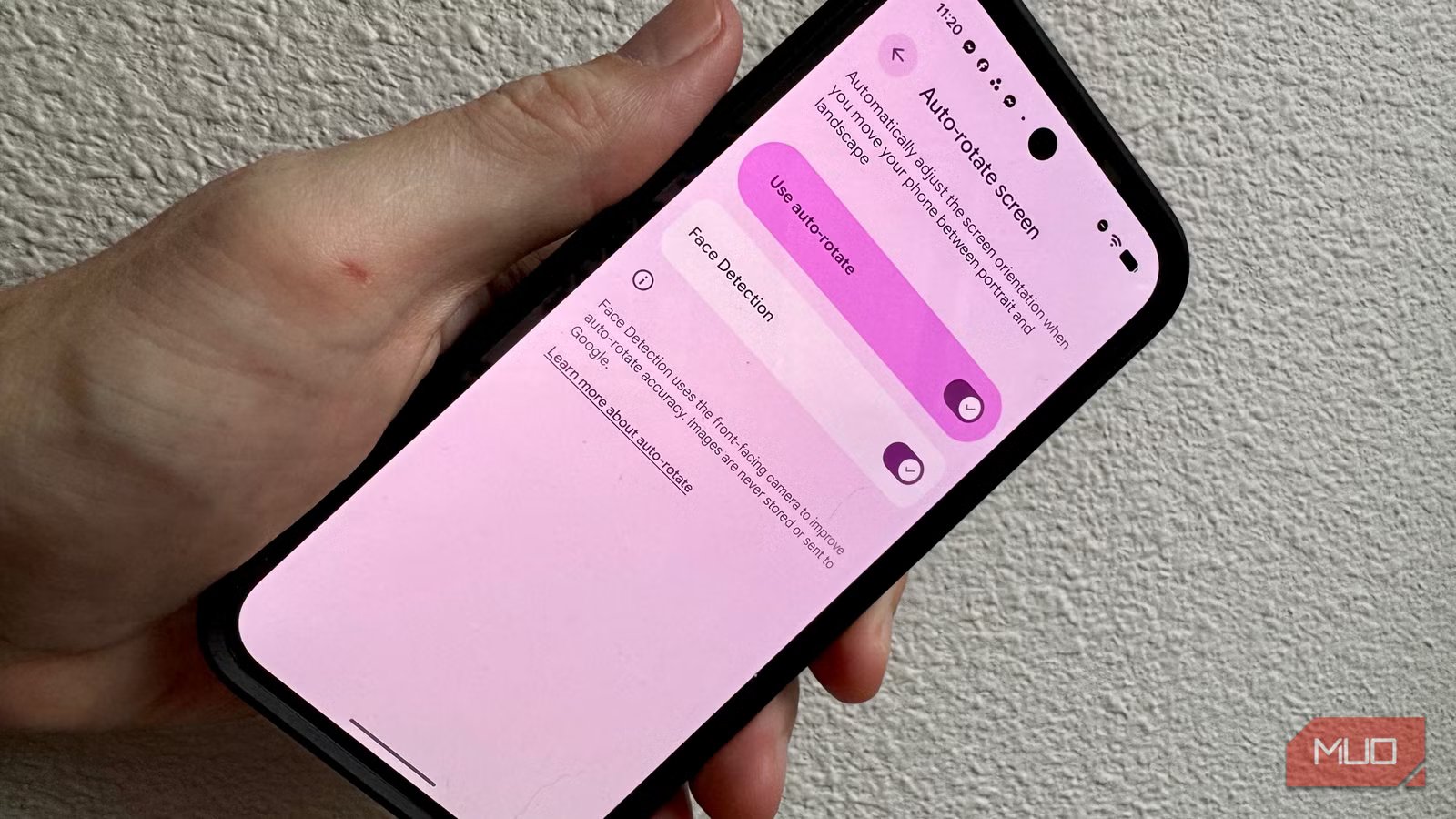
Your Pixel’s auto-rotate isn’t broken. You just haven’t turned on the right one.
Buried in your Android display settings is a second auto-rotate mode that uses your Pixel’s front-facing camera to detect your face’s orientation rather than your phone’s angle. It’s been there since Android 12, it works on Pixel 4 or later, and it only takes about ten seconds to enable.
Here’s how face-detection auto-rotate works, how to turn it on, and what to expect once you do.
Related
Auto-Rotate Not Working on Android? Try These Fixes
If your phone’s screen doesn’t rotate when you turn it on its side, these solutions should be able to help.
Standard auto-rotate and why it fails
The accelerometer is the wrong tool for the job
image credit – https://unsplash.com/photos/aiUAxBNe3Xk
Standard auto-rotate uses your phone’s accelerometer to detect its orientation and switch between portrait and landscape modes. Try it with your web browser app; rotating your phone will change the web display from portrait (up and down) to landscape (sideways). The problem with this system becomes obvious when you try to lie on your side in bed. Both your head and your phone are on their side, so the phone will flip to landscape when your eyes want it to stay in portrait mode. This is a common issue, and most of us just turn off auto-rotate entirely and just switch orientations manually.
That’s less than optimal, especially when there’s a different toggle that solves the problem.
What face detection auto-rotate actually does differently
Your face is a better signal than your phone’s angle
No attribution needed- Unsplash
Rather than relying solely on the accelerometer, face detection uses your front-facing camera to determine your face’s orientation relative to the phone. it considers how you’re looking at the phone, not just what the orientation sensor reads. Google has also optimized the animation and redrawing with a machine learning-driven gesture detection algorithm, which can reduce the latency of this auto-rotate by 25%. Your Pixel isn’t watching your camera all the time; it only triggers when the phone detects a rotation event (or when your screen wakes), which can help conserve power.
All this machine learning and face detection processing stays on your device via the Android Private Compute Core, which means that the facial data is never sent to Google’s servers. The feature itself is opt-in; you have to explicitly enable face detection.
Samsung tried a similar feature called Smart Rotation on its Galaxy S3 back in 2012, but it wasn’t very reliable. The company eventually dropped it. Google’s implementation, based on machine learning and optimized over several Pixel generations, seems to have stuck.
How to enable auto-rotate face detection
Two ways to get there
If you have a Pixel 9 or later with Android 12 or later, you can head into Settings > Display & Touch > Auto-rotate screen. Tap there and you’ll have the choice to toggle Face Detection ON.
The faster way is to drop into your Quick Settings (swipe down from the top, then swipe again) and press and hold on the Auto-Rotate tile. That will take you to the preferences screen as above. If you don’t see Auto-rotate in your Quick Settings, tap the pencil icon and add it.
What to expect (and where it can fall short)
Great for the bed use case, with a few caveats
Auto-rotate face detection works really well in the reading-in-bed use-case scenario. You’re sitting up and reading an article on your phone, decide to lie down on your side to continue reading it, and your phone won’t auto-rotate for you, keeping things simple and usable.
The reverse sit-up scenario works just as well: if you’re watching a landscape video while lying down, your Pixel will hold that orientation when you sit up instead of snapping back to portrait the minute the accelerometer figures it out. It’s the kind of two-way reliability that really makes this feature useful.
There are edge cases, however, like if you rotate your phone when it can’t see your face. In that case, you might need to do it again. Some users of older Pixels may find some inconsistency, but my Pixel 9 seems to catch it every time.
So, while it might not be a magic bullet for you, depending on your own situation, it is definitely better than just using the accelerometer-only way.
Try it tonight
This kind of feature sounds pretty minor until you’ve used it and come to rely on it. The fact that it’s buried several taps deep in your Settings app can explain why most of us Pixel owners haven’t ever touched it. I know that I keep it enabled all the time, now that I know where to look. If you’ve been manually toggling rotation for years like I have, this is the setting that will make you stop.
