

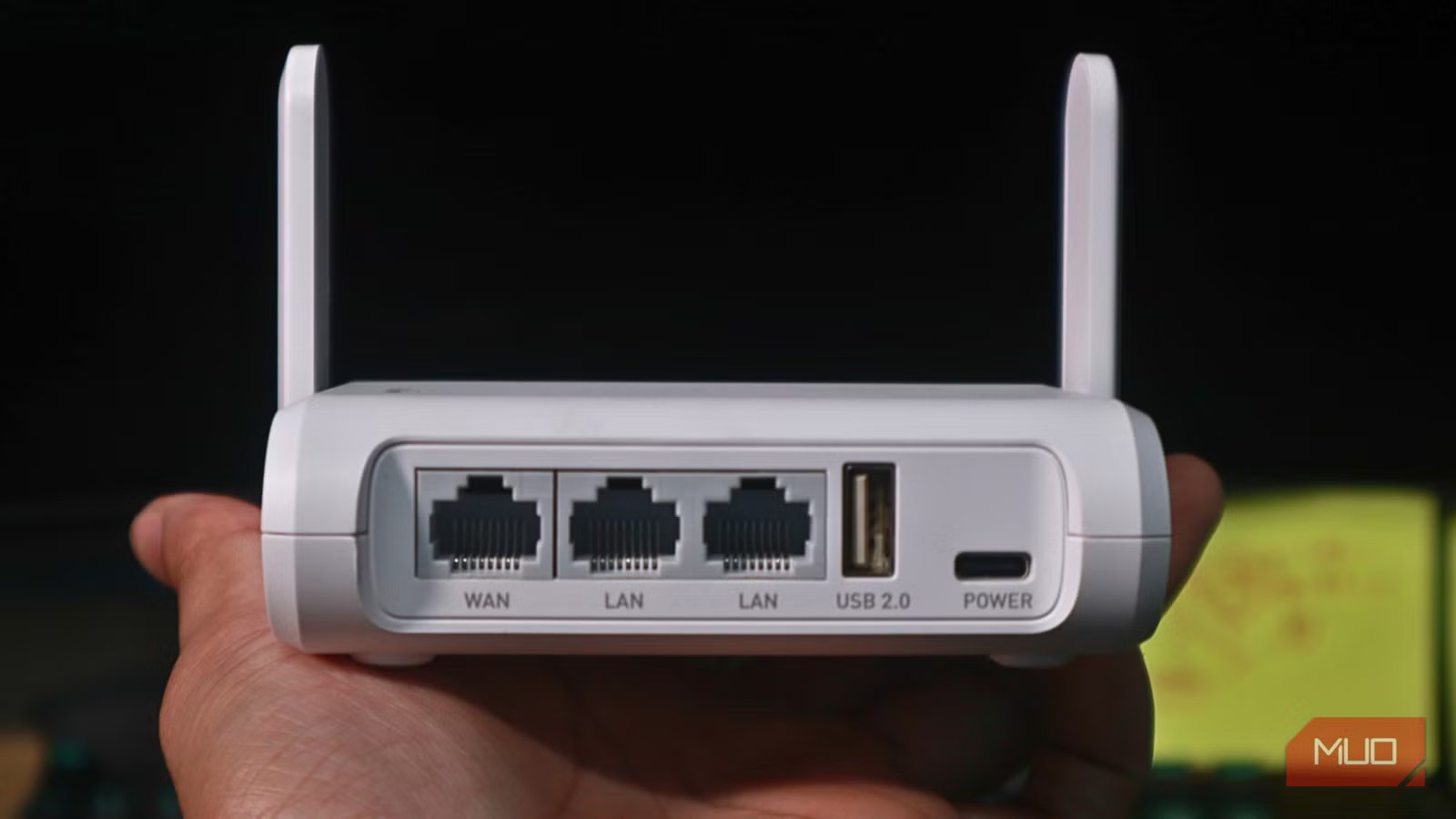
If your internet feels moody, you have my sympathy. It is easy to point the finger at your ISP, and sometimes they absolutely deserve it, especially if you suspect your ISP is throttling your connection. However, a decent amount of “slow internet” is actually your router being a little too ambitious, a little too automatic, or a little too stuck in its ways.
The frustrating part is that your network can still look great on a speed test while feeling awful in real life. That is usually a settings problem, not a raw bandwidth problem. The good news is that you do not need a new router to get a noticeable jump in day to day speed. You need fewer landmines in your configuration.
Your Wi-Fi channel is stuck in traffic
Stop fighting over the same slice of spectrum
Think of Wi-Fi channels as lanes on a highway, a comparison that helps explain what Wi-Fi router channels do. When everyone in your apartment building uses the same lane, traffic slows to a crawl. Most routers automatically select a channel during initial setup and never change it, even though interference can come from numerous sources beyond neighboring networks.
The 2.4 GHz band only offers three non-overlapping channels (1, 6, and 11), making congestion particularly problematic in densely populated areas. Meanwhile, the 5 GHz band provides up to 25 non-overlapping channels with significantly less interference. If you’re experiencing inconsistent speeds despite a strong signal, channel congestion is likely the culprit.
To fix this, access your router’s admin panel (typically at 192.168.1.1 or 192.168.0.1) and navigate to the wireless settings section. Use any of the best Wi-Fi analyzer apps on your smartphone to identify which channels have the least traffic in your area, then manually select a less crowded option. For the 2.4 GHz band, stick exclusively to channels 1, 6, or 11. On 5GHz, you have more flexibility to experiment with different channels until you find one that delivers consistent performance.
You’re connected to the wrong frequency band
2.4GHz is the marathon runner; 5GHz is the sprinter
Building on the point above, each Wi-Fi band has its own strengths. The 2.4GHz band reaches farther and slips through walls more easily, but it is slower and more prone to interference from other electronics. The 5GHz band is the opposite. It is quicker and cleaner, but it does not travel nearly as far.
The problem is that most of us just connect our devices to whichever network pops up first without considering which band would serve better. That is how bandwidth-hungry gear like streaming boxes and gaming consoles end up stuck on the crowded 2.4GHz band, while the faster 5GHz network sits there with plenty of unused breathing room.
The fix is really about being a little more intentional. Put the devices that crave speed and live close to your router — laptops, consoles, streaming sticks — on the 5GHz network. Let the 2.4GHz band handle the long-distance runners, like smart home gadgets, printers, and scattered IoT devices that care more about range than raw speed. Some newer routers try to juggle this for you with something called band steering, but in my experience, setting up your router with separate network names for each band and taking a few minutes to assign devices yourself usually leads to a noticeably better setup.
Outdated firmware is creating performance bottlenecks
Running 2019 software in a 2026 world is a bad idea
Router firmware is the invisible software that orchestrates every aspect of your network’s operation. When manufacturers release updates, they’re not just patching security holes — they’re also optimizing how your router handles data traffic, improving compatibility with newer devices, and sometimes unlocking performance capabilities that weren’t available when you first purchased the device.
And so, if you skip those updates, your Wi-Fi can start to feel slower as internet plans get faster and devices get hungrier for bandwidth. The funny part is that a lot of people end up blaming the hardware when the real bottleneck is software that has not been touched in years.
Checking for updates depends on your router, but you could check our guide to updating your router firmware for some direction. Log in to the router’s web interface and look for something like Administration or System. If your model offers automatic updates, turn them on and forget about it. When you do run an update, give it a few minutes and resist the urge to unplug anything. Let the router reboot on its own.
Once it is back online, you may notice steadier speeds, fewer random dropouts, and better behavior when a house full of devices is all online at once. And the best part is that you get all of that without buying a single piece of new hardware.
Misconfigured Quality of Service settings are backfiring
The setting that’s supposed to help, but may not
Quality of Service (QoS) sounds like a feature that should always improve your internet experience, and when properly configured, it does exactly that. When it is not, it often does the opposite, creating uneven performance that leaves some devices or apps crawling while others dominate the bandwidth.
Related
How I Prioritize Specific Network Traffic on My Wi-Fi Router
Your router has secret settings that can make your network more efficient.
The common pitfall is setting QoS limits far below your actual broadband speeds. In that case, the router treats those numbers as a hard ceiling for your entire network. If you enabled QoS years ago on a 100Mbps plan and later upgraded to 500Mbps, your connection may still be artificially capped at the old rate. On some routers, enabling QoS can also disable hardware acceleration, reducing peak throughput, especially on high-speed connections.
Neglecting basic maintenance and security settings
Have you tried turning it off and on again? (No, seriously)
It’s easy to overlook the mundane aspects of router maintenance, but they can significantly impact performance. A router that’s been running continuously for months or years can develop software quirks and memory leaks that progressively degrade performance. Simply rebooting your router every few weeks can clear these issues and restore optimal function.
Security settings also play an underappreciated role in speed. If your Wi-Fi is not locked down with a strong password and secure encryption like WPA2 or WPA3, you are basically inviting extra guests onto your network. Every unauthorized device is another mouth at the bandwidth table, and that means less for the things you actually care about.
Additionally, take inventory of the devices connected to your network through your router’s admin panel. You can use a dedicated tool to see exactly who is using your Wi-Fi, or pop into your router’s admin panel and see who is on the guest list. You might spot an old tablet, a smart gadget you forgot about, or a visitor who never logged off. Kick off anything you are not using, and consider setting up a separate guest network with its own speed limits, so visitors can get online without stepping on your main connection.
Stop blaming your ISP for everything
Routine upkeep might not be the most thrilling part of owning a router, but it is free, quick, and effective. Pair it with a few of the setting tweaks we just walked through, and you may discover that your existing router and internet plan have a lot more to offer than you thought. Sometimes they do not need replacing at all. They just need a little tuning to finally show what they can do.
