

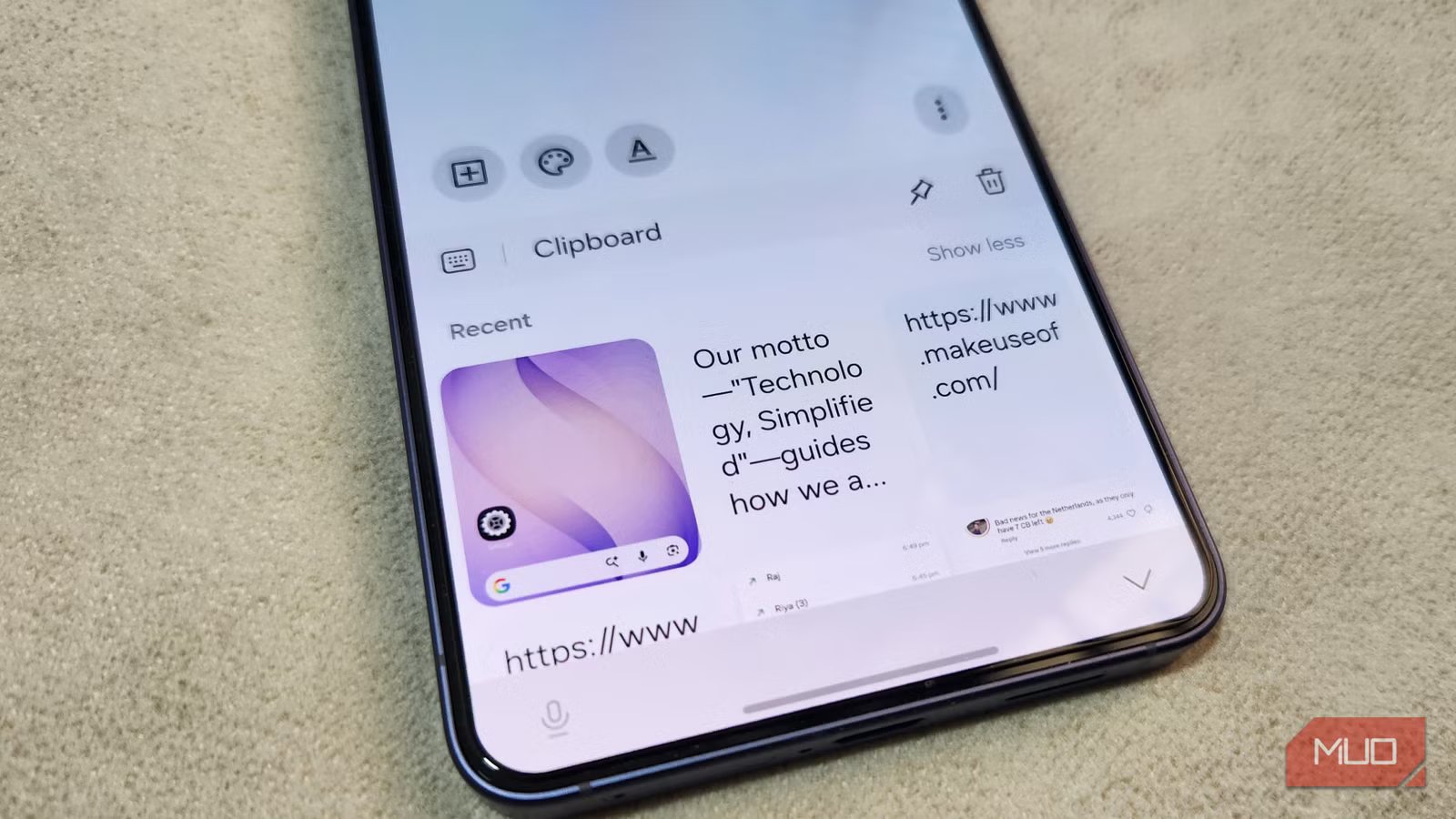
Samsung phones come packed with features, but the sad part is some of the best ones rarely get any attention. The clipboard is a perfect example. I used to think of it as nothing more than a place to hold copied text, but the more I explored it, the more I realized it’s actually one of the best productivity tools in One UI.
It lets me quickly access old copied text, save images and screenshots, and even pin things I use all the time. Add in cross-device syncing with Galaxy tablets and Windows PCs, and it becomes one of the most convenient ways to move text and photos across devices.
Related
I’ve been using third-party keyboards for years — this built-in one made me uninstall all of them
Turns out the best option came with the phone.
The clipboard experience on Samsung phones is underrated
Never lose copied text
Pankil Shah / MakeUseOfCredit: Pankil Shah / MakeUseOf
Samsung’s clipboard is built directly into the keyboard experience, which means it’s always a tap away. Better yet, it comes enabled by default, so there’s a good chance you already have access to it as long as you haven’t switched away from the default keyboard app.
To open it, bring up the Samsung Keyboard and tap the clipboard icon in the toolbar above the keys. If you don’t see it, tap the three-dot menu and drag the clipboard icon to the toolbar. Now, every item you copy will remain accessible in the clipboard. And it’s not limited to just text. If you copy images from your browser or the chat app, those will show up there too.
It gets better. Samsung Keyboard even lets you store screenshots in the clipboard. You just need to enable the Save screenshots to clipboard toggle in the Samsung Keyboard settings.
Being able to see your copied text and photos is obviously handy, but what I like the most about the clipboard is the ability to pin items. I can pin my email address, home address, banking details, or frequently used replies to save time. And of course, there’s also the option to manually delete items if you copy something sensitive. Simply long press the entry, hit the trash icon, and you’re done.
Edge panel makes clipboard history incredibly convenient
Drag-and-drop clipboard access
Clipboard history isn’t exclusive to Samsung phones. It’s something that most keyboard apps offer on Android. But what makes Samsung’s implementation stand out is how it integrates with the Edge Panel.
Head to Settings > Display > Edge panels and turn on the feature. Then, tap Panels, and enable Clipboard from the list. Once that’s done, the clipboard becomes accessible from virtually anywhere on your phone. Just swipe in from the side of the screen, and all your copied text, links, images, and screenshots are available.
My favorite thing about this is the drag-and-drop support. In many apps, you can simply drag copied text or images directly from the clipboard panel into another app. So yes, there’s no need to rely on the keyboard at all. It feels even better if you’ve got a larger Galaxy phone or a foldable one. You can use the Edge Panel while browsing, drag an image into Samsung Notes, or drop copied text straight into a message.
Your clipboard travels with you across Galaxy devices and PCs
Pankil Shah/MakeUseOfCredit: Pankil Shah/MakeUseOf
One of the best things about Samsung’s clipboard feature is that it isn’t limited to just your phone. If you have other Galaxy devices like a tablet or even a Windows PC, your clipboard can follow you across them too.
Galaxy phones and tablets can sync clipboard content with each other using your Samsung account. For this to work, both devices need to be on the same Wi-Fi network, have Bluetooth enabled, and support Samsung’s continuity features. You can enable it by going to Settings > Connected devices and turning on Continue apps on other devices. Once enabled, copied text and images sync automatically between your Galaxy devices.
The same convenience extends to Windows PCs too. Once you’ve connected your Galaxy phone and Windows PC via Phone Link, you can enable clipboard sync on Windows. Head to Settings > System > Clipboard and turn on Clipboard history across your devices. On non-Galaxy devices, syncing the clipboard is usually a pain because it requires you to use SwiftKey or a third-party app. Samsung’s tighter integration with Windows makes the entire setup feel far more seamless.
For me, this cross-device clipboard syncing is one that’s hard to live without. With it, I don’t need to email links to myself, send notes through chat apps, or create temporary drafts just to move text around. And this works both ways, which means I can copy something on my PC or tablet and access it on your phone.
The clipboard is probably the last thing you’d call exciting on a phone. But the thing is, once you start using it, it’s something you’ll want on every device you own. In fact, it’s one of the first things I miss whenever I switch to an iPhone.
