

Samsung DeX is a well-known desktop experience offered on flagship Samsung devices from the S, Note, and Fold series. However, some phones like the Z Flip series miss out on DeX due to hardware constraints. So even if you own a top-tier Flip phone, you can’t use one of Samsung’s best features.
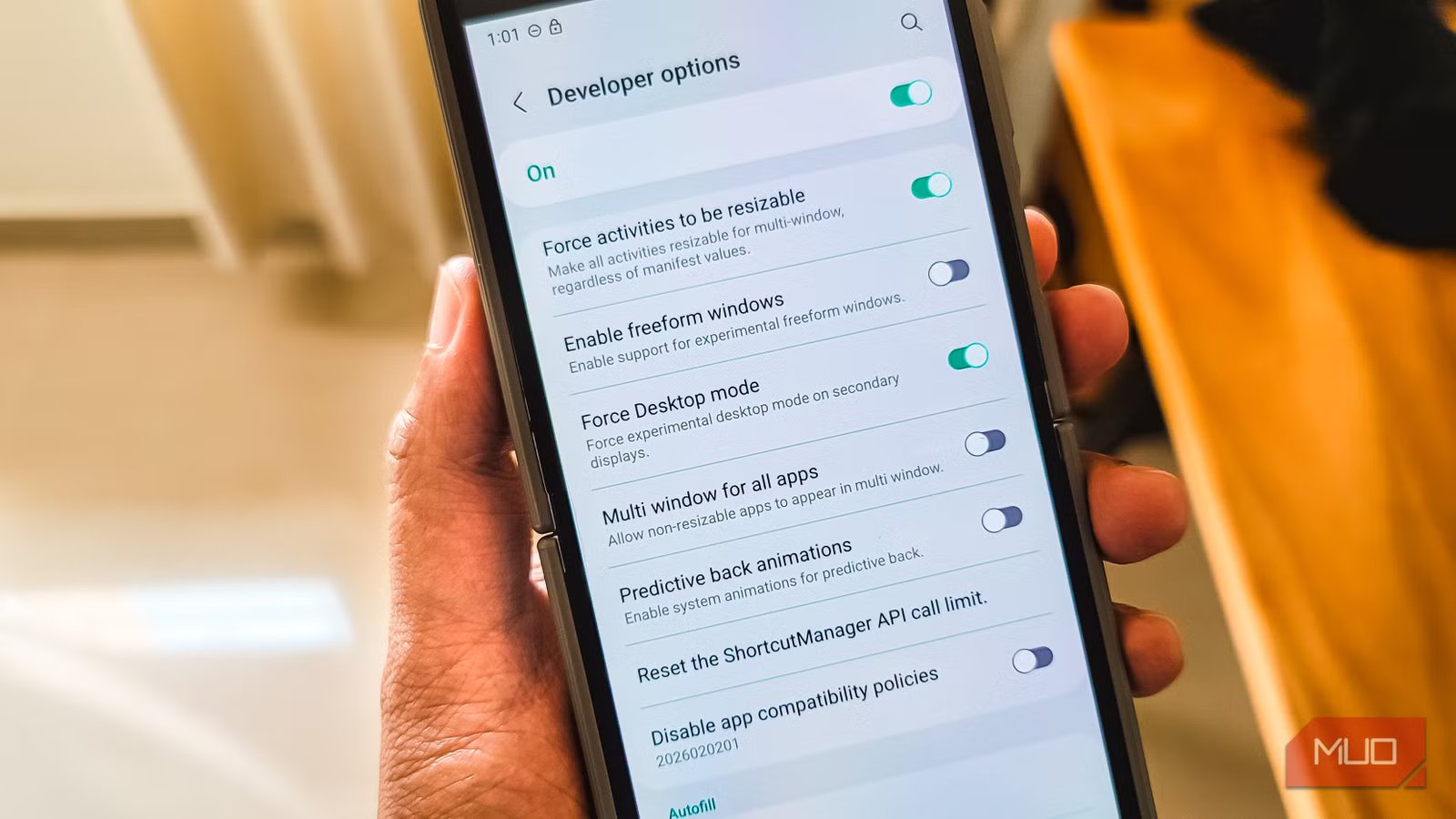
While looking for a workaround, I found a hidden desktop mode option that offers a toned-down desktop experience on Samsung phones. Force Desktop mode is a lightweight desktop experience that you can enable from Developer Options to turn your phone into a PC by connecting it to your monitor. While it’s not a full DeX experience, it’s still usable when you’re traveling light.
What is Force Desktop mode?
An experimental desktop mode for secondary displays
Tashreef Shareef / MakeUseOfCredit: Tashreef Shareef / MakeUseOf
Force Desktop Mode is an Android developer option that enables a desktop-style interface when you connect your phone to an external display. It was originally designed for app developers and OEMs to test how their apps behave in a multi-window environment. But for regular users, it can serve as a basic desktop replacement when DeX isn’t available.
When enabled, your phone shows a desktop-like UI on the external monitor with windows you can move and resize. It’s similar to what you’d expect from a computer, but with limitations. The interface includes an app drawer and supports freeform windowing, so you can have multiple apps open side by side.
I tested this on my Galaxy Z Flip 6, and it works as advertised. Connect a USB-C to HDMI adapter to your phone, plug it into a monitor, and you get a basic desktop environment. There’s no wireless option as DeX offers on supported devices, so you’ll need a physical connection every time.
The feature exists because device makers use it as a baseline for building their own desktop experiences. Samsung’s DeX is essentially a polished version of this same concept, with a proper taskbar, system tray, and optimized app behavior.
Enable Force Desktop mode in Developer Options
A few taps and a reboot gets you started
Before you can use Force Desktop Mode, you need to unlock Developer Options on your phone. To do this, open Settings, go to About phone > Software Information, and tap on Build number seven times. You’ll see a message confirming that Developer Options is now enabled.
Once that’s done, go back to Settings and open Developer Options. Scroll down until you find Force Desktop mode, listed under the section with display-related toggles, and toggle it on.
Your phone will ask you to reboot. This is necessary because the system needs to apply the changes at startup. After the reboot, Force Desktop Mode is active but won’t do anything until you connect an external display.
Now connect your phone to a monitor using a USB-C to HDMI adapter, and the desktop interface should launch automatically on the external display. To get started, pair a few cheap gadgets like a Bluetooth keyboard and mouse with your phone, and you have a basic workstation. Your phone screen continues to work normally, so you can use it as a touchpad or just leave it aside.
Comparing it to DeX
It works, but it’s rough around the edges
Credit: Bertel King / MakeUseOf
If you’ve used Samsung DeX before, Force Desktop mode will feel familiar but noticeably less refined. DeX is a fully functional desktop environment with a polished UI, a proper taskbar, notification area, and keyboard shortcuts—reliable enough for some to ditch their laptop entirely. Force Desktop Mode is none of that.
The interface is barebones. You get an app drawer and freeform windows, but basic window management feels clunky. When I minimized an app, the minimize option appeared far from where my cursor was, which is annoying when you’re trying to work quickly. The Recents button on your phone affects only the phone’s screen, not the desktop interface, so switching between apps isn’t as smooth as it should be.
App compatibility is another issue. Very few apps are optimized for this mode. Most just display as stretched phone UIs, and some misbehave when forced into resizable windows. DeX has a curated set of productivity apps that scale properly and behave like desktop applications. Force Desktop Mode doesn’t have that advantage.
DeX also offers wireless connectivity on supported devices, which means you can connect to a Samsung TV or monitor without cables. Force Desktop mode requires a physical USB-C connection every time, which limits its convenience when traveling. I’ve tried replacing my laptop with Samsung DeX before, and even that had its issues, so Force Desktop mode is a step further down.
A workaround, not a replacement
Force Desktop mode is useful if you have a Samsung phone that doesn’t support DeX, like the Z Flip series. It gives you a basic desktop experience that’s good enough for light tasks like checking emails, editing documents, or browsing the web on a bigger screen.
But it’s not a DeX replacement. The lack of polish, inconsistent window management, and app compatibility issues make it frustrating for anything beyond casual use. Samsung labels it experimental for a reason; it works, but barely.
For what it is, Force Desktop mode is a decent solution. If you’re traveling without a laptop and need to get some work done on a hotel TV or a friend’s monitor, it’s better than nothing. Just don’t expect the seamless desktop experience that DeX provides on the Fold or S series phones.
