

Everyone wants the best streaming experience they can possibly have. Whether you have a huge smart TV that is mounted on your wall and you’ve perfectly crafted the soundbar or speakers to sync up with the acoustics in your room or you’re watching on your laptop from the comfort of your bed, what matters is that you’re enjoying what you’re watching. It doesn’t have to be overly fancy, but it’s important to be comfortable and work well for you.
Many people either buy a smart TV or buy a streaming device to turn their dumb TV into a smart one. Some people also plug streaming devices into their smart TVs because they prefer a different operating system or a faster experience. For those of you using Amazon Fire TV Sticks or Roku streaming devices, it’s important to consider where you’re plugging them into your TV. While a lot of TVs have USB ports, you may want to avoid plugging the device into it.
Related
Smart TV vs. Streaming Devices: Do You Need Both?
Your smart TV is super useful, but a streaming device could be even more useful.
Streaming devices can be plugged into your TV’s USB port
Most give you the option of using an A/C
If you’re plugging a streaming device into your TV, you’re likely to plug one end into an HDMI port. This will give you the audio and video of your favorite streaming channels. The other end needs to plug into a power source to make the streaming device run.
The other end of the HDMI cord is a USB connector. If your TV has a USB port, you can plug it into there. You also have the option to plug it into an A/C outlet adapter, which likely came with your device.
On one hand, it minimizes the amount of cables you have running behind your TV. If you don’t have a lot of room or a free outlet to plug it into, you may avoid using the A/C adapter and plug the other end into your USB port. It could very well work just fine and you’d never notice the difference.
But there are situations where plugging it into the USB port can slow down your streaming experience and even cause harm to your TV and device. It depends on the type of TV you have and the kind of device you are using.
Your TV could get stuck in a boot loop
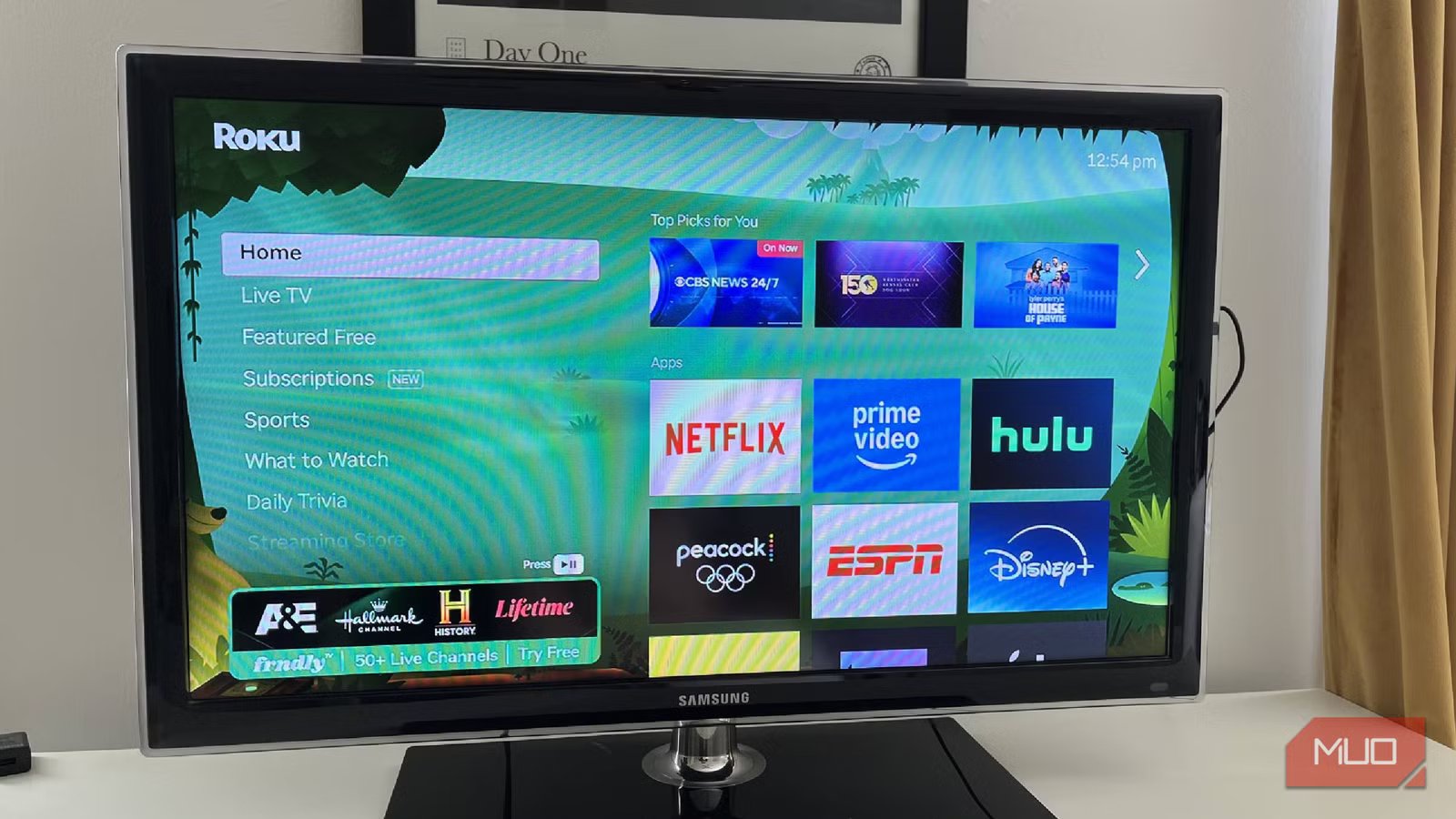
We all love Roku City, so we want to be able to get there
Credit: Roku
While your TV’s USB port can power your streaming device, that power may not be sufficient for your streaming device. If you have an older TV, the USB port may provide about 5V / 0.5A of power. If you have a newer streaming device, it may require more power, such as 1A, to run properly.
Newer TVs will generally have USB ports labeled for USB 3.0 that will provide enough power to keep your devices running safely, making it a great way to use your TV’s USB port. Consult your TV’s instruction manual to understand how much power the port delivers.
For using your TV’s USB port to plug in other external devices, like low-powered gadgets or media players, you’re going to want more power. If you’re using an older USB port to power your streaming device, it might work fine for a while. But it also could eventually cause the TV to short or freeze.
If you plug your Roku device into your TV and it flashes red, it means that it is not receiving enough power. A Fire TV Stick will display a warning that says, “Insufficient USB power.” This will tell you right away that it needs to be plugged in somewhere else.
If you’re using your Roku or Fire Stick and you notice that it is rebooting a lot, you’re likely stuck in a boot loop. This means that the TV is trying to start up the device, but it is failing to fully do so and it is being tripped to restart again. The Roku or Amazon logo will show up and then it will likely go black and then do the same thing again.
How to remedy a boot loop
This is how to handle it besides getting a new TV
If your streaming device is stuck in a boot loop, you should first unplug it from the USB port. If your TV is failing to load properly in general, you should disconnect anything using the USB port as it could be drawing too much power.
You’re going to want to hard reboot the TV, meaning unplugging it from the wall for a minute or two and holding down the power button for more than 30 seconds. This will cause it to reboot to the way that it previously was when you start it up again.
If that doesn’t work, it may be a firmware update that’s needed. You may need to install it from the manufacturer’s website via a USB drive. If that fails, you can factory reset the TV by going to the settings and resetting it. This will cause it to reboot like the way it was when you got the TV.
It’s possible that it could be something with the HDMI port or the USB port itself. You should check your TV to make sure it isn’t physically damaged. Going forward with your streaming device, it’s best to plug it into the A/C outlet.
You can power your streaming device from your USB port, even though you shouldn’t
If you’re at all worried about your TV or streaming device, you should protect it by plugging it into an A/C outlet. Plugging it into your TV’s USB port, especially if you have an older TV, can either not provide enough power or cause the device to get stuck in a boot loop. It makes sense to be safer and more traditional, rather than saving space on cables, and use your wall outlet or an extension cord to solve your issue.
