

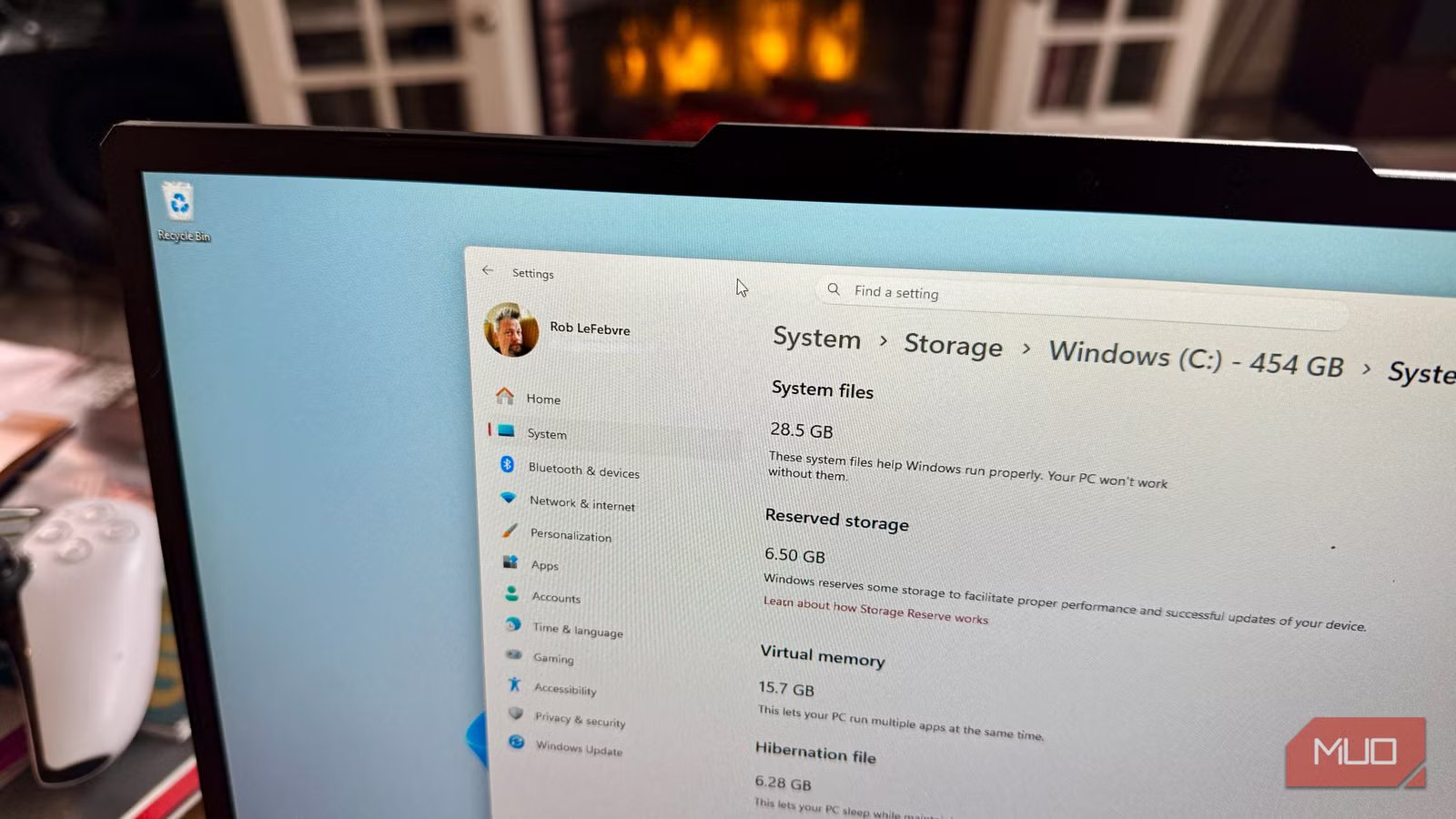
I bought my PC laptop primarily as a gaming machine. It’s got a decent GPU and a solid CPU, but it does have a rather small SSD at 512GB. That means I have to swap out installed games as I want to play them, rather than keep them on my drive at all times. I went looking for a way to maximize my storage space, though, and came across one way I could save 7-10 GB of space, maybe enough for a smaller title. For folks with even smaller SSDs than mine, this could be a decent savings, as well.
It’s called Reserved Storage, and it sets aside a portion of your drive (at least 7GB, no matter what your total disk space) for Windows updates, temp files, and system caches to ensure critical OS functions always have access to disk space. Here’s what it does and how to reclaim that storage with a quick PowerShell command.
Related
I learned what Windows “Quick Format” actually does (and it’s terrifying)
Data privacy is important
What Windows Reserved Storage actually is
The update-failure problem Reserved Storage was built to solve
Credit: Behnam Norouzi / Unsplash
Reserved Storage was Microsoft’s attempt to fix a long-standing issue. Without it, when a user almost fills up their storage, many Windows and app features can become unreliable. Reserved Storage solves this by setting aside a dedicated pool of disk space — typically around 7 GB — that Windows can always draw on when it needs room to work. It’s been part of every clean Windows install since 2019, though I doubt most folks know it’s there. On a cramped drive, the storage it reserves can matter, and if you decide you’d rather manage your own storage, turning it off takes a quick 30 seconds or so.
How much storage it’s actually taking from you
The number could be higher than you expect
Originally, Reserved storage was set to only set aside 7GB, regardless of how much disk space you have. In practice, the number can vary. The amount of space allocated varies across PCs and can range from a few gigabytes to 10GB or more; Windows manages the sixe and the amount can change as you use your system. Installing optional Windows features or additional languages can also ush that number up, as Windows will up the amount of reserved storage to make sure there’s space to maintain the new feature if updates are installed.
To check your own number, head into Settings > System > Storage > Show more categories > System & reserved and look for the Reserved Storage line.
Who should consider turning it off
Reserved Storage is a genuine safety net, but not for everyone
If you have a ton of storage space, there’s really no benefit to turning off Reserved Storage. In my own case, an extra 7-10 GB isn’t going to let me install any larger games, and having the peace of mind that comes with letting Windows save me from any failed updates makes sense. Still, if you have a PC with 256GB or less total storage, you might consider disabling it.
Remember, though, Windows updates could fail if your drive is too full during installation, and you could find errors when trying to install new drivers or system components.
Disabling Reserved Storage is a last resort, once you’ve cleaned up all the more obvious clutter, doing things like emptying the Recycle Bin, running Storage Sense, uninstalling unused apps, and removing any optional Windows language packs you don’t need.
How to turn off Reserved Storage in Windows 11
The one-line PowerShell command that does it
Make sure you’ve installed any pending Windows updates to avoid the “This operation is not supported when reserved storage is in use” error. Then do the following:
- Open the Start menu and search for PowerShell
- Right click PowerShell and choose Run as administrator
- Type the following command, then press Enter:
Set-WindowsReservedStorageState -State Disabled
You should then see an increase in free space, often up to the original 7GB target, though that can sometimes be less depending on your PC’s configuration. To re-enable it later if it proves to be an issue, just open another elevated PowerShell and run: Set-WindowsReservedStorageState -State Enabled.
You’ll want to re-enable it before your next major Windows update to ensure that things run smoothly.
Reserved Storage is a feature, not a bug
This Windows feature is there on purpose, and disabling it can affect your PC in a big way with failed updates.n Reserved Storage is an actual safety net that can save us all from issues when updating our PCs. But if you’re desperate for a little more storage and you can’t find it anywhere else, a quick disabling of Reserved Storage could be your fix. If you do, though, make sure you flip it back on before your next major Windows update. The quick toggle is much easier than dealing with a failed install, for sure.
