

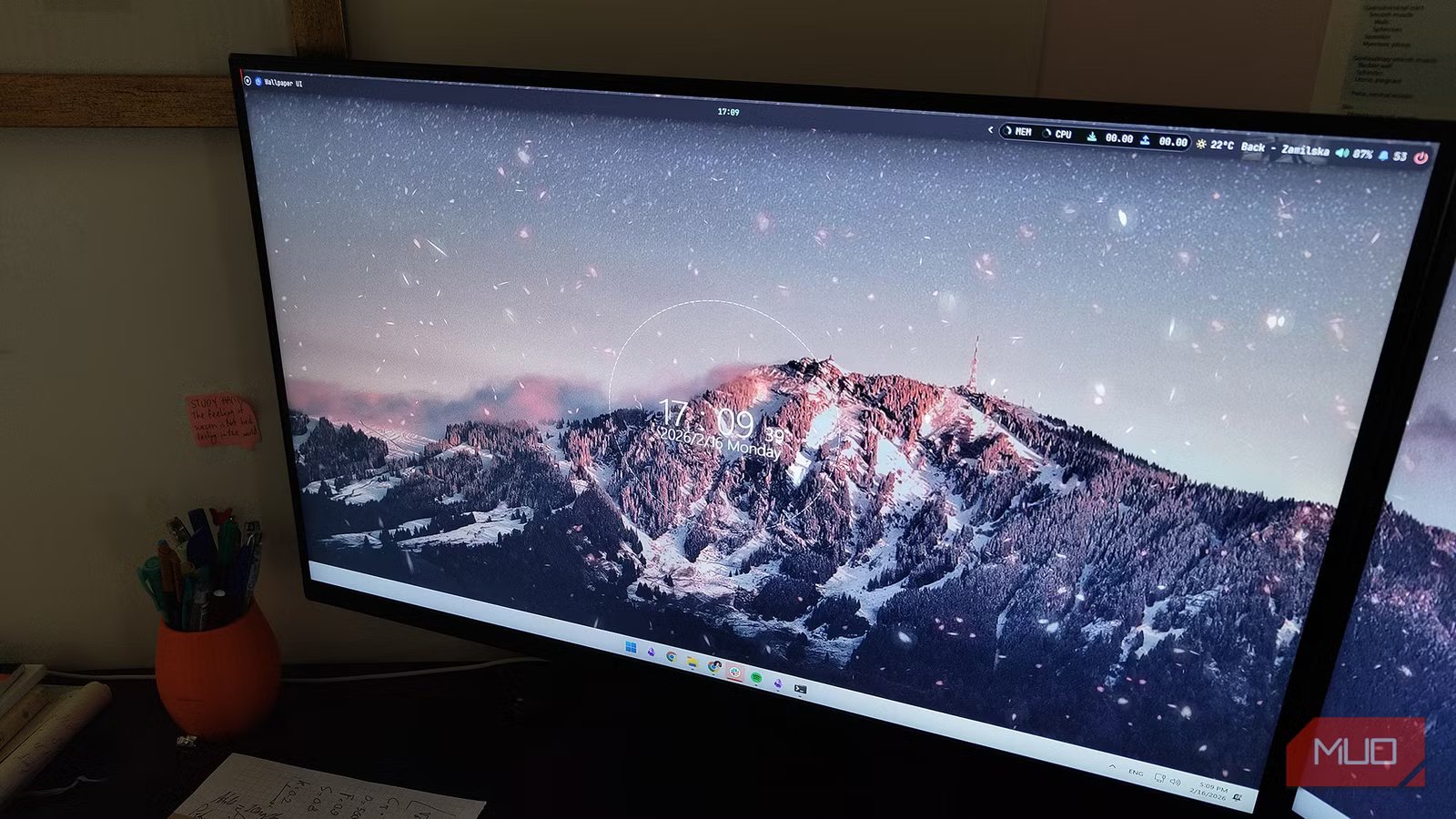
If you’re using your Windows PC for the basics, you’re barely scratching the surface. Windows 11 is packed with tools designed to make your workflow smoother, faster, and more personal. Some of these features are easy to spot. Others are buried in settings menus. And a few are so underrated that most people don’t even realize they exist. Every Windows user is different. Some people love tweaking every little setting. Others prefer a simple, clean setup and never venture beyond the default layout. The beauty of Windows 11 is that it allows both approaches. You can customize it heavily or keep it minimal, depending on how you work.
But there are certain features that aren’t just “nice to have.” They improve how you use your computer every day. If you are not taking advantage of these five Windows tools, you’re missing out on what your machine is truly capable of.
Related
My Windows 11 Hasn’t Slowed Down Once Because I Follow These 7 Proven Steps
A little care goes a long way in keeping your PC smooth.
A one-stop glance at what matters
Screenshot by Pankil Shah — No attribution required
I’ve completely reworked how my Windows 11 setup looks and functions, starting with the lock screen but extending the experience to the home screen as well. The lock screen is no longer just a pretty background I swipe past. With the right widgets in place, I get quick, useful information the moment I open my laptop. Before I even sign in, I can check the weather, skim trending news, or glance at stock updates. It’s a fast way to catch up without opening a single app.
Once I’m on the home screen, the same ecosystem continues to help. The widgets panel became a quick-access hub where I can view my calendar, track upcoming meetings, and manage my to-do list. Instead of jumping between apps and tabs, everything important is summarized in one clean place. Together, they make Windows 11 more organized and efficient.
A little caution today goes a long way
The smart way to keep data safe
Yadullah Abidi/MakeUseOfCredit: Yadullah Abidi/MakeUseOf
I don’t take digital security lightly. If I’m using a device every day, I want to know that my data is properly protected. On my Windows PC, one of the biggest upgrades I’ve made is switching to passkeys instead of relying on traditional passwords.
Passkeys are a password-free way to sign in to apps and websites. Instead of typing out a password that can be easily guessed, stolen, or reused, you authenticate using Windows Hello. That could either be your PIN, fingerprint or facial recognition.
The biggest advantage is that passkeys are tied to your specific device and the website you’re signing in to. They can’t be easily phished or reused on another site. Even if someone tries to trick you with a fake login page, the passkey simply won’t work there. And for everyday use, you just verify your identity and you’re in. So, if you store important emails, documents, and financial information on your Windows machine, enabling passkeys is a simple yet powerful step.
See every word in real time
Real-time captions that keep with you
Credit: Saikat Basu/MakeUseOf
Live captions automatically transcribe audio in real-time across your system. Whether you’re in a virtual meeting, watching a video, attending an online class, or on an important call, it converts spoken words into texts instantly. The best part is that it works across apps and even functions online, since the processing happens directly on your device. You can turn it on instantly using the shortcut Windows Key + Ctrl + L. Once enabled, you can customize its appearance. You can change the font size, adjust colors, and decide where it appears on your screen.
For someone like me who is constantly in meetings or important video calls, it helps me catch details I might otherwise miss, especially when the audio quality isn’t perfect. It’s also incredibly helpful for reviewing conversations or understanding different accents more clearly.
During the initial setup, Windows will need to download the required language files. So you’ll need an internet connection the first time you enable it. After that, it works smoothly without needing to stay online.
The secret to a clean, productive workspace
Build your perfect app grid in seconds
Yadullah Abidi / MakeUseOfCredit: Yadullah Abidi / MakeUseOf
If you’re someone who constantly juggles multiple apps at once, this feature can by far upgrade your workflow. Many people either ignore Snap Layouts or don’t realize how powerful it is. Instead of manually dragging and resizing windows to fit your screen, this feature lets you organize everything in seconds. Just hover over the maximize button on any open window, or press Windows key + Z, and you’ll see different layout options appear. You can split your screen into halves, arrange apps in columns, or even create grid-style layouts depending on how much you’re working with.
Once you snap one window into place, Windows automatically suggests other open apps to fill the remaining space. Then there’s Snap Groups, which remember your layout combinations. So if you’re working with a browser, notes app, and a messaging tool, you can switch away and come back to the exact arrangement without building it from scratch.
For multitaskers, it helps maintain focus. Everything stays structured, organized, and visible, which reduces constant tab switching and window hunting.
Stay on track without burning out
A timer that actually boosts productivity
Screenshot by Pankil Shah — No attribution required
Staying focused for long stretches doesn’t come naturally to me. If I try to force myself to sit for hours without a break, my productivity drops and I end up distracted, anyway. So, instead of fighting my short attention span, I work with it. That’s where Focus Sessions on Windows 11 help me.
This feature lets me break my work into manageable chunks of time. I set a timer, commit to working only during that window, and take a short break when it ends. Instead of feeling overwhelmed by a long to-do list, I only have to concentrate for the next 20 or 30 minutes. Focus Session also integrates with the Clock app, tracking your progress, and can even connect with tools like task lists and music streaming for a distraction-free environment. It creates a structured rhythm for the day: pause, rest, repeat. By the end of the day, I’d accomplished more without feeling mentally drained.
Related
The 9 Most Annoying Windows 11 Features (and How to Fix Them in Minutes)
Make Windows 11 work for you, not against you.
The secret sauce of Windows 11
Windows 11 is packed with hidden gems that most users never touch. Skipping these features is like owning a sports car and never taking it out of first gear; you’re simply not getting the full experience. These tools are designed to make your workflow smoother and your daily tasks easier. Even trying them out once can completely change how you interact with them.
