

I’ve lost count of how many pie charts in Excel I’ve seen with 10 slices that nobody can read. Most people default to whatever chart type feels familiar, bar charts, pie charts, maybe a line chart, rather than what the data actually calls for.
Excel’s Recommended Charts offers basic suggestions based on data shape and some context, like trends, but it often misses the full story your data tells, defaulting to familiar types. Agent Mode in Copilot takes a different approach as it reasons through your data and picks the visualization before building anything.
Agent Mode is available in Excel for the web, Windows, and Mac. However, you’ll need a Microsoft 365 subscription with AI credits or a commercial Microsoft 365 Copilot license to use it.
Agent Mode decides what your data needs
It reads your spreadsheet’s structure before picking a chart type
Screenshot by Yasir Mahmood
Excel has had Recommended Charts for years, and it’s fine for basic tasks. You select your data, click Insert, and it suggests a handful of chart types based on the shape of your selection. The problem is that it doesn’t understand context. It sees rows and columns, not the story your data is telling.
Agent Mode works differently. It’s an AI-powered capability in Copilot for Excel that plans multistep tasks, executes them in your workbook, and checks its output before completing. When you ask it to visualize data, it reads the structure of your spreadsheet, such as column types, data ranges, and relationships between fields, and then decides which chart fits.
So if your spreadsheet has dates in one column and numeric values in another, Agent Mode recognizes that as time-series data and picks a line chart — not a pie chart. If you have categorical data with totals across groups, it’ll lean toward a clustered column chart instead. These are decisions it makes based on what your data actually represents, not just how many columns you selected.
You can watch the reasoning develop in real time through the Copilot pane. The Agent Mode shows each step selecting the data range, choosing the chart type, applying axis labels, and formatting — so you’re never left guessing what it did or why. And if the first result isn’t quite right, you can follow up with prompts like “add data labels” or “switch this to a stacked area chart.” If you want more control over the output, the chart format pane gives you precise customization options that go beyond what the ribbon offers.
Here’s how I used Agent Mode to visualize a dataset
A walkthrough with a real sales spreadsheet and the prompts I used
I tested Agent Mode on a sales spreadsheet with over 60 rows of transaction data spanning across four months of 2024. The dataset includes dates, four regions (North, South, East, West), four product categories (Electronics, Clothing, Home & Garden, Sports), eight salespeople, and columns for units sold, sales amount, commission, profit margin, and revenue. It’s the kind of spreadsheet where you’d normally spend ten minutes just figuring out which columns to chart.
Getting Agent Mode running takes a few steps:
- Open your workbook in Excel for the web or the desktop app on Windows or Mac.
- Go to the Home tab and click Copilot to open the chat pane.
- Click the Tools menu in the pane, then select Agent Mode.
- Type your prompt and hit Enter.
I started with a broad prompt:
Analyze this sales data and create charts that show monthly revenue trends by region and a comparison of product categories by total sales amount. Make it visual.
Agent Mode built a plan in the reasoning pane — it identified the Date and Revenue columns for a time-series chart, and the Product Category and Sales Amount columns for a comparison.
For the revenue trends, it created a line chart with separate series for North, South, East, and West, plotted across months. That’s exactly the right call since a bar chart would’ve made it harder to spot which regions grew or dipped over the year. For the product category breakdown, it went with a column chart comparing Electronics, Clothing, Home & Garden, and Sports by total sales.
Related
You should stop using Excel’s Import Wizard and use this instead
IMPORTCSV can do the same job faster.
What I appreciated is that it didn’t stop at the charts. Agent Mode also formatted the axis labels, added a legend, and applied color coding to distinguish between regions. The charts it created are native Excel objects, so they update automatically if the underlying data changes.
You can also iterate. After the first pass, I typed:
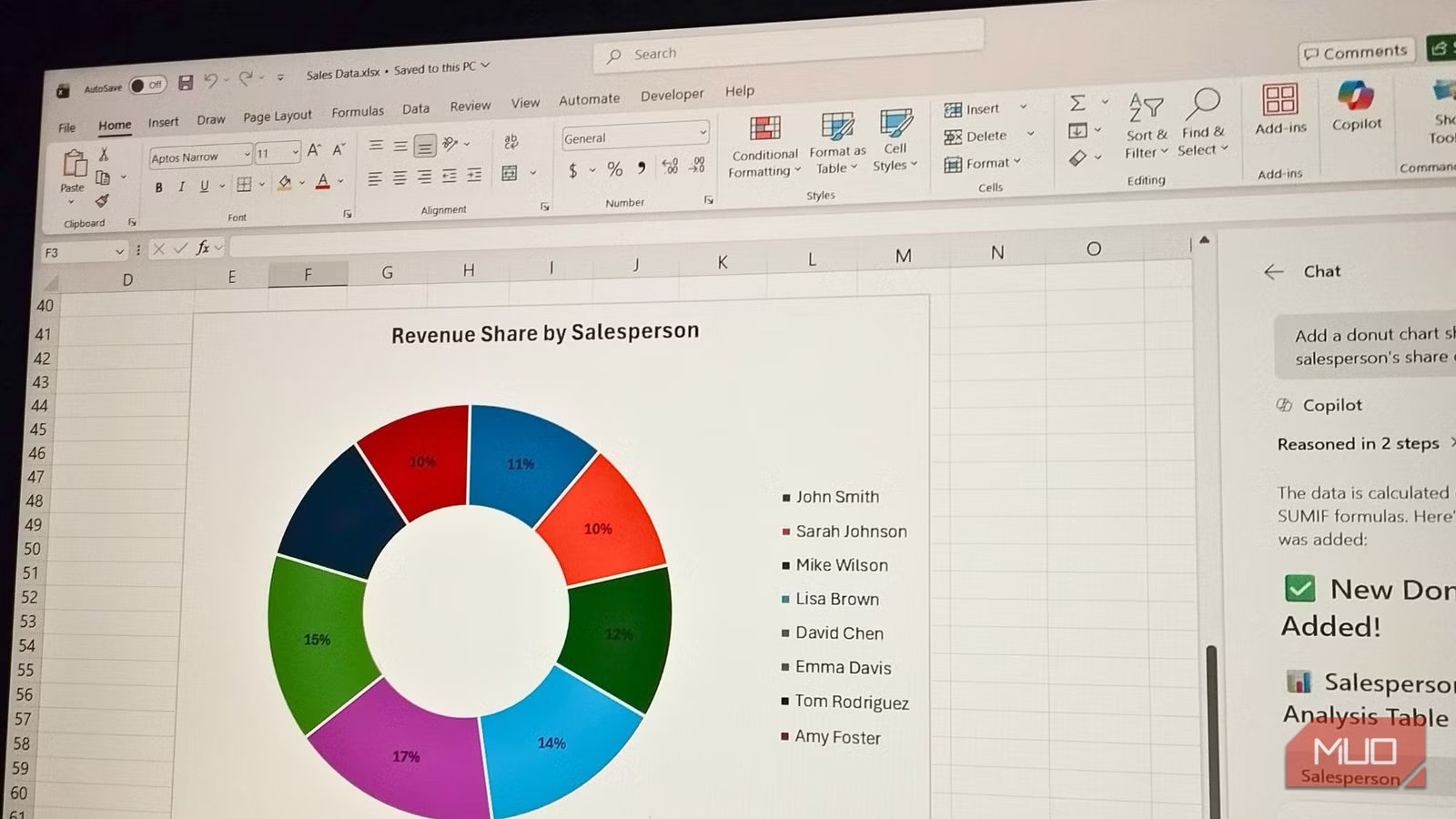
Add a donut chart showing each salesperson’s share of total revenue.
It pulled from the Salesperson and Revenue columns, grouped the values by name, and built the chart on the same sheet. Doing that manually by writing a SUMIF, setting up a helper table, and inserting the chart would’ve taken considerably longer. It’s a similar time savings to what you get when using Copilot for formulas, sorting, and filtering in Excel, but applied specifically to visualization.
You should still verify the output
It’s fast and capable — just not something you should unquestioningly trust
Screenshot by Yasir Mahmood
Agent Mode is impressive, but it’s not infallible. In my testing, it occasionally applied an inconsistent color scheme. A quick follow-up prompt fixed it, but it’s the kind of thing you’d miss if you weren’t paying attention.
The bigger concern is that Agent Mode makes direct changes to your workbook in real time. There’s no preview step where you approve modifications before they’re applied. You can watch it work and hit Stop at any time, but the edits happen immediately. For shared or sensitive files, I’d recommend working on a copy first.
It’s also worth noting that Agent Mode only works with the currently open workbook. It can’t pull data from external databases. If your analysis depends on merging multiple sources, you’ll need to consolidate everything into one spreadsheet before prompting it.
For simple, single-chart tasks, you’re honestly better off using Recommended Charts or even learning to make your default Excel charts look more polished on your own. Agent Mode comes in handy when you need multiple visualizations, formatted dashboards, or iterative refinement across several steps. Use the right tool for the scope of the job.
Your data already has a story, but Agent Mode surfaces it faster
Most of us treat charts as the last step in a spreadsheet, something to make the data look presentable. Agent Mode flips that by treating visualization as part of the analysis itself, picking chart types that match what your numbers are doing.
If you already pay for a Microsoft 365 subscription with Copilot access, there’s no reason not to try it. Start with a broad prompt on a dataset you know well, and see whether Agent Mode picks the same charts you would’ve. Chances are, it’ll surprise you with a better choice.
