

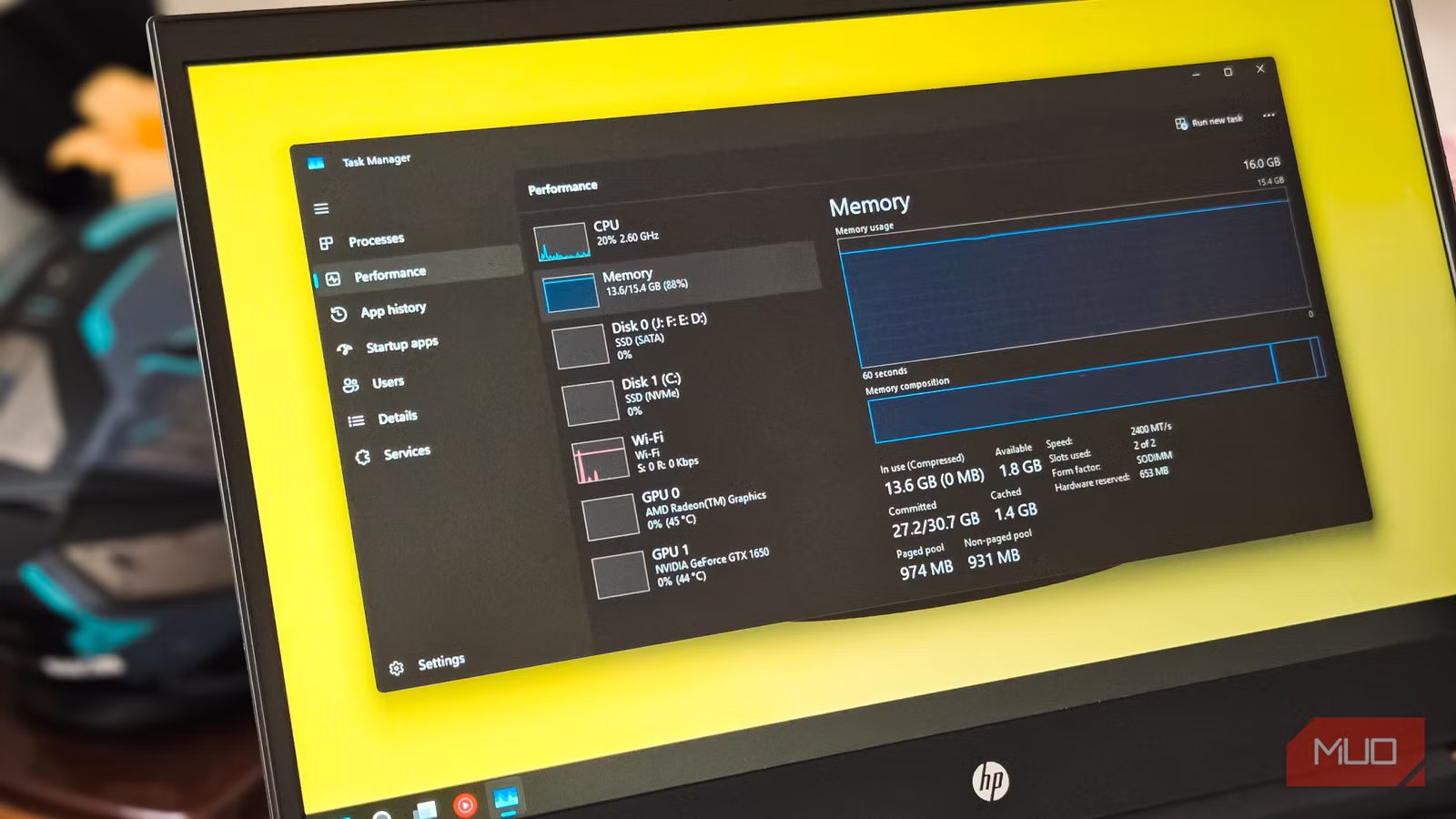
Every time my system felt sluggish, I’d open Task Manager, see 85% memory usage, and start browsing RAM kits on Amazon. Unfortunately, RAM prices have been through the roof due to the AI boom, and I’ve been holding off buying more RAM until the prices stabilize. Turns out, I was reading the numbers wrong for years. The big “In Use” figure everyone watches isn’t the one that tells you whether your system is actually under memory pressure. Before you go looking for ways to reduce your RAM usage on Windows, it’s worth understanding what Task Manager is telling you.
Windows doesn’t leave RAM empty on purpose. The Memory tab in Task Manager’s Performance section breaks usage into Committed, Cached, and Available, three numbers most people scroll right past. Once you understand what they measure, you’ll stop panicking every time that usage bar creeps past 80%.
“In Use” doesn’t mean what you think it means
The big bar graph is only part of the story
Tashreef Shareef / MakeUseOfCredit: Tashreef Shareef / MakeUseOf
That large memory usage graph at the top of the Performance > Memory tab is the first thing your eyes go to. On my 16GB system, it shows 11.8 GB in use, about 77%. That looks alarming, but it doesn’t tell you whether your system is struggling or just doing its job well.
The “In Use” number shows how much physical RAM is currently allocated, but it doesn’t distinguish between memory your apps actively need right now and memory Windows is holding onto because it might be useful later. When you see a high percentage, the instinct is to think “I’m running out of RAM.” But in many cases, a large chunk of that memory could be dropped or repurposed instantly with no penalty.
The missing piece is the standby list, which Windows hides behind that single bar. The Cached value you see below the graph (1.5 GB on my system) represents part of this. Standby memory is RAM full of cached files and code data that no running process currently owns. Windows keeps it around in case you need it again soon. If an app suddenly needs more memory, the memory manager can throw away this cached data immediately and hand that space over. So it’s technically “in use” from the graph’s perspective, but effectively available on demand.
This is also why Windows seems to “fill” your RAM over time. The OS treats empty RAM as wasted RAM. If you paid for those gigabytes, they might as well be pre-loaded with recently used apps and file data so things launch faster next time. This drives the “In Use” bar up even after you close apps, because their data stays in the standby list as cache instead of immediately becoming free. Two systems can both show 80% usage, yet one feels snappy and the other sluggish. The difference isn’t the headline percentage; it’s how much of that memory is active working sets versus reclaimable cache.
Committed memory is the number that actually predicts crashes
This ratio tells you if your system is truly running out
Tashreef Shareef / MakeUseOfCredit: Tashreef Shareef / MakeUseOf
If you want to know whether your system is actually under memory pressure, look at the Committed line instead. On my system, it reads 23.5/30.7 GB. That first number is the total virtual memory your system has promised to back with either RAM or pagefile space. The second number is the commit limit, which is your RAM plus pagefile combined. The ratio between these two is what actually predicts crashes.
Think of it this way: committed memory is a promise Windows made. Every time an app asks for memory, Windows says “sure, I’ll back that with RAM or disk space.” The commit limit is how much total backing Windows can provide. When committed gets close to the limit, Windows can’t make any more promises, and that’s when you see “low memory” warnings, apps refusing to open new tabs, and outright crashes.
On my machine, 23.5 out of 30.7 GB is about 77% committed, which is comfortable. Below 70%, you have plenty of headroom and sluggishness is probably caused by something else, like CPU bottlenecks or slow disk I/O. Between 70% and 85%, you’re in a normal heavy workload zone. Above 85%, the system starts aggressively reclaiming working sets and shuffling pages between RAM and pagefile. You’ll feel it: frequent freezes when switching apps, disk activity spiking, and “low memory” pop-ups. Above 95%, new allocations may fail even if “Available” RAM isn’t zero, because there’s no remaining commit to promise backing storage.
Here’s a scenario that catches people off guard: you can have 3.6 GB of available RAM but a committed ratio of 97%. Chrome will still refuse to open more tabs, because the problem isn’t physical RAM. It’s because the system has run out of virtual memory backing. The “In Use” bar might look fine, but the committed ratio tells the real story.
High memory usage is only a problem when it’s a problem
When to actually worry about your RAM
So when should you actually worry? There are a few genuine memory pressure scenarios that go beyond a scary-looking percentage.
The first is memory leaks. Some apps, especially games and certain browser tabs, allocate memory and never release it. Their RAM usage keeps climbing the longer they run, and nothing short of closing the process will free it. If you notice a single process steadily eating more memory over time without leveling off, that’s a leak. I dealt with this exact issue in Gray Zone Warfare, where my games stopped crashing after I ran ISLC, a tiny tool that automatically purges the standby list when free memory gets critically low.
The second scenario is when your Available memory hits zero, and there’s no standby left to reclaim. This is genuine exhaustion. You’ll know it’s happening because your disk will be thrashing, alt-tabbing will take seconds instead of milliseconds, and new apps will refuse to launch.
The third is the committed memory ceiling I mentioned earlier. When committed memory approaches the commit limit, even “free” RAM can’t save you. This typically happens on systems running multiple heavy apps like virtual machines, games, and dozens of browser tabs simultaneously. The fix here is either reducing your workload, increasing your pagefile size, or adding more physical RAM.
If your system doesn’t show any of these symptoms, high memory usage is likely just Windows doing what it’s designed to do, which is caching data to keep things responsive. Don’t buy more RAM yet until you’ve checked these numbers and confirmed you’re actually under pressure.
OS
Windows
Price model
Free
ISLC automatically clears Windows standby memory to prevent stutters, crashes, and RAM shortages, keeping games and apps smooth without manual tweaking or risky system changes during heavy workloads and gaming.
Task Manager tells a story, but you need to read all of it
Most people treat the “In Use” bar like a fuel gauge: high means bad, low means good. But Windows memory management doesn’t work that way. A system showing 90% usage with a healthy commit ratio and plenty of reclaimable standby memory is running exactly as designed. A system showing 60% usage with committed memory at 95% of its limit is the one about to crash.
The next time Task Manager shows a high number, check the committed ratio before reaching for your wallet. Those few extra seconds of reading can save you from an unnecessary RAM upgrade or help you catch a genuine problem before it tanks your system.
