

One app I think should be in every Windows user’s rescue toolkit is Medicat. However, it’s large at 23GB, and might not be necessary if you only need basic recovery tools for personal use. This is where the original Hiren’s BootCD PE makes a case for itself.
Hiren’s BootCD PE has been in the news for more right and some wrong reasons (read piracy), but the current version of this recovery app is free of any piracy, is compatible with Windows 11, and is still the Swiss Army knife for broken Windows PCs. All this while keeping its footprint limited to just over 3GB on your USB drive.
The current version is maintained by fans of the original project, which stopped receiving updates back in 2012.
What’s Hiren’s BootCD PE
Windows Pre-Installation Environment with necessary recovery apps
Tashreef Shareef / MakeUseOfCredit: Tashreef Shareef / MakeUseOf
If you’ve heard of Hiren’s BootCD before, you might remember the controversy. The original version gained a bad reputation for bundling pirated commercial software. The developers likely didn’t make any money out of it, but it still included tools that otherwise would need a retail license to work. Official development for the app stopped at version 15.2 around 2012, leaving behind a Windows XP-era live CD that’s largely useless for modern systems.
The new PE edition is an entirely different story, though. Built on Windows 11 Pre-Installation Environment, it runs entirely from your computer’s memory and only includes freeware and legally distributable utilities. So, no more pirated software, which means no legal gray areas.
Unlike PhoenixPE, which I used when building a portable PC diagnostic USB, Hiren’s BootCD PE comes pre-configured with all the essential tools. You get data recovery programs like Recuva and PhotoRec, drive diagnostics like CrystalDiskInfo, partition managers like EaseUS Partition Master, and even browsers like Chrome and Firefox for online troubleshooting. The environment also includes the Sysinternals suite, hardware info utilities, and password reset tools. It has everything you need for most repair jobs without the 23GB storage that Medicat requires.
Creating a USB rescue kit with Hiren’s BootCD PE
Download the ISO and use Ventoy for a multiboot setup
image credit – self captured (Tashreef Shareef) – No Attribution Required
Much like any rescue media kit, you need a few things to create a USB recovery drive using Hiren’s BootCD PE. First, you’ll need a USB drive with at least 4GB of free space. Since the ISO itself is around 3GB, even an 8GB drive works fine. Next, I prefer using Ventoy to create a multiboot USB because it lets me keep multiple ISOs on one drive without reformatting every time I need different bootable media.
Head to hirensbootcd website and download the latest ISO. For some reason, the download kept failing at different stages for me, and the site likely doesn’t support resume. I was finally able to download it by keeping the download tab open and not navigating away until the download finished. If you’re on an unstable connection, this might take a few attempts.
Once you have the ISO, you need to set up Ventoy. So, download Ventoy from its official site, run the application, select your USB drive, and click Install. This creates a partition where you can simply copy ISO files like regular files. Now, drop the Hiren’s BootCD PE ISO into the Ventoy partition, and you’re done.
image credit – self captured (Tashreef Shareef) – No Attribution Required
With Venoty, you can add other ISOs later without touching Hiren’s. All you have to do is copy a tool or ISO to the same USB. When you boot from the drive, Ventoy shows a menu with all available ISOs, and you pick the one you need.
If you prefer a dedicated single-ISO USB, Rufus works just as well. Select the ISO, choose MBR for maximum compatibility with both UEFI and legacy BIOS systems, and let Rufus write the image. Either way, you’ll have a working rescue USB, so pick what works best for you.
Using the Hiren’s BootCD PE rescue kit
Boot from USB and access the recovery desktop
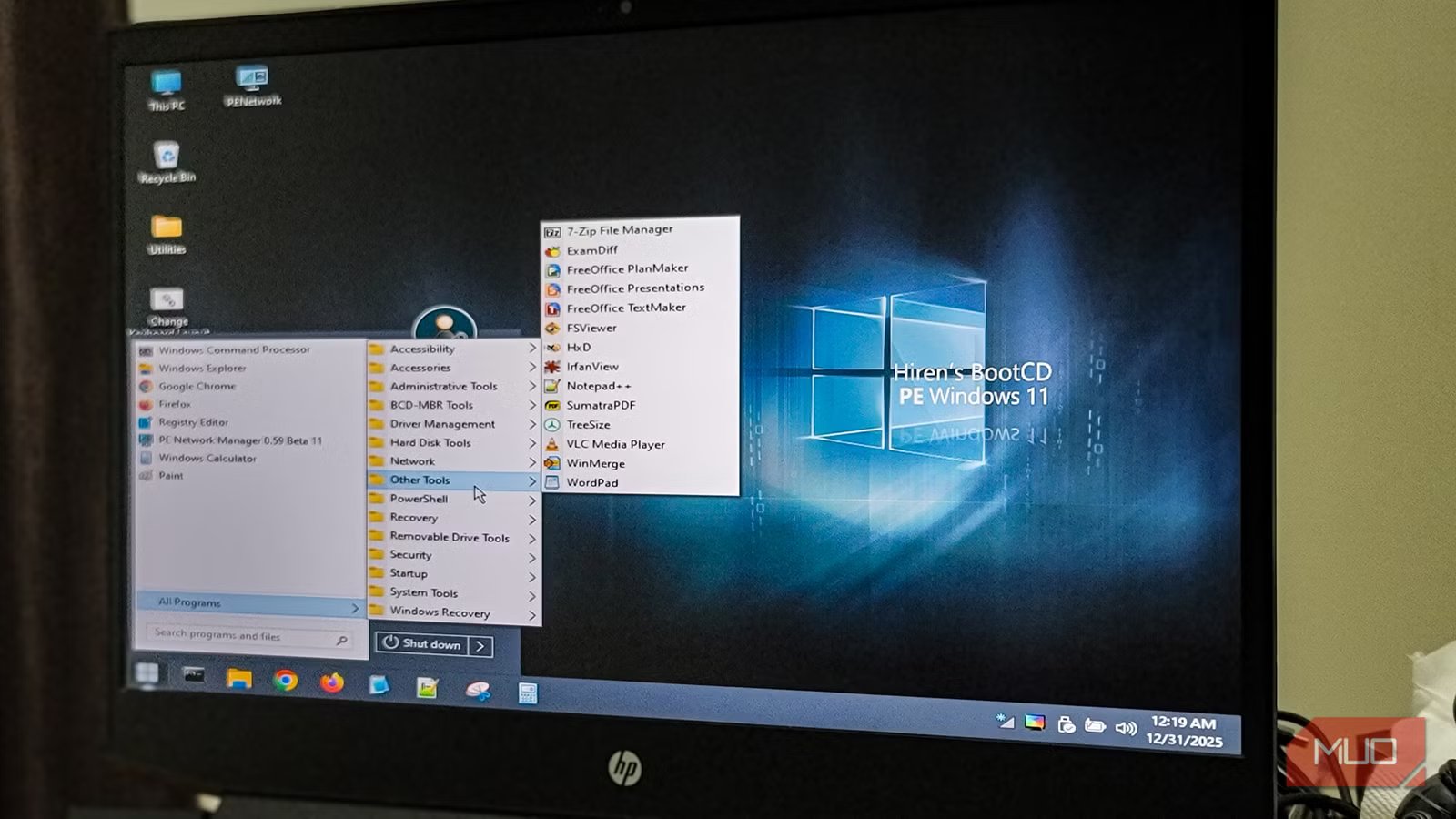
When you need to rescue toolkit, connect your USB to the PC you need to fix and restart it. During startup, press your boot menu key (usually F12, F10, or ESC depending on your manufacturer) and select your USB drive. After a short loading period, you’ll see a familiar Windows-like desktop with a taskbar, Start menu, and desktop icons for utilities.
The environment organizes tools into logical categories. Hard drive tools cover everything from data recovery to partition management. Then we have Network tools, which include PE Network Manager, which I’ve found more reliable than Windows’ built-in network drive mapping when trying to back up files to a NAS. Finally, Security tools offer offline antivirus scanners and password reset utilities for local Windows accounts.
Apart from these, you can find tons of others, such as Speccy for detailed hardware information, CPU-Z to view CPU and memory specs, Total Commander for file management, and a registry backup tool. I was also pleasantly surprised to find Sumatra PDF, my go-to lightweight multi-format PDF reader. For disk space analysis, it includes TreeSize, though I’d have preferred WizTree.
You can also run System Restore against an offline Windows installation. To do this, open a command prompt and run rstrui.exe /offline:C:\Windows (adjust the drive letter if needed). This opens the regular System Restore wizard and lets you restore using existing restore points without booting into the broken OS.
A compact USB rescue toolkit
Hiren’s BootCD PE offers a good balance between recovery options and size. At just over 3GB, it won’t eat up your entire USB drive, and you can keep it alongside other bootable tools if you use Ventoy. For personal use or helping family with their computer issues, it has everything most people need to recover their PC from a malware attack, system file corruption or when you get locked out of your PC.
