

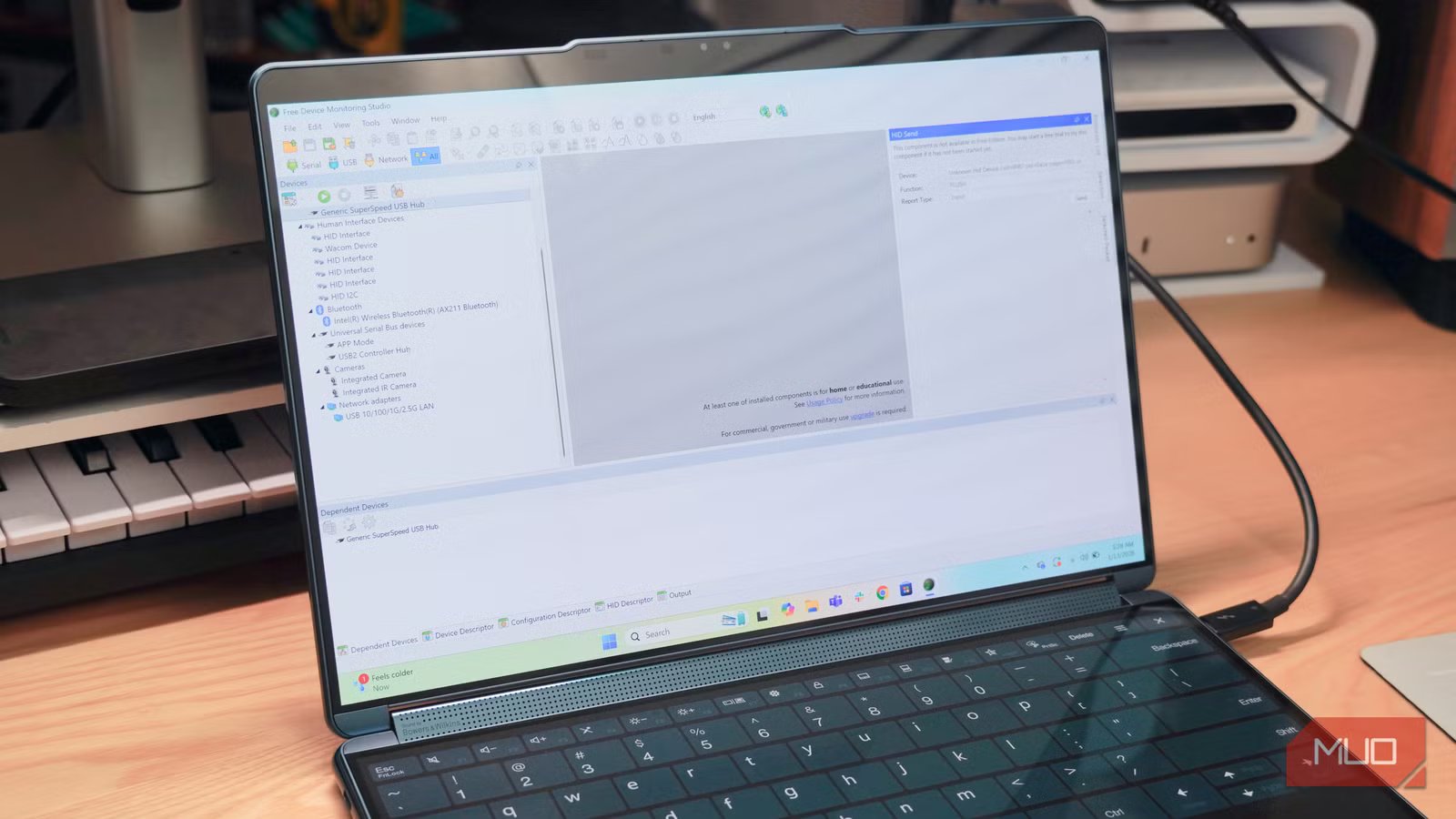
Most of us never think about it, but every USB device we connect to our Windows PC is in near-constant communication with it. When you plug a USB device into a computer — whether it be a flash drive, powered hub, or MIDI audio accessory — the lines of communication are opened. Accessory drivers, USB controllers, and your computer’s operating system all request, send, and receive data as needed. But what exactly are they doing?
A special type of software called USB sniffers can help you find out. These programs intercept commands and data transmitted between a computer and connected USB accessories. Information is sent back and forth via USB Request Blocks (URBs), and by recording each URB sent among accessories and Windows PCs, a USB sniffer can paint a clear picture of what’s going on with your system. You can start sniffing with a free Windows app if you’re curious, and there are practical applications for this tool, from troubleshooting to debugging.
How to start sniffing with Free USB Analyzer
The setup process is incredibly simple
Credit: Brady Snyder / MakeUseOf
The Free USB Analyzer is a lightweight app that monitors information sent from USB accessories to apps and your computer, and vice versa. The free version includes a few neat features, like data filtering for USB endpoints and requests. You can record USB transmissions and export them as needed, all without spending a dime. Alternative means of USB sniffing might require expensive applications or hardware that physically sits between an accessory and your PC. This method is free and only takes a few minutes to set up, making it accessible to experts and beginners alike.
You can download the Free USB Analyzer for tons of Windows systems, and the compatibility is impressive. This app supports systems as old as Windows Server 2003 and Windows XP. It also works with ones as new as Windows Server 2025 and Windows 11. It’s compatible with x86, x64, and ARM 64 architectures, requiring only 2GB of RAM and 25MB of storage. In other words, if you have a Windows PC, it’ll almost certainly run the Free USB Analyzer with no issues.
After downloading the software, you’ll need to save your work to complete the app’s setup process. Then, follow the on-screen prompts to restart your PC. When it comes back online, you can open Free USB Analyzer (which appears as Device Monitoring Studio once installed) and start sniffing. The app opens to a list of your USB-connected devices, and the number you see depends on what you have connected to your PC.
Credit: Brady Snyder / MakeUseOf
Click a USB device to start a session, and choose the processing mode you’d like. You can use Data Recording, URB View, Packet View, or a Custom View with the free version. Select all of them, then press Start to start sniffing your selected USB devices.
You can add multiple USB devices to a sniffing session, but choosing one at a time helps keep things organized.
All the data types this app can record
Uncovering URBs and packets for easy debugging
By now, you’re probably seeing a ton of data come through if the selected USB devices are currently in use. You have two views to choose from: URB View and Packet View. The former shows each individual request block being sent and received by the USB accessory’s driver, and it’s based on the USB model protocol. The latter uses a two-pane layout showing minimized packet information as a list, with more detailed data available for selected packets below.
For example, I hooked up my Windows 11 laptop to a desk setup with a USB hub, a MIDI audio device, a USB webcam, and a handful of other USB accessories. This gave me plenty of devices to monitor, and I went with the webcam. When not in use, the URB and Packet Views simply show the device as connected to my system. After joining a video call, though, the trackers quickly fill up with recorded data transmissions.
The URBs and packets sniffed by this app contain written information about what is happening between your computer and its connected accessories. For example, whether the connection has started or stopped, or if a storage device is being written to or read from. Additionally, the packets contain other helpful bits of information, like the absolute time and delta time for each packet.
Related
What Is Packet Sniffing and How Can You Stop Sniffing Attacks?
A way to monitor data packets through a network, packet sniffing can be used by IT professionals and threat actors alike.
Why you might want to use a USB sniffer
It’s helpful for troubleshooting, debugging, and monitoring
Credit: Brady Snyder / MakeUseOf
Trying out a USB sniffer can be a learning exercise for anyone curious about how their computer’s USB connections work. This piece of software serves a practical purpose, too. It can be an excellent tool for troubleshooting faulty hardware, software, or cables. Reviewing the packet contents for a USB accessory that isn’t working properly can reveal the root cause. You can go packet-by-packet, finding the exact request or transfer that causes a task to fail.
Simply viewing the URB logs for a USB accessory can identify simple problems, like a device disconnecting, not being recognized, or performing differently than expected. You can tell whether a USB-C cable is USB 2.0 or USB 3.0 by checking which high-speed bus an accessory appears on. The possibilities are endless.
This USB sniffer app is free, easy to use, and a program every Windows user should keep in their tool chest. You never know when it might come in handy if USB problems arise.
OS
Windows XP, Vista, 7, 8, 8.1, 10, 11
Developer
HHD Software
Free Trial
10 mins per session, 5 sessions daily
Free USB Analyzer is an application that monitors USB data transmission between your Windows PC and connected devices. It works across a variety of Windows versions dating back to Windows XP, and it’s easy to use for troubleshooting and debugging. There’s a paid version available for full functionality.
