

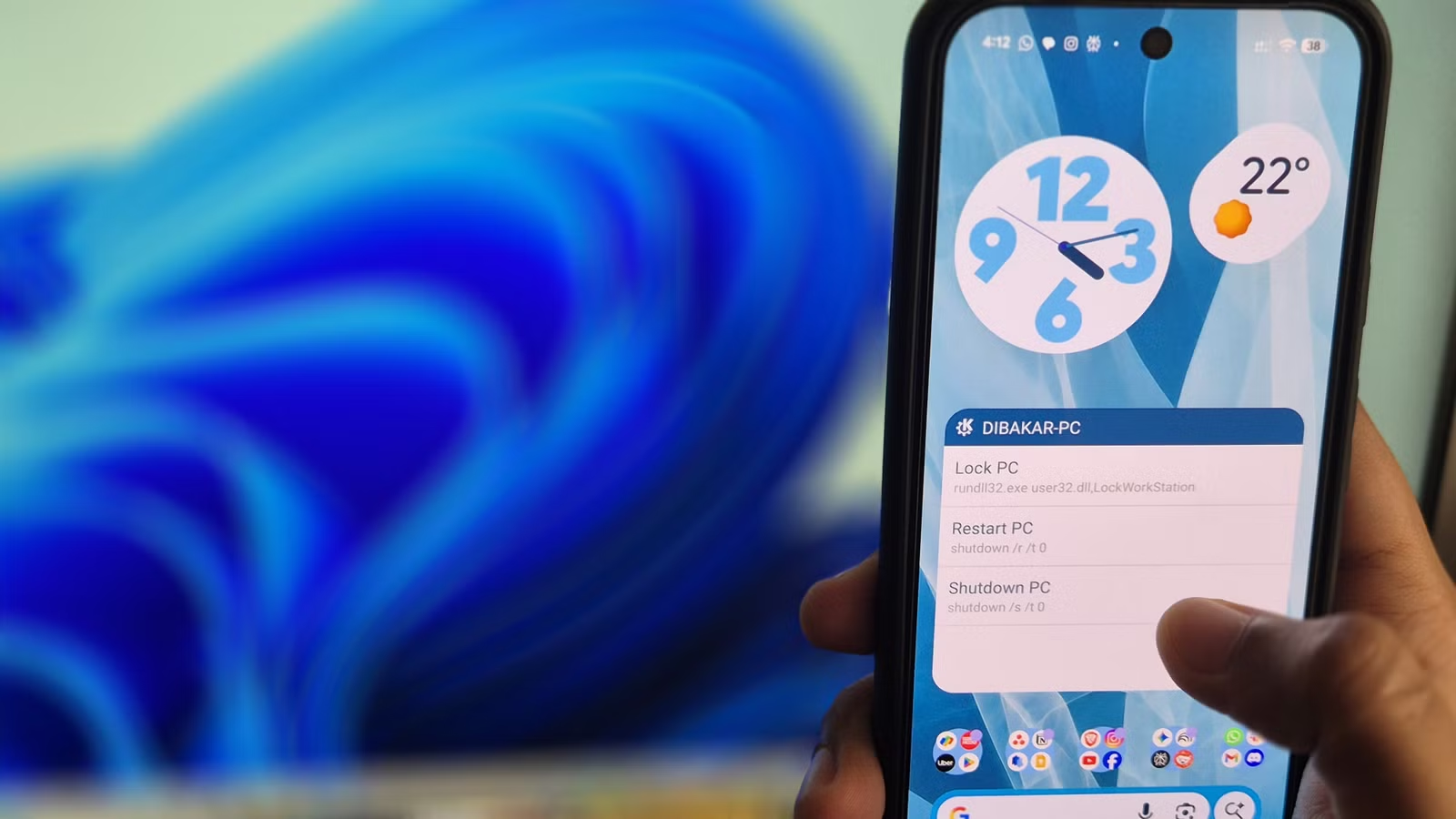
Ever find yourself comfortable in bed, only to realize your PC is still running across the room? Do you want a way to shut down your PC with a single tap on your phone? Well, here’s how I added a one-tap kill switch for my Windows PC on my Android home screen.
All you need is one free and open-source app: KDE Connect
KDE Connect is well known for letting you tightly integrate your Android phone with your Windows PC. It can turn your phone into a trackpad, a presentation pointer, or a virtual keyboard for your PC. You can also remotely control media playback, sync notifications, share your clipboard, and even send or receive files.
However, there’s one feature that I rarely see mentioned. You can use KDE Connect on your Android phone to execute terminal commands on your Windows PC. That immediately got me thinking: if Windows can be shut down using a terminal command, then I could just trigger that command with KDE Connect and use my phone to shut down my computer remotely. Turns out, it works like a charm.
Related
Forget Microsoft Phone Link, Use This App Instead
Access your phone from your PC and control your PC from your phone using KDE Connect.
Configuring your Android phone to shut down your Windows PC
Setting this up is surprisingly straightforward, and it’ll barely take more than five minutes. First, if you haven’t already, install and set up KDE Connect on both your Windows PC and Android phone and pair them. Make sure they’re connected to the same Wi-Fi network, or the pairing won’t work.
Once paired, open KDE Connect on your phone and tap the “Run Command” tile. It’ll open a new page. Press the “pencil” icon in the bottom-right corner, and KDE Connect will open on your Windows PC. From here, you can start adding new commands.
For the shutdown button, use the following command:
shutdown /s /t 0
This tells Windows to shut down immediately, with no delay. The “/s” parameter tells Windows to perform a full system shutdown (as opposed to restart or log off), and the “/t 0” parameter sets the timer to zero seconds, so the system shuts down as soon as you tap the button.
You can check this guide to learn about all the useful parameters that you can use with the shutdown command.
Of course, you’re free to change the timer value to match your needs and preferences. For example, replacing “/t 0” with “/t 60” would shut down the PC after a 60-second delay. And while you’re at it, I’d also recommend adding the command to restart your PC and also lock the screen:
shutdown /r /t 0 #for the restart button
rundll32.exe user32.dll,LockWorkStation #to lock the screen
Each command can be added separately inside KDE Connect. Just remember to give them a clear, descriptive name like Shut Down PC, Restart PC, or Lock PC. The name matters because this is what you’ll see on your phone later.
Once saved, KDE Connect makes these Windows commands executable from your Android device. All you need to do is go to KDE Connect > Run Command and tap the command you want to execute. However, there’s an even faster way to do this.
Related
10 Useful Windows Commands You Should Know
And you’ll look cool running them, too!
KDE Connect includes an Android widget specifically for running remote commands. This is what turns the whole setup from neat into effortless. Instead of opening the app and digging through menus, you can have all your Windows terminal commands living directly on your Android home screen.
Simply add the KDE Connect widget to your home screen, select the paired PC, and that’s it—you’ll see a list of all the commands you’ve set up. You’re now free to shut down your Windows PC with a single tap on your Android home screen.
Why not use a remote desktop?
If the goal is to remotely shut down your Windows PC from your Android phone, you could technically use a remote desktop. However, I find the experience extremely clunky. Not only does it take significantly longer than the method I just demonstrated, but the process is tedious. You have to squint at a tiny desktop on your phone, drag the cursor to the Start button, and try to tap the right icons without misclicking. It’s just not a great user experience—especially when compared to the sheer convenience of a single tap on your smartphone.
Related
6 Practical Ways to Use Windows Remote Desktop
Remote access made easy!
There’s something incredibly satisfying about shutting down your PC from bed with a single tap. This simple KDE Connect setup saves time, eliminates frustration, and just feels effortless. Once you experience the convenience of controlling your PC from your phone, you’ll wonder how you ever lived without it.
