

Ads are everywhere on the internet, and they’re a big part of supporting the creators, websites, and free apps. And honestly, I don’t mind seeing a few well-placed banners if it means the people behind my favorite apps and websites get paid. But the problem starts when certain developers misuse ads.
The good thing is, blocking these ads on an Android phone is quick and painless. You simply need to set up AdGuard as your private DNS provider, and it’ll block every ad in your browser, inside apps, and in free games.
Developer
Adguard Software
Plan Options
Free Public/Licenses
Services
AdBlocking DNS
AdGuard DNS is what every Android phone needs
Credit: Brady Snyder / MakeUseOf
Using an ad blocker extension in your favorite Android browser is great. It cleans up pages, removes annoying popups, and makes browsing much more pleasant. But the moment you switch to a free app or game, the ads come back. And this is where AdGuard DNS earns its place.
AdGuard DNS blocks ads at the network level. That means it filters out ads and tracks domains before they ever reach your phone. Apps, browsers, games, background services, and everything that connects to the internet goes through it. So when an app, game, or browser requests an ad server like ads.example.com, AdGuard DNS responds by saying it doesn’t exist. This means the ad never downloads.
Another benefit of blocking these ads at the DNS level is your phone ends up consuming less data. Every banner, autoplay video, and tracking script that doesn’t play reduces the amount of data that’s used. And over time, this can all add up.
Since AdGuard DNS works by handling your every internet query, privacy becomes an obvious concern here. After all, they could easily collect data about your behavior, location, and usage patterns. However, that’s not the case. AdGuard follows a strict no-log policy on its public DNS service. That means your browsing requests are not stored and sold to advertisers.
There’s also the security benefit. AdGuard DNS blocks known phishing and malicious domains. If you accidentally tap a suspicious link in an email, SMS, or pop-up, the DNS filter can prevent your device from connecting to that harmful website.
Setting it up takes less than a minute
No apps, no accounts, no complicated steps
The best thing about AdGuard DNS is that you don’t need to install an app, create an account, or go through any complicated setup. To set it up, you simply need to adjust a network setting.
By default, your phone sends all your internet queries through your ISP’s DNS server. However, Android phones have a feature called Private DNS, which lets you set a custom DNS provider for the entire device. Once you enter AdGuard’s DNS, your phone automatically starts routing all internet requests through it.
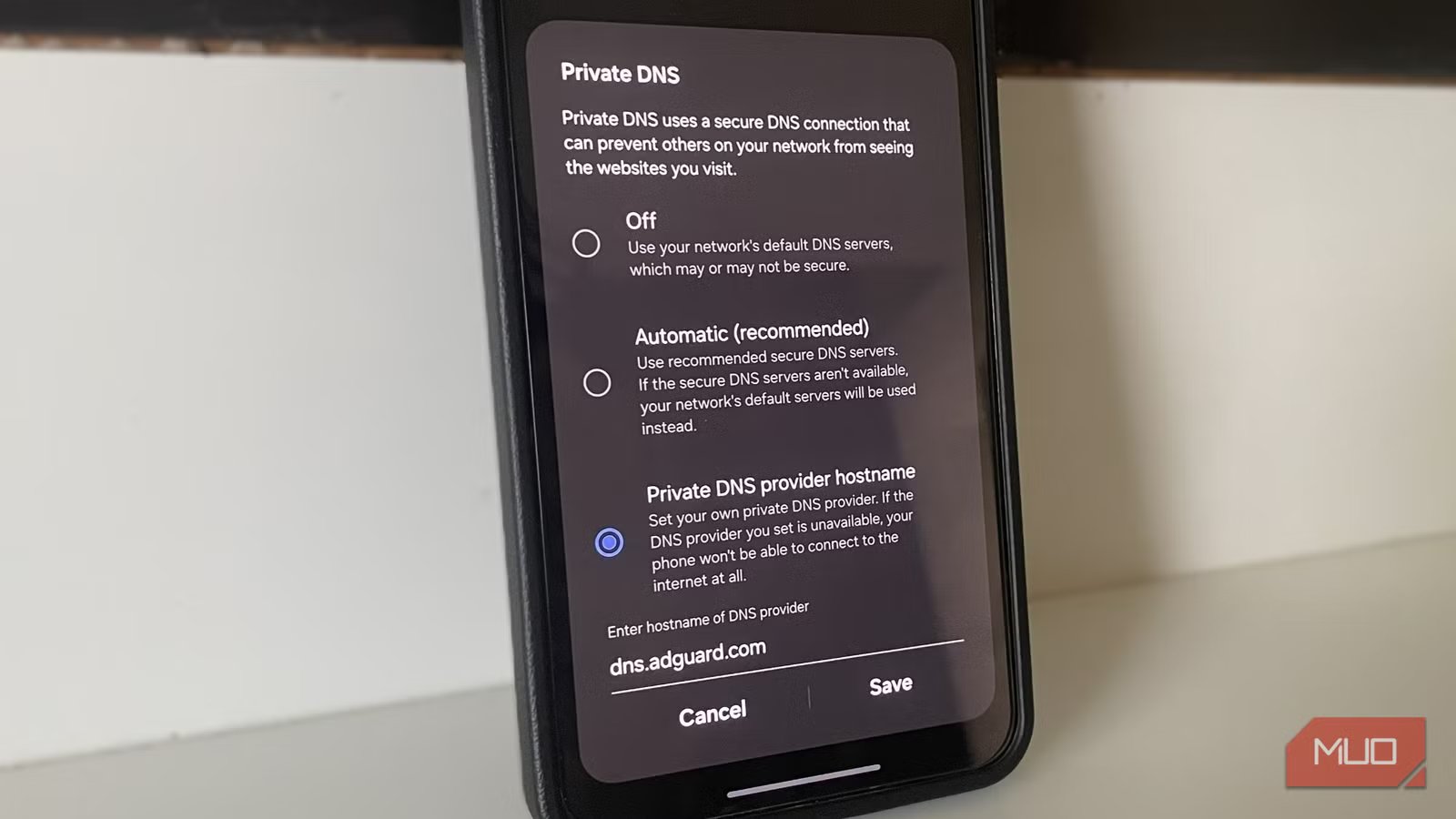
Open the Settings app and head to Network & Internet > Private DNS. If you have a Samsung phone, go to Settings > Connections > More connection settings. Then, select Private DNS, choose Private DNS provider hostname, and enter dns.adguard-dns.com. Hit Save, and you’re done.
Your phone will now block every ad there is. AdGuard also offers a family protection DNS. To use it, type family.adguard-dns.com in the DNS field. This version not only blocks ads and trackers, but also filters adult content. It’s a great option if you often share your device with kids.
Most modern routers let you set a custom DNS server in their network settings. You can add the AdGuard DNS there so that every device that connects to the Wi-Fi automatically benefits from ad blocking. This way, you won’t have to manually change the DNS for every phone, tablet, TV, and laptop in your house.
Related
The creepy targeted ads on my phone vanished after I changed one setting
Turn off this ID and ads stop following you.
It’s not perfect, but that’s okay
The benefits far outweigh the downsides
AdGuard DNS is free and hassle-free, but it’s not without its flaws. Since it works at the DNS level, it blocks requests known to ads and tracking domains. But it can’t remove those visual placeholders inside apps or websites. So while the ads themselves may not load, you’ll still see blank boxes where they would normally appear.
Also, it can’t remove ads that are baked directly into an app or served from the same domain as the main content. For example, the sponsored content you see on Instagram or ads that appear before a YouTube video will still appear. AdGuard DNS can’t filter them.
Finally, it’s worth noting that not every mobile carrier fully supports Private DNS. In some cases, your carrier may interfere with custom DNS settings, and the internet may stop working entirely. This varies from carrier to carrier, so your experience may differ.
Still, for something that takes less than a minute to set up, requires no app, costs nothing, and works system-wide, these tradeoffs are honestly more than reasonable. You get fewer ads, better privacy and lower data usage with almost zero effort.
AdGuard also offers a dedicated app if you don’t want to mess with the DNS settings on your phone. The main advantage of using the app is that you can enable and disable DNS with a tap. And even though the app needs to run in the background constantly, the impact on performance is minimal.
