

Everyone knows how important it is to back up their data. That said, many people still don’t back up their data regularly, and there are several reasons for it. Some users assume that their data is safe on their computers until they see a failed update or encounter an accidental deletion. On the other hand, some users believe that backups are overly complex and time-consuming. They have to rely on cloud storage, buy an external hard drive, or go for some other complicated setup. Interesting, that’s not the case.
It’s really surprising that Windows 11 already includes a built-in backup tool, and most people completely overlook it. That tool is quietly waiting to protect your important data. No complicated setup, no third-party downloads. Just a few minutes, and you’re sorted.
Discover the backup tool hiding in plain sight
Screenshot by Kanika Gogia
Windows 11 comes with a cloud-based Windows Backup feature that makes it easier to move data between devices and recover it. Rather than the old backup and restore tool that just copied files to an external drive, Windows 11 Backup focuses on syncing your digital life to your Microsoft account. This includes syncing your files, apps, settings, and even system preferences to OneDrive. Your backups aren’t locked to a single physical location; instead they live online for easier access.
Windows Backup is directly tied to your Microsoft account and deeply integrated with cloud storage. This allows you to restore your important data and set up a new PC in the most effortless way. Since it’s designed to remember your apps, files, and preferences, you don’t have to start everything from scratch, even when you factory reset your PC or it suffers any hardware failure.
It saves more than just your files
Your apps, settings, and digital life
When we talk about PC backups, most people usually think about documents and photos. Interestingly, Windows Backup goes beyond. Here’s everything this tool can save for you:
- Files and Folders: Windows Backup automatically backs up your common folders like Desktop, Documents, Music, Pictures, and Videos.
- Apps: It saves the list of apps you’ve downloaded from the Microsoft Store so you can easily reinstall them on your new device. This reduces the friction of starting everything from zero on a new device.
- Windows Settings and Preferences: Windows Backup can save your personalization settings like wallpapers and themes, language preferences, browser preferences, and accessibility settings.
- Saved credentials: It also securely saves your Wi-Fi networks and other saved passwords so you don’t have to re-enter them when you log into a new computer.
Overall, Windows Backup feels more like a modern backup solution, not a traditional backup software.
What it protects and what it doesn’t
So, any caveats?
Screenshot by Kanika Gogia
Well, this is something that most users misunderstand. First, let’s understand what Windows Backup protects. This tool is primarily designed to protect your personal files, apps, and settings by syncing them with OneDrive. So, it protects your files in synced folders (Pictures, Desktop, Documents, etc.), Windows personalization settings, app lists, Wi-Fi networks, and basic system setup information.
Now, coming to what Windows Backup doesn’t protect. First, it doesn’t back up your entire operating system, system files, or drivers. Therefore, don’t see it as a clone of your drive. Second, it doesn’t back up anything outside the user folders (C: drive) until you move them manually. Third, Windows Backup helps you reinstall certain apps, but it doesn’t remember deep configuration files. Another thing that you should know about Windows Backup is that it offers only 5GB of free storage with your Microsoft account. If your back up exceeds this limit, you have to go for a Microsoft 365 premium subscription. Also, Windows Backup is only available for a personal Microsoft account. Work or school accounts are currently not supported.
So you see, Windows Backup is great for easy backups and recovery, but it’s not comprehensive data recovery software.
How to set up and use Windows Backup
Step-by-step instructions
image credit – self captured (Tashreef Shareef) – No Attribution Required
If you haven’t tried this Windows Backup tool yet, you might think it’s complicated and time-consuming. However, that’s not true.
Here’s how you can configure Windows Backup in a few minutes:
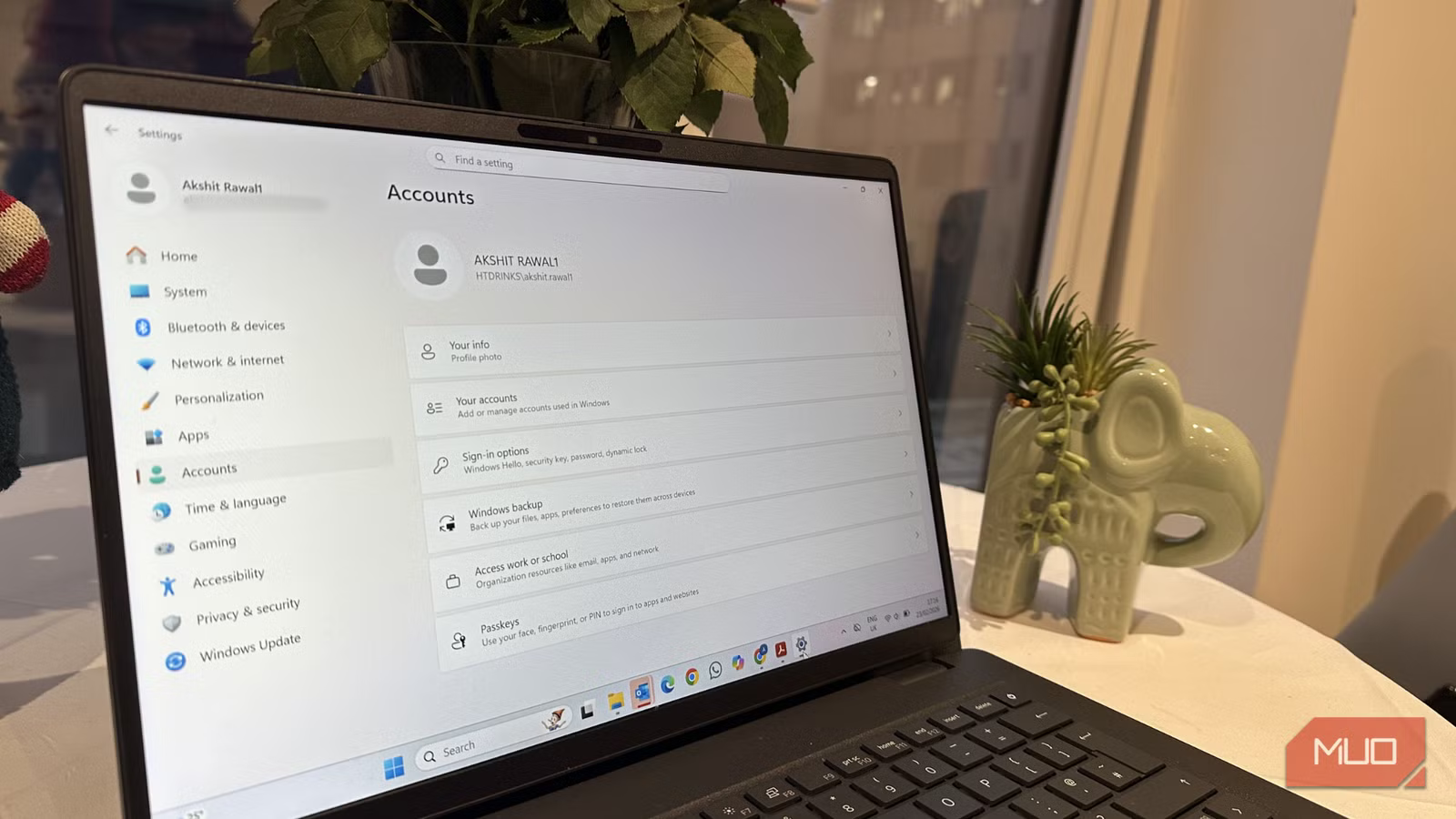
- First and foremost, open Settings on your Windows PC and click on Accounts in the left sidebar.
- Scroll down and click Windows Backup on the right-hand side.
- Make sure you’ve signed in to your OneDrive account.
- Click the Manage sync settings option next to OneDrive folder syncing, and choose the folders you wish to sync.
- Next up, you’ll see toggles for Remember my apps and Remember my preferences. Turn these toggles on to back up your app list and system preferences. You can also expand this and deselect anything you don’t need.
- Once you’ve configured the settings, hit the Back up button to sync your data to your OneDrive storage.
Now, you can restore this data on any Windows 11 device you wish to set up. Simply sign in with your Microsoft account in the setup wizard, select the Restore option, choose the backup you wish to restore, and follow the on-screen instructions.
Related
6 Simple Ways to Back Up Your Data Safely
Avoid risking lost files by learning how to back them up securely.
Don’t ignore Windows 11’s simplest safety net
Windows Backup isn’t a flashy tool that can replace a full disk image solution. Also, it won’t protect you from every possible digital disaster. That being said, it’s one of the most convenient ways to backup Windows PC because it covers things that matter the most to everyday users. It keeps your personal files safe, remembers your apps and preferences, and takes care of important settings. This makes those PC transitions smoother and easier.
If you haven’t tried this feature yet, you aren’t making use of the free protection that Windows offers by default. For better peace of mind, I like using Windows Backup with a secondary backup strategy that covers everything I need. This way, your personal data, important documents, and everything else can be easily restored in the event of a crash or switching devices.
