

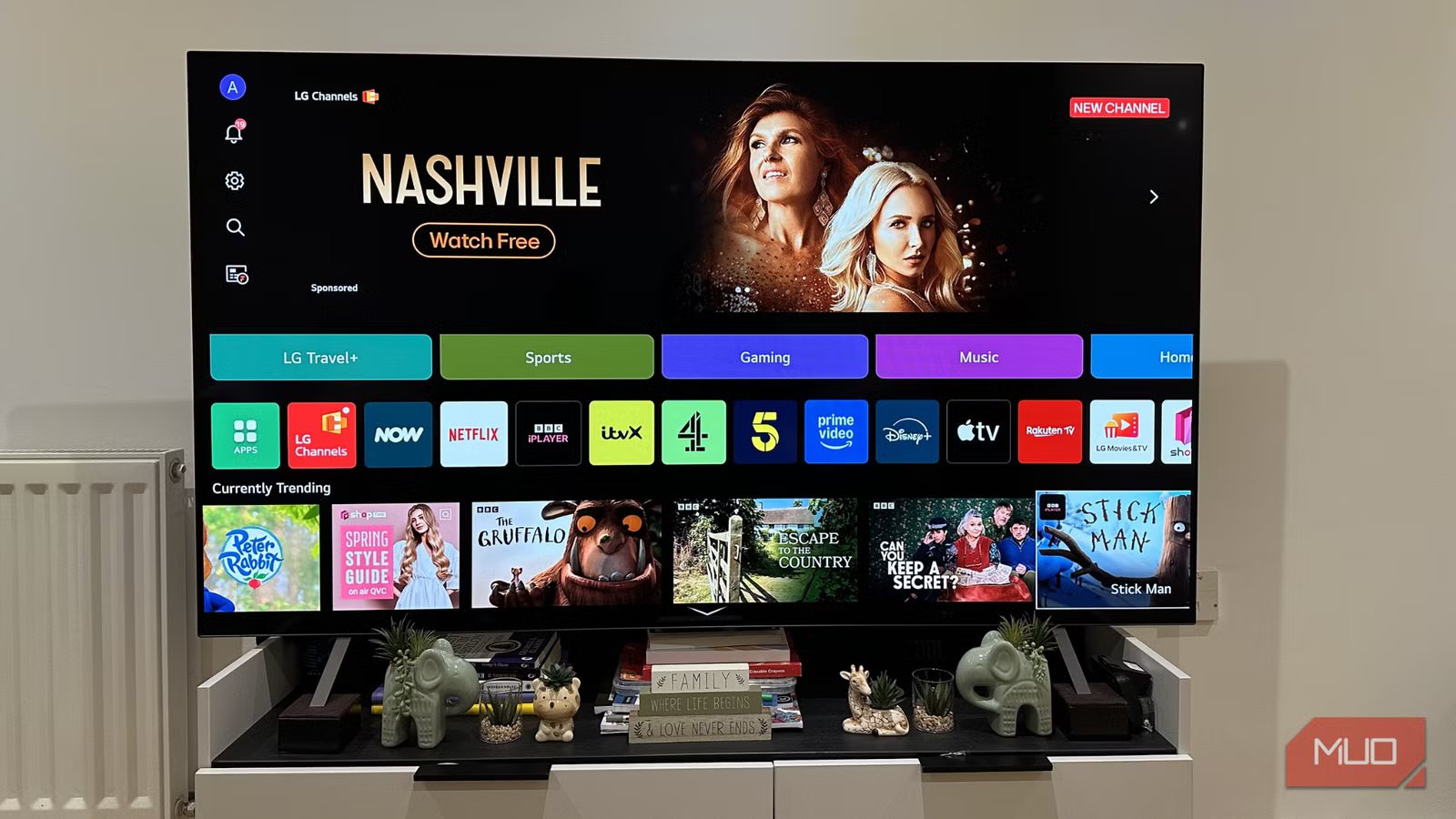
I recently bought a shiny LG TV that I’ve been wanting to get for a long time. I assumed that my new TV would give me the best possible audio and video quality right out of the box. So, I didn’t change any settings for the first few days. I soon realized that not all TVs offer the best performance settings by default. I started noticing that colors did not look their best, the screen gets brighter randomly, and the overall picture quality did not look sharp.
Then I decided to dig into the settings. After spending around 20 to 30 minutes on it, my TV felt smoother, faster, and a lot better. If your smart TV feels sluggish, or you’re satisfied with the performance, it doesn’t mean that something is wrong with your TV. You just need to adjust a few settings. And you’ll notice a big, big difference instantly.
Turn off motion smoothing
Your TV don’t need fake frames
Turn off Motion Smoothing on smart TVCredit: Kanika Gogia / MUO
The first setting I changed was Motion Smoothing, sometimes called TruMotion, Auto Motion Plus, MotionFlow, or Action Smoothing (depending on the TV brand). It’s a TV setting that boosts frame rates by inserting artificial extra frames to make everything look smoother. This feature reduces blur and is primarily designed for sports and gaming. However, for movies and shows, it creates a weird “soap opera effect” that produces hyper-realistic images and breaks the immersion as intended by filmmakers. Motion smoothing also causes processing delays and hurts the overall picture quality.
On my LG TV, I went to Settings -> Picture -> Advanced Settings -> Clarity -> TruMotion and turned it off. Once I disabled Motion Smoothing, I noticed that movies and shows looked more natural and immersive. The fast scenes had fewer artifiacts and my TV felt more responsive. This made me realize that my TV doesn’t need to enhance everything. Sometimes, less processing gives you much better performance.
Disable energy saving mode
The trade-off behind saving power
Disable Energy Saving Mode on TVCredit: Kanika Gogia / MUO
By default, energy saving mode is enabled on most smart TVs. While this feature is designed to reduce your TV’s power draw and cut down on electricity bills, it also impacts the picture quality. When Energy Saving Mode is enabled, it reduces the panel brightness and contrast for HDR content. Also, it might result in a dim, flat, and less vibrant picture quality which isn’t ideal if you’re watching high-quality content or sitting in a bright room. Energy-saving mode also impacts the overall performance of your TV.
Now, what’s the point of getting a high-end OLED TV when you have to settle for subpar performance? That’s why I decided to disable energy saving mode. As soon as I did it, the HDR performance popped the way it should, the visuals appeared brighter and consistent, and my TV stopped dimming unpredictably during dark scenes.
Switch to the right picture mode
Enjoy better colors in seconds
Modes on a smart TVCredit: Kanika Gogia / MUO
Today, most smart TVs offer multiple picture modes that instantly change the color, backlight, brightness, and contrast to optimize visuals based on what you’re watching, like movies, games, or sports. Some TVs ship with the Standard, Vivid, or Dynamic mode by default. While these modes look impressive in shore lights, they might not be the most accurate mode for your home.
I crave an accurate and cinematic experience while binge-watching my favorite Netflix shows and movies. That’s why I decided to go for Filmmaker mode on my LG OLED TV. It is generally considered the best and most accurate picture setting for movies. You can choose a mode based on what you’re watching. For your gaming sessions, you can switch to Game Optimizer or turn on Sports mode for fast-paced action.
Clear TV’s cache and unused apps
A necessary speed boost
Apps on a smart TVCredit: Kanika Gogia / MUO
Like your smartphones and computers, your TV also has a cache to store frequently accessed data like app icons and UI elements for faster loading times and smoother navigation. Over time, the cache can get cluttered, which might lead to slow performance and app crashes. If you’re someone like me who watches a lot of Netflix or YouTube, cached data builds up very quickly. Therefore, it’s important to clear your smart TV cache and free up some memory.
I decided to clear my TV’s cache and uninstall apps that I don’t use. Once I did it, I experienced a noticeable speed boost on my TV. Now, my apps open faster, navigation speed is improved, and my apps don’t freeze at random like before.
Check your network setup
Weak internet means weak performance
Check Internet Connection on TVCredit: Kanika Gogia / MUO
I was blaming my TV for buffering a lot. Later on, it turned out my Wi-Fi was at fault. A good and stable internet connection is extremely important for a smart TV to work properly. Poor, slow, or unstable internet might trigger laggy menus, app loading delays, buffering, and other streaming issues.
First and foremost, I turned off my Wi-Fi router for around 30 seconds. Then, I decided to move the router a bit closer to my living room (where I’ve placed my TV) to minimize signal interference. I also made sure that I was using 5GHz and not 2.4GHz Wi-Fi on my TV. Ethernet is a great way to eliminate any Wi-Fi obstructions, and it offers faster internet speed. This wasn’t possible in my case, so I made some tweaks to my Wi-Fi and it works better now.
Reduce unnecessary animations and smart features
You don’t need everything
Always Ready feature on LG OLED TVCredit: Kanika Gogia / MUO
Modern smart TVs boast sleek interfaces with flashy animations for the most fluid navigation experience. However, these animations also require additional processing power which can impact your TV’s performance. Over time, you might feel that these animations are slowing things down for you rather than making everything appear smoother. Thankfully, you can easily tone down these animations or even turn them off completely.
Just like animations, your smart TV offers a ton of other features that keep running in the background. Some of the most common ones are Ambient modes, Always Ready, Automatic Content Recognition, Voice wake, and other features. It’s fine if you like and use a specific feature, but if you don’t, make sure to turn them off. This will give you notably better performance.
Related
Gaming on a Smart TV Is So Much Better With These Settings Tweaks
Your smart TV has a heap of features that make gaming much better—you just need to know where to look.
A few simple tweaks can save you from an expensive upgrade
I also checked for software updates and made sure my TV was running the latest version. This improved the overall responsiveness and made the interface more stable.
Once I changed these settings, I got accurate picture quality, better app loading times, smoother interface, fewer streaming issues, and better performance. If your smart TV also feels slow or doesn’t give you the expected performance, it’s not because your TV is underpowered; it’s because of some settings. Once you know what to change, it will upgrade your experience in no time.
