

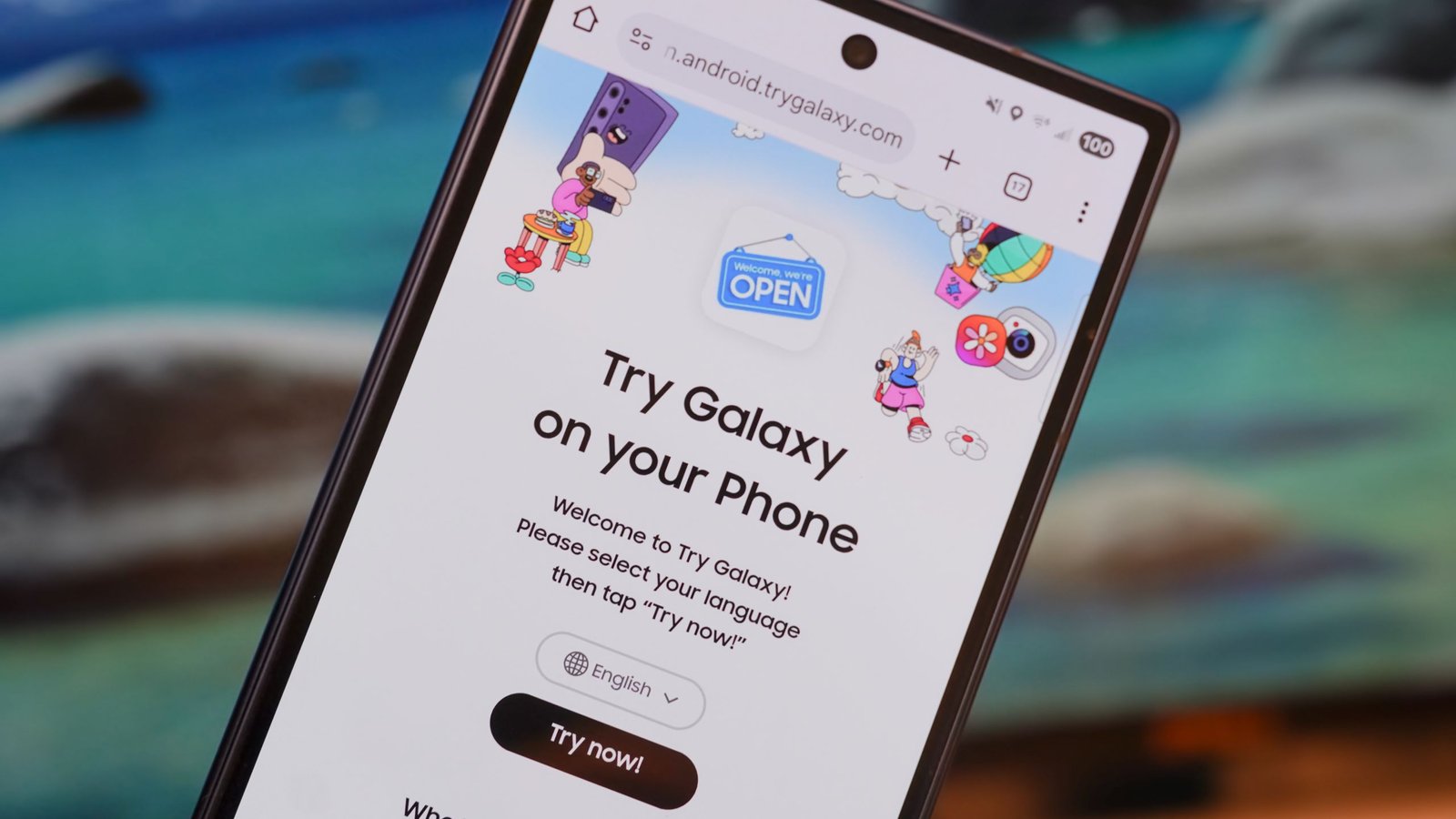
So, you’ve seen the Samsung Galaxy S26 series, but aren’t sure whether the new phones are a good fit. The cheapest model this year is $900, and the most expensive is $1,300, which is quite the investment. To drop that kind of cash on a smartphone, you need to be sure you’ll love it. Samsung has a clever way of letting users try switching to a Galaxy phone straight from the one they already have. It doesn’t matter if it’s a Pixel, OnePlus, or iPhone — the “Try Galaxy” website can simulate the Galaxy experience on it.
The web app is officially updated for the Galaxy S26 as of this week, so you can try the exclusive features you won’t find on other Galaxy phones for yourself. I’m particularly intrigued by the Privacy Display on the Galaxy S26 Ultra and the deep Galaxy AI integrations. Sure enough, they’re available as a preview on the Try Galaxy site. Here’s how you can try out the Galaxy S26 software experience without buying one.
Try Galaxy lets you experience the latest Samsung phones without buying them
(Image credit: Brady Snyder / Android Central)
Try Galaxy is a free website that simulates the One UI experience you’d find on Samsung phones, but it works on any iOS or Android smartphone. The site can be turned into a progressive web app (PWA) that is added to your home screen and runs independently of your main browser app. The Try Galaxy web app isn’t new, but it was just updated to include the exclusive features announced at Samsung’s Galaxy Unpacked this week for the Galaxy S26 and One UI 8.5.
You may like
There are some limitations; notably, the Try Galaxy site is limited to your phone’s hardware. Of course, there’s no way to truly replicate hardware-based features like the Galaxy S26 Ultra’s Privacy Display. That said, the web app does do a pretty good job of giving curious Android fans a sneak peek at these upcoming Galaxy S26 features. Software-based tools, such as Galaxy AI or the new Bixby experience, translate very well to the Try Galaxy web app.
If you’ve ever used a third-party Android launcher, you know what to expect here. Try Galaxy is like a self-contained One UI 8.5 launcher in a progressive web app. It’s a simulated environment, so you won’t find your apps or data. What you will find is the slew of new Galaxy S26 features in an easy-to-navigate web app.
How to turn Try Galaxy into a working web app
(Image credit: Brady Snyder / Android Central)
You can run the Try Galaxy app in your browser, but it’s better as a progressive web app on your home screen. Here’s how to set that up:
1. Go to the Try Galaxy website in your favorite Android browser.
2. Tap the three-button menu.
3. Press Add to Home Screen.
4. Tap Install.
5. Now, you can use the Try Galaxy web app on your Android home screen.
(Image credit: Brady Snyder / Android Central)
As an aside, keep in mind that you can turn lots of sites into progressive web apps using these steps. If there’s a website you always revisit because there’s no official Android app available, or if you prefer the web client, try turning it into a PWA. For now, it’s time to use the Try Galaxy web app to preview Samsung’s newest features.
How to try exclusive Galaxy S26 features on your current phone
(Image credit: Brady Snyder / Android Central)
When you tap the Try Galaxy web app, you’ll see a One UI 8.5 launcher running in an isolated environment. Depending on the device you’re using, you might find a strange aspect ratio or black bars at the top of your screen. Don’t worry, because these abnormalities will be nowhere to be found if you decide to actually buy a Galaxy S26 model.
The web app’s One UI 8.5 launcher will default to button navigation instead of gesture navigation. If you try to use swipe gestures to change apps or go back, you’ll just exit the Try Galaxy app, so remember to use the buttons. A good place to start is by opening the Settings app in the Try Galaxy app. Here, Samsung highlights some of the newest Galaxy S26 or One UI 8.5 options, making them easy to spot.
(Image credit: Brady Snyder / Android Central)
I went for the Privacy Display feature first, and the settings page for this feature gives you an idea of what to expect. There’s a graphic that simulates how Privacy Display limits visibility at certain viewing angles, and you can see the settings that dictate when and how Privacy Display turns on.
You can also experiment with Galaxy AI tools such as Photo Assist, Call Assist, and Health Assist. Samsung’s new conversational photo-editing tool is here, and the Try Galaxy web app is the perfect way to test this feature. Since it’s software- and cloud-based to begin with, the experience should feel very similar to using it on an official device.
(Image credit: Brady Snyder / Android Central)
You can continue to jump around the virtualized One UI 8.5 launcher, experimenting with anything you see fit. If you like it, you might just like the Samsung Galaxy S26 series.
Try Galaxy makes me want to use the Samsung Galaxy S26 Ultra even more
(Image credit: Brady Snyder / Android Central)
Going to a Samsung or Best Buy store and getting hands-on time with the Galaxy S26 family, when it’s on display, will serve you better than using the Try Galaxy web app. However, the simulated experience might just be enough to push you to take that trip to the store. I tried some of the new Galaxy S26 features on this site, and now I’m more excited than ever to use them in person.
The latest and greatest
If you loved the experience of using the newest Galaxy features on your current phone, maybe it’s time to look into upgrading to the Samsung Galaxy S26 Ultra. Now would be the time to do so, as Samsung is offering insane pre-order deals for its new phones.
