

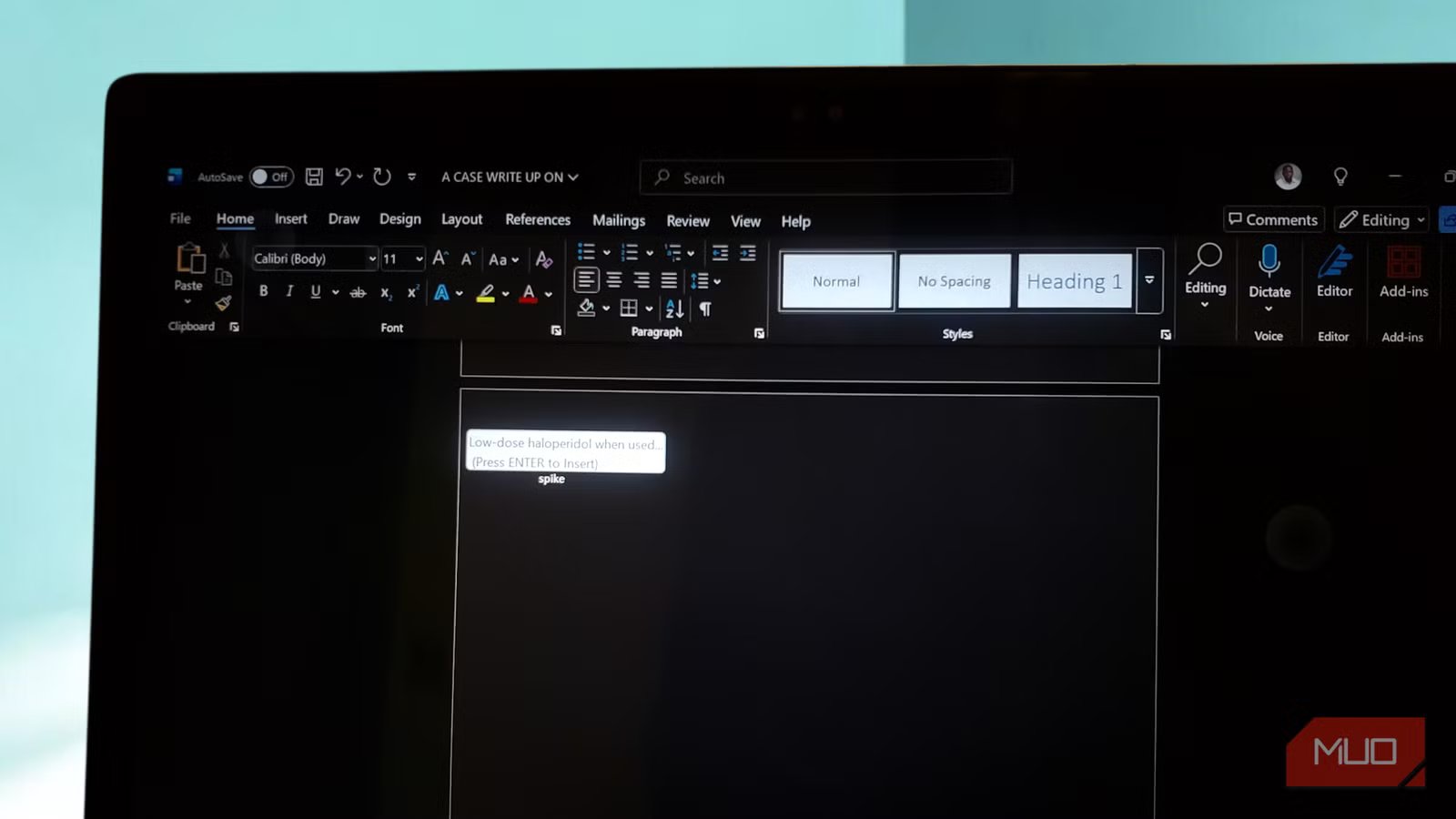
Most people who use Microsoft Word daily still don’t know that Spike exists, and that’s a shame. It’s not tucked behind a subscription wall or buried in a settings menu nobody opens. It’s right there, bound to a keyboard shortcut, waiting. I stumbled across it while trying to rearrange a lengthy report without endlessly cycling through copy-paste operations, and it has changed the way I think about editing in Word.
The Spike is one of those simple Microsoft Word paste tips that can save you from formatting nightmares. It’s a secondary clipboard that accumulates multiple chunks of content and holds them all until you’re ready to drop them exactly where you need them.
The Spike is a patient collector
It gathers your content until you’re ready to unleash it all at once
If you’ve ever had to relocate three or four scattered paragraphs to a new section of a document, you know how tedious that shuffle can get: copy, paste, scroll, copy again, paste again, repeat until you lose track of what’s been moved and what hasn’t. While you may be familiar with using the Windows 11 clipboard history feature to see your last 25 clips, another built-in feature called Spike handles the task much more efficiently for long-form editing.
Here’s how it works: highlight any piece of text, an image, a table — really anything you can select — and press Ctrl + F3. That content disappears from its original spot and lands on the Spike. Then do it again with a second block. And a third. Each time, Word stacks the new content on top of whatever’s already sitting on the Spike, building a cumulative collection that persists until you decide it’s time to use it.
Related
I tested 5 Windows clipboard managers and this is the best one
Out of all the options I tried, PasteBoard is the one that fits my needs
The first time you try it, the “cut” behavior can feel slightly alarming. Your text disappears, and your reflex is to hit Ctrl + Z in a small burst of panic. But that undo shortcut is actually part of the workflow. Press Ctrl + Z immediately after each Ctrl + F3, and the text reappears in its original location while Word keeps the copy on the Spike. It’s a clever workaround that keeps your document intact while Spike builds a duplicate compilation in the background.
What makes it even more useful is that the Spike has nothing to do with your regular clipboard. You can still use Ctrl + C for everyday copying, grabbing a link, a name, or a sentence you need nearby, and it won’t interfere. They operate side by side, which means you’re effectively working with two clipboards at once. If you regularly look for underrated Microsoft Word tricks to beat writer’s block or manage information-heavy documents, this is a massive productivity boost.
It also isn’t confined to one file. The Spike works across all open Word documents. You can collect sections from one document, jump into another, grab more content there, and when you finally paste, everything arrives together in the order you spiked it.
Pasting from the Spike gives you real options
The smarter ones let you reuse your collection without losing it
When you’re ready to place your gathered content, you have a few different paths — and the one you choose matters depending on whether you plan to paste once or repeatedly.
The most direct option is Ctrl + Shift + F3. Press it, and everything on the Spike drops into your document at the cursor’s position in the order it was collected. Fast, clean, done. The trade-off is that this also empties the Spike completely, so whatever you’d built up is gone the moment it lands. If you only need that collection in one place, this is the right call.
If you want to paste the same collection into multiple locations, or simply keep it loaded while you continue working, there’s a more durable approach. Type the word spike (lowercase, no quotes) wherever your cursor sits, and then press the Enter or F3 key. Word reads it as an AutoText trigger and inserts the full Spike contents without clearing anything. You can repeat this as many times as needed, across as many locations or documents as the work demands, and the Spike stays stocked throughout.
There’s also another option for those moments when you want to inspect the Spike’s contents before committing to a paste. Navigate to the Insert tab, click Quick Parts, and select AutoText. The Spike appears as a named entry in the submenu, and selecting it gives you a preview of everything currently stored inside. It’s a useful sanity check after a long collection session where the order of things may have blurred together.
Items added to the Spike tend to arrive separated by a line break when pasted. This happens because Word’s Smart Paragraph Selection automatically includes paragraph markers when you highlight text near the end of a paragraph. If those extra gaps bother you, you can disable Smart Paragraph Selection in Word’s Advanced options, which cleans things up. If you prefer to keep the setting on, you can manually select text excluding the final space or paragraph mark before adding it to the Spike.
Related
6 Underrated Microsoft Office Features You’re Not Using
Hidden gems in Office that’ll make your life easier.
Less tab-switching, fewer mistakes, more smug satisfaction
The Spike has been part of Word since version 97, which makes its obscurity all the more remarkable. It isn’t new, and it isn’t experimental. Rather, it’s a fully mature tool that simply never got the attention it deserved. Once the habit forms, returning to a clipboard-only workflow feels unnecessarily clunky, like insisting on making multiple grocery trips when one would do.
It won’t remake everything about how you use Word. But for those specific moments when scattered content needs to be gathered, transported, and placed with intention, whether across a single document or several open files, it’s really hard to imagine a faster way to get it done.
