

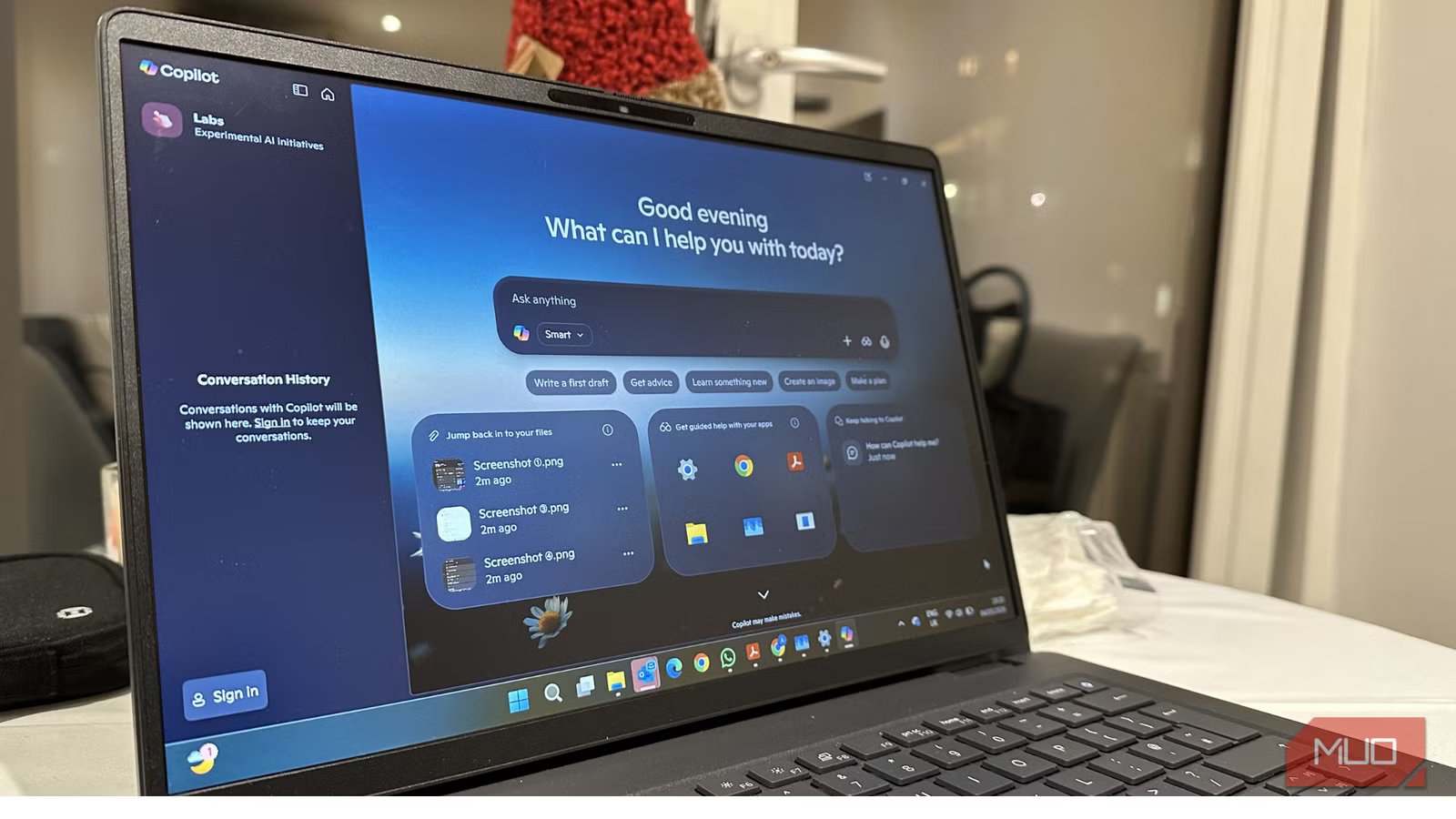
Whether you ask for it or not, artificial intelligence is slowly becoming a part of your Windows experience. Now that Copilot is integrated directly into Windows 11, Microsoft isn’t just offering you a chatbot. Rather, it’s backing AI as a core part of how your PC works. Well, it’s a good addition for people who need AI for their everyday tasks. But the problem is that not everyone asks for it or needs it. Copilot promises faster answers, smarter workflows, and seamless system tweaks, but it also runs as a built-in, cloud-connected feature on your Windows 11 machines.
I’ve rarely used Copilot on my machine. So, I don’t appreciate the idea of Copilot just sitting in the background all the time. That’s why I decided to disable it entirely.
What is Microsoft Copilot in Windows
Built-in AI companion
Copilot is an AI-powered assistant that’s baked right into Windows 11 to improve your creativity and productivity. It’s designed to work as a one-stop solution to generate/rewrite text, answer your questions, summarize web pages, adjust system settings, and connect with your core Microsoft apps like Office. Copilot sits in the Taskbar, appears in the side panel, and integrates with Microsoft services like Outlook and OneDrive.
Unlike traditional system features on your Windows PC, Copilot isn’t just a local utility. It relies heavily on cloud processing, which means it communicates with Microsoft servers to fetch responses for you. So you see, Copilot isn’t just another built-in tool. It’s more of an AI service that’s embedded at the OS-level. Also, it keeps running in the background and might slow down the system’s performance. And that’s where my concerns started.
Why I decided to disable Copilot
It simply wasn’t necessary
Screenshot by Abhishek Baxi; no attribution required
Before you start judging me, no, I don’t hate AI. I use some AI tools for my everyday tasks. I also use Copilot at times, but not from my taskbar. I don’t need it all the time.
- It doesn’t fit in my workflow: When I need AI help, I would rather switch to dedicated tools designed for specific tasks. For instance, I use Gemini for multimodal tasks, Perplexity for deep research, and Adobe Firefly for creative image generation.
- Data sharing concerns: Copilot grabs data from Microsoft services like Bing and Edge. While it may offer a personalized experience, it also raises concerns about intended data exposure.
- Windows already feels cluttered: Windows 11 offers widgets, cloud prompts, Edge promotions, and more. Topping them up with Copilot gives you an even more layered experience. I disabled Copilot to reduce the unnecessary visual and feature clutter on my PC.
- Unnecessary background activity: While Copilot doesn’t consume a lot of system resources, it contributes to the OS workload. I want to keep my system light and snappy, so I prefer to turn off features I don’t need.
So you see, Copilot didn’t replace anything for me. It just added more options and integrations that I don’t even need.
How to disable Copilot in Windows
Take it out of the equation
Thankfully, it’s easy to turn this feature off. Here’s what you need to do:
- Head to Settings on your PC.
- Select Personalization from the left panel and navigate to Taskbar.
- Here, turn off the Copilot toggle.
This is the easiest way to go about it. You can also go to Settings -> Apps -> Installed Apps and uninstall the Copilot app from your Windows PC.
If you’re using Windows 11 Pro, you will have to use the Group Policy method. Here are the steps for it:
- Click the Start button and open the Group Policy editor.
- Head to User Configuration -> Administrative Templates -> Windows components -> Windows Copilot.
- Double-click the Turn off Windows Copilot option.
- Finally, select Enabled, click Apply, and hit the Ok button.
Restart your PC to disable Copilot across the entire system. If you ever wish to get Copilot back on your computer, follow the above steps and revert to the older settings.
What changed after I disabled it
It did not break anything
Windows 11 laptopCredit: Kanika Gogia/ MUO
When I disabled Copilot, I didn’t feel its absence. And that’s the whole point. In fact, I felt some surprisingly good changes. First, my taskbar felt lighter, and there’s less clutter. When I turn on my PC, the startup feels more streamlined, even though there isn’t a dramatic boost in speed. Now, I have one less cloud-connected service built into the OS and one less background service I need to think about. More importantly, I got back control of my system.
Turning off Copilot didn’t break anything: convenience, productivity, my workflow, nothing. Windows works exactly the same for my needs. I use AI tools, but I choose when and how to access them.
Related
5 tiny Windows 11 tweaks that make it feel like Windows 10
Resist the change!
A built-in feature doesn’t mean it’s essential
If you actively use Copilot for productivity or rely on its integration with Microsoft services, it makes sense to keep it enabled. Also, if you like the idea of having AI built right into Windows, it’s absolutely fine.
I disabled Copilot on my Windows 11 computer because I rarely use it. Also, I prefer on-demand tools over default integration. I don’t need Copilot in my Outlook, Notepad, and other apps. Also, the deep integration of Copilot in the taskbar, File Explorer, and Edge was messing up my traditional workflows. Moreover, I don’t want any tool that doesn’t improve my workflow to keep running in the background and hog system resources. So, disabling Copilot was a reasonable move for me.
