

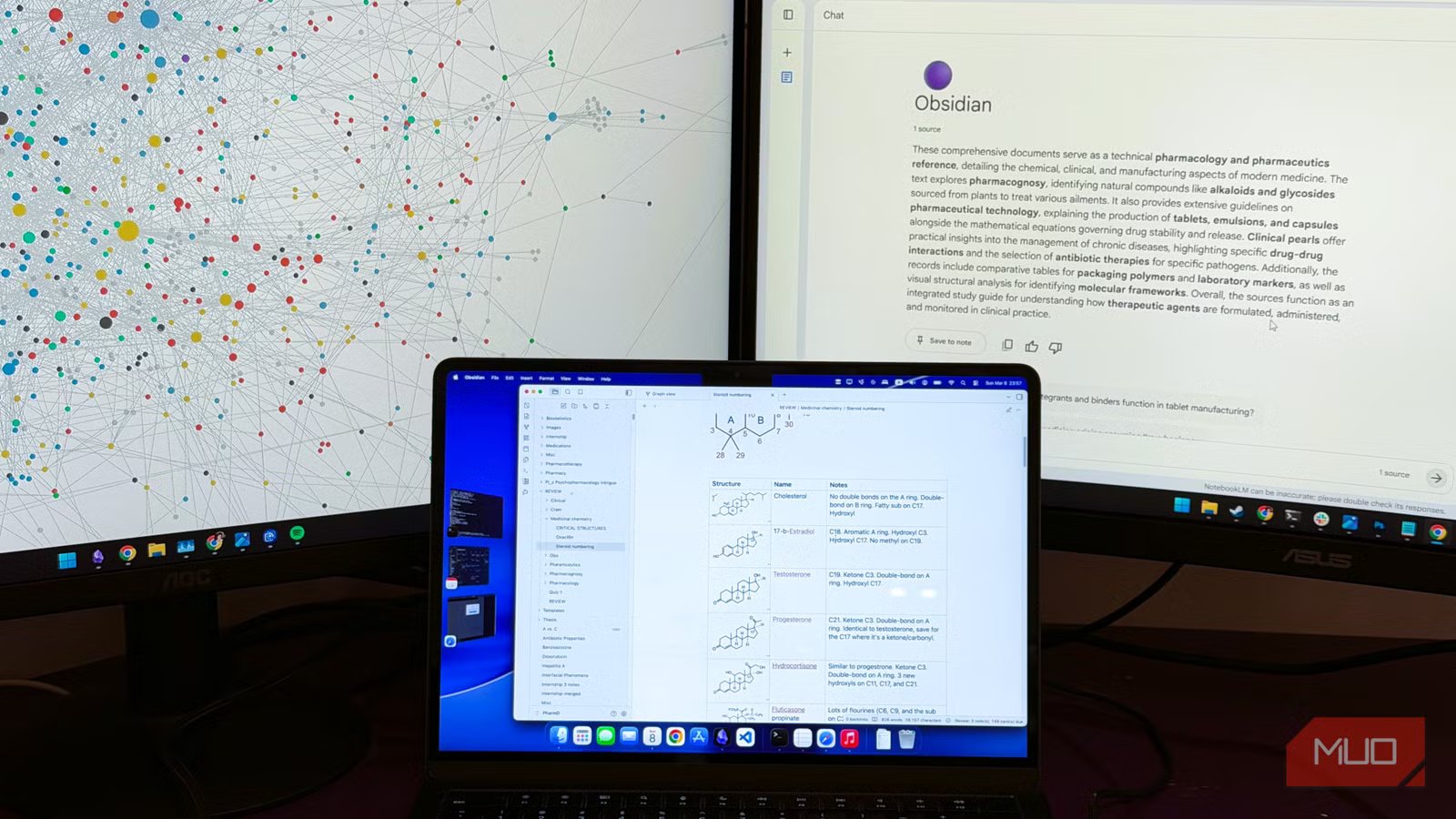
Finally. An actual way to connect Obsidian and NotebookLM for real. I know you’ve probably watched videos and read articles claiming they’ve connected the two, only for the whole thing to end up being a glorified copy-paste workflow where they move notes from Obsidian into NotebookLM by hand. That’s not a connection. I agree with you.
The appeal and the why is obvious. Obsidian is an excellent place to store information, and because it uses plain Markdown files (.md), there’s very little fear involved. You’re not worrying about some company disappearing one day and taking your notes with it. The files are there. They stay there. They’re yours. That removes a huge amount of friction, and it’s a big reason why so many people, myself included, end up with vaults containing thousands of notes and millions of words.
NotebookLM, on the other hand, is not a good note-taking app. But it is excellent at turning notes into something usable. Summaries, podcasts, guided breakdowns, and other forms of information that are much easier to digest. It’s one of the best tools I’ve used for actually making sense of a pile of research and written material. So, you can imagine that these two together would make a formidable pair. I can confirm: they do, and this is the setup that finally worked for me.
Related
I taught Obsidian to listen and write my notes for me
Obsidian makes a decent stenographer.
Getting Obsidian set up
Obsidian shouldn’t need any setup, but for NotebookLM’s sake…
I use folders to organize most of my notes in Obsidian. That’s problem number one for NotebookLM, because it can’t import folders. My notes, since they’re in Obsidian, are .md files. For some reason, NotebookLM doesn’t like .md files. More on that in a second. Third, my notes are dynamic. If I find something new, I’ll go back to a note and change it. NotebookLM’s sources are static. Even when you add a website as a source, it captures that version of the website and won’t reflect changes made to it.
That’s already a lot to find solutions for, but we’re not done yet (and I promise, the solution is much simpler than the problem). I use Obsidian Sync to sync my notes. There’s no way to access Obsidian Sync from outside of Obsidian. So, for this setup, I synced Obsidian with Google Drive instead.
At first, I thought I could just sync the folder to Google Drive and then add that Google Drive folder as a source in NotebookLM. But the problems I mentioned showed up immediately. When I opened the folder in NotebookLM to add it as a source, I realized that NotebookLM can’t add an entire folder as a source. I had to add the files one by one. But before even getting to that, the folder looked empty to NotebookLM because the files were Markdown files.
What if… I wrote a script that converted all of my notes into plain text (.txt) files and stored them in another folder on Google Drive? That worked. NotebookLM could see the notes, but I still had to select them one by one, and there were plenty. So… what if that same script also merged all the notes into one giant .txt file with separators? That works. Here’s the script I used:
function mergeObsidianToMasterTxt() {
const obsidianFolderId = ‘YOUR_FOLDER_ID_HERE’; // Replace with your vault folder ID
const outputFileName = ‘Obsidian_Master.txt’;
const rootObsidianFolder = DriveApp.getFolderById(obsidianFolderId);
let masterContent = “OBSIDIAN VAULT EXPORT – ” + new Date().toLocaleString() + “\n”;
function collectContent(folder) {
const files = folder.getFiles();
while (files.hasNext()) {
const file = files.next();
if (file.getName().endsWith(‘.md’)) {
const title = file.getName().replace(‘.md’, ”);
const content = file.getBlob().getDataAsString();
masterContent += `\n— FILE: ${title} —\n${content}\n`;
}
}
const subfolders = folder.getFolders();
while (subfolders.hasNext()) {
collectContent(subfolders.next());
}
}
collectContent(rootObsidianFolder);
const existingFiles = DriveApp.getFilesByName(outputFileName);
if (existingFiles.hasNext()) {
const masterFile = existingFiles.next();
masterFile.setContent(masterContent);
} else {
DriveApp.createFile(outputFileName, masterContent);
}
console.log(“Master file updated!”);
}
Now, the only hurdle left was that eventually the notes would change, but the merged text file wouldn’t. Not a problem. We just add a trigger so it automatically checks for changes and merges again whenever there’s an update.
This script is a Google Apps Script. You don’t need to spend your own hardware on it. We just make one in Google Apps Script, give it permission to access Google Drive, and then run it. It’ll grab the Markdown files in Google Drive and output one massive text file with all of them. Next, go to the Triggers tab and add a trigger to automatically run the script and keep the text file fresh. So far, so good.
OS
Windows, macOS, Linux, Android, iOS, iPadOS
Developer
Dynalist Inc.
Now, to set up NotebookLM
God bless Chrome extensions
Now we have a single text file that’s perfectly readable for NotebookLM. I can go ahead and add it as a source from Google Drive, and the NotebookLM notebook works perfectly. But the problem is, even when the Apps Script updates the text file, NotebookLM’s version of it won’t update. NotebookLM downloads the file when you add it as a source and sticks to that version.
Of course, the simplest solution here would be to just remove the source and add it again whenever there’s a change. But what kind of a productivity guru would you be if you settled for that? Hm? We must find a better way.
Unfortunately, NotebookLM isn’t as scriptable as other Google services. But fortunately, smarter people have already taken it upon themselves to make NotebookLM better. A great example, and the one we’ll use here, is NotebookLM Tools. This is a Chrome extension that packs in a collection of improvements for NotebookLM. Namely, the ability to sync Google Drive sources. Perfect.
Once you install the extension, pin it to your extensions bar and click it. From there, click Open Sidebar. The sidebar gives you lots of functionality. You can add sources from tabs, folders, zip files, and a lot more. You can also organize your sources into folders. But what I was after in this extension was much simpler. I was after the tiny refresh button, which refreshes all the sources from Google Drive.
Now everything is set up. My notes from Obsidian will automatically be output as a text file in Google Drive, and NotebookLM can pull the freshest version of that text file whenever I hit refresh.
NotebookLM gets much better once you tell it what to do
The custom prompts are what make this actually useful
I’ve tried using a local LLM with Obsidian before, and for what it was, it was good. But of course, my local LLM is not going to match the performance of Google’s cloud model.
That aside, NotebookLM is a very particular kind of AI tool. It has been designed to work with source material and notes. It stays grounded in the sources, and it comes with a bunch of genuinely useful tools built around that idea. One of the more recent features I’ve been using a lot is NotebookLM’s data tables. That alone has made it much more practical for real work.
OS
Android, iOS, Web-based app
Pricing model
Free
Thankfully, NotebookLM has matured quite a bit. It still has flaws, but it’s much better now than it used to be. Syncing a huge pile of notes from multiple topics into one notebook might sound counterproductive at first. It sounds like you’d just end up with one giant soup of everything. But NotebookLM’s custom prompts help a lot here. You can add them to almost all of the Studio outputs and guide the system toward the exact angle or topic you want covered. That means you can take the same vault export and still get outputs that are relevant, focused, and specific, instead of vague summaries of your entire vault.
An absurdly powerful combo
I can’t even imagine taking notes directly in NotebookLM. It’s simply not built for that, and no matter how many updates it gets, it won’t be able to compete with an offline tool like Obsidian. NotebookLM is meant to have notes imported into it, and that’ll always be its core principle. The main friction for me was having to manually add the sources, then delete and re-add them whenever there was a change, but now, that’s all completely gone.
Now I have a setup where Obsidian remains the place where I think, write, collect, and organize. Google Drive acts as the bridge. Apps Script turns the vault into something NotebookLM can actually read. And NotebookLM Tools fixes the final problem by making it possible to refresh the source instead of redoing the whole thing from scratch.
Related
I turned my Obsidian notes into charts and now I love tracking my progress
Having a progress charts makes tracking habits in Obsidian enjoyable!
