

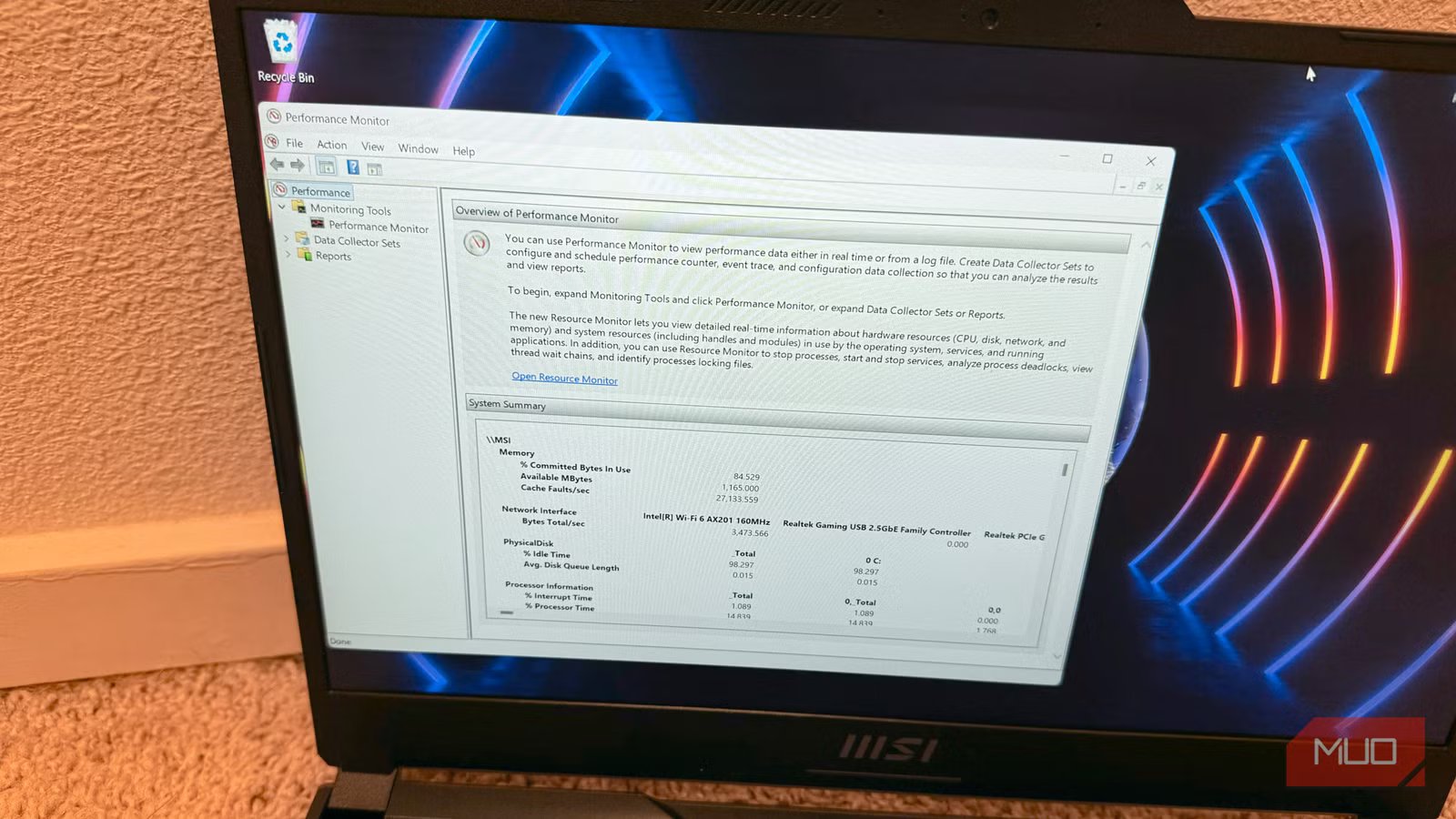
Every time something felt off on my Windows PC in the past, I went searching for a third-party diagnostic app. The problem is that most of them are either bloatware, a limited fee scan that ends up in a paywall, or a simple dashboard that surfaces data from Windows itself. It’s not an app that I need, but knowledge of where to look.
Windows has a built-in Performance Monitor (perfmon) command called /report that runs a 60-second assessment of your system and can generate a full health report with information on your CPU, memory, disk health, and software configuration. Pair that with a few native Windows tools already on your PC and you have a complete health check that can hold its own with any third-party app.
Here’s how to make it work for you.
What perfmon actually does
How to run it and what to expect
You’ll start with the Run dialog by hitting Win + R, then type perfmon /report. Hit Enter and Windows will take its 60 seconds to collect the data on your machine: CPU, memory, disk, network, and software configs. It will then generate a local HTML report with color-coded data findings and warnings in each category. There’s no install, no account or sign-in needed, nothing sent to a third party; it’s all Microsoft diagnostic logic. The report saves locally so you can return to it without rerunning the command.
The faster read: Reliability History
How to spot what actually matters
The perfmon report is comprehensive, but it’s not something you need to check daily. Reliability History (previously known as Reliability Monitor), on the other hand, can cover the same ground in a fraction of the time. This tool can show you what’s actually been going wrong on your machine and when. It’s a timeline view that the report doesn’t give you.
Run it with Win + R and type perfmon /rel or search “Reliability History” in the Start menu. You’ll end up with a visual timeline that shows the stability index, expressed in a 1-10 rubric over days and weeks. A declining trend on the graph is the signal that something is up. Each dot on the timeline is a logged event, like app crashes, Windows failures, and other warnings. You can click on any day to see exactly what failed and when. This timeline is most useful for spotting patterns, like the same app crashing over and over, or failures tied to specific dates.
What your resources look like right now
The Task Manager columns worth checking
Reliability history is good for seeing patterns over time, but it won’t tell you what’s happening on your system right now. For that, check out Task Manager’s Performance tab for a live snapshot. A few of its readings are worth paying closer attention to than you might think.
Start off with Ctrl + Shift + Esc to get the Task Manager up and running. Then go to the Performance tab for a system-wide view. You’ll see tabs along the left side of the window for CPU, Memory, Disk usage, Wi-Fi, and any GPU you might have installed.
Check for sustained high usage when idle on the CPU tab, check “In Use” vs. “Available” memory in that tab (low available RAM at idle is a red flag), and make sure your Disk isn’t sustaining 100% usage at idle. Finally, the GPU tabs can be used to see whether your GPU is being pushed by a driver process running in the background (the red flag) or by an app you actually have open.
What the report flags that Reliability History misses
When to go back to the full report for a deeper look
Of course, a snapshot of the history or current running processes doesn’t catch everything. You’ll still want to look back at the Performance Monitor Report (which you can find by searching for Performance Monitor in the Start menu). The longer report surfaces things like software configuration issues, not just crashes. It can catch things like outdated drivers, misconfigured services, and failed background tasks. THe reliability system shows you what failed, while the report can often show why. IF there’s a red flag or warning you can’t figure out, of course, do a quick search on the web, and you’ll likely find tons of info on that specific problem.
The one follow-up most people skip
Cross-reference your findings with Windows Update history
Screenshot by Pankil Shah — No attribution required
Sometimes, Windows Updates can be the source of your problems. To check, open Windows Update > Update history and see if any of the crashes or instability in Reliability History coincide with a recent update. Failed updates are often tagged here, and can explain sudden performance drops. Driver updates, for example, delivered via Windows Update, can be a common culprit and are often identifiable by category. If the update correlates with your instability issue, rollback the driver or do a System Restore on the whole machine.
Sometimes it be like that
This workflow won’t replace dedicated storage diagnostics like those found in CrystalDiskInfo for your SMART data. Same with memory testing; while there’s a Windows Memory Diagnostic available, MemTest86, for example, is much more thorough for a potential RAM failure. Also, if perfmon report and Reliability History show no issues but your problems continue, a third-party tool can often add a second opinion. The goal isn’t to avoid third-party apps completely; it’s more to know what you already have on your system and avoid the more bloatware apps out there.
Use the tools you already have
Windows has had the tools you need to diagnose your issues for years. Perfmon /report, Reliability History/Monitor, Task Manager, and Update history cover most of what any third-party diagnostic app claims to cover, but without any bloat, upsell, or paywalls. If you’re having issues with your PC, give these tools a try and see how they work for you. You’ve got nothing to lose; they’re already there.
