

When Windows installs a critical update, it sometimes needs to restart your PC to apply the changes. If you don’t do it yourself, Windows will eventually force a restart on its own. While you can control Windows Update settings to avoid forced restarts, the built-in options only work within the active hours you set, and Windows doesn’t always respect those either.
I’ve had Windows restart on me in the middle of work more than once, and it’s the kind of thing that makes you question why you didn’t just switch to Linux. A forced restart doesn’t care that you had unsaved work, a terminal job running, or a dozen browser tabs you were actively using. It just goes ahead and reboots. After one too many of these interruptions, I found a registry tweak that finally stopped the surprise restarts for good.
Windows Update restarts are the real productivity killer
Forced reboots can wipe out hours of unsaved work
Tashreef Shareef / MakeUseOfCredit: Tashreef Shareef / MakeUseOf
Windows updates are important. They patch security vulnerabilities, fix bugs, and occasionally add useful features. Microsoft pushes them aggressively because unpatched systems are a real security risk, and most people would never install updates if left to their own devices. That much is fair.
The problem is how Windows handles the restart. It sets active hours, which is a window of time when it won’t restart your PC, and anything outside that window is fair game. By default, active hours are 8 AM to 5 PM. If you work late, run overnight tasks, or simply forget to restart after an update, Windows will eventually take matters into its own hands.
I’ve seen this play out in two ways. The general scenario is someone stepping away from their desk for a coffee break and coming back to a freshly rebooted PC with all their work gone. The more personal one happened to me when I had a long file transfer running overnight on my HP Pavilion laptop. I came back the next morning to find the transfer had failed because Windows decided it was a good time to install updates and restart. Active hours had expired, and Windows didn’t care that something was still running.
The frustrating part is that active hours don’t account for what you’re actually doing. Windows doesn’t check if there’s an active process, an unsaved document, or a download in progress. It just sees that you’re outside the active window and proceeds with the restart.
Registry tweak to block restarts after updates
A single registry key that prevents automatic reboots
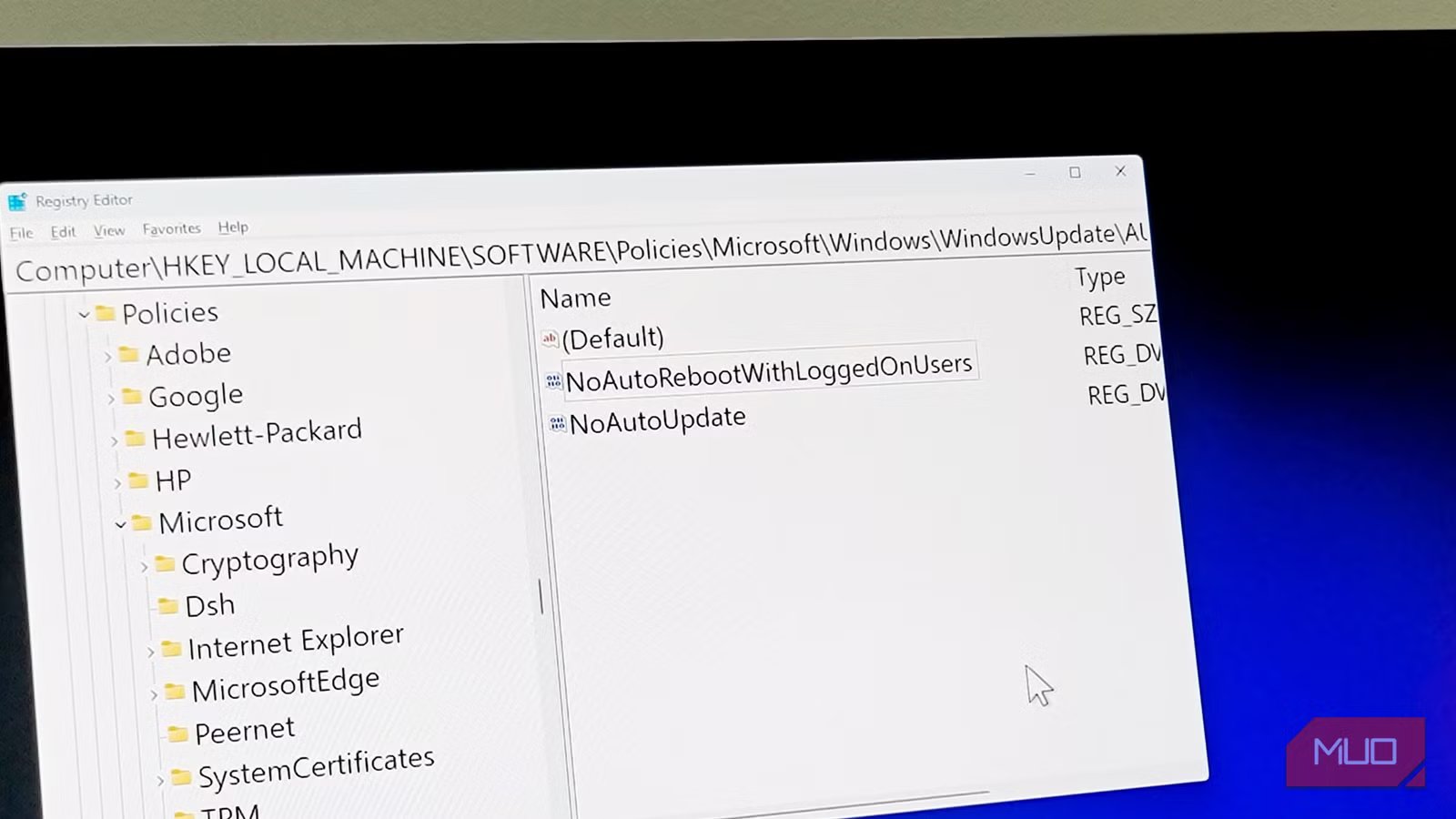
While updates are important, I still prefer to install them manually at my own convenience. The trick is a registry value called NoAutoRebootWithLoggedOnUsers, and it does exactly what the name suggests. When you’re logged into your PC, Windows will not automatically restart to finish installing updates.
Before making any changes, create a system restore point so you can roll back if anything goes wrong. Then follow these steps:
- Press Win + R, type regedit, and press Enter to open the Registry Editor. Then navigate to: HKEY_LOCAL_MACHINE\SOFTWARE\Policies\Microsoft\Windows\WindowsUpdate\AU.
- If the WindowsUpdate or AU keys don’t exist, create them. Right-click on the parent key, select New > Key, and name it accordingly.
- Inside the AU key, right-click in the right pane, select New > DWORD (32-bit) Value, and name it NoAutoRebootWithLoggedOnUsers.
- Double-click the new value and set it to 1.
- Close the Registry Editor and restart your PC for the change to take effect.
That’s it. Once enabled, Windows will still download and install updates in the background, but it won’t restart your PC as long as you’re logged in. You’ll still see the notification that a restart is pending, but the decision to restart stays with you.
This registry key is technically a legacy Group Policy setting that Microsoft has kept around across Windows 10 and Windows 11. It’s the same setting that IT administrators use in enterprise environments to prevent workstations from rebooting during business hours.
On Windows 11 Pro and Enterprise, you can also enable it through the Group Policy Editor under Computer Configuration > Administrative Templates > Windows Components > Windows Update > Legacy Policies by enabling No auto-restart with logged-on users for scheduled automatic updates. The registry method works on all editions, including Windows 11 Home, where Group Policy isn’t available.
You still need to reboot — just on your own terms
Blocking the restart doesn’t mean you can skip it forever
Windows updates have come a long way from the Windows 98 era, when installing a device driver or even changing basic settings would trigger a mandatory reboot. Today, most minor updates apply silently without needing a restart at all, and some quietly add useful new features you might not even notice. But some updates, particularly ones that touch core system files, still require a reboot. The operating system holds these files open while it’s running, so they can only be safely replaced during a controlled restart sequence.
This is also why Linux handles updates differently. On Linux, files are identified by an internal ID rather than their file path, so the system can replace a file on disk while the old version stays in memory for any process that’s still using it. Windows ties files to their path, which means an in-use file is locked until the process releases it. It’s an architectural difference, not something a simple update can fix.
So blocking the automatic restart doesn’t mean you can avoid restarting forever. The updates are already installed and waiting. Next time you’re ready to shut down or restart your PC, use the Update and Restart option in the Start menu’s power options. This applies all pending updates during the restart, so you stay current without ever being forced into it mid-work.
I usually restart my PC at the end of the workday or over the weekend. That’s enough to keep my system updated without the risk of losing anything.
A small tweak that makes a big difference
This registry key isn’t a complicated hack or a risky workaround. It’s a built-in policy setting that Microsoft created for exactly this purpose, just buried deep enough that most people never find it. Since I enabled it, I haven’t had a single forced restart interrupt my work, and my system still gets every update on my schedule.
It’s not a perfect solution. There’s always the chance that a future Windows update could change how this registry key behaves, and if you forget to restart for weeks, you’ll be running with pending security patches. But for anyone who’s lost work to a surprise reboot, trading a small manual habit for complete control over when your PC restarts is worth it.
