

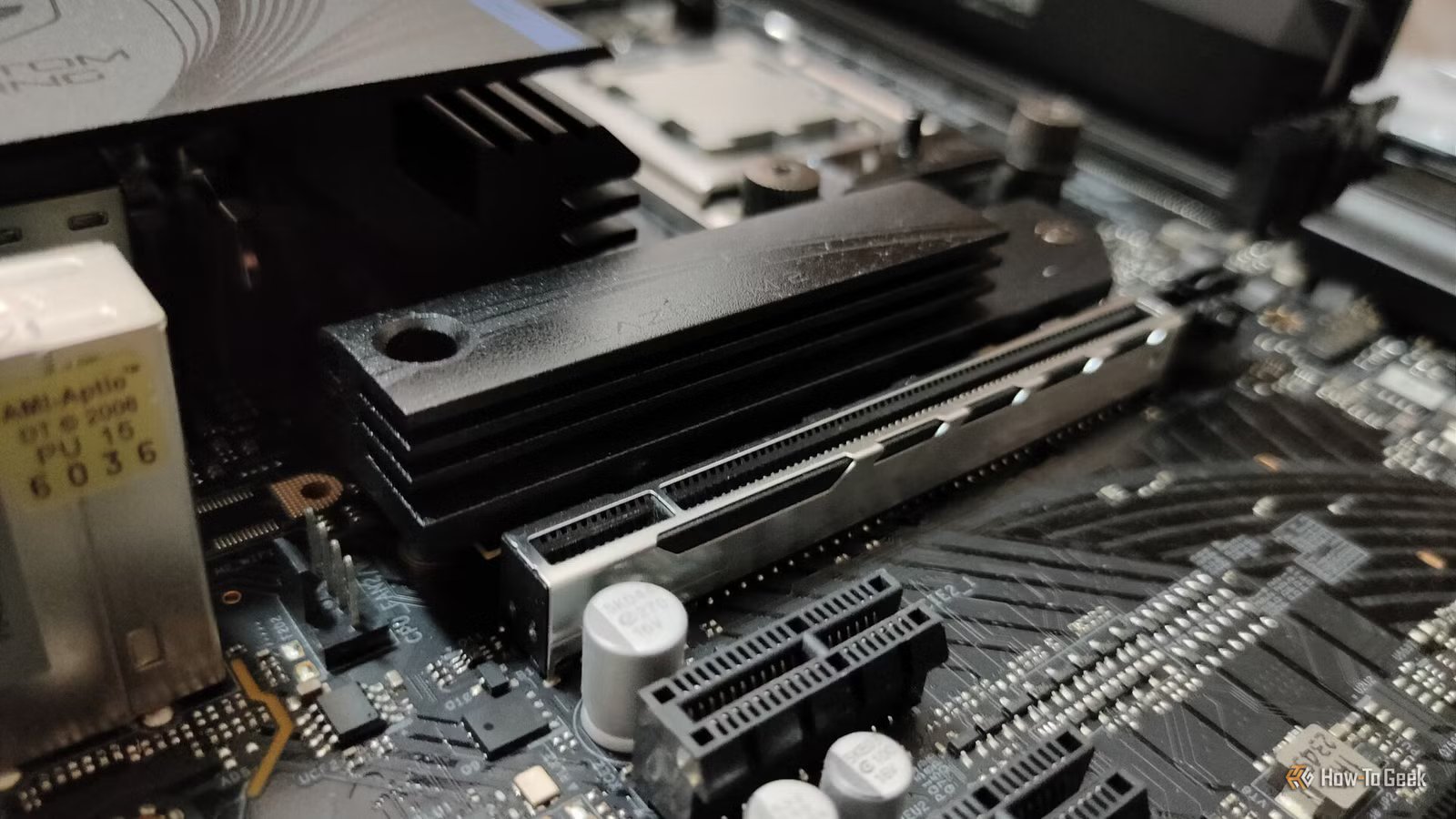
NVMe SSD prices have gone to the moon, so it’s more important than ever to protect your expensive investment. The 2TB PCIe Gen 4 NVMe I grabbed for $100 is now literally triple the price. Lately, I’ve been wondering if the stock NVMe heatsink that came with my motherboard is good enough to protect the drive from its worst enemy—heat. So, I ran some tests to find out.
Ignoring NVMe SSD temperatures is asking for trouble
Heatsinks aren’t optional on modern SSDs
Modern NVMe SSDs are extremely fast. PCIe Gen 5 SSDs like the Samsung 9100 PRO can reach read speeds of up to 14.7GB/s and write speeds of up to 13.4GB/s, which is absolutely mind-blowing when you think about it.
Even older, budget-friendly PCIe Gen 4 models with slower QLC NAND flash, like my Crucial P3 Plus, can achieve up to 5,000MB/s sequential reads and 4,200MB/s sequential writes.
All of that speed generates heat, particularly from the controller, which is the brain of the SSD that manages an entire laundry list of processes.
So, to stay cool and prevent a catastrophic failure, it’s strongly recommended to install a heatsink on your NVMe. It’s a big chunk of metal that, with the help of a thermal interface material (i.e., thermal pads), transfers heat away from the controller to keep it cool.
Without it, even older, budget-friendly NVMe SSDs risk premature failure caused by prolonged overheating. On top of that, heat causes the NVMe to slow down, leaving a lot of potential performance on the table.
Fortunately, most modern gaming motherboards include at least one NVMe heatsink, and even if they don’t, you can easily grab something like the ARCTIC M2 Pro or Thermalright TR-M.2 for a few bucks to keep your NVMe cool.
How I deliberately pushed my SSD to the limit
Stress testing is the only way to check how far temps can go
The only way to know if the stock heatsink that came with my ASRock B650M PG Riptide could handle my NVMe SSD was to run a stress test and closely monitor the temperatures. Setting the test up is fairly straightforward, so if you’d like to replicate the test at home, here’s what you’re going to do.
First, download and install CrystalDiskMark, which we’ll use for the stress test, as well as HWiNFO, one of the best free hardware monitoring tools.
To optimize CrystalDiskMark for the test, run the tool as administrator, set the test count to 9, and change the test size to 64GiB. The high test size will overflow the controller with data and force it to work extra hard, while the high test count ensures the test runs long enough to be meaningful (around 10 to 20 minutes).
Next, click on Settings and click the Settings option in the sub-menu, then set the Interval Time (sec) to 0 and click OK. Don’t skip this step; by default, CrystalDiskMark waits 5 seconds between each test to allow the NVMe to finish its internal processes and cool down slightly, which is the opposite of what we want.
To set up HWiNFO, launch the tool and select Sensors-only, then click on Start. Scroll down to S.M.A.R.T., followed by your SSD’s model name and drive letter as set in Windows (e.g., C:). If you’re not testing your primary drive, simply find the S.M.A.R.T. for the one you are testing.
You’ll typically see three drive temperatures here, and Drive Temperature 2 or 3 is the controller—the temp you should focus on. You’ll know which one it is for sure once the test starts, as it’ll be much higher than the NAND flash memory temps. On my unit, it’s Drive Temperature 3.
You should set HWiNFO to log your temperatures by right-clicking S.M.A.R.T. and clicking on Enable Logging. After that, you can click Logging Start (the paper with the plus sign) in the bottom-right corner, name your test, and choose where to save it. When you’re done with the tests, you’ll click the same button, which will now be called Logging Stop to end the test.
This will create a CSV report, complete with all the sensor data that you can then use to make a line graph. Logging your temps is optional, as you can also just keep an eye on your current and maximum NVMe temps while the test is running.
When you’re done setting up HWiNFO, go back to CrystalDiskMark and click “All” to begin the test while keeping an eye on the temps in HWiNFO.
The data is clear: even stock motherboard NVMe heatsinks are pretty great
If you have it, use it
As you can see from my test, the data is clear: my NVMe controller never got even close to thermal throttling temperatures. The max temp recorded in my test was only 68°C, which is below the 70°C figure that Kingston states is the maximum before the NVMe will lower its speed to reduce the temperature build-up.
Granted, my NVMe SSD is a fairly cheap model you might find in a typical gaming PC, but then again, that’s the majority of NVMe SSD buyers—how many gamers are wasting money on ultra-fast PCIe Gen 5 NVMe drives anyway?
Related
Stop buying PCIe 5.0 SSDs for your gaming PC
Doubling what you spend probably won’t double your performance.
Moreover, this was an extreme stress test that was designed to push the NVMe to its maximum. The temps don’t get anywhere close to the max when gaming.
So, if you were worried about your expensive NVMe SSD overheating while you’re gaming, you really don’t have to—as long as you have some kind of heatsink in place.
It’s a cheap and easy upgrade to make
While gamers like me don’t have to worry about NVMe temperatures, there are people who have legitimate use cases for ultra-fast PCIe Gen 5 NVMes because of the blazing-fast file transfer speeds. If you’re one of those people, then you should consider upgrading to a beefier NVMe heatsink like the Thermalright HR-09—and you definitely shouldn’t be running your NVMes naked.
Related
Stop running your NVMe ‘naked’: Why modern SSDs need a heatsink
Your SSD is hotter than it should be, and it’s only going to get worse
