

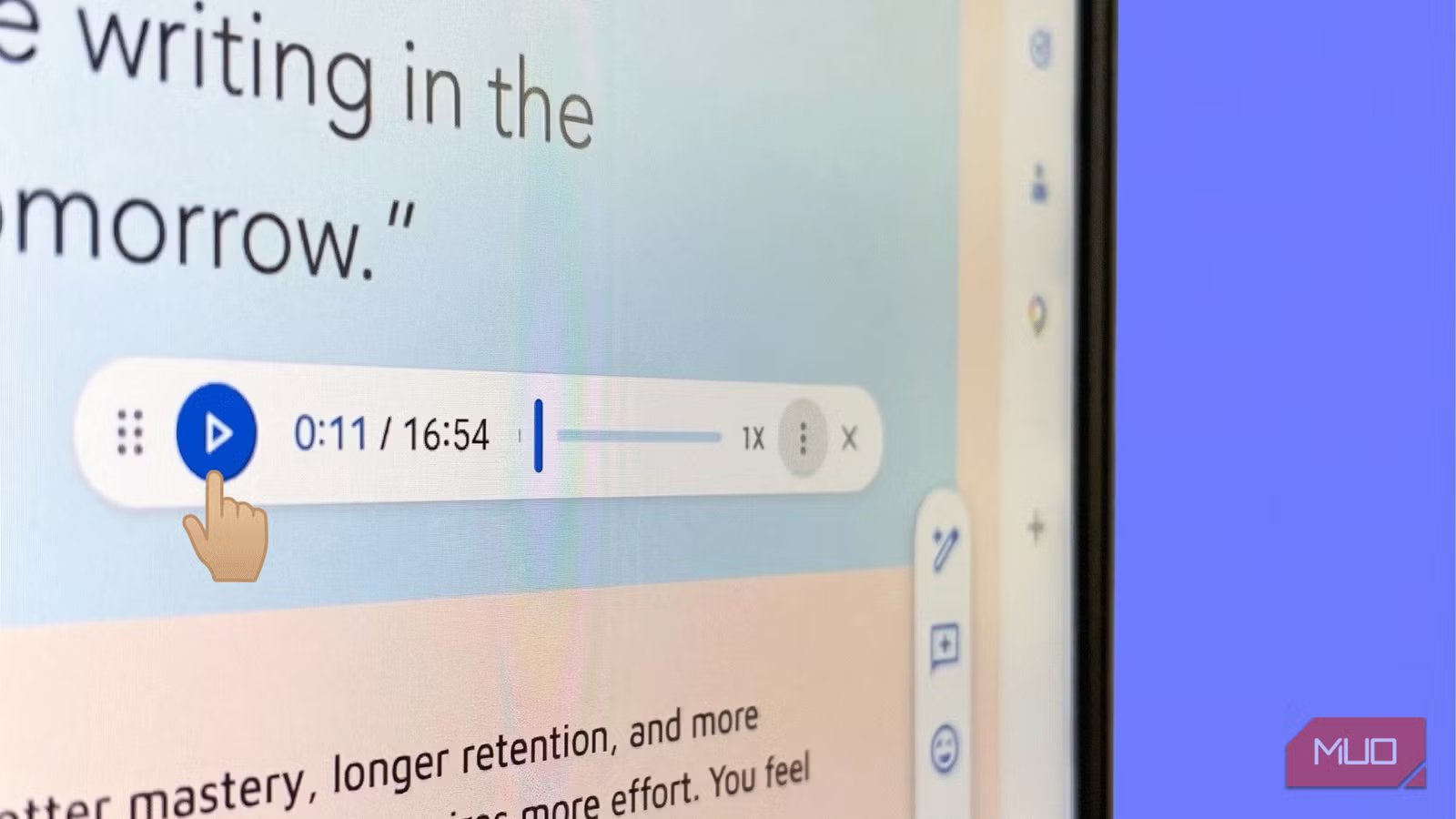
Proofreading your own writing is notoriously difficult because your brain automatically fills in the gaps and skips over obvious errors. You can read a specific paragraph five times and still miss a glaring typo or a clunky transition. Thanks to text to speech tools and now AI, I use another time-saving shortcut.
It started with a few proofreading Microsoft Word hacks. Now, a neat tool within Google Workspace is making proofreading more enjoyable. Google Docs Listen to this audio feature, powered by Gemini, reads your text out loud. Accessibility is one part; it also gives you fresh ways to engage with your content while leaning back in your writing chair. Keep in mind that this tool currently works only on desktop devices and supports English text.
Catching awkward phrasing is easier
Hear your words out loud to spot mistakes
You can easily access the Listen to this tab option by navigating to the Tools menu and selecting Audio. There are other ways to access it as you can see in the screenshots. This accessibility tool reads your entire document aloud to help you absorb information better and catch errors. You can put the feature to good use by listening to a draft at least once right before you publish it.
I have always preferred to review my writing silently because I assumed my traditional process was much faster. My initial expectation was that listening to a document would just add another chore to a tedious editing process.
However, listening to the document actually highlights awkward phrasing that my eyes normally skip over. The clear, natural-sounding voices provide a fresh perspective. For instance, hearing the text out loud breaks my familiarity with the draft and forces me to follow the flow of the thoughts with another sense. Then, the under-appreciated Find and Replace in Google Docs makes editing a lot faster.
Custom voices match the document tone
Pick a narrator that suits your specific text
Saikat Basu/MakeUseOf
The audio tool offers a variety of distinct natural-sounding voices, including Motivator, Educator, Narrator, Teacher, Coach, and Explainer. You can quickly experiment with these different options to find the right pitch and energy for your specific document. This lets you customize your audio experience to perfectly match your personal preferences.
I initially worried that these artificial voices would sound completely robotic and distract me from my editing. I have used older text-to-speech tools that lacked basic emotion and ruined the natural flow of my writing or the intention of my work. Fortunately, the modern AI-powered text to speech options are incredibly dynamic and are even matched to “personalities”. Chatting with tools like Gemini Live is making voice take over from typing.
In Google Docs Audio options, you can select the lively, lower-pitched Explainer voice for a serious report or use the Coach voice for an energetic team update. Switch the voice multiple times or change the playback speed to match the exact mood of your content. Of course, the new voice will again start from the document’s beginning.
Speed controls save you editing time
Adjust the playback speed to review faster
Saikat Basu/MakeUseOf
You have the helpful option to customize your listening experience by adjusting the playback speed. The tool allows you to slow the audio down to half speed for complex content or increase it all the way up to double speed. You can easily change this setting based on how quickly you want to consume the text.
I often worry that speeding up the playback will make it impossible to catch subtle typos. My main concern is that a fast voice will gloss over the missing commas and small grammatical errors I need to fix. I usually prefer a slow pace when reviewing important documents.
You can actually adapt the speed controls to suit your current task. You can slow the voice down for detailed proofreading or speed it up to quickly review meeting minutes pasted from a video call. This flexibility ensures you never waste time during your review process.
Audio buttons engage your readers
Add a play button directly to your shared page
Saikat Basu/MakeUseOf
If you are the author of the document, you can insert an audio play button directly into your page from the Insert menu. This allows anyone reading the document to quickly listen to the current tab with a single click. It is a fantastic way to make your content far more accessible to your audience.
I felt like putting a giant play button in the middle of a professional document might look a bit tacky. I was hesitant to use the feature because I didn’t want anything to distract from my carefully crafted layout.
Once you add it to the page, you can fully customize its label, color, voice, and size to perfectly match your aesthetic. The button blends right in while offering a massive benefit to your readers. With many sites like Substack carrying an audio option, I guess it has its uses. Also, it adds accessibility value if you use Google Docs for collaborative projects.
Summaries help you review long texts
Generate a quick audio summary in seconds
Saikat Basu/MakeUseOf
You can use the audio tool to generate a concise document summary instead of listening to the entire tab. This is an incredibly useful way to preview a massive file and decide if the full text actually interests you. The tool quickly condenses the information into a short audio overview.
I usually prefer reading through long documents myself because I worry an AI summary might miss crucial details. I want to make sure I understand all the complex nuances of a lengthy book or technical report. I hesitate to trust a summarized version of an important text.
A quick audio overview actually saves you a massive amount of time when reviewing large files. Instead of reading a 20-page report, you can listen to a three-minute summary to see if you even care about the topic. You can always dive into the full document if the summary catches your attention.
Related
I didn’t realize Gemini could analyze audio until I tried it — now it’s part of my daily workflow
Most people type at Gemini; I made it listen.
Pick a voice to read your next draft
Open your latest Google Doc, navigate to the audio tools, and listen to a single page to see how many hidden errors you instantly uncover. I am using a combination of Voice Typing in Google Docs and the Listen to this option to see if I can create my first drafts faster.
