

One of my Samsung Frame TVs tipped me off first. A show I’d already watched a season of just wasn’t there anymore — not hidden, not moved, just absent. A few other titles I’d bookmarked were gone, too. The app looked completely normal. No error and no explanation. It wasn’t a licensing expiration or a catalog refresh. My TV was being geo-blocked, and I had never said a word about it. The fix wasn’t a VPN — it was a DNS change that took maybe three minutes, and whether you’re running wired or wireless devices through a home network, it’ll cover every TV at once.
What’s actually happening when content disappears
Your streaming service knows where you are — and acts on it
Your IP address is the first thing a streaming service reads when you open the app — before the home screen, before anything loads. That address places you in a country, and the content library you get is whatever that country’s licensing agreements allow. BBC iPlayer is UK-only, full stop. Peacock’s complete catalog doesn’t leave the US. Netflix is a patchwork of regional deals — a title that’s been sitting in your German friend’s queue may not even show up in a search on your account.
What makes it hard to catch is that nothing looks wrong. There’s no banner, no grayed-out titles, and no error state. Your catalog looks full because it is full — full of what you’re permitted to see. I only caught it by hunting down a specific title, confirming it was on the same service in another region, then coming up empty on my TV. JustWatch has a region comparison tool that makes this easy. Most people who use it come away realizing the gaps are bigger than they assumed.
Smart TVs can’t run VPN apps, and speed takes a hit anyway
Credit: Jonathon Jachura / MUO
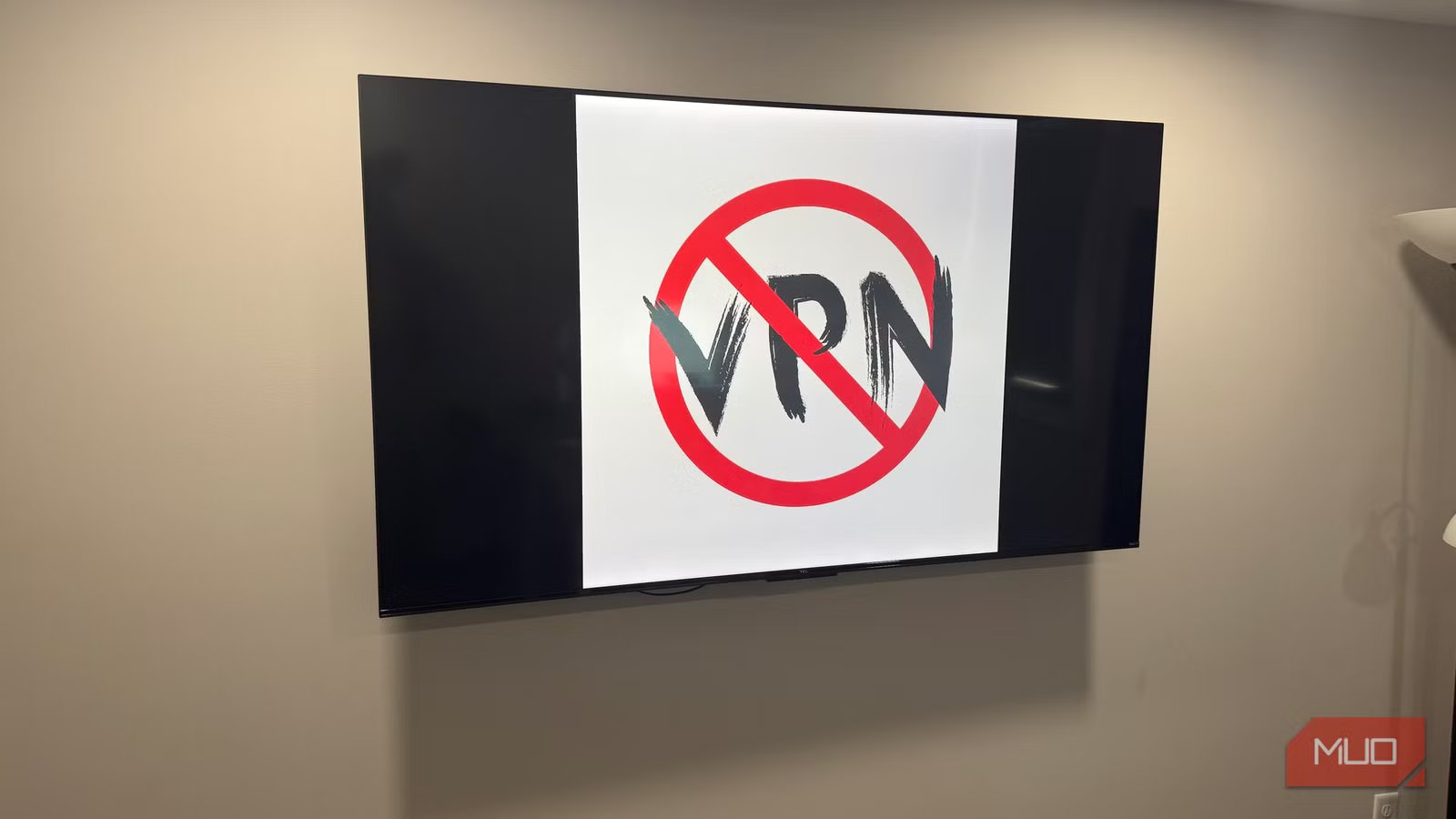
On a phone or laptop, a VPN sorts this out fast. Smart TVs are a different situation entirely. There’s no VPN app for Tizen, webOS, Google TV, or Fire TV — the platforms just don’t support it. Your only real option is pushing the VPN through your router so it covers the whole network, which works in theory but adds a meaningful layer of configuration, and a lot of consumer routers don’t support it cleanly.
Performance is the other issue. Routing everything through a remote server adds latency — even if you’re using your TV’s Ethernet port — so VPN overhead on top of a 4K stream compounds the problem. Reliability is its own headache, too. Streaming services have spent years identifying and blacklisting VPN server addresses, and they don’t announce when they do it. A setup that worked fine last week can quietly stop working with no explanation.
Related
I plugged a Raspberry Pi into my smart TV and it changed how I watch everything
An old TV, a Raspberry Pi, and a setup that beats every streaming box on the market.
Smart DNS — the lightweight fix that actually works on TVs
It only touches the location handshake, not your traffic
Every time you launch Netflix or BBC iPlayer, your TV fires off a small DNS request — the location signal the service uses to decide what you can watch. Smart DNS sits in the middle of that exchange, reroutes just that request through a proxy in your target region, and steps aside. The service reads the proxy’s location, hands over the right library, and the rest of the interaction is normal. Your video stream goes straight from the content servers to your TV, the same as always.
There’s no encryption and no detour for your actual traffic, so speeds stay the same. There’s no app to install either — you’re just swapping a DNS address in your network settings. One thing to be straight about: this isn’t a privacy tool. A VPN wraps your traffic and masks what you’re doing; Smart DNS just adjusts a location signal. It’s different jobs. For unlocking streaming libraries on hardware that can’t run a VPN app, Smart DNS is the cleaner solution by a fair margin. For keeping your data private, it does nothing.
A few providers worth considering: Smart DNS Proxy runs $4.60–$6.80/month with a 14-day free trial and no credit card required. NordVPN SmartDNS is bundled into a NordVPN subscription if you already have one. Unlocator is another solid option with a trial period. All three supply primary and secondary DNS addresses at signup.
How to set it up — on the TV or across your whole network
The UniFi router approach handles every TV at once
Per-TV setup is the same idea everywhere: find the DNS or IP settings in your network menu, switch from automatic to manual, and drop in your provider’s two addresses. On Google TV: Settings > Network & Internet > IP Settings > Static — touch only the DNS fields and leave the IP address and gateway exactly as they were. Samsung and LG bury the same options in slightly different spots; your Smart DNS provider’s help pages have model-specific walkthroughs.
Running Ubiquiti means you can skip the per-TV process entirely. Pull up Settings > Networks in the UniFi controller, open your primary LAN, and find DHCP Name Server — it’s usually a short scroll down. Flip it from Auto to Manual, type in your Smart DNS addresses, and save. From that point forward, every device that picks up a DHCP lease on that network — all four TVs, any streaming sticks, the consoles — gets the new DNS without any individual configuration. The whole thing takes about a minute — and you still can get the gigabit speeds on your TV.
One thing that catches people off guard: most providers require you to register your home IP in your account dashboard before anything activates. Since residential ISPs hand out dynamic IPs that rotate, set up the provider’s automatic dynamic DNS tool on day one so it updates itself.
One DNS change, every TV, no VPN required
Streaming libraries have been quietly trimmed on every TV in your house, and the apps haven’t mentioned it once. Swapping the DNS address in your UniFi controller takes about a minute and fixes it across the whole network in one shot. Register your home IP with whichever provider you pick, save the updated DHCP settings, and sit down to watch something tonight — there’s a decent chance the catalog looks different than it did yesterday.
