

Regardless of my Linux distribution or setup, there comes a point when I start experiencing some slowdown or lag in daily activities. Sometimes, it gets tricky because when I use top, CPU and memory usage look normal.
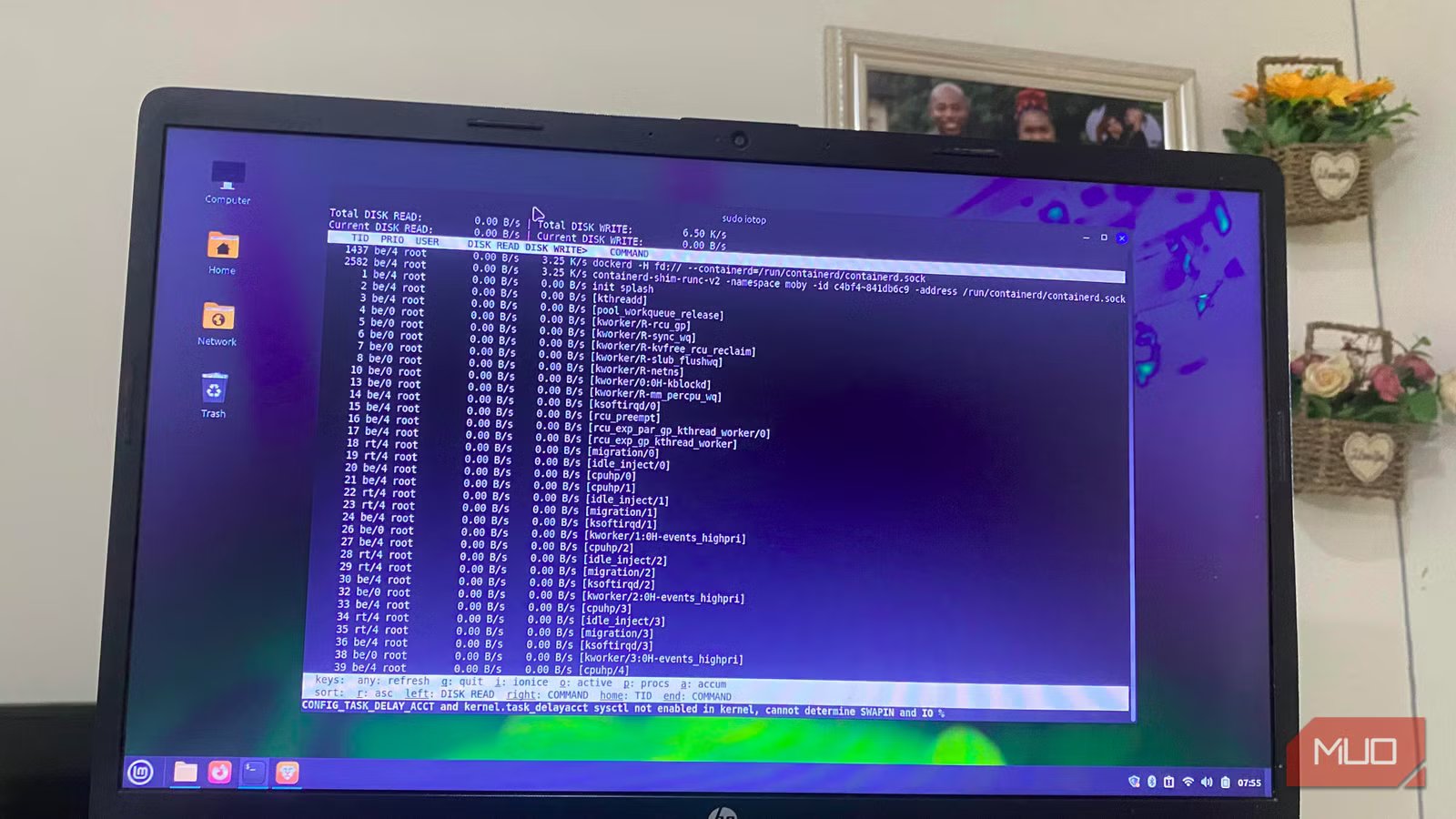
I recently tried iotop, and in real time, it revealed apps that were reading or writing to my disk, an aspect I typically overlook when faced with performance issues. iotop is now one of my go-to commands for troubleshooting Linux.
Install iotop in seconds
Simple to set up, but there’s one detail most guides miss
Afam Onyimadu / MUO
To install iotop on Debian-based distributions such as Ubuntu or Mint, run:
sudo apt install iotop
On Fedora run sudo dnf install iotop; on Arch run sudo pacman -S iotop .
There are two variants of this tool: the regular iotop (Python-based) and iotop-c (written in C). iotop-c is a newer version and becomes the automatic default when you install iotop on some modern Ubuntu and Debian systems. Even though it’s almost impossible to tell them apart from the interface, iotop-c is smoother in daily use. On distros that offer iotop-c, it’s usually the better choice.
Understand what iotop is really telling you
The few numbers that actually reveal disk pressure
The entire iotop interface is overwhelming, but once you recognize that much of it may be irrelevant, it becomes easier to interpret. I typically consult four columns for diagnosis:
- DISK READ: Shows bytes read per second
- DISK WRITE: Reveals bytes written per second
- IO%: % of time the process/thread spent doing I/O (waits + swapin)
- COMMAND: Shows the process name
I often skip the top section because viewing the total disk activity isn’t very helpful if you need to track down the cause. I get better insights looking through the list below, and the most consequential flags are -o and -a. With -o, I get a more streamlined list including only processes currently executing I/O. -a takes me to the accumulated mode where I see totals of bytes read or written since iotop started.
Most of my diagnoses happen with the -o flag. -a is a last resort if I feel there is an intermittent occurrence of a problem, occasional stuttering, brief lag while opening files, or when I do not find anything on iotop’s live view.
arch
How I use iotop to catch the exact process
A real workflow that turns disk activity into a clear answer
Afam Onyimadu / MUO
I realized I needed iotop when my system became slow, and the regular system monitors that I use wouldn’t catch the culprit. After installing it, I ran the command: sudo iotop -o -d 2Within a few seconds one process settled at the top. I advise slowing the refresh rate so that it’s easier to catch patterns (that’s what -d 2 in the command does). When I observed this process, I saw the continuous disk writes that happened through refresh cycles. It was the duration that stood out because quick spikes are normal.
My browser had a process constantly writing megabytes to my disk, and with this observation, I could rule out other possible culprits. On other occasions, I have been able to catch different processes causing long spikes:
- A backup job (rsync) writing steadily
- A package manager pulling updates
- A logging service writing more than expected
The rule of thumb is to investigate once you notice a process remains at the top, generating I/O for multiple refresh cycles. iotop removes any guesswork because it shows you both activity and an exact name.
Related
I switched to Hyprland and now I get why Linux users are obsessed with it
While I’ll keep it on my Waylands, I’ll refrain on my Minty daily driver. For now.
What to do once you find the culprit
Turn visibility into action without breaking anything
Afam Onyimadu / MUO
I don’t immediately kill a process that is writing large amounts to disk. In fact, the exact step I take depends on what the process is. Adjusting an application’s settings or closing it entirely is reasonable when the culprit is a user application. You can also investigate what’s triggering that action. In the case of a browser, there may be an extension causing the spikes or aggressive caching.
However, when it’s a process I’m not familiar with, I don’t kill it straightaway. I prefer to do a Google search to learn more about it and figure out if it’s safe to kill.
Also, not all processes you see at the top are a sign of unpredictable behavior. Kernel threads like kworker and jbd2 can be normal—jbd2 is tied to ext4 journaling and may be high during heavy writes; kworker is a general kernel thread that can appear for many reasons. To inspect a process, run lsof -p to see the files it accesses. Combining this information with iotop, helps me know the triggers.
Tools that complement iotop
I don’t use iotop in isolation. It shows me the process causing heavy disk I/O. However, for context, I combine it with some other tools:
Tool
What it shows
When to use it
iostat
Disk/device stats
Check overall disk load
lsof
Open files per process
See what’s being accessed
htop
CPU usage + iowait
Get system-wide context
By using iotop with these tools, I can trace the exact files involved in high disk reads and writes. For most issues, troubleshooting never has to go any deeper. iotop is now one of the most ridiculously useful commands I run on my terminal.
