

When my computer is slow, the Task Manager is one of the first places I look. It gives me an idea of what’s happening with the CPU and memory. The Event Viewer also provides some vital information for troubleshooting the lag. However, there have been times when none of these tools have helped me identify concrete, actionable steps, and I’m forced to install new tools for proper system investigation.
I recently discovered a built-in tool that opens with a single command. It ties problems down to specific days, showing crash timelines, failed updates, and system issues, and has given me the clearest view of all the built-in Windows tools I’ve used.
Opening Reliability Monitor and what the stability graph actually shows
Afam Onyimadu / MUO
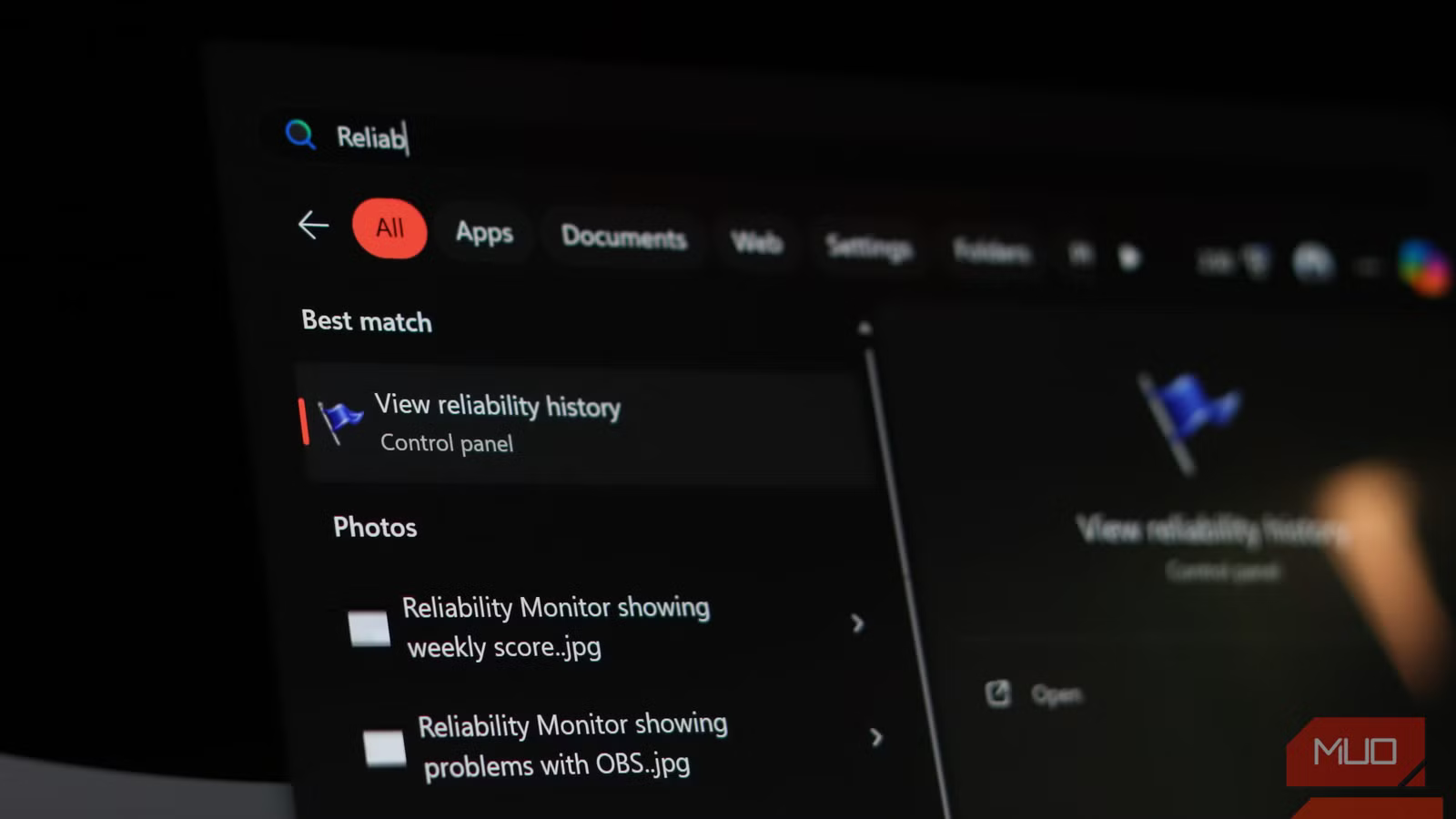
The tool is called Reliability Monitor, and it opens with the command perfmon /rel. Optionally, on the Start menu, you can search for Reliability Monitor and open the View reliability history Control Panel applet. The tool may take a few seconds to generate the report, but it’s neat and feels different from most Windows diagnostic tools.
It makes diagnostics easier by replacing the raw logs you’re used to with a line graph that includes a stability index scored on a scale of 1 to 10. The graph defaults to days, and each day has a stability index score. Indexes near 10 show greater stability.
Drops show possible problems. So, if I had a day that was 10 and then the next dropped to 5, it would show a significant occurrence worth investigating. In my experience, these could be crashes, failed updates, or other system-level issues.
Each day on the graph may include icons: a red X represents critical failures; yellow triangles indicate non-critical issues; and a blue circle with a lowercase “i” represents informational events, such as installs or updates.
The real merit of the Reliability Monitor is its historical view, which is easy to scan and navigate. Rather than seeing only what just happened, you can spot patterns that reveal what many performance tools don’t instantly show. Once I open Reliability Monitor, I click on the day when I notice a performance drop, and that’s where I start my investigation.
Understanding events, error details, and patterns that actually matter
Just by scanning through the graph, you already have an idea of the class of information. Clicking on any day gives reliability details that may surface meaningful issues just below the graph. The details typically contain some of these entries:
- Application failures: programs that crashed or stopped responding
- Windows failures: system-level crashes or boot issues
- Warnings: things like failed updates
- Information events: installs, updates, or configuration changes
For each event, Reliability Monitor displays the source, summary, date, and action. These details may reveal application or process names, faulting modules (often a .dll or .sys file), error codes, and the exact time it happened.
I may ignore single, one-off errors, but when they repeat across several days, it becomes worth investigating. And this is the real value of the tool: seeing how often failures occurred and when they started. So when I see repeated warnings starting from the day my computer starts feeling slow, I’m already sure of what has triggered the problem.
I have a different approach to events: I monitor application failures and warnings and act only if they repeat; I investigate Windows failures immediately; and I use information events for context.
Related
I used Windows for 15 years before I discovered it had this cool feature built in
Windows had this all along and I somehow never triggered it.
What was actually slowing down my PC
The patterns Reliability Monitor exposed that other tools completely missed
Afam Onyimadu / MUO
The Reliability Monitor confirmed that repeated failures in the background were slowing my computer. This would have been hard to catch with most other built-in tools. It showed me the same app with the red X spanning multiple days. This wasn’t an app I used a lot, but it apparently had some instability issues.
It didn’t appear in Task Manager because it restarted automatically, but Reliability Monitor’s record of repeated failures showed it was contributing to the slowdown. But that wasn’t all. A few failed updates created several warning icons across several days. It did not feel like the kind of problem that breaks a system, but it was consistent enough to degrade performance.
However, I found a driver-related fault, and this was the most interesting case. It was an event tied to a faulting module ending with .sys. From the module name, I inferred it was related to the GPU or disk driver, even though Reliability Monitor did not explicitly say this. This was what I liked about the tool. Without always telling me exactly what the problem is, it gives enough information to draw an educated conclusion.
Despite the Task Manager’s robustness, it would have missed these issues. It catches issues that happen now, and these failures happened earlier and recovered on their own.
Turning these logs into actual fixes
Reliability Monitor helps you identify patterns, but you must then decide on fixes. Most events it presents have technical details that point to a faulting application or module, show error codes, and event timestamps. With these details, you can narrow down the causes. Here is how I map my findings to actions:
Error type
Likely cause
First fix
When to escalate
App crashes
Corrupt or outdated app
Reinstall or update
If crashes continue
Failed updates
Update conflict
Retry or troubleshoot
If failures repeat
.sys module faults
Driver-related issue
Update or roll back driver
If system instability persists
That said, you must be aware that Reliability Monitor doesn’t always explain a problem and may only show you that something has failed. Also, it doesn’t track CPU spikes or memory usage.
