

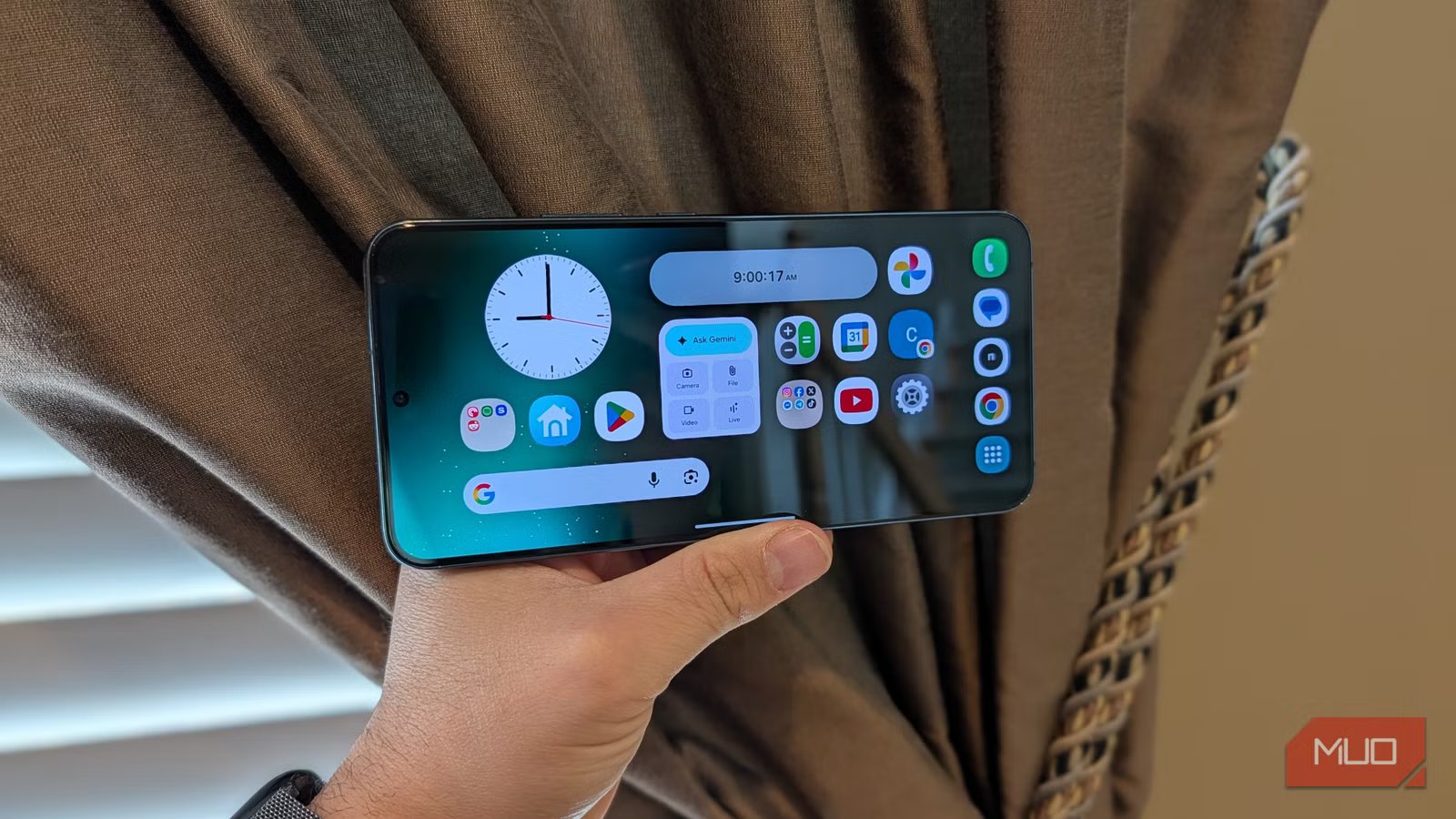
As phone screens have gotten bigger, with “max” phones approaching seven inches, the software hasn’t really changed to take advantage of this added screen space. And that’s a shame, because if you’re going to sacrifice one-handed usability and contend with the added weight of a large-screen phone, you might as well see some benefits, like having certain apps use a tablet-like two-column layout.
Samsung phones in particular (which have very saturated screens that might be overkill and come with a handful of features that should be disabled) make it easy to enable two-column view in most apps, while also giving you a landscape home screen experience, thanks to a couple of available settings. Here’s how to set it up so your phone feels bigger.
Related
I turned off these 4 Samsung features and now my phone feels faster
Make your Samsung Galaxy feel faster with these quick changes.
Turn on landscape homescreen
A larger dashboard for apps and widgets awaits
Credit: Brandon Miniman / MakeUseOf
The first thing you want to do is enable landscape home screen mode. To do this on your Samsung, press and hold the home screen -> Settings -> enable Rotate to landscape mode.
This will put your dock on the right (which is ideal if you’re right-handed) and give you an expanded canvas for apps and widgets that feels much more like a tablet than a phone.
The main downside here is that the default Samsung launcher doesn’t let you have a separate home screen setup for portrait and landscape, but that’s fine if you intend to use your launcher in landscape full-time. To avoid seeing both landscape and portrait orientations, you can just lock landscape orientation through your quick settings.
Depending on which Galaxy you have, this effect might be more or less pleasing to look at, depending on the symmetry of your bezels. Going back to the Samsung Galaxy S21, when Samsung reverted to flat screens after the Galaxy S20 line, most modern Samsung phones have symmetrical bezels.
Increase display density
Enables two-column layout in several apps
Credit: Brandon Miniman / MakeUseOf
This is a great change you can make on any Android phone, but it works particularly well on Samsung phones because many of the default apps have a two-panel view (like a tablet) that turns on when you make this change.
To increase display density, first enable Developer Options by going to Settings -> About device -> tap Build number 7 times. Then you’ll have a new Developer Options setting.
Then, go into Developer Options, scroll down to Minimum Width -> change the value to 550 or 600. Your interface will switch to a higher-density view, which, in certain apps, enables a multi-column view.
This setting is highly granular — you can adjust the value in various increments, see the changes instantly, and decide whether to tweak it further based on what is comfortable for your eyes and what looks best on the display of your particular phone.
YouTube lets you see more
See subscriptions plus video feed
Credit: Brandon Miniman / MakeUseOf
When you increase display density, YouTube brilliantly splits into two columns: your subscriptions are on the left, and your video feed is on the right. For those who use YouTube frequently, this is a huge unlock and makes navigating subscriptions much easier.
Chrome gets more useful
See your open tabs
Credit: Brandon Miniman / MakeUseOf
Turning on a high display density in Chrome unlocks a fantastic desktop-like tab view that lets you see the names of your open tabs, along with an X and New Tab button, just like the desktop view (though lately, Chrome has been pushing tabs on the side on desktop).
This is even more useful when you rotate to landscape, where you can visibly have ten tabs open and be able to easily flip between them. If you have a phone with a six-inch screen or bigger, this gives your browser a superpower that makes it feel so much more like a tablet or a PC.
This is even more useful when you rotate to landscape where you can visibly have ten tabs open and be able to easily flip between them.
Messages has a hidden tablet view
See all of your conversations
Credit: Brandon Miniman / MakeUseOf
Whether you use Google Messages, the default Samsung messaging app, or really any other messaging app, changing your DPI will unlock a left-column message picker that makes it much easier to toggle between your conversations, again, just like a tablet or PC.
A tablet view for settings
Makes tweaking settings easier
Credit: Brandon Miniman / MakeUseOf
In Settings, a higher display density makes it much easier to change settings, thanks to a terrific two-panel view that lets you tweak settings without constantly going back to the settings index.
Make your Samsung feel like a tablet
Take advantage of the full screen
Credit: Brandon Miniman / MakeUseOf
There is little you can do to take full advantage of large phone displays. Even though most Android apps have dormant tablet-like views that split apps into multiple columns, you can only enable these tablet-like views if you aggressively increase display density through Developer Options.
But when you do, the difference is dramatic, and you can truly use your big phone more like a tablet, especially in Chrome and messaging apps, where having the ability to see many open tabs at once, or see all of your active text conversations, is a real game-changer for a big phone.
SoC
Snapdragon 8 Elite Gen 5
Display
6.3-inch Dynamic AMOLED 2x
