

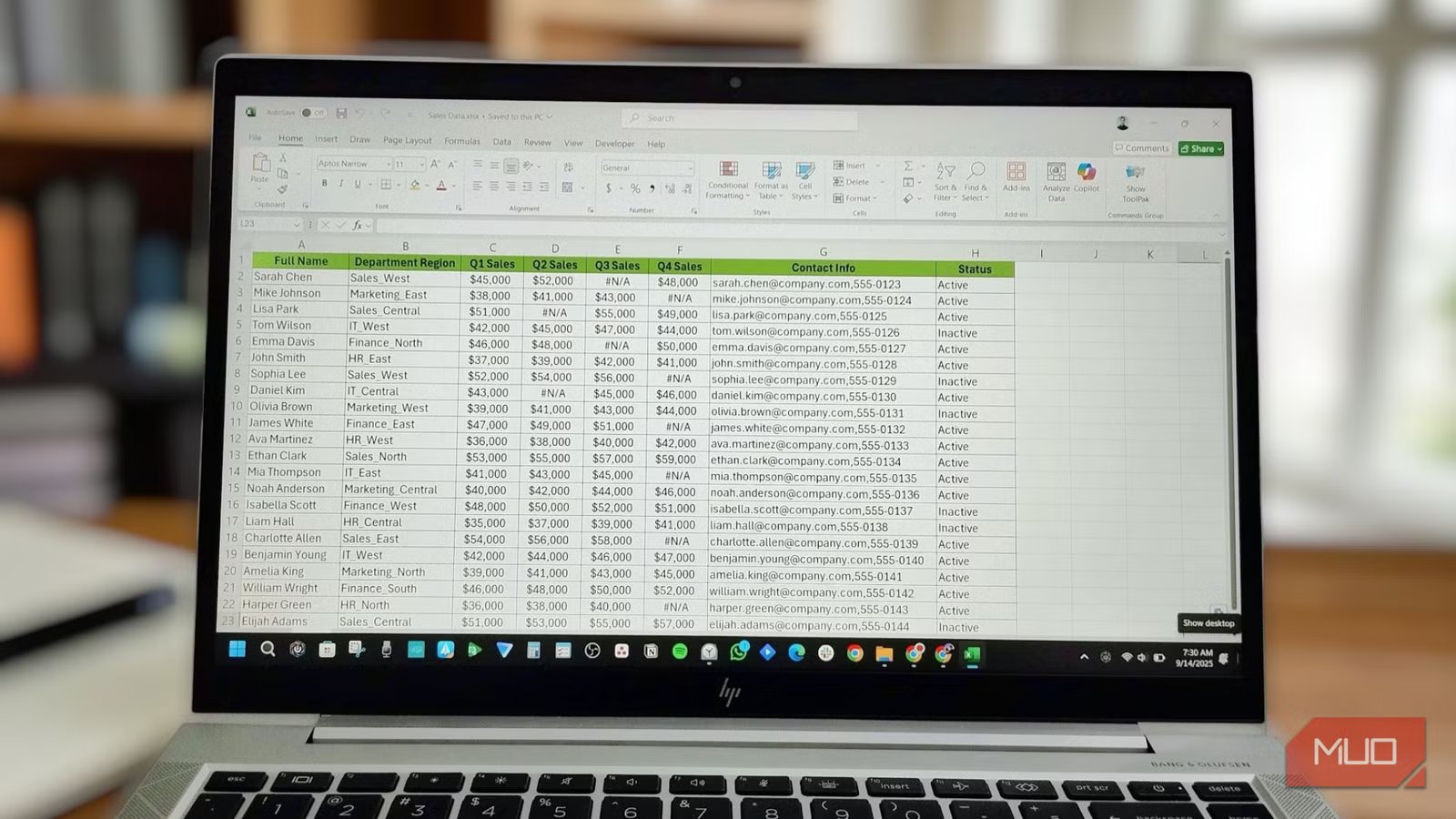
It’s very likely that you’ve tried to clean, sort, or analyze your data using ChatGPT or another artificial intelligence (AI) chatbot, assuming that it’s the fastest way to get the job done. However, Excel offers several automation features that can handle a wide range of data tasks with impressive speed. The challenge is that it’s not always obvious which tools to use or where to look for them.
Once you understand which feature fits each task and know exactly where to find it, you won’t need to keep opening ChatGPT and similar tools to automate work that Excel can already handle on its own.
Related
I Let AI Handle Complex Excel Formulas for Me—You Should Too
Let AI handle the syntax so you can focus on results.
Power Query
Import, clean, and reorganize without repeating yourself
If you regularly pull data from external files, databases, or web sources and then spend time cleaning it up — splitting columns, fixing data types, and merging tables — Power Query is the feature designed to automate these tasks.
Every transformation you apply gets recorded as a step in the Applied Steps pane of the Power Query Editor.
The next time your data updates, whether it comes from a local file, cloud service, or database, you won’t have to redo anything. You simply hit Refresh, and Power Query reruns every step automatically, even allowing you to combine (merge or append) data from entirely different sources into one clean table. At the same time, your original source data remains safe and untouched.
To find this feature, head to the Data tab on the ribbon and look for the Get & Transform Data group. From there, you can connect to files, databases, or even web pages and start building your automated cleaning pipeline.
PivotTables
Drag, drop, and watch your data organize itself
Screenshot by Ada
PivotTables have been part of Excel for years, yet many people still manually write formulas to count and sum data that a PivotTable can handle in under 30 seconds. The process is super seamless; you simply select your data, insert a PivotTable, and drag fields into the Rows, Columns, or Values areas to instantly generate summarized totals, whether you need sums, counts, averages, or something else.
This feature becomes especially useful when you want to slice the same data in multiple ways. For instance, you can drag sales into the Rows field and region into the Columns field to view sales by region, and then swap region for month or product to generate new summarized totals without rewriting anything.
You’ll find this feature under Insert -> PivotTable on the Excel ribbon. After a few minutes of experimentation, you’ll likely find it much easier to calculate, summarize, and analyze data using PivotTables than relying on manual formulas.
Office Scripts
Record it once and run it forever
Think of Office Scripts as a personal assistant that watches what you do and repeats those actions whenever you need them. The Action Recorder (found on the Automate tab) converts your manual steps into a reusable TypeScript-based script that you can run on demand across different workbooks and worksheets.
What really sets Excel’s Office Scripts apart is its integration with Power Automate. This connection means your script can run automatically when specific events occur, such as when you open a file or a particular email arrives in your inbox.
If your team receives a weekly data report by email, and you always run the same cleanup routine on it, you can automate the entire workflow, from email receipt to a finished spreadsheet, without any manual effort.
Flash Fill
Show Excel the pattern once, and it does the rest
If you start typing a pattern in a column next to your data — for instance, pulling just the first names from a column of full names — Excel will detect what you’re doing and offer to finish the task for the entire column. That’s Flash Fill at work, automatically filling in data when it recognizes a consistent pattern.
Flash Fill is especially effective for text transformations, such as reformatting phone numbers, combining first and last names, extracting parts of a string, or cleaning inconsistent capitalization. You can trigger it after typing your first example by selecting Data -> Flash Fill on the ribbon or by pressing Ctrl + E.
Dynamic array functions
Let your data grow without constantly rewriting formulas
Screenshot by Yasir Mahmood
Traditional Excel formulas return a single value in a single cell. However, newer dynamic array functions return an entire range of values that automatically spill into neighboring cells, with the output range resizing itself as your source data changes.
Functions like SORT, FILTER, and UNIQUE are among the most common examples. If you want a list of unique customer names from a column filled with duplicates, you can write a simple UNIQUE formula, and the spilled results will update automatically whenever your source data changes.
The same idea applies when filtering a table to show only rows that meet a specific condition. You can use a formula like this:
=FILTER(A2:D100, C2:C100=”Yes”)
This type of formula spills all the rows from your table where column C equals “Yes,” and it continues updating automatically as you add or remove data from the main table. You won’t have to rewrite or adjust anything. These formulas also behave just like regular Excel formulas; you simply type them into the formula bar, and Excel handles the rest.
Macros (VBA)
The original automation tool that still does it all
Yadullah Abidi / MakeUseOf
Before many of the newer automation tools existed, Excel relied on macros, and they remain one of the most flexible automation options available. When you turn on the macro recorder and perform a sequence of actions, Excel captures each step as Visual Basic for Applications (VBA) code. You can then assign that macro to a button or a keyboard shortcut, so the entire sequence runs instantly the next time you need it.
One stumbling block for many people is that the Developer tab is hidden by default. You’ll need to enable it by going to File -> Options (or Excel Preferences on a Mac) and checking the Developer box under Customize Ribbon. Once it becomes visible, you’ll find all the tools you need to record, edit, and manage macros in one place.
Related
I thought Excel macros were overkill until I built this one
I was wrong about macros!
Faster results come from better use of existing tools
The irony is that most of these tools aren’t new. Some have been part of Excel for years, even decades; they’re just not always obvious when you first launch the application.
However, once you know where to find these automation features and understand how to use them, you’ll spend far less time doing repetitive work manually or outsourcing routine data tasks to ChatGPT. In most cases, the tools you need are already built into Excel.
OS
Windows, macOS
Supported Desktop Browsers
All via web app
Developer(s)
Microsoft
Free trial
One month
Price model
Subscription
iOS compatible
Yes
Microsoft Excel is a powerful spreadsheet application used for data organization, analysis, and visualization. It supports formulas, functions, pivot tables, and charts to process complex datasets efficiently. Widely used in business and education, Excel also integrates with other Microsoft 365 apps for collaboration, automation, and real-time data insights.
