

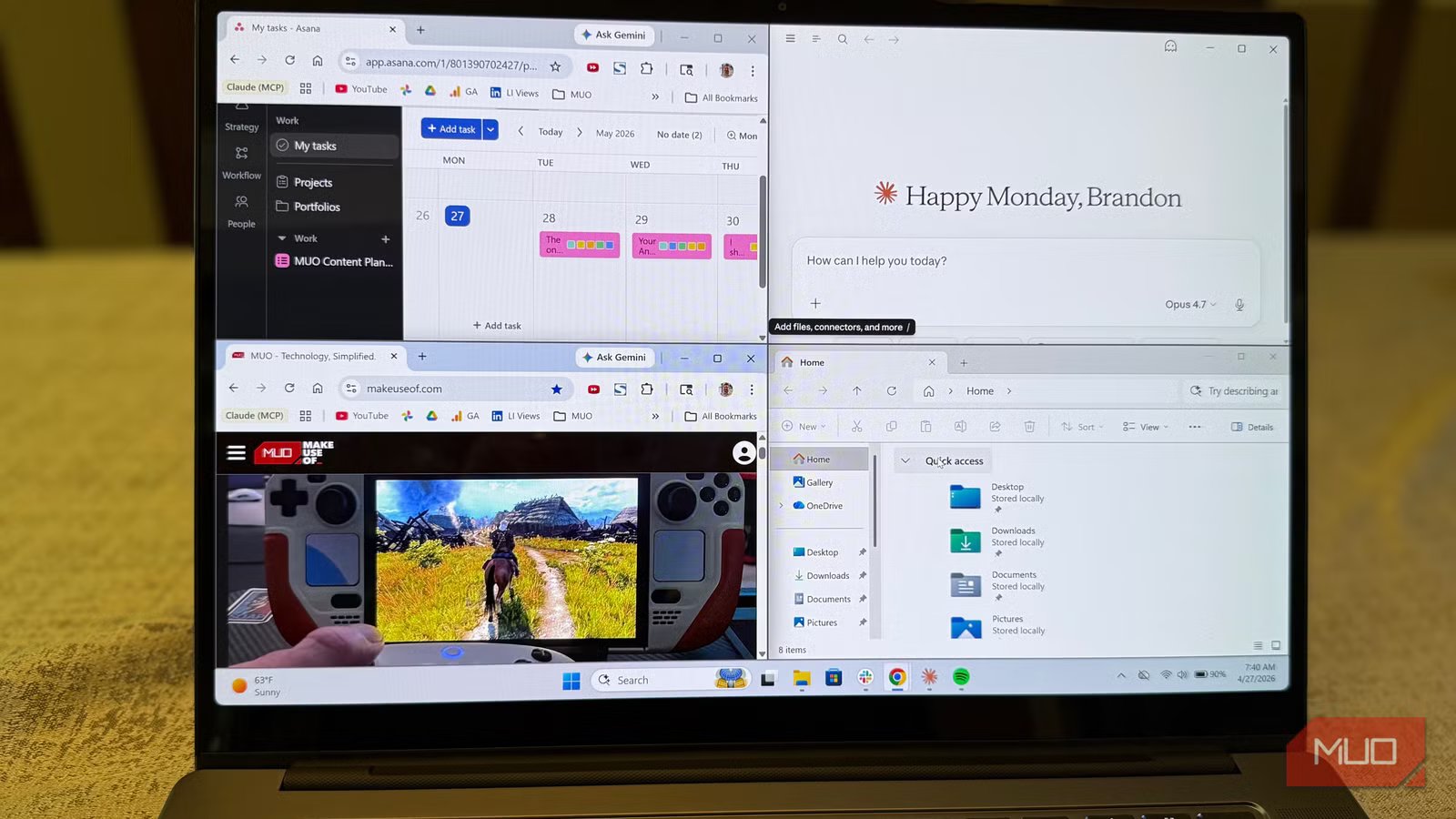
Windows management is very important when using a PC, and resizing windows can be tedious. This is especially important in an age of mostly widescreen monitors, where placing apps side-by-side is a huge productivity boost. I like to have my music open while browsing the web and also keeping an eye on Claude (which you can get for less money through Google).
One of the biggest advantages Windows (which you can make lightweight) has had over macOS for years is the ability to easily tile windows with keyboard shortcuts (and don’t forget to remap your Copilot key to something more useful). For years, Microsoft has made it easy to arrange windows in split-screen or quartered layouts without manually resizing each window. A Microsoft patent (which expired in 2023) blocked Apple from offering window-resizing tools until macOS Tahoe was released in 2025.
But even then, macOS’ windowing features are inferior to Windows 11’s Snap Layouts, which let you easily tile your windows in a variety of configurations. It’s very powerful if you know how to use it.
Related
I used Windows for 15 years before I discovered it had this cool feature built in
Windows had this all along and I somehow never triggered it.
macOS finally added Windows tiling shortcuts in Tahoe
Since Microsoft’s patents expired
Credit: Brandon Miniman / MakeUseOf
After Microsoft’s patent on window management and resizing expired in 2023, Apple was quick to introduce a new window tiling feature to macOS, accessible when you hover over the green maximize button in the upper-left corner. But the options are limited: macOS lets you arrange left, right, top, bottom, and in quarters, but that pales in comparison to what you get in Windows 11, which gives you nine preset layout combinations versus macOS’s eight.
Windows 11 does it better
Snap layouts is very powerful
Credit: Brandon Miniman / MakeUseOf
In Windows 11, hovering over the maximize buttons reveals Snap Layouts, which gives you nine configurations in total that make window management a breeze: like macOS, you can do left, right, and quarters, but also thirds, third with a larger center window, and even a dashboard-like configuration with one main window on the left, then two tile windows on the right.
That last configuration is ideal for browsing the web while keeping an eye on a chat app like Slack, or perhaps your music player.
Snap layouts is interactive
Preview how your layout looks by hovering
Credit: Brandon Miniman / MakeUseOf
One of the best parts of Snap Layouts is that it’s entirely interactive, unlike macOS. When you bring up the layout picker, you can hover your mouse over any of the suggested areas, and that area turns blue, plus you get a momentary preview of how the resized window will look. This is great for when you aren’t sure which window should go where — the interface is a somewhat interactive “window tile builder,” and it’s great.
There are three ways to use Snap Layouts in Windows 11.
Hover, drag, or use keyboard shortcuts
Credit: Brandon Miniman / MakeUseOf
Credit where credit is due: Microsoft gives you multiple ways to enter Snap Layouts.
- Hovering over the maximize buttons to access Snap Assist with predetermined layouts.
- Dragging any window to the top of the screen to open the Snap Bar.
- Keyboard shortcuts (Windows Key + Left/Right/Up/Down).
Snap layouts if perfect for large and wide displays
Easily see multiple windows in one view
Credit: Brandon Miniman / MakeUseOf
Using Snap Layouts on a large external monitor is an absolute dream, letting your content breathe. On my Dell 32″ 4K display, I was easily able to tile Claude, Spotify, and Chrome into thirds, giving me a powerful multitasking experience that took seconds to set up with no manual resizing of any windows.
Using Snap Layouts on a large external monitor is an absolute dream, letting your content breathe.
How to master Windows 11 Snap Layouts
“Snap Groups” remembers your app pairing and other settings
Credit: Brandon Miniman / MakeUseOf
If you go to Settings -> System -> Multitasking you can see some settings for Snap Layouts, mostly relating to the behavior of suggestions when you hover or drag windows. I kept everything on by default because I like to keep the layout assistant within easy reach as much as possible (because if you don’t see it, you might not use it).
Perhaps long-time Windows users who are used to manually arranging windows might want to disable the second and third options, which get in the way of classic Windows window management (the ability to cleanly maximize a window without other options getting in the way).
Another feature in Windows 11 is Snap Groups. Think of this like a buddy system on Windows. If you group together certain apps, then minimize those apps. When you go to restore them from the taskbar, they’ll restore together in their former layout. This is awesome if you want the layouts to persist with multiple app sets.
Every desktop environment should learn window management from Windows 11
If the patent allows it
Credit: Brandon Miniman / MakeUseOf
Microsoft has a strong legal department, and it’s possible the intellectual property around Snap Layouts will prevent other operating systems from getting this kind of brilliant window management might be years away. But for those who use Windows 11, this feature is a godsend if you’re like me and you like to multitask as efficiently as possible.
9/10
Operating System
Windows 11
CPU
Qualcomm Snapdragon X2 Elite Extreme
The ASUS Zenbook A16 (2026) is an ultra-light 16-inch laptop powered by Snapdragon X2 Elite Extreme, featuring an 18-core CPU and 80 TOPS NPU for AI workloads. It offers a 3K 120Hz OLED display, up to 48GB RAM, Wi-Fi 7, and 21+ hour battery life in a 1.2kg premium Ceraluminum chassis.
