

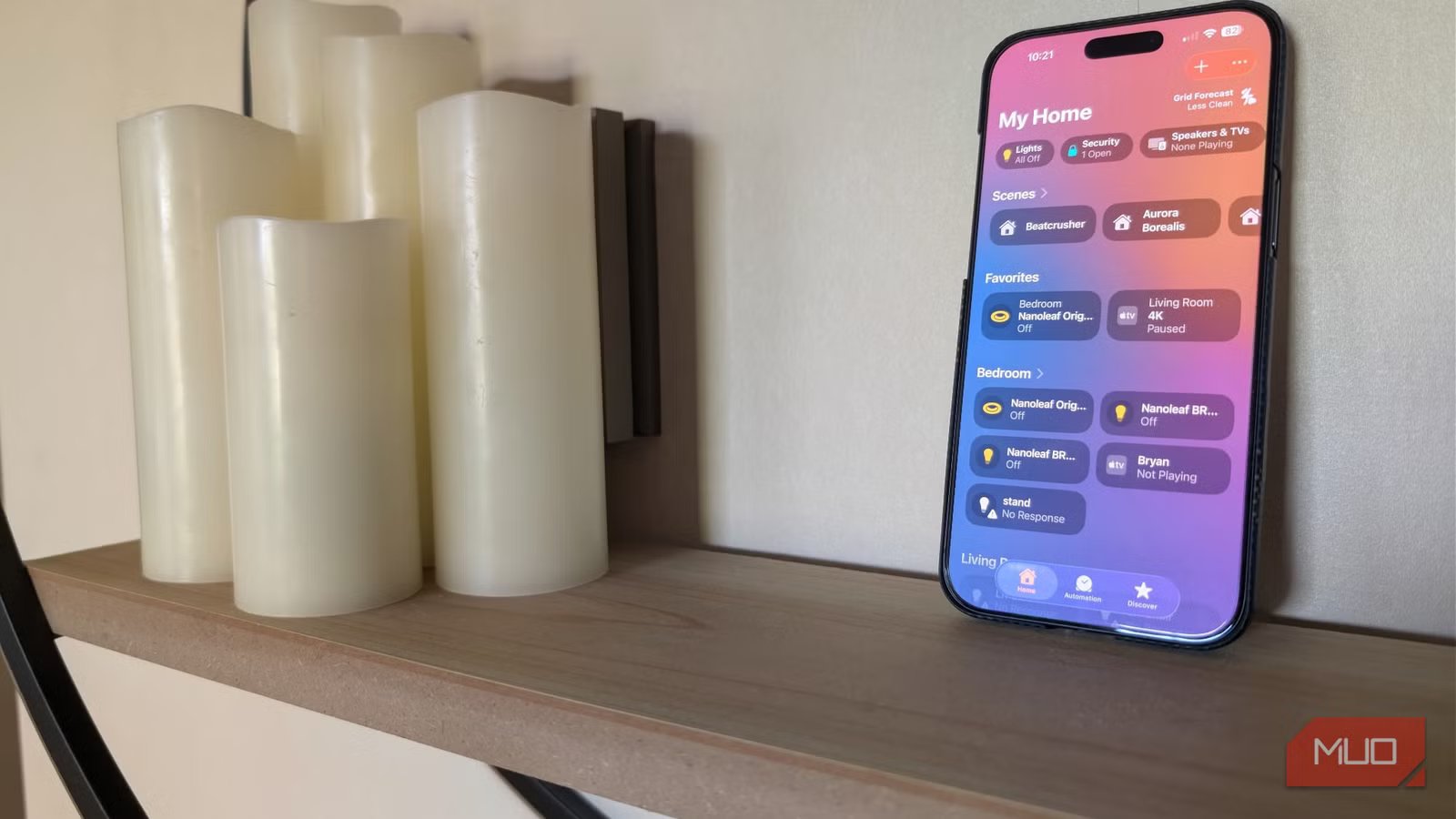
You probably have an old iPhone sitting unused in a drawer. It may be a couple of generations behind, but if the screen and Wi-Fi work, it could be your best smart home controller yet.
I’ve been using my old iPhone 16 Pro Max as a dedicated home controller since I upgraded last fall, and I genuinely wonder why it took me so long to figure this out. Dedicated smart home tablets and displays can cost between $100 and $300. Your old iPhone? It’s probably already been paid for and has simply been collecting dust until now.
Related
I turned my old tablet into a smart home dashboard, and it’s perfect
I use my 1st-gen iPad Pro as a smart home dashboard
Why you should stop using your main phone as a smart home controller
A dedicated device removes every friction point
If you use Apple HomeKit, the Home app is always just a swipe away on your main phone. That sounds convenient enough until it isn’t. Handing your phone to a guest to dim the lights feels awkward. Stopping mid-stir to unlock your phone, find the app, and nudge the thermostat up two degrees feels like more work than just walking over to the wall.
A dedicated controller fixes all of that. Mount one in the kitchen or the living room, and it’s just there, no unlocking, no hunting, no “here, let me do it.” You tap, it happens. And if you’re already in the Apple ecosystem, getting an old iPhone to this point takes less than 15 minutes.
How to set up an old iPhone as a dedicated HomeKit controller
How to lock it down with Guided Access and keep the screen active
The first thing to understand is that any iPhone running iOS 16 or later can serve as a fully functional HomeKit controller. Apple’s Home app, which organizes and manages your compatible smart devices, has improved considerably over the past few releases, and on a dedicated device, you can take full advantage of it without the clutter of your main phone.
The first thing you want to do is factory reset the old phone, then sign in with your Apple ID, and connect to Wi-Fi. Next, open the Home app and your devices appear automatically, since they’re linked to your Apple ID.
From there, disable auto-lock or set a long interval by going into the Settings app and choosing Display & Brightness. You should also enable Guided Access to lock the device to the Home app. Go to Settings -> Accessibility -> Guided Access. Toggle it on.
Next, open the Home app, triple-click the side or Home button, select Guided Access, then tap Start. To exit Guided Access later, triple-click the side button again, then enter your passcode (or use Face ID/Touch ID if you set it up in the Guided Access settings).
You should also disable Sleep/Wake in the Guided Access options to keep the screen on.
If your iPhone is MagSafe-compatible, get a MagSafe wall or countertop mount. This makes the setup look polished.
One thing to know: previous versions of iOS allowed iPhones and iPads to act as a “Home Hub,” which lets them manage HomeKit automations and enable remote control of your devices. In more recent iOS updates, Apple has shifted this Home Hub functionality to Apple TV and HomePod devices instead.
While your old iPhone can’t serve as a Home Hub anymore, it still works perfectly as a local controller for your smart home, as long as it stays connected to your home Wi-Fi and signed in to iCloud.
What you can control from a dedicated HomeKit iPhone
Scenes, widgets, and making the most of Always-On Display
Bryan M. Wolfe / MakeUseOf
Once the phone is set up, you have full access to your HomeKit devices. Lights, locks, thermostats, cameras, garage doors, window shades, ceiling fans, and anything else you’ve added to the Home app are there. You can organize controls into rooms, set up scenes for multiple devices, and use automations.
The Home app supports widgets, letting you trigger your most-used scenes with one tap from the lock screen or Today View. For example, you can set up a “Good Night” scene to lock doors, turn off lights, and set the thermostat with a single touch.
If you have an iPhone 14 Pro or later, you can take advantage of the very useful Always-On Display, which keeps the screen visible even when you’re not actively using it. For every other model, the workaround is Guided Access with a long auto-lock timer and a charging stand to keep it powered throughout the day.
How to do this with Android, Alexa, SmartThings, or Home Assistant
Choosing the right app for your smart home ecosystem
Bryan M. Wolfe / MakeUseOf
HomeKit isn’t your only option. If you use Android or a mixed smart home system, old phones can still be great controllers.
Android and Google Home work on the same basic principle. An old Android phone running Google Home gives you control over any device that works with Google’s ecosystem, which is a much larger device catalog than HomeKit. The setup is similar: factory reset, sign in with the same Google account you use for your smart home, and the Google Home app automatically picks up all your devices. Google Home also supports widget shortcuts and a Dashboard view that’s well-suited for a mounted display.
Amazon Alexa has a dedicated tablet-optimized app, and while it’s technically designed for Fire tablets, it also runs on Android phones. If your smart home runs mainly through Alexa, an old Android phone mounted in the kitchen can give you a clean touchscreen interface for your Echo devices and Alexa-compatible gear.
Samsung SmartThings users with older Galaxy phones have a good option. SmartThings is preinstalled, and its dashboard is one of the best touch interfaces for a mounted controller.
If you want a completely platform-agnostic option, Home Assistant is the most flexible solution available. It runs on your local network (your home Wi-Fi) and can connect to devices across dozens of ecosystems (device platforms) simultaneously, including HomeKit, Google, Alexa, Zigbee, Z-Wave, and many others.
The companion app works on both iOS and Android. The setup requires more technical expertise than consumer platforms, but if you want a single controller that sees everything in your home, regardless of brand, it’s unmatched.
Practical tips for running an old smartphone as a permanent smart home display
Keep the phone plugged in. Running a dedicated controller means the screen stays on longer than it would on a normal phone, and battery condition will degrade if you let it cycle repeatedly. Plug it into a wall mount with a short cable or use a wireless charging stand.
Enable Do Not Disturb to prevent notifications from old apps from interrupting the experience. Remove or disable anything that doesn’t serve the controller function. The fewer apps fighting for resources, the more responsive the Home app will be.
If the phone is in a high-traffic area, consider a mountable case. There are slim cases that make older iPhones look intentional on a wall, rather than as forgotten tech zip-tied to a cable.
You already own the hardware, and the software is free. Dig out your old phone and put it to work as a smart controller.
