

If you’ve ever deleted a sensitive file on your SSD and assumed TRIM handled deleting it securely, you’d be in good company. The idea that modern solid-state drives erase deleted data in the background is conventional wisdom and not really wrong. The problem is that TRIM isn’t built to protect your privacy, but rather to protect your drive’s write speeds. Those are pretty different things, and that can matter in some circumstances.
TRIM solves a drive problem, not a privacy problem
The feature wasn’t built for us
TRIM is a communication protocol between your OS and your SSD. When you delete a file and empty the Trash or Recycle Bin, the OS sends a TRIM command to the drive that identifies which storage blocks are no longer needed. That drive then prepares those blocks for future writes when it’s idle.
And that’s it, there’s no privacy policy in place, or design goal to protect you from malicious data recovery. Plus, and here’s the sticking point, there’s no guarantee about when the actual data erasure will happen. This is a feature of how SSDs work as compared to their older cousins, the spinning HDD.
SSDs don’t work like hard drives
They have to erase before they write
Credit: Sandisk
On a traditional spinning platter hard drive, deleting files is super simple. The OS removes the directory entry to the file, marks the space as available for new data, and that’s it. New data writes over old data without any prep required.
SSDs don’t work that way. NAND flash memory is organized into pages, around 4 to 16 KB each, that are grouped into much larger blocks that contain hundreds or thousands of pages. Data writes at the page level, but erasing happens at the block level. A block must be fully erased before any page inside it can accept and write new data. If your SSD had to do that type of erase operation on demand every time it wrote new data, the performance would suffer. Instead, SSDs erase blocks in advance during idle time, keeping a bunch of pre-cleared space ready to go. TRIM is how the drive knows which blocks it can clear. This is also why we don’t want to defragment an SSD; the maintenance model that worked for HDDs does not work for the newer SSD tech.
What TRIM is actually doing
And why it’s unreliable for privacy
Credit: Brady Snyder / MakeUseOf
When you delete a file on an SSD, here’s what happens. The OS marks the relevant Logical Block Addresses as free, sends a TRIM command to the drive that lists those addresses, and the SSD controller will flag those blocks as invalid. Nothing happens after that right away.
Physical erasure of that file comes later, when garbage collection runs in the background during idle time. This routine identifies the blocks marked as invalid, then erases them at the block level. That’s when the deleted data is truly gone off the physical hardware. The time gap between the TRIM command and the garbage collection is really up to the drive’s controller. For NVMe drives (the fast M.2 drives in most computers made in the last five years), this process is called DEALLOCATE rather than TRIM, but the mechanics are the same.
That gap in timing is the first reason TRIM is unreliable for privacy. The second is wear leveling, where SSDs scatter data across physical cells to minimize and distribute write wear, including over-provisioned space the OS never sees (and TRIM commands never reach). So a file you deleted could have had its blocks shuffled into that reserved area by the wear leveling algorithm before TRIM ever flagged them for cleanup.
The third reason is external drives. If your SSD is in a USB enclosure, TRIM depends on whether the bridge passes the correct TRIM command to the underlying drive. Not all of them do, and end up with sensitive files able to be recovered.
On modern, internal NVMe drives, TRIM usually destroys data within minutes, but if you have sensitive data, you might rather it be immediate.
How to check your TRIM status
What to do if TRIM isn’t enough
On Windows, open an elevated Command Prompt and run
fsutil behavior query disabledeletenotifyA result of DisableDeleteNotify=0 means TRIM is enabled (yes, it’s counter-intuitive). If you see a result of 1, then, run fsutil behavior set disabledeletenotify NTFS 0 to turn it on.
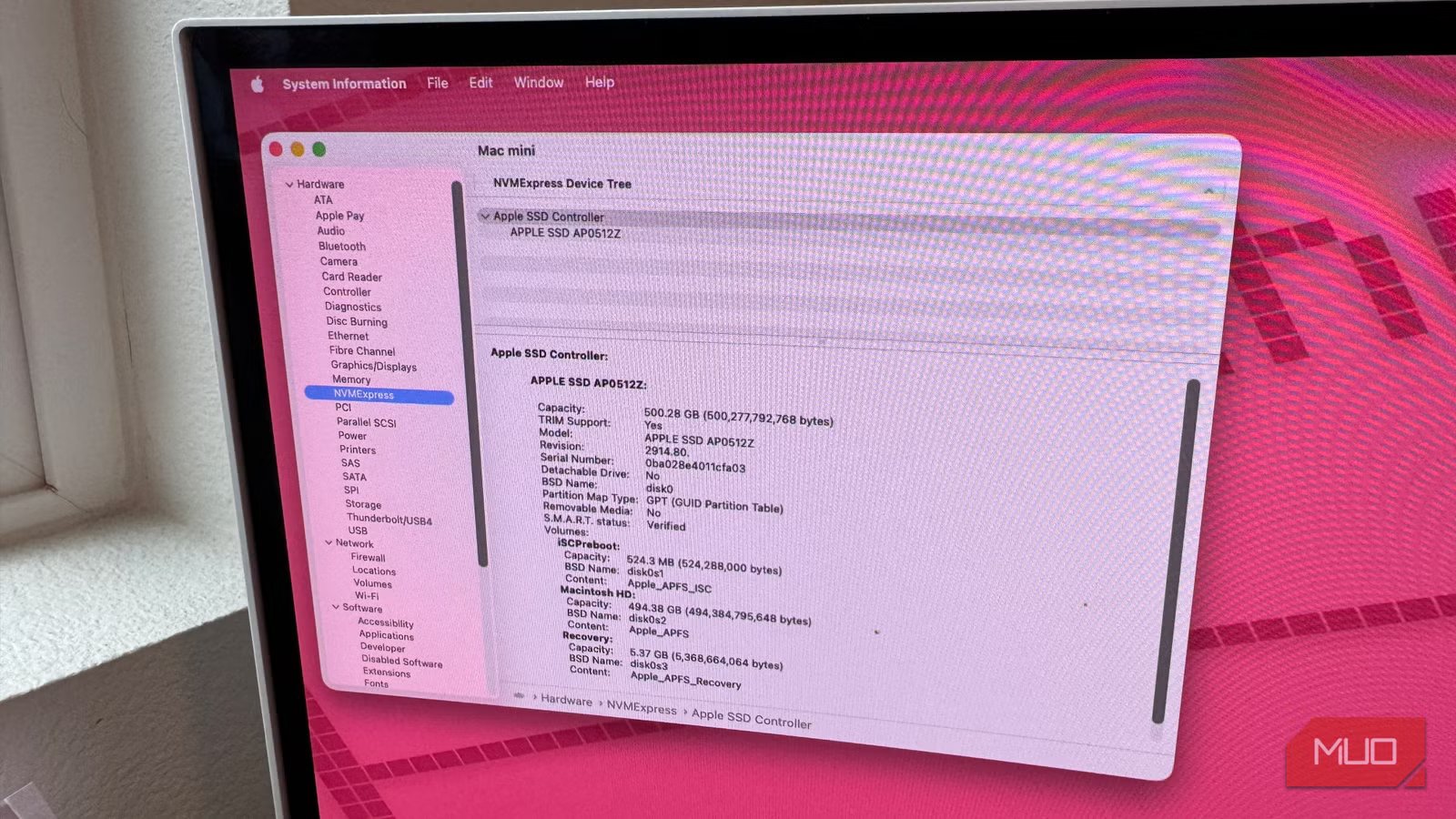
If you’re on macOS, go to the Apple Menu > About this Mac, click the More Info button, then System Report. You should see NVMExpress in the side panel if you’re on Tahoe or later. Find TRIM Support: Yes in the list for your SSD.
On Linux, check the weekly timer with systemctl status fstrim.timer and run manually with sudo fstrim -av. If you see “active (waiting), then the timer is armed and will run automatically. A recent “last trigger” date confirms it’s actually been running.
Now, if you’re selling or disposing of a drive that has sensitive data on it, the TRIM status is beside the point. What you need is ATA Secure Erase. Most manufacturers provide a dedicated tool, like Samsung Magician or Crucial Storage Executive, that sends a firmware-level command to physically wipe every cell. On Windows, you can also run Secure Erase directly from your BIOS if your motherboard supports it — look under a Tools or Storage menu. On macOS, boot into Recovery Mode (hold Power on Apple Silicon or Cmd+R on Intel at startup), then open Disk Utility to erase your main drive safely. On Linux, nvme format or hdparm –security-erase cover NVMe and SATA drives respectively. For self-encrypting drives, a cryptographic erase discards the internal encryption key, rendering everything permanently unreadable instantly.
TRIM is for speed and not data destruction
TRIM keeps your SSD fast by clearing blocks the drive no longer needs on a schedule. If your deleted data is wiped during the process, that’s more a side effect than the main function. Back up everything you need to keep and use the right secure erase tools for anything you need to be gone permanently.
