

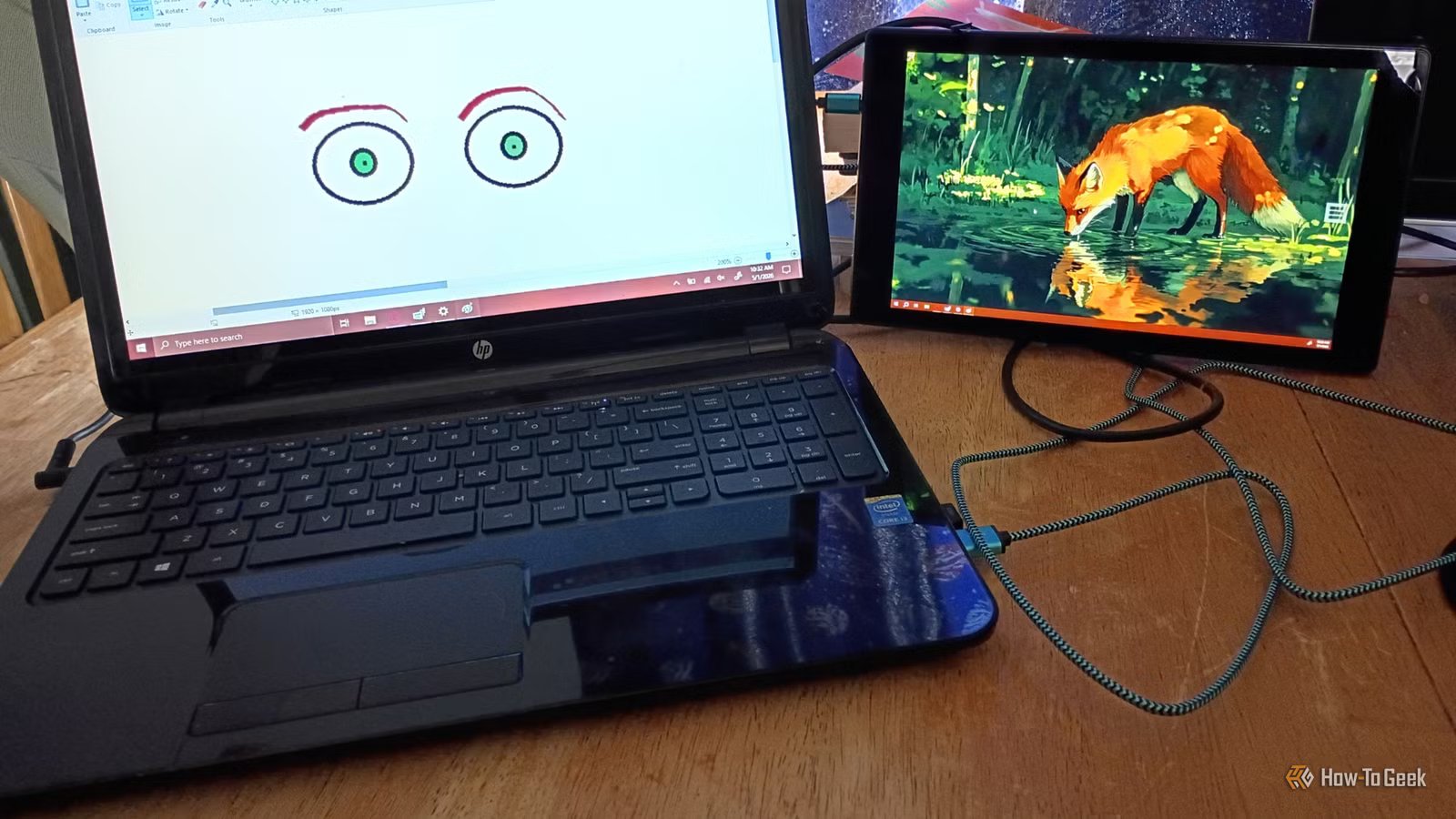
I’ve been modding Kindles and Fire tablets for several years now. Even old devices have plenty of uses when you’re finished with them. Originally, I was going to turn an e-ink Kindle into a secondary display. Just as I was preparing to work on the project, something crazy happened: the dang thing broke down and died on me. It could not be revived. I guess that’s what happens when you pick up a Craigslist special for a deep discount.
But I still wanted a small secondary display, so I settled for the next best thing: an old Fire tablet that I picked up in a lot a while ago for about $25. I hadn’t used any of them in a while and thought, “I wonder what’ll happen if I convert this one to a second or third screen and figure out a way to make it simulate the look and feel of e-ink?”
Related
8 Cool Things You Can Do With a Jailbroken Kindle
Break free from Amazon’s walled garden.
The option for multiple screens is better than a dual-monitor setup
Why I converted an old Fire tablet to a secondary (and occasional third) display
Credit: David J. Buck / How-To Geek
I already run dual-screen setups on both my office and hobby machines. Since I do quite a bit of writing, research, editing, gaming, and audio production, it made sense to add another. I figured I could also use it to run dedicated or project-specific apps in a smaller window that didn’t require my larger display.
I enjoy modding Kindles, Android devices, and Fire tablets, so it seemed like a no-brainer to pick up a cheap one to repurpose for my needs. Since the broken one was a non-starter, I chose a large-screen Fire HD10 (although I could’ve gone with a mid-sized 10 or a very old 7; they didn’t have what I wanted, which was a relatively large display).
I was concerned it wouldn’t hold a charge after being abandoned for so long, but that turned out not to be much of a problem. It was absolutely bloated with old games and software. So I dusted off my trusty Fire Toolbox and got to work.
Starting over with purpose
Revitalizing an ancient Fire tablet for a brand-new purpose
Credit: David J. Buck / How-To Geek
The first thing I did was download the newest update for Fire Toolbox, a series of ADB tools that allow you (once you’ve enabled ADB tools on your device) to remove or hide old and unused Amazon apps, install Google Play and F-Droid, change your launcher, and generally just customize your device.
To get this device ready, I first re-registered it from the associated Amazon account and disabled over-the-air updates. Next, I removed all the superfluous apps using Fire Toolbox. After that, it was simply a matter of hiding the Amazon apps.
The next step was to install Google Play services on the device, since that’s vital for what comes later. Finally, I installed the Niagara launcher to replace the pre-installed Fire Launcher. Later, I ditched it to install Evie. With the de-bloat and soft mod out of the way, I downloaded Spacedesk and Moon+ Reader from the Google Play Store.
Related
Amazon will stop supporting your old Kindle and Kindle Fire, here’s what you can do
You might not have to buy a new device.
Setting up another display with Spacedesk
Simple software for another display
Spacedesk is a desktop extension software that does exactly what it’s supposed to do, typically via a USB or LAN connection, although it does work over Wi-Fi if your devices are on the same network. I typically use the wi-fi option at home, but if I’m in public, I’ll use USB. It has a very simple set-up process:
Head over to Spacedesk’s website and navigate to the download section. Once you’re there, grab either the 32 or 64-bit drivers depending on your OS. I grabbed the 64-bit version. Once downloaded, the installation only takes a few seconds.
During installation, the software will ask if you want to make an exception for letting Spacedesk through your firewall. If you say yes, the Spacedesk drivers will be installed on your system. If you say no, the installer will close.
Setting up the Fire Tablet for some multi-screen fun
Remember when I installed only a few applications earlier? The reason is that this Fire tablet is old and quite a bit of software won’t work on it. That’s why I wanted to dedicate it to being a third screen for hobby projects. I also plan to use it as an offline reader later on, so it’ll serve a dual purpose.
Putting it all together
Once I set up Spacedesk on both devices, I made sure they were on the same Wi-Fi network. Since I downloaded Spacedesk earlier, all I had to do was plug in the tablet and load the Spacedesk app. That’s it; instant second screen.
To change whether it’s a mirror or extension, you can use the WIN + P command you’d typically use when setting up a standard monitor. You could also use AirScreen, iDisplay, or something similar, but I prefer Spacedesk for my extra display. I ended up using it as a third monitor using a Wi-Fi connection, which was pretty cool.
So what about simulating e-ink on the tablet?
An adventure with disappointing results
Credit: David J. Buck / How-To Geek
E-ink is completely different from a standard Kindle or Fire tablet screen. You simply can’t simulate e-ink and get the same benefits in one of these devices, which is kind of a bummer. But you can simulate the look and feel of it. I already use a sepia filter when I read on certain apps, but this is for more of that grey scale feel.
If you happen to have an actual e-ink Kindle, you can set it up as a secondary display quickly. There are instructions on GitHub for it (but always follow stuff like that at your own risk), although when I have the opportunity to pick up another second-hand Kindle (that isn’t broken), I plan to give this entire process a go for a dedicated e-ink monitor.
Since mine bit the dust before I could even think about jailbreaking it, I decided to just try to go with a “simulated e-ink” display.
I wanted to go for the e-ink aesthetic for a few reasons:
- It’s easier on my eyes when I’m taking notes or reading.
- I dig gray scale and lo-fi aesthetics.
- Since I’m using the second display for notes and reading, it’s less distracting.
- It seems like a good test run to see what it will look like when I obtain a new e-ink tablet.
Unfortunately, the Fire tablet did not have a gray scale option under the Accessibility > Color inversion settings, so unless I want to install another third-party app (I don’t), it looks like I’m stuck without even a simulation of e-ink on my secondary display. I was able to make it easier on the eyes by tweaking the colors a bit and turning the blue shading function on, but it just wasn’t what I had hoped for.
It was disappointing to say the least.
Related
3 DIY E-Ink Projects for Beginners
Not all DIY projects need to take a full weekend.
The ideal use for a discarded device
The entire process was shockingly smooth
Credit: David J. Buck / How-To Geek
The only real challenge I encountered with this project was getting a lemon instead of a working device I could jailbreak. Luckily, it only cost me $25. I was also concerned about the other Fire tablets that I found wouldn’t work properly or allow me to mod them. The Fire tablet I went with ended up giving me a little trouble at first, but I was able to overcome it by de-registering and installing a different launcher.
Once I had it set up, I took notes, played music, and kept Slack open on a separate window.
Modding a Fire tablet into a third screen is a quick, worthwhile project
Credit: David J. Buck / How-To Geek
Modding a few tablets to serve as second screens has practical uses for sure, but it’s also a simple and fun project you can do in an afternoon. When I’m not using it as a portable second monitor or a permanent third monitor, it’s a dedicated comic book reader.
So if you’ve got an old device lying around and want a portable second display, they offer the perfect opportunity to do so.
Storage
16GB
Screen Size
6-inches
Even in the budget department, the Amazon Kindle is a stellar value, from its light and compact design, to its adjustable front light and 6-inch display.
